Sync Files in Windows Server with Best File Sync Software
The Need to Sync Files in Windows Server 2008/2012/2016/etc
We have two servers, one running Windows Server Standard and the other Windows Server 2008 R2, located in different offices with their own domains and Active Directory. Neither server has a static IP address. We're looking for a way to share a folder between these two offices with small teams, and any help would be greatly appreciated.
For individuals with two or more Windows Servers, syncing files and folders between them is a common requirement. This can be for keeping data in multiple servers up-to-date for different teams or as a backup to prevent data loss.
To make Windows Server file sync easier and quicker, you need the best file sync software for Windows Server, regardless of the reason. This software can help you sync files across different servers, even in older versions like 2003, 2008, 2012, 2016, 2019, and 2022. By using this software, you can streamline your file sync process and get the job done efficiently.
Best File Sync Software for Windows Server
DFS Replication is a built-in tool in Windows Server that allows you to sync files between servers. It's a role service that replicates folders across multiple servers and sites, first introduced in Windows Server 2003 R2 and now also available in Windows Server 2019/2016/2012 (R2)/2008 (R2).
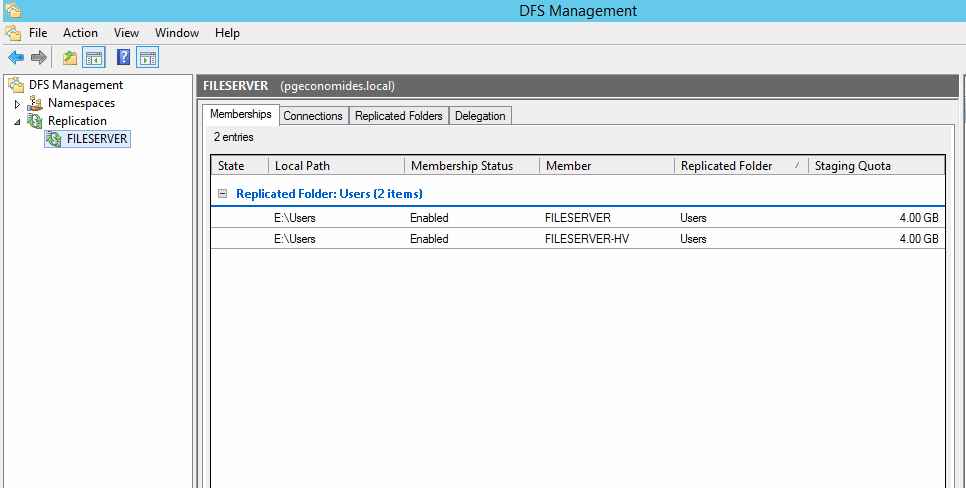
The process is complicated and time-consuming, with unavoidable disadvantages.
- To use DFS, the servers must be part of an Active Directory Domain, which enables proper utilization of the feature.
- The program only supports the NTFS file system, limiting its ability to sync files from other file systems like FAT or ReFS.
- You may receive some error codes, like error code 1706, error code 9026, or error code 9098, among others.
Fortunately, the shortcomings of DFS Replication can be made up for by using a comprehensive third-party software like Qiling Disk Master Server, which has a clear interface and user-friendly design, making it easy for all users, even novices, to sync files among Windows Servers effortlessly.
This software supports 4 sync solutions, including Basic Sync, Real-Time Sync, Mirror Sync, and Two-Way Sync, allowing users to customize the sync frequency to daily, weekly, or monthly, and utilize features like Event triggers and USB Plug in to sync files.
It has strong compatibility with various file systems and Windows systems, supporting NTFS, FAT32, FAT, ReFS, and more, as well as Windows Server 2003 to 2022, SBS, and Windows 10/8/7/XP/Vista.
How to Sync Files between Servers 2008/2012/2016/2019/2022 Easily
Here you will use the best file sync software for Windows Server to sync files or folders between Windows Servers. To get started, click the download button below to install Qiling Disk Master Server, which offers a 30-day free trial, on your Windows Server 2003/2008(R2)/2012(R2)/2016(R2)/2019/2022.
Make sure the target computer and source computer are in the same network segment. For batch operations or multiple computers, use Qiling Disk Master TechPlus, which can be used on unlimited servers and PCs within one company.
To sync files or folders between Windows Servers, you can use the built-in tool called "File Sync" in Windows Server. Here's a step-by-step guide: First, open the File Sync tool on both servers.
Step 1. Create a shared folder and set up permission for the Windows Servers you want to sync files with. This will enable the servers to access and share files within the shared folder.
Navigate to the folder you want to share, right-click it and choose Properties.
Click the "Share" tab, select "Share..." and choose who to share the folder with by clicking the down arrow.
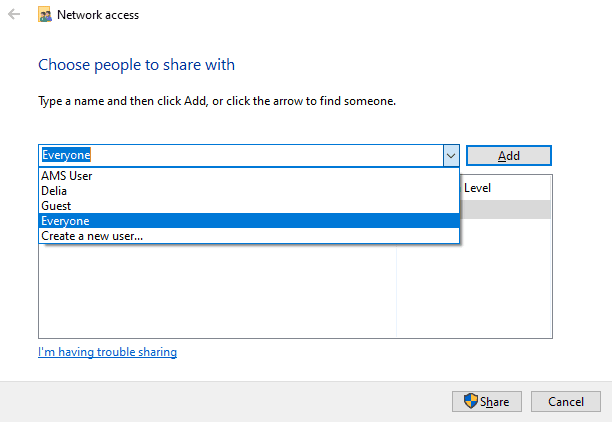
To share a folder, click on Advanced Sharing... under the Advanced Sharing section, select Share this folder, and then edit the Permissions for authorized users, choosing from Full Control, Change, or Read.

Step 2. Launch Qiling Disk Master Server, and click on the "Sync" and "Basic Sync" options in sequence.

The core of File Sync feature is one-way file sync, which is also the focus of "File Sync", but with a different emphasis, so it's worth taking a closer look at both.
◉ File Sync: This feature allows real-time monitoring of files and their changes, syncing immediately once detected. It's useful for timely updates or team collaboration.
◉ File Sync: This feature ensures the files in the destination directory are identical to those in the source directory, with any changes or new files in the destination being overwritten or deleted.
◉ Two-Way Sync: This feature will sync files from a source directory to a destination, then reflect changes in both locations.
Step 3. To sync files from a source server computer, the task is to select the files you want to sync. This involves identifying the specific files or folders on the source server that need to be synchronized with the target server.
To access the File Sync feature, click on the "Folder" option in the main page.

Then, click the column and choose Share/NAS.
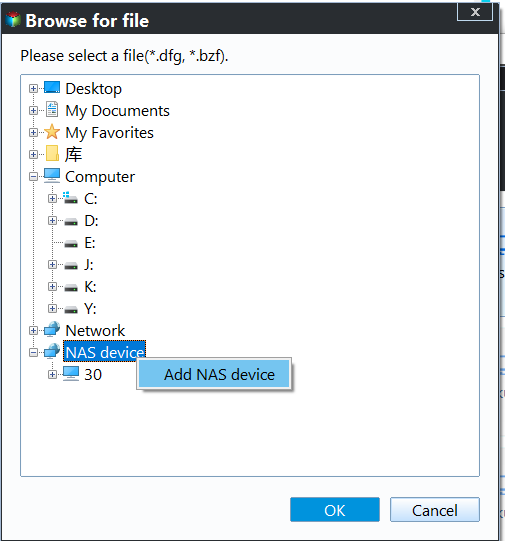
To add a network location, click "Add Network Location" and fill in the required information accurately. Then, select the shared folder that was previously created on the source server computer.
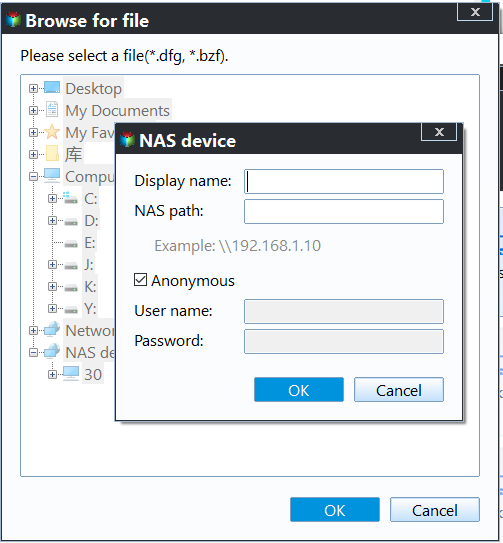
Only files in the shared folder can be accessed and synced. If the folder you need to sync is not visible, check if it has been shared.
Step 4. Connect the target server computer by adding its network location, then select a folder on the target server to store files, inputting required info in the process.
Step 5. To create a Windows Server schedule for file protection, click Schedule Sync. Select a backup frequency (daily, weekly, monthly) or choose event triggers or USB plug-in options. Finally, click Proceed to complete the sync task.

Notes:
◉ The tool should not modify the source folder name, as this would prevent it from syncing files in the future.
◉ Qiling Disk Master does not sync files larger than 4GB to a target path when using FAT32 or FAT file system.
◉ The common schedule File Sync task does not sync the deleted files automatically, You can set it in the Options by ticking "Sync the deletions in source directory to destination".
◉ This software allows you to backup files to an image file with File Backup or Cloud Backup feature, except for the Sync feature.
To access another computer's files on a different computer with permission, press the Windows key + R to open the Run box, then type the UNC path, which is \\ followed by the source computer's name or IP address, such as \\192.168.0.55, and press Enter.
To find the Network folder, you can go to File Explorer > Network, and if you see an error message saying "Network discovery is turned off...", click on the banner and select "Turn on network discovery and file sharing".

Conclusion
In Windows Server, you have two options for file syncing: DFS, which is a bit complicated for most users and requires an Active Directory Domain, or using the "Qiling Disk Master Server" which is a simpler alternative.
To efficiently sync files or folders, it's recommended to use Qiling Disk Master Server, which surpasses the limitations of DFS and offers advanced features like scheduled syncing, USB plug-in, and email notifications, among others, making it a user-friendly and effective solution.
This software is not just a file sync tool, but a comprehensive backup and restore solution that offers a range of features, including system, disk, partition, and file backup, as well as full, incremental, and differential backup options. It also allows for event-triggered backups and dissimilar hardware restore, making it a one-stop-shop for protecting both data and system. With its versatility, you can rely on it for all your backup and restore needs. Try it out by downloading it now.
Related Articles
- How to Automatically Sync Windows Server with OneDrive
Learn how to Automatically Sync Windows Server with OneDrive with clear steps, key checks, and practical tips. - Ultimate Guide to Transfer Files from Server to Server
You will learn how to transfer files from server to server with FTP, SCP or file sync software - Qiling Disk Master. The previous two are manual while the last one is automatic. - How to Install Work Folders and Create Multiple Sync Shares
In this article, you are going to learn how to install work folders and create multiple sync shares in Server 2012 R2/2016/2019. The details are below. - The Directory Name Is Invalid in Windows 7/8/10 – Fixed
In this article, you are going to learn what "the directory name is invalid" error is and how to fix it accordingly. Details are below. - Best Free Task Scheduler Alternative - Qiling Disk Master
If you are looking for a better Task Scheduler alternative, Qiling Disk Master Standard is worth trying. Read this article carefully and learn the operating steps below. - How to Transfer/Move Files from SSD to HDD in Windows 10/8/7?
This tutorial will introduce you how to transfer files from SSD to HDD in Windows 10/8/7/Vista/XP with all-around freeware, Qiling Disk Master Standard. It is easy and fast.
Products
Articles & Tutorials
- Data Recovery
- Data Backup
- File Recovery
- File Backup
- File synchronize
- System Backup and Restore
- Disk and Partition Clone
- Technical articles
- Disk Master Help
- Windows Deleted File and Disk Recovery Tutorials
- Windows File and Data Recovery Tutorials
- More Windows Tutorials for Install, Security, Files, and PC Tips
- Windows Boot, Repair, and Recovery Environment Tutorials
- Windows Backup Tutorials
- Windows Restore Tutorials
- Windows Clone and Migration Tutorials
- Windows Server Backup, Recovery, and Management Tutorials
- Windows Disk, Partition, and Storage Management Tutorials