Perform Windows Server 2019 Incremental Backup Easily (3 Ways)
- Windows Server 2019 Incremental Backup
- The problem: Windows Server 2019 Backup Not Doing Incremental Backup
- Create Windows Server 2019 Incremental Backup with WSB
- Run Windows Server 2019 Incremental Backup via Easiest Server Backup Tool🔥
- Make Windows Server 2019 Incremental Backup by Best Enterprise Backup Tool👍
- Summary
Windows Server Backup can indeed perform incremental backups, but some users have reported issues with it not doing so. If you're experiencing problems or want to create a Windows Server 2019 incremental backup without any hiccups, you can follow the steps in this article to resolve the issue.
Windows Server 2019 Incremental Backup
Before creating a Windows Server incremental backup, it's essential to understand what it entails and whether it's necessary for your specific situation.
What Is Incremental Backup in Windows Server?
Incremental backup is a backup method that builds upon a full backup, saving only data that has changed since the last backup, including deleted, modified, or newly added data. This approach significantly reduces backup time and disk space usage compared to full backups.
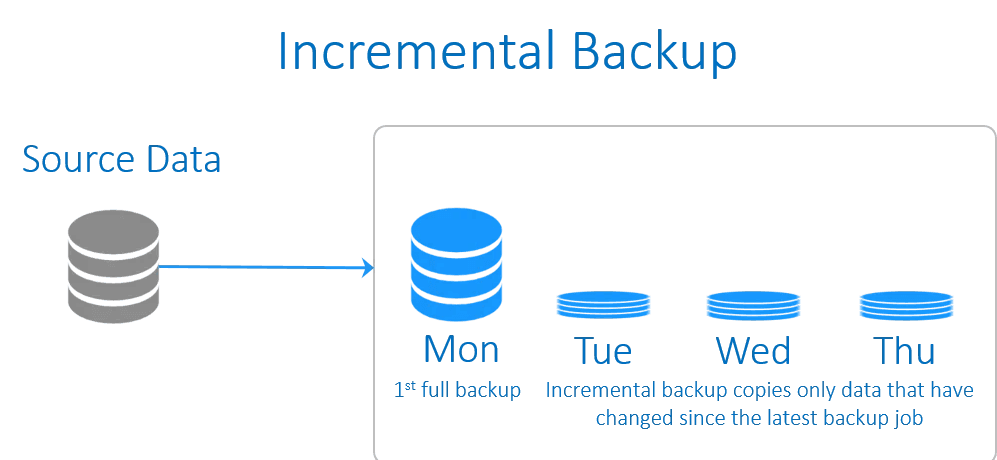
Note: The last backup can be either a full backup or an incremental backup, making them all interconnected. This means that if any one of them is missing or damaged, the entire backup set is compromised.
Why Perform Windows Server Incremental Backup?
From the meaning, you may get some of the reasons. Here we summarize the top three reasons for you.
- Faster backup speed: The Incremental backup will run faster because it only backs up the changes made since the last backup, rather than backing up the entire dataset. This makes it more efficient than a full backup.
- Higher backup frequencies: In view of its faster backup speed, you can run multiple incremental backups as often as desired, creating individual recovery points with each increment.
- Less storage space: It requires the least storage space compared with full backup.
If you're looking to create a Windows Server incremental backup, proceed with caution and follow the steps below to troubleshoot or configure it successfully. If you're still unsure, you can learn how to deal with Windows Server Backup not doing incremental backups.
The problem: Windows Server 2019 Backup Not Doing Incremental Backup
Windows Server Backup (WSB) defaults to full backups because it is designed to ensure that backups are complete and consistent, rather than incremental. This is because WSB is primarily used for disaster recovery and business continuity, where a full backup is essential to restore the system to a known good state. If you have configured daily backup tasks to a NAS drive via iSCSI connection and find that both servers are performing full backups instead of incremental ones, you may need to adjust the backup performance settings to enable incremental backups.
Many users face the issue of not being able to configure backup settings correctly, which can be frustrating. To resolve this, simply check the following steps to ensure you have set up your backup settings properly.
You may need to use third-party backup software that supports incremental backups if scheduling incremental backups to a network share results in only creating full backups.
Windows Server Backup does not support removable media, so if you need to use it, you may need to consider an alternative backup solution. If you do use Windows Server Backup, be aware that the last backup may not be automatically deleted, so keep an eye on it to avoid unnecessary storage usage.
Create Windows Server 2019 Incremental Backup with WSB
Incremental backups can significantly reduce backup time and storage space, making them a valuable option for Windows Server users dealing with large amounts of data.
To create a Windows Server incremental backup using Windows Server Backup, you can follow these steps. By default, Windows Server Backup (WSB) will create a full backup after 6 incremental backups or run a scheduled backup for 14 days after the last full backup. Please follow the steps carefully to ensure a successful backup process.
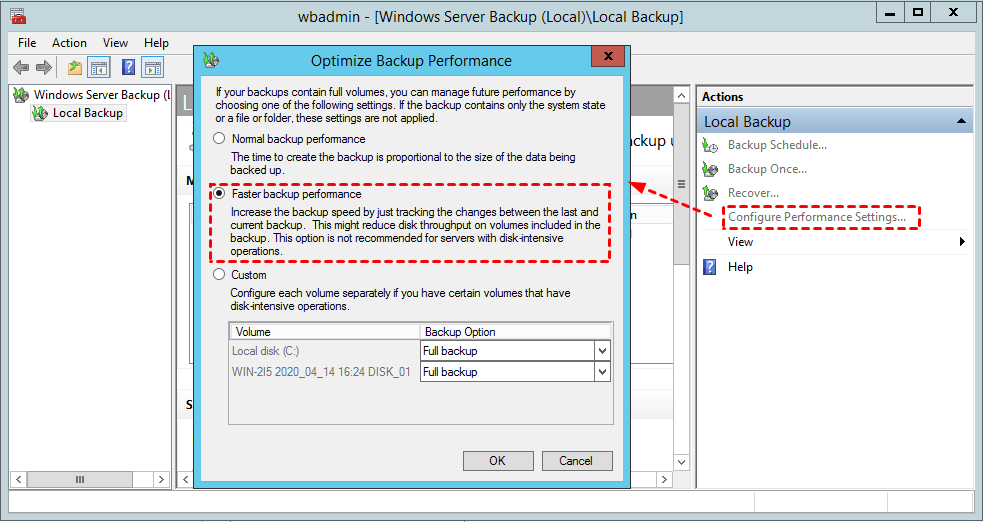
Step 1. Open the WSB, click Configure Performance Settings and tick Faster backup performance, then click OK.
Notes:
- Faster backup performance: This option will track the changes since the last backup, which is called incremental backup.
- Custom: You can also select the Custom option and choose Incremental backup for the volume you want to backup.
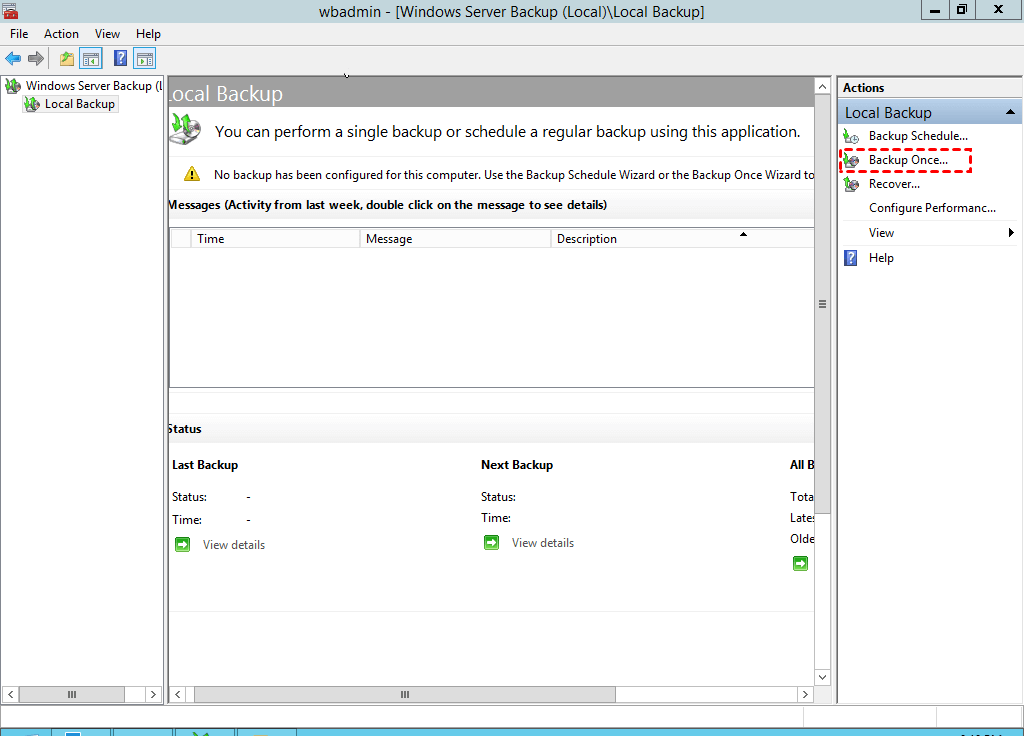
Step 2. To create a new incremental backup in Windows Server 2019, click on Backup Schedule or Backup Once, and then follow the on-screen prompts to set up the backup.
Run Windows Server 2019 Incremental Backup via Easiest Server Backup Tool🔥
In addition to Windows Server Backup, you can also choose a professional third-party tool to perform Windows Server 2019 incremental backups, such as Qiling Disk Master Server, which is more flexible in its ability to perform backups and has more features than Windows Server Backup.
- The software uses incremental backup as the default method in scheduled backup tasks, eliminating the need for manual configuration.
- The software supports creating incremental backups to various storage locations, including internal and external disks, network locations, removable devices, and cloud drives, allowing for flexible and comprehensive backup solutions.
- To avoid running out of space on your backup disk, you can set up a backup scheme that automatically deletes older backups based on quantity, time, or a specific schedule (daily, weekly, or monthly).
- It allows you to back up system, disk, partition, or files as you like.
Besides, it still offers users a differential backup method, which backs up only changed files since the last full backup, making it easy to manage and relatively independent.
To perform a Windows Server 2019 incremental backup, start by downloading and installing Qiling Disk Master Server.
Here I'll take the system backup as an example and you can also choose Disk Backup, Partition Backup, File Backup or Cloud Backup according to your own needs.
Step 1. Open Qiling Disk Master Server. Then click Backup > System Backup.

Step 2. The system partitions will be selected by default and you just need to select a destination to store the Windows Server 2019 backup image.

Step 3. To schedule automatic backups, click on "Schedule Backup" and enable it. Then, choose a backup frequency: daily, weekly, monthly, based on an event trigger, or when a USB drive is plugged in.

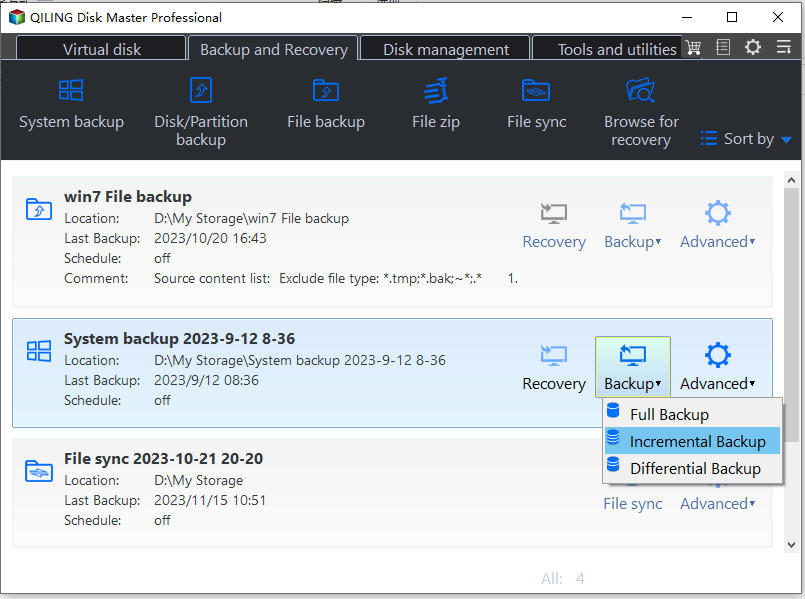
Step 4. By default, the backup process will enable incremental backup, which only backs up changed files. This results in one full backup and six incremental backups. If unsure, switch to the "Backup Scheme" and check the "Backup Method" section to confirm.
Notes:
- You can also set the number of incremental backups by yourself.
- You can enable automatic cleanup to delete older backups and free up disk space.
Step 5. Confirm all your operations and click Proceed to perform Windows Server 2019 incremental backup.

Make Windows Server 2019 Incremental Backup by Best Enterprise Backup Tool👍
Qiling Disk Master is the best enterprise backup software, providing a convenient and reliable solution for centralized backup management of all Windows operating systems.
- A tool that allows you to create system, disk, or partition backups for multiple Windows PCs and Servers, supporting various Windows versions including Windows 11/10/8.1/8/7 and Windows Server 2022/2019/2016/2012 (R2)/2008 (R2).
- You can save backup images on a local disk, external hard drive, network share, or NAS device.
- You can schedule a backup task to run on a daily, weekly, or monthly basis using the full, incremental, or differential backup method. This allows you to automate the backup process and ensure your data is regularly saved and protected.
Download this powerful enterprise backup software to learn how to run a system state backup for Server 2019.
Summary
Windows Server 2019 incremental backup can be performed in three ways. The built-in tool Windows Server Backup can be used, but it may not always perform incremental backups as intended. However, the tool can still be a useful option for those who need it.
I prefer to use the third-party tool Qiling Disk Master Server to achieve the goal, as it is more professional and reliable than the built-in tool, and offers a wider range of backup functions and devices.
If you need to protect multiple computers in your company, you can use Qiling Disk Master Technician Plus, which offers unlimited technical services and allows you to create a portable version.
Related Articles
- Windows Server 2019 Backup and Restore | How to Make It Easily
It has been almost three years since Windows Server 2019 first released. If you are using this server system, it is strongly recommended to backup Windows Server 2019 for security, including system state and important settings. - Windows Server Backup: Differential & Incremental Backup
Understand how Windows Server Backup differential backup works (although Microsoft calls it incremental backup) and get the methods to take differential or incremental backup in Server 2008, 2012, 2016, etc. - Windows Server 2016 Incremental & Differential Backup Guide
This guide will show you how to create incremental and differential backup in Windows Server 2016 with Windows Server Backup step by step. You will also learn the method to set multiple incremental or differential backup tasks with powerful third-party software. - [Handy & Fast] How to Backup Google Drive to Another Google Drive in 3 Ways
Learn how to Backup Google Drive to Another Google Drive in 3 Ways with clear steps, key checks, and practical tips. - [2023 Best Tip] How to Backup Stardew Valley Saves
To backup Stardew Valley saves, start by finding the saves location, then create a copy of the entire folder on another disk. - How to Backup Windows 10 Before Upgrading to Windows 11✅
Learn how to Backup Windows 10 Before Upgrading to Windows 11✅ with clear steps, key checks, and practical tips.
Products
Articles & Tutorials
- Data Recovery
- Data Backup
- File Recovery
- File Backup
- File synchronize
- System Backup and Restore
- Disk and Partition Clone
- Technical articles
- Disk Master Help
- Windows Deleted File and Disk Recovery Tutorials
- Windows File and Data Recovery Tutorials
- More Windows Tutorials for Install, Security, Files, and PC Tips
- Windows Boot, Repair, and Recovery Environment Tutorials
- Windows Backup Tutorials
- Windows Restore Tutorials
- Windows Clone and Migration Tutorials
- Windows Server Backup, Recovery, and Management Tutorials
- Windows Disk, Partition, and Storage Management Tutorials