Create an Encrypted Folder in Windows 11
Windows 11 does not have a single "encrypt this folder" button that covers every situation. There are three workable approaches, and they protect different things: EFS encrypts individual files on an NTFS volume, an encrypted archive protects a snapshot of a folder you can send anywhere, and a mounted container behaves like an encrypted drive that holds as many folders as you want. The right choice depends on whether the folder stays on one PC or travels.
Three ways to encrypt a folder
- EFS. Built into Windows. Encrypts the contents of a folder transparently, so you open files normally while signed in. Requires NTFS and a Pro, Enterprise, or Education edition. Tied to your user certificate.
- Encrypted archive. Compresses the folder into a password-protected file, usually with AES-256. Portable and readable on any OS with the right tool, but it is a copy, not a live folder.
- Encrypted container. A file that mounts as a drive letter, protected by a password and strong encryption. Works on every Windows edition, removes cleanly, and travels as a single file.
Method 1: EFS folder encryption
Step 1. Confirm the volume is NTFS. Right-click the drive, open Properties, and check the file system line. EFS does not work on exFAT or FAT32.
Step 2. Right-click the folder, choose Properties, then Advanced on the General tab.
Step 3. Tick Encrypt contents to secure data and apply the change to the folder and all subfolders.
Step 4. Export your certificate immediately. Press Win + R, type certmgr.msc, open Personal then Certificates, and export the Encrypting File System certificate with its private key as a .pfx file. Store it somewhere other than this PC. If the certificate is lost, the files are unrecoverable even by an administrator.
Step 5. Test it from a second account or after a reboot. Encrypted filenames stay visible, only the contents are protected.
Limits worth knowing
EFS fails silently in a few situations that matter. Copying the folder to a FAT32 USB stick decrypts it. Uploading it to some cloud sync clients may decrypt it on the server side. And a Windows reset or profile rebuild can orphan the certificate, which is why the .pfx export is not optional.
Method 2: encrypted archive
Step 1. Install 7-Zip or use a similar archive tool that supports AES-256.
Step 2. Right-click the folder and choose Add to archive.
Step 3. Set the encryption method to AES-256, enter a strong passphrase, and enable filename encryption if the option exists. Without it, the archive hides the contents but still lists the file names.
Step 4. Store the password separately. There is no recovery mechanism for a lost archive password.
An archive is a point-in-time copy. If the folder changes, you must create it again. For a folder you update daily, a container is more practical.
Method 3: encrypted container
A container solves the two weaknesses of the other methods: it works on every edition of Windows 11, and it can be mounted and unmounted on demand, so the encrypted area behaves like a normal drive while it is open and is unreadable when closed.
Step 1. Install Qiling Safe Disk Standard, or use an open-source container tool if you prefer.
Step 2. Create a new container, set its size, and choose an encryption algorithm such as AES-256.
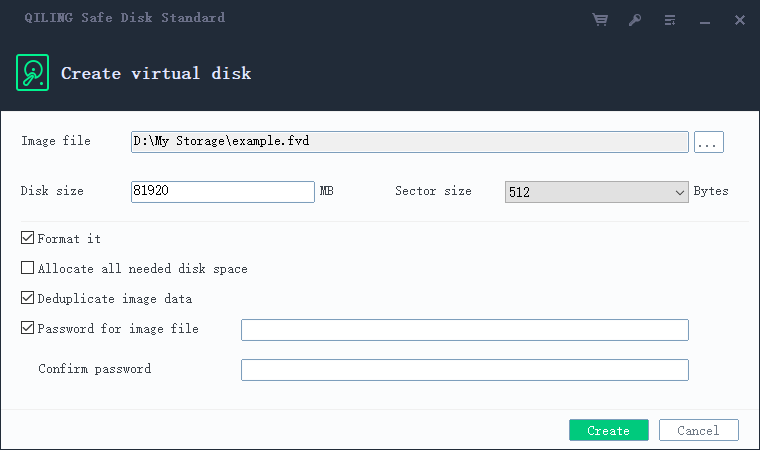
Step 3. Mount it, and copy the folder into the drive letter that appears. Unmount when finished; the drive letter disappears and the data becomes unreadable.
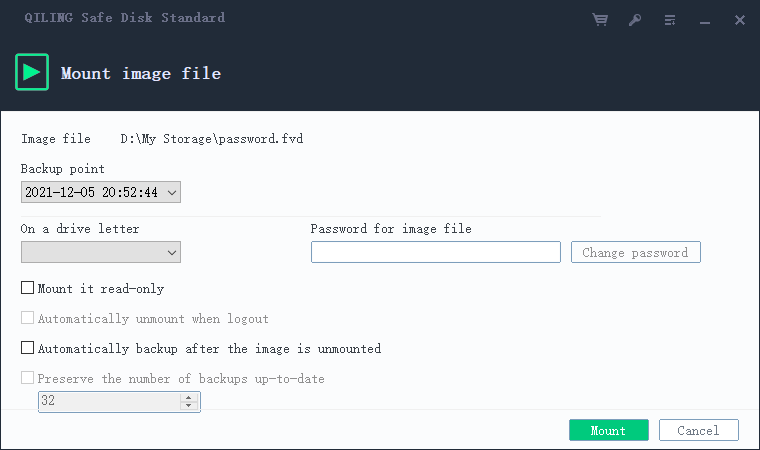
Step 4. Keep the container file and its password in separate places. Moving the container to another PC or USB drive is safe because the password travels with your memory, not with the file.
Which method fits your case
- Folder stays on one Pro-edition PC, and you have exported the certificate. EFS is the least disruptive option.
- You need to email or upload a protected copy. An encrypted archive is the simplest way to share.
- You are on Windows 11 Home, or the folder moves between PCs and USB drives. A container is the most reliable choice.
- The folder sits on a USB stick you carry around. Encrypt the whole stick instead; see Encrypt a USB drive without BitLocker.
Related Articles
- Encrypt an External SSD on Windows 11
Protect the whole external drive instead of a single folder inside it. - Back Up Encrypted Files Before a Windows Reset
Export the certificates and keys that encrypted folders depend on before rebuilding Windows. - QILING Safe Disk Standard
Create password-protected encrypted virtual drives that work on Windows 11 Home and Pro.
Products
Articles & Tutorials
- Data Recovery
- Data Backup
- File Recovery
- File Backup
- File synchronize
- System Backup and Restore
- Disk and Partition Clone
- Technical articles
- Disk Master Help
- Windows Deleted File and Disk Recovery Tutorials
- Windows File and Data Recovery Tutorials
- More Windows Tutorials for Install, Security, Files, and PC Tips
- Windows Boot, Repair, and Recovery Environment Tutorials
- Windows Backup Tutorials
- Windows Restore Tutorials
- Windows Clone and Migration Tutorials
- Windows Server Backup, Recovery, and Management Tutorials
- Windows Disk, Partition, and Storage Management Tutorials