Back Up Encrypted Files Before a Windows Reset
A Windows reset rebuilds the user profile. That single fact decides whether your encrypted files survive. Data encrypted with EFS is tied to a certificate stored in the old profile, BitLocker keys are sealed to the old account or TPM state, and container files remain readable only if you still know the password. Copying the files is not enough. You need the keys, and you need them before the reset starts, because afterwards the old profile is gone.
What a reset does to encrypted data
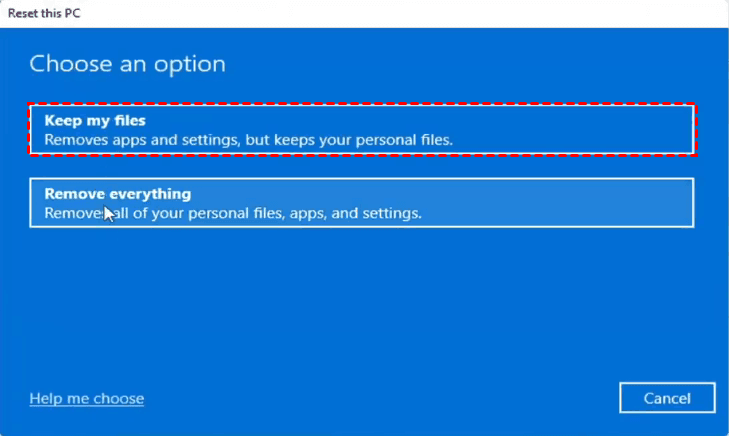
Windows offers two reset paths, and they differ in what they keep.
- Keep my files. Applications and settings are removed and the profile is rebuilt. User folders are moved into a fresh profile. Encrypted files may be copied but the EFS certificate that decrypts them is not recreated, so the files can become unreadable even though they still exist.
- Remove everything. The system volume is wiped. Nothing on that partition survives without a separate backup.
In both cases the practical rule is the same: treat the reset as a new computer, and assume that anything you have not copied elsewhere plus its key material is gone.
Export the keys first
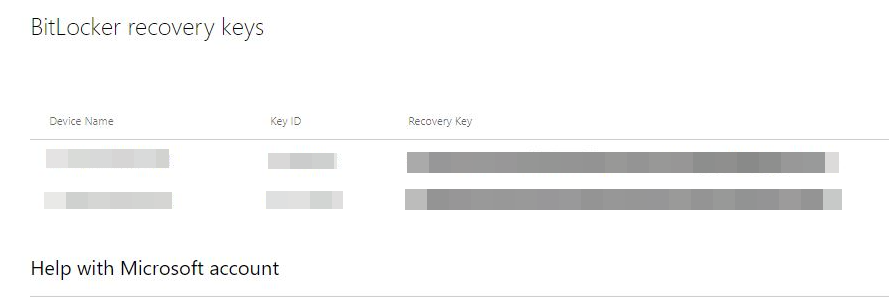
Step 1. BitLocker recovery key. Open Manage BitLocker and back up the recovery key for every encrypted volume. Save it outside the PC. If the key exists only in your Microsoft account and you reset while offline, you may not be able to retrieve it in time. See Back up a BitLocker recovery key before cloning for the storage options.
Step 2. EFS certificate. Press Win + R, type certmgr.msc, and open Personal then Certificates. Find the certificate whose intended purpose mentions Encrypting File System. Right-click it, choose All Tasks then Export, and export the private key as a .pfx file with a password. Without this file, EFS-encrypted documents cannot be opened on the new profile or on another PC.
Step 3. Container passwords. For virtual encrypted disks created by tools such as Qiling Safe Disk or VeraCrypt, confirm that you know the container password and that any keyfile is stored separately from the container. A container without its password is just an unreadable file.
Copy the data off the PC
Step 1. Connect an external drive with enough capacity. Do not back up to another partition of the same physical disk, because a reset can affect the whole disk layout.
Step 2. Copy the encrypted container files themselves, not just their contents. A container is a single file, and copying it preserves the encryption exactly as it was. Copying the decrypted files out of a mounted container creates unprotected copies, which is a different kind of backup.
Step 3. For EFS-encrypted documents, copy them while the certificate is still active so that you can confirm they open. Then keep the exported .pfx alongside them.
Step 4. Record what each item needs. A simple text list stating which folder needs which password or which .pfx file will save hours later. Store that list separately from the encrypted data.
Back Up with Qiling Disk Master
Copying folders by hand works once, but a backup task records what was included, can repeat on a schedule, and keeps everything in one archive you can browse later. Qiling Disk Master Professional backs up folders and whole disks without changing the encryption of the files inside them.
Step 1. Connect the external drive, open Qiling Disk Master Professional, choose Backup, then File Backup.
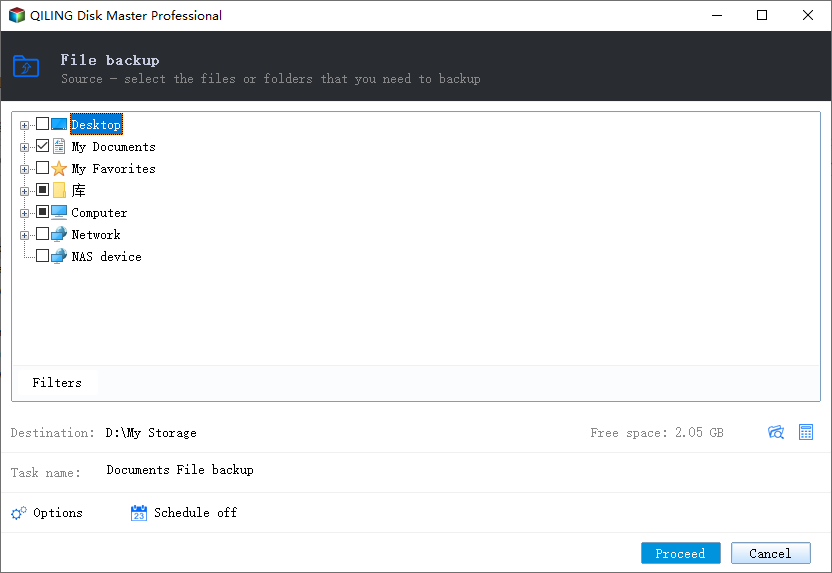
Step 2. Select the folders that hold the encrypted containers, the exported .pfx certificate, and the encrypted documents. Select the container file itself, not the drive letter it mounts as.
Step 3. Set the external drive as the destination and name the task, for example EncryptedBackup-before-reset.
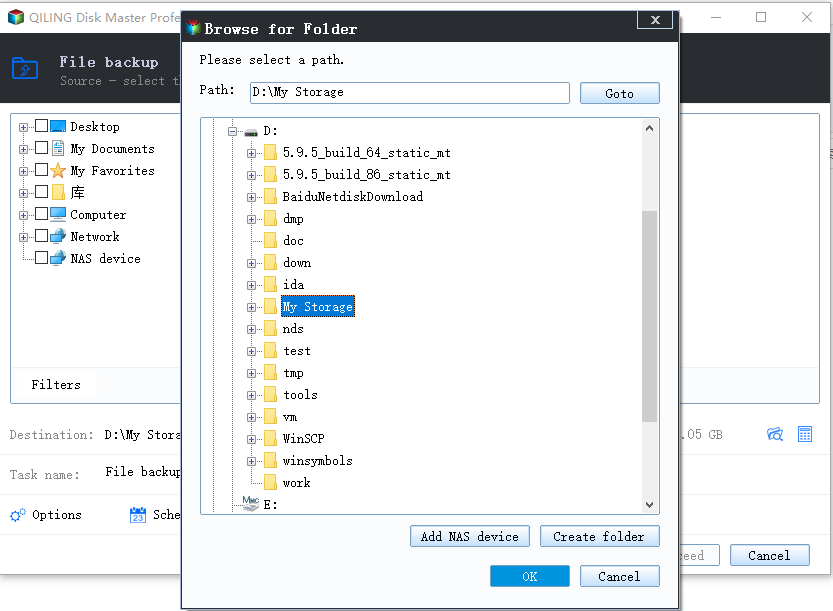
Step 4. Run the task once and wait for it to finish. If you reset regularly, switch the same task to a daily or weekly schedule.
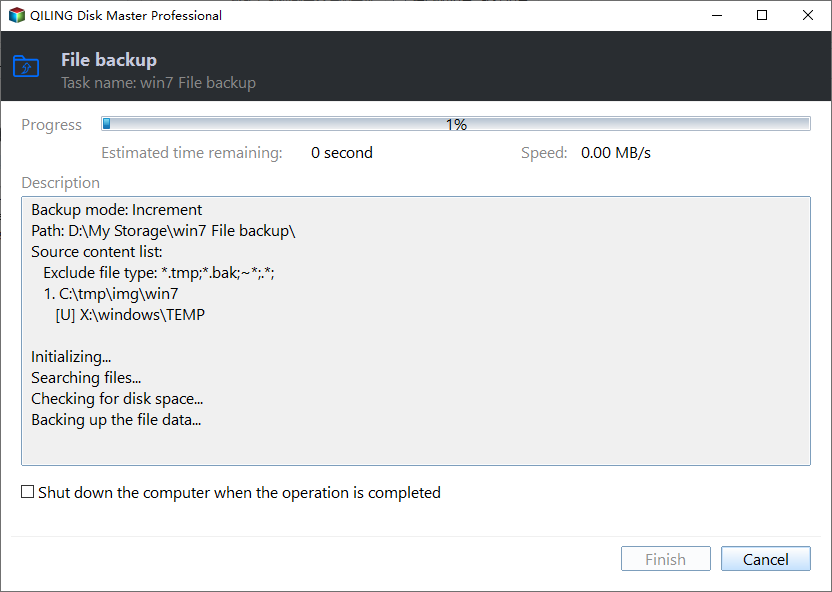
Step 5. Reopen the backup and confirm that the container files are listed with their original size. A container copied at 0 bytes, or with a size that changed, is not usable.
The backup keeps the containers encrypted exactly as they were. The .pfx certificate and the password list are the weak point, so store them in a separate protected place, as the next section explains.
Keep the backup encrypted
A backup of encrypted data is only as private as the media it sits on. An unencrypted external drive full of decrypted documents undoes the protection you originally set up.
- BitLocker To Go. Encrypt the backup volume itself, then store that recovery key away from both the PC and the drive.
- Encrypted container. Put the backup inside a password-protected virtual disk, as described in Create a secure encrypted backup container.
- Offline copy. Keep one copy disconnected from any network. Ransomware and account compromise do not reach a drive that is not plugged in.
Verify, then reset
Step 1. Open the backup from a different computer or from a second user account. Confirm that at least two encrypted files can be decrypted using the exported key material. This is the step that separates a real backup from a hopeful one.
Step 2. Only then start the reset from Settings then System then Recovery.
Step 3. After the reset, import the .pfx certificate back into the new profile before opening any EFS-encrypted file. Open the containers with their passwords, and re-seal BitLocker to the new installation.
Related Articles
- Back Up a BitLocker Recovery Key Before Cloning
Where to store the 48-digit key so it is still reachable when the PC no longer starts. - Create an Encrypted Folder in Windows 11
Compare EFS folder encryption with container-based encryption for protecting folders. - QILING Safe Disk Standard
Create password-protected encrypted virtual drives on a Windows PC or USB drive.
Products
Articles & Tutorials
- Data Recovery
- Data Backup
- File Recovery
- File Backup
- File synchronize
- System Backup and Restore
- Disk and Partition Clone
- Technical articles
- Disk Master Help
- Windows Deleted File and Disk Recovery Tutorials
- Windows File and Data Recovery Tutorials
- More Windows Tutorials for Install, Security, Files, and PC Tips
- Windows Boot, Repair, and Recovery Environment Tutorials
- Windows Backup Tutorials
- Windows Restore Tutorials
- Windows Clone and Migration Tutorials
- Windows Server Backup, Recovery, and Management Tutorials
- Windows Disk, Partition, and Storage Management Tutorials