Files Keep Reappearing After Deletion in Windows 10
When deleted files keep coming back, Windows may be restoring them from sync, a backup tool, a temporary profile, permissions, or a disk error. Repeated deletion does not solve the root cause.
Understand the problem
Find out whether the files return in the same folder, after restart, or after cloud sync. That pattern usually reveals whether OneDrive, permissions, or file system damage is involved.
- Confirm the exact disk, partition, drive letter, file system, boot mode, or Windows version before changing settings.
- Back up or recover important files before formatting, deleting, resizing, converting, reinstalling, or cleaning a drive.
- For boot or installation tasks, check BIOS or UEFI mode, disk style, boot order, and device compatibility first.
Use Windows built-in tools
Check the most common causes first.
- Pause OneDrive or other sync tools and delete the file again.
- Empty the Recycle Bin and restart File Explorer.
- Check folder permissions and ownership.
- Run a disk check if files return after restart.
- Scan for malware if strange files recreate themselves.
Use Qiling tools for guided steps
 Qiling Disk Master
Back up important folders before repairing file system errors or changing permissions.
Function. Back up important files before changing Windows or disk settings
Step 1. Connect an external drive or choose another safe destination with enough space for folders where deleted files keep returning.
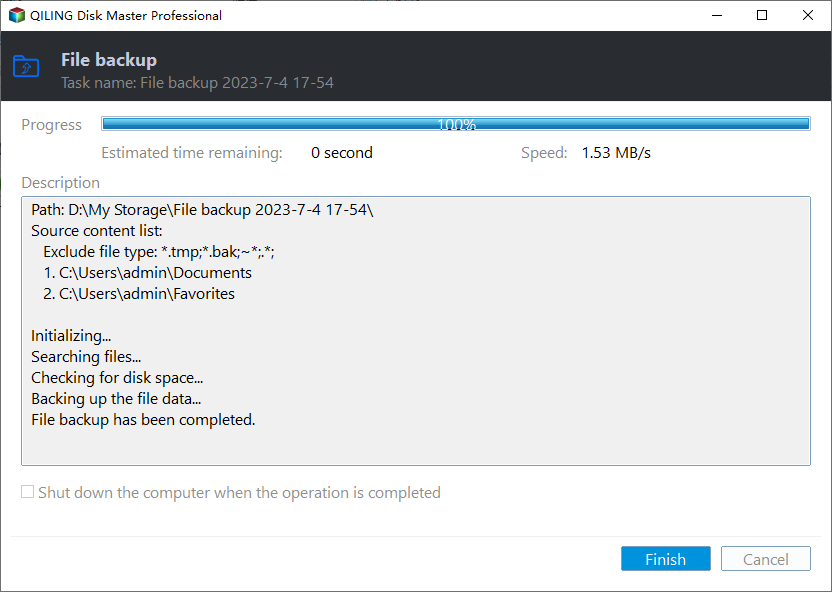
Step 2. Open Qiling Disk Master and choose File Backup. This keeps a copy of important files before you change partitions, boot settings, cleanup options, or Windows installation files.

Step 3. In the tree control, select the files and folders that must be protected. Include work files before running disk checks, permission repair, or cleanup tools

Step 4. Choose another internal disk, external drive, NAS folder, or network path as the destination. Avoid saving the backup to the partition that will be changed.

Step 5. Review the source and destination, then click Proceed. Wait until the backup completes before continuing with the repair or setup task.
Check the result
Delete one test file, restart Windows, and confirm it does not return. Then resume sync tools one by one to find the source.
Related Articles
-
Desktop Icon Reappears After Delete
Fix desktop icons or files that return after deletion. -
Deleted File Not in Recycle Bin
Understand where deleted files go and how to recover them if needed.
Products
Articles & Tutorials
- Data Recovery
- Data Backup
- File Recovery
- File Backup
- File synchronize
- System Backup and Restore
- Disk and Partition Clone
- Technical articles
- Disk Master Help
- Windows Deleted File and Disk Recovery Tutorials
- Windows File and Data Recovery Tutorials
- More Windows Tutorials for Install, Security, Files, and PC Tips
- Windows Boot, Repair, and Recovery Environment Tutorials
- Windows Backup Tutorials
- Windows Restore Tutorials
- Windows Clone and Migration Tutorials
- Windows Server Backup, Recovery, and Management Tutorials
- Windows Disk, Partition, and Storage Management Tutorials