6 Ways to Solve Desktop icon Reappears after Delete
- Why does desktop icons reappear after deleting?
- How to remove shortcuts from desktop?
- Fix 1. Remove/add desktop shortcuts in Desktop icon settings
- Fix 2. Reset Recycle Bin using the elevated command prompt
- Fix 3. Modify permissions to make icons disappearing from desktop
- Fix 4. Change system permissions to delete shortcuts from desktop
- Fix 5. Perform a Microsoft Security Scan
- Fix 6. Turn off cloud syncing services
- Further reading: How to restore desktop icons/files Windows 10/11?
- Relevant Q&A about desktop data recovery
Why does desktop icons reappear after deleting?
You're experiencing a frustrating issue where deleted desktop icons reappear after opening a full-screen program or signing out. This is likely due to a cache issue or a glitch in the operating system. To fix it, try clearing the desktop cache, restarting your computer, or disabling and re-enabling the desktop icon feature. If the issue persists, consider resetting your desktop to its default settings or seeking further assistance from a tech support specialist.
The desktop icon serves as a shortcut to access data or programs, allowing users to quickly navigate the computer system and locate desired files.
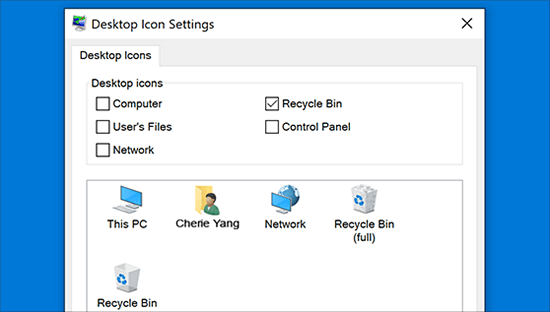
To remove shortcuts from the desktop without them reappearing, right-click on an empty area, select "Personalize," and uncheck the boxes next to the shortcuts you want to remove, applying and saving your changes.
Possible causes of desktop icon reappears after delete
If a desktop icon reappears after being deleted, it could be a sign that the system is having trouble managing desktop icons, making it difficult to remove them directly or drag them to the Recycle Bin.
Before diving into a solution, let's briefly consider the potential causes behind this issue to ensure we're tackling the root problem.
- Corrupted Recycle Bin
- Misconfigured permissions
- Cloud syncing service or cloud storage software affects
- Presence of malware
How to remove shortcuts from desktop?
If a desktop icon reappears after being deleted, or deleted files reappear on the desktop, you can follow these solutions to permanently delete shortcuts from the desktop: Clear the desktop cache, disable the "Show recently used files" option, delete the desktop.ini file, and check for malware or viruses that may be causing the issue.
Fix 1. Remove/add desktop shortcuts in Desktop icon settings
Windows Settings is a Microsoft Windows component that allows users to customize their user preferences and configure their operating system in one place.
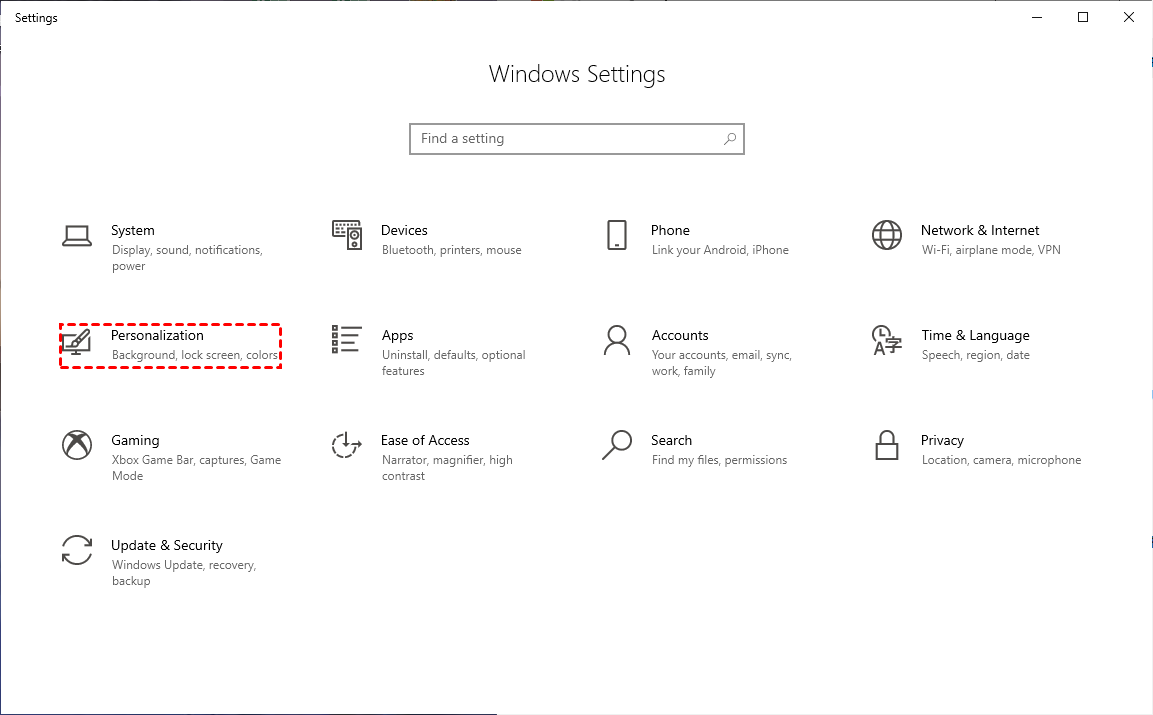
Step 1. To open Windows Settings, click the "Win + I" button and click the "Personalization" button.
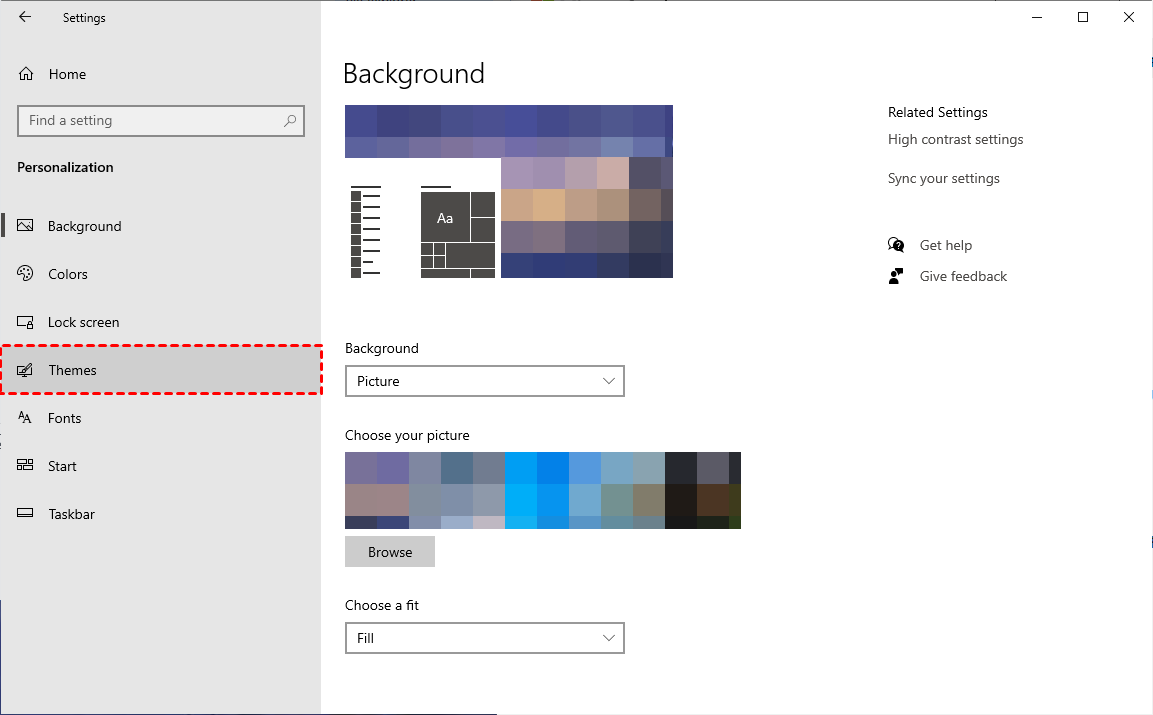
Step 2. Click the "Themes" button.
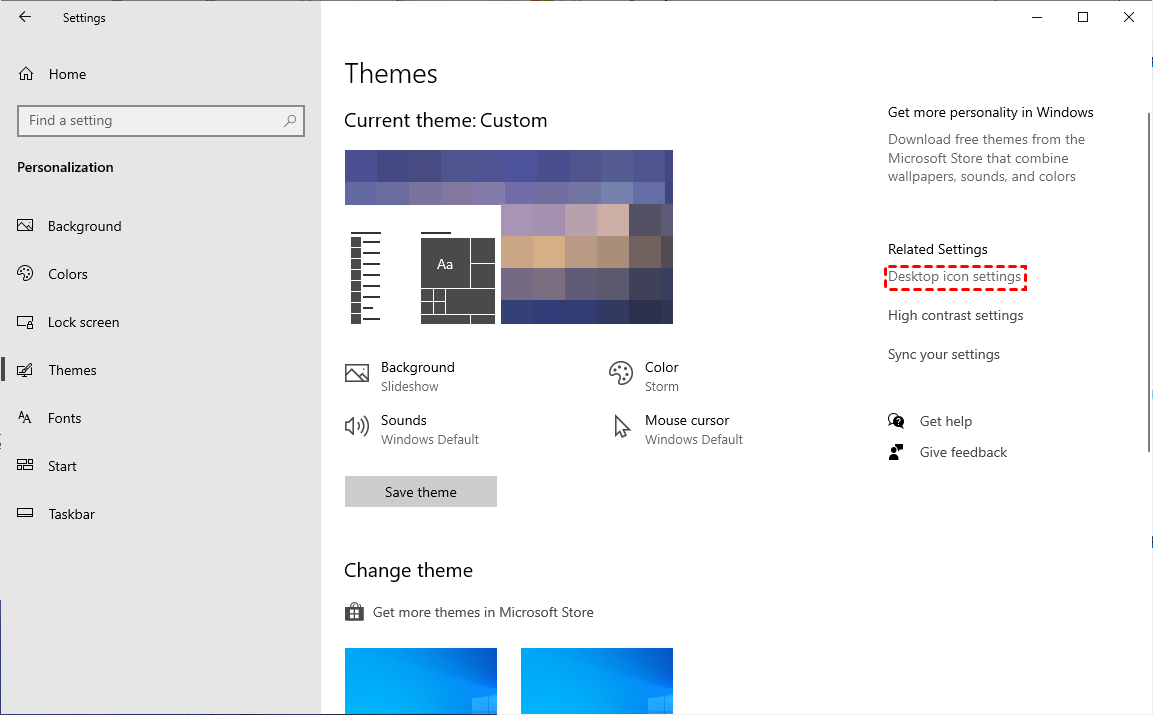
Step 3. Click "Desktop icon settings" on the right.
Step 4. Uncheck the desktop icon you want to remove, then click "Apply" and "OK" to save the change.
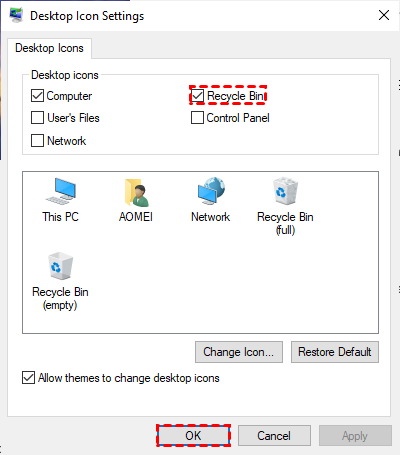
To restore desktop icons in Windows 10/11, select the icon you want to restore.
Fix 2. Reset Recycle Bin using the elevated command prompt
Users often drag their unwanted desktop icons to the Recycle Bin, but if it shows empty despite being not, its icon appears grayed out, indicating it's likely damaged.
To prevent desktop files and icons from being deleted and appearing in the Recycle Bin, you can use the elevated command prompt to reset the Recycle Bin. This can be done by opening the Command Prompt as an administrator, then typing the command "rd /s /q %userprofile%\Desktop\*".
Step 1. To open the Command Prompt, type "cmd" in the search bar and click "Run as administrator" to open a command prompt window.
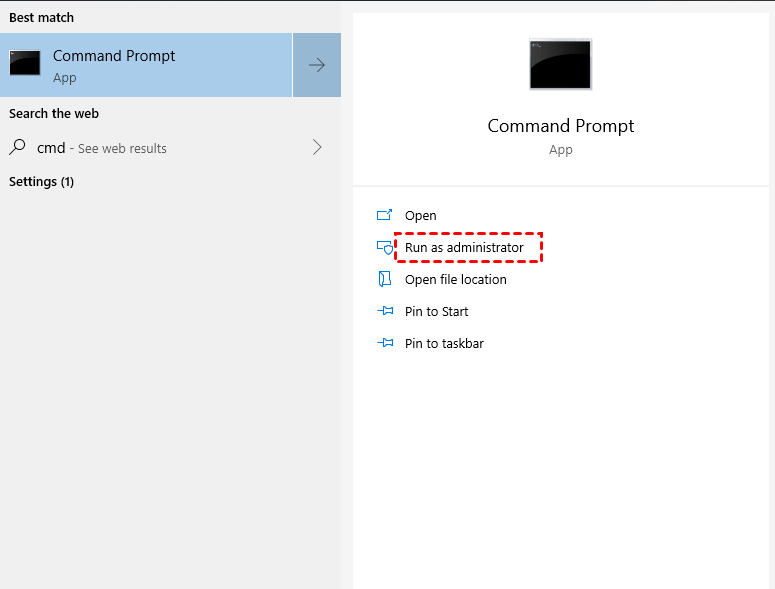
Step 2. To permanently delete the Recycle Bin on your C drive, type "rd /s /q C:\$Recycle.bin" in the command prompt and press Enter. Replace 'C' with your chosen drive letter if necessary.

Fix 3. Modify permissions to make icons disappearing from desktop
If you're trying to remove the Recycle Bin from the desktop without admin rights, it may become grayed out and unmodifiable, and you won't be able to delete desktop shortcuts.
To remove shortcuts from the desktop, check the permission settings first, which can usually be accessed by right-clicking on the desktop, selecting "Properties," and looking for the "Change desktop" or "Change desktop settings" option. However, the exact steps may vary depending on the operating system, such as Windows, where you might need to click on "Customize" or "Advanced settings" to find the permission settings.
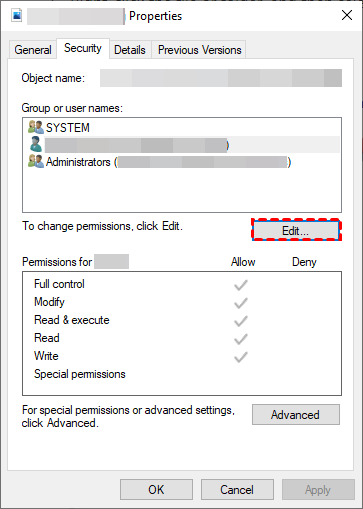
Step 1. Right-click the desktop icon you want to remove, select Properties, and open the Security tab to check its permissions.
Step 2. Locate your username and click the "Edit" button.
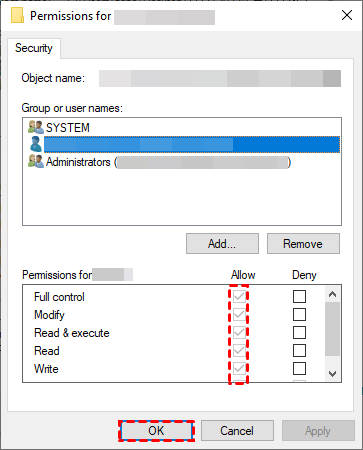
Step 3. To grant full control to a user, check the box next to "Full Control" in the permissions window, click "Apply" to apply the changes, and then click "OK" to close the window.
Fix 4. Change system permissions to delete shortcuts from desktop
If the above modification fails to help you remove shortcuts from the desktop, you could change system permissions. Then you're ready to delete shortcuts from the desktop.
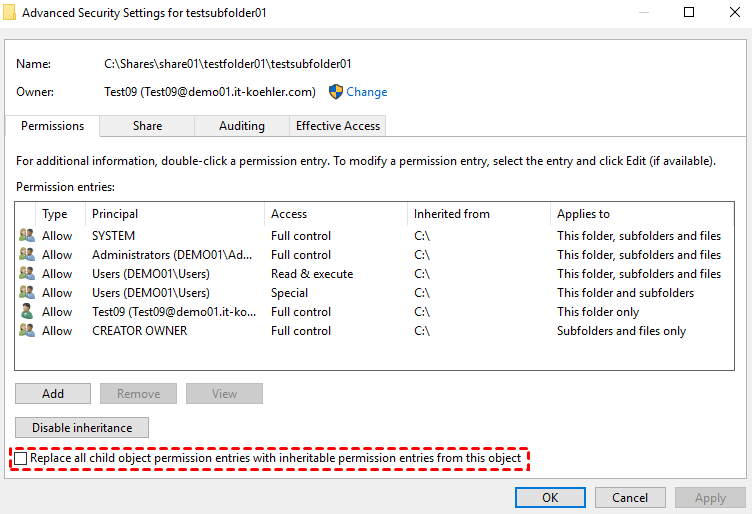
Step 1. Right-click on your chosen desktop icon, select Properties, click Security, and then tap Advanced.
Step 2. Click the "Change" button beside the Owner.
Step 3. In the Select Users or Groups window, enter your username to replace Everyone, click Check Names, then click OK.

Step 4. To update the Advanced Security Settings, go back to that window, click the "Replace all child object permission entries with inheritable permission entries from this project" and then click the "OK" button.
Fix 5. Perform a Microsoft Security Scan
Malware or virus attacks can sometimes cause desktop icons to reappear after deletion. To resolve this issue, it's recommended to scan and remove any possible viruses using Microsoft Security Scan, which can ensure the system's safety and prevent further issues.
Step 1. To secure your Windows computers, go to the official Microsoft website and install Microsoft Security Scan.
Step 2. To initiate a scan, select the type of scan you want to run from the provided options: Quick scan, Full scan, or Customized scan.

Step 3. This tool will scan your device for harmful viruses and malware, removing them to keep your device safe and secure.
Fix 6. Turn off cloud syncing services
Cloud syncing services can save local storage space, but using cloud storage software like OneDrive can cause deleted desktop icons, files, or folders to reappear in their original locations.
Let's perform how to disable OneDrive.
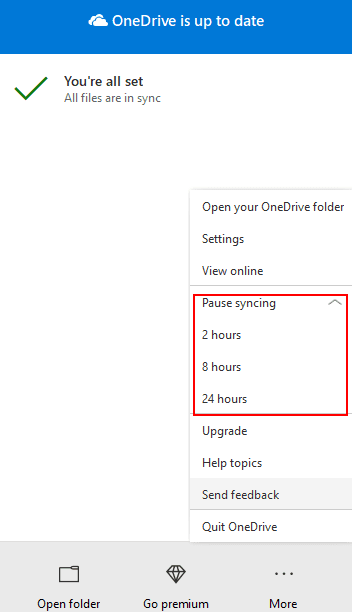
Step 1. Open your OneDrive and click the "More" button.
Step 2. To pause syncing, click on the expanded window and select the desired time period.
Further reading: How to restore desktop icons/files Windows 10/11?
Some users delete unnecessary desktop icons to keep their desktop organized, but then struggle to find the original files or folders associated with the deleted icons, leading to wasted time searching for misplaced items.
To recover deleted shortcuts from the desktop, check the Recycle Bin first. If the shortcuts aren't found there, you can use data recovery software to help you.
- ★Powerful features & friendly design::
- Recover deleted or lost data from various storage devices, including Hard Disk Drives (HDD), USB, Secure Digital (SD) cards, and more, with software that supports the recovery of over 200 file types, such as Word, Excel, PPT, PDF, photos, videos, audio, and folders.
- The recovered files should be judged based on their original paths, filenames, and format, preserving their metadata to ensure they're restored in their original context, making it easier to verify their authenticity.
- During Quick Scan and Deep Scan, you can either search for specific files by entering their filenames in the search bar or wait for the software to scan your PC and find all deleted and other lost files.
- Support NTFS, exFAT, FAT32, and ReFS file systems.
To recover deleted desktop icons and files, download Deep Data Recovery on your Windows computer.
Step 1. Run Deep Data Recovery on your PC, hover the mouse over the partition that includes your desired desktop icons/files, click Scan, and let the software do its job.

Step 2. Quickly locate your needed desktop icons/files by searching for them by Name, Date, Type, Size, or Path, or wait to view all the deleted and Raw files after a Quick Scan or Deep Scan.
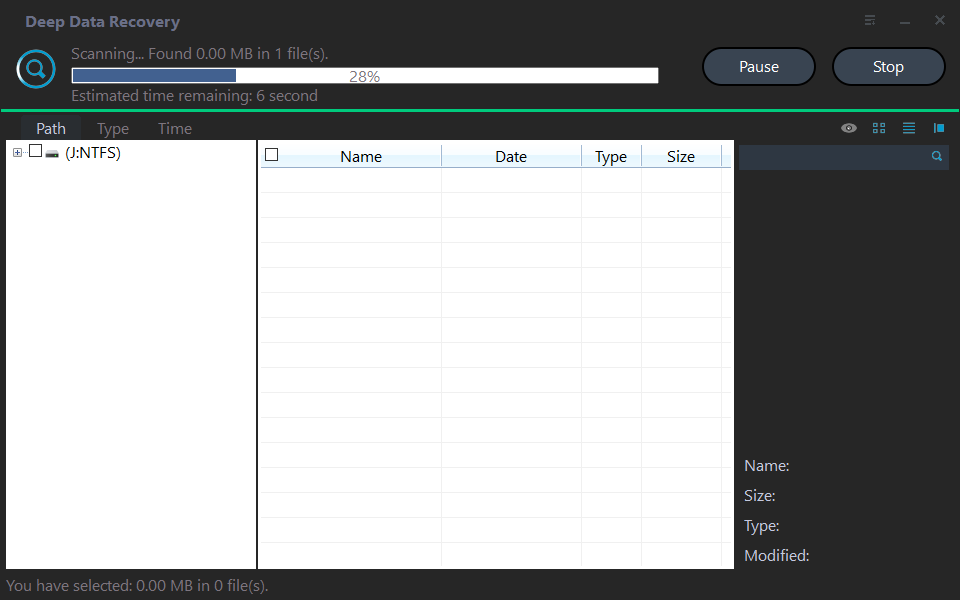
Step 3. To recover deleted icons or files, go to the Deleted Files/Raw files folder, click "Recover" to retrieve them, and save them in a new location.

Relevant Q&A about desktop data recovery
Deleted desktop icons may reappear, but can also be recovered from the Recycle Bin or using data recovery tools if they don't. If the icons are missing, you can try to resolve the issue using six practical solutions, or retrieve them by checking the Recycle Bin or using data recovery tools to recover the recently deleted files.
Besides, there are some related tips about desktop data recovery. Please get an overview of them.
Files on desktop not opening! You can try changing your mouse settings, adjusting the mouse speed, or modifying the Login Profile in Registry Entries to resolve the issue.
If your desktop files are missing after a Windows 10 update, you can try showing hidden files via File Explorer or check if you've signed in with a temporary profile. If the files have been deleted, you'll need to restore them from backups or use a tool to recover them. If your desktop files are missing after a Windows 10 update, you can try showing hidden files via File Explorer or check if you've signed in with a temporary profile. If the files have been deleted, you'll need to restore them from backups or use a tool to recover them.
Regular backups are crucial to protect against data loss, so using free backup software for Windows is essential to back up files, folders, partitions, disks, or the entire system, ensuring your important data is safe and can be easily restored in case of any issues.
Related Articles
- 8 Fixes | Windows Text Not Showing up!
Learn how to fix Windows text not showing up via eight solutions and how to retrieve deleted texts via Windows features or data recovery software on this page. - Comprehensive Guide: How to Recover Permanently Deleted Photos Free?
Learn how to recover permanently deleted photos free via Windows features or photo recovery tools on this page. Moreover, you can get other relevant tips about photo recovery. - How to Fix PDF Blank Pages Problem [PDF Repair]
Learn why PDF pages may appear blank and how to repair the file with practical checks and repair options. - How to Recover Deleted Game Files/Steam Data/Game Saves on PC
Recover deleted game files, Steam data, or game saves with clear checks for backups, folders, and recovery options. - How to Recover DCIM Folder from SD Card
Some people asked how to recover DCIM folder from SD card on Mac or Windows. Sometimes, the DCIM folder disappears without any notice. - All-in-one Guide for Recover Deletd/Corrupted/Crashed PSD File on Windows PC and Mac
Recover deleted, corrupted, crashed, or temporary PSD files with practical Photoshop recovery methods. -
Files Keep Reappearing After Deletion
Fix deleted files that return because of sync, permissions, or disk errors.
Products
Articles & Tutorials
- Data Recovery
- Data Backup
- File Recovery
- File Backup
- File synchronize
- System Backup and Restore
- Disk and Partition Clone
- Technical articles
- Disk Master Help
- Windows Deleted File and Disk Recovery Tutorials
- Windows File and Data Recovery Tutorials
- More Windows Tutorials for Install, Security, Files, and PC Tips
- Windows Boot, Repair, and Recovery Environment Tutorials
- Windows Backup Tutorials
- Windows Restore Tutorials
- Windows Clone and Migration Tutorials
- Windows Server Backup, Recovery, and Management Tutorials
- Windows Disk, Partition, and Storage Management Tutorials