How to Roll Back from Windows 11 to Windows 10 Safely
An incompatible application or device can make a Windows 11 upgrade difficult to use. Returning to Windows 10 may be possible, but the available method depends on how you installed Windows 11 and whether you kept a recovery image. A rollback is not simply a change to a setting.
Before proceeding, consider whether updating the affected application or driver resolves the problem. Standard Windows 10 support ended on October 14, 2025. Check your eligibility for extended security updates and your software requirements before choosing it as a daily operating system.
Choose the rollback method
Go back uses files retained after an in-place upgrade and is normally available for 10 days. It is unavailable after many clean installations or after the required previous-installation files have been removed. Restoring a backup requires an actual Windows 10 system or disk image from this computer. Without either option, returning requires a new installation.
All three methods can affect applications and settings. Save documents created since the upgrade to a separate disk, export application data, and record software licenses. Keep your BitLocker recovery key and sign-in password available. A Windows Hello PIN is not a substitute for a password in every recovery environment.
Use Go back while it is available
Step 1. Connect the laptop to power and disconnect unnecessary external storage after saving your files. Leave any drive explicitly required by the rollback wizard connected.
Step 2. Open Settings > System > Recovery. Under Recovery options, find Go back. If the button is missing or unavailable, do not delete or rename system folders in an attempt to recreate it.
Step 3. Select Go back, provide the requested reason, and read the warnings. An offered update check is an alternative troubleshooting step, not the rollback itself.
Step 4. Confirm that your files are backed up and that you know the previous installation's password. Start the rollback using the wizard's final confirmation. Keep power connected through its restarts.
Step 5. After signing in, check documents, network access, and the application that prompted the rollback. Reinstall applications removed by the process and review your security-update arrangements.
Restore your own Windows 10 image
Use this route only if you already have a suitable Qiling Disk Master image. Creating a Windows 11 backup now protects the present state but does not turn it into a Windows 10 recovery image. Restoring overwrites the selected destination, including newer files.
Preparation. Copy current files elsewhere. On a working compatible PC, create Qiling bootable rescue media, then test that it starts on the target computer and can see both the internal disk and the backup location.
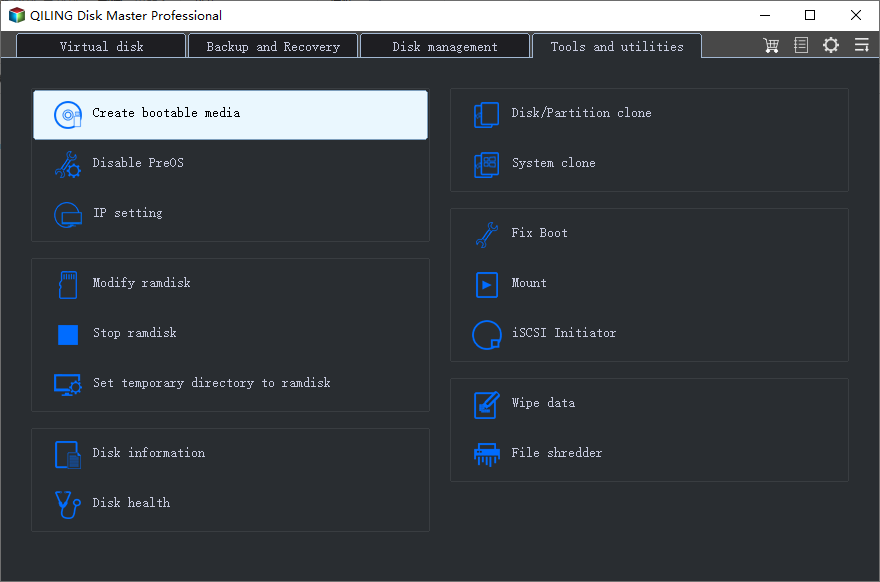
Step 1. Boot the target computer from the rescue media. Open the restore function and locate the Windows 10 image on the external disk or other accessible backup storage.
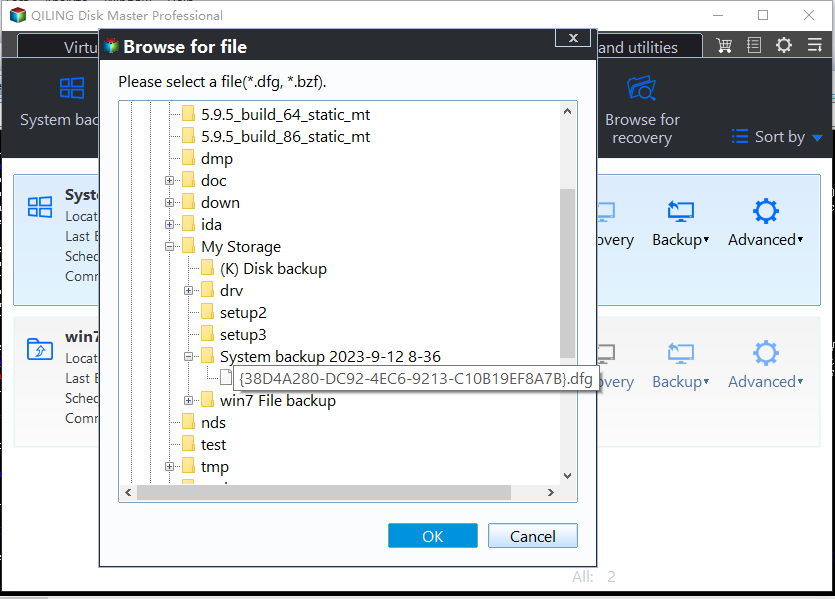
Step 2. Select the appropriate backup point and system or whole-disk contents. Include the boot-related partitions required by the original installation; restoring only personal files does not restore Windows.
Step 3. Choose the intended internal destination disk. Check its model and capacity carefully and review which partitions will be overwritten.
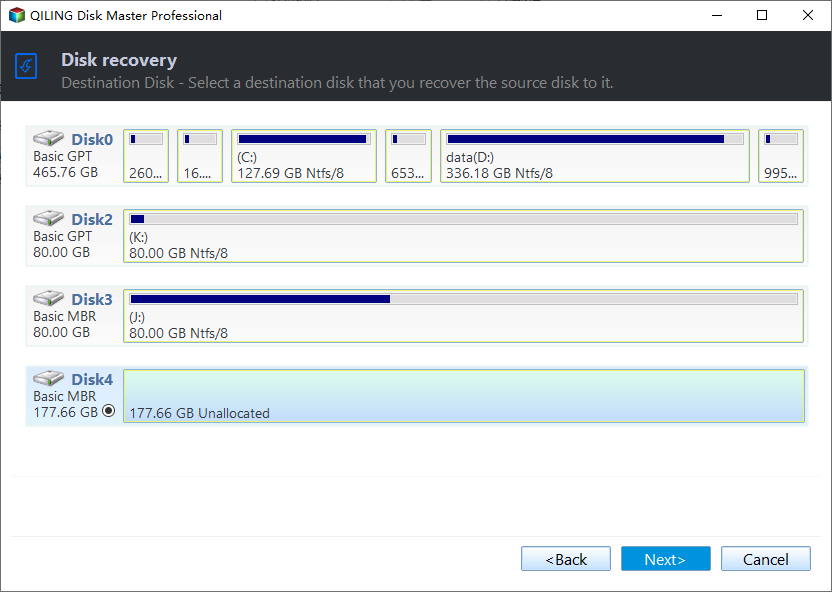
Step 4. Click Proceed when the source and destination are correct. Let restoration finish, remove the rescue media, and start from the restored disk using its original firmware mode. Copy back the newer documents saved separately.
Reinstall only when recovery options are unavailable
Check that the laptop manufacturer supplies Windows 10 drivers for this model. Obtain authorized installation media and confirm licensing before erasing anything. Boot the installer, select the appropriate edition, and identify the destination by its size and partition layout rather than assuming it is labeled C:.
A clean installation removes applications and can remove data. Do not delete partitions on other disks or discard OEM recovery partitions unintentionally. After installation, install trusted drivers, activate Windows, restore your files, and establish a supported security-update plan. Keep the Windows 11 backup until the replacement installation has been fully tested.
Related Articles
- When a System Partition Cannot Be Restored
Check recovery media, backup contents, and destination compatibility before retrying a system restore. - Windows 11 Blue Screen After an Update
Diagnose update-related crashes before deciding whether to repair or roll back Windows.
Products
Articles & Tutorials
- Data Recovery
- Data Backup
- File Recovery
- File Backup
- File synchronize
- System Backup and Restore
- Disk and Partition Clone
- Technical articles
- Disk Master Help
- Windows Deleted File and Disk Recovery Tutorials
- Windows File and Data Recovery Tutorials
- More Windows Tutorials for Install, Security, Files, and PC Tips
- Windows Boot, Repair, and Recovery Environment Tutorials
- Windows Backup Tutorials
- Windows Restore Tutorials
- Windows Clone and Migration Tutorials
- Windows Server Backup, Recovery, and Management Tutorials
- Windows Disk, Partition, and Storage Management Tutorials