How to Use Qiling Image Deploy for Image Deployment (Secure Boot)
Quick Navigation:
- Qiling Image Deploy Overview
- How does Qiling Image Deploy work?
- How to Use Qiling Image Deploy to Deploy Image to Multiple Computers
- Preparation of server and client computers:
- Remove SID and Create A System Image on A Well-Configured Computer
- Deploy Image to Multiple Computers Step by Step
Qiling Image Deploy Overview
Qiling Image Deploy is a software that allows you to deploy or restore images to multiple computers over a network, eliminating the need to worry about installation and configuration issues for a large number of computers.
- Microsoft Windows XP (all editions, 32-bit and 64-bit)
- Microsoft Windows Vista (all editions, 32-bit and 64-bit)
- Microsoft Windows 7 (all editions, 32-bit and 64-bit)
- Microsoft Windows 8/8.1 (all editions, 32-bit and 64-bit)
- Microsoft Windows 10 (all editions, 32-bit and 64-bit)
- Microsoft Windows 11 (all editions, 32-bit and 64-bit)
- Microsoft Windows Server 2003 and 2003 R2 (all editions, 32-bit and 64-bit)
- Microsoft Windows Server 2008 and 2008 R2 (all editions, 32-bit and 64-bit)
- Microsoft Windows Home Server (WHS) 2011 and Windows Small Business Server (SBS) 2011 Standard
- Microsoft Windows Server 2012 and 2012 R2(all editions)
- Microsoft Windows Server 2016 (all editions)
- Microsoft Windows Server 2019 (all editions)
- Microsoft Windows Server 2022 (all editions)
Originally, deploying or restoring 30 computers one by one using bootable CD/USB was a labor-intensive task due to varying hardware configurations, such as computers without CD-ROM drives, which added to the installation time. Qiling Image Deploy can simplify this process.
How does Qiling Image Deploy work?
To use Qiling Image Deploy to restore a system to multiple computers at once, first select a server computer and then choose all the client computers you want to deploy the image to.
The server computer can be any PC or server machine that has Qiling Image Deploy installed, which is used to deploy images. The client computers, on the other hand, are the ones receiving the backup image, and they typically don't have an operating system.
To successfully deploy Windows on multiple computers, you need a system image backup or disk backup without SID, which is essential for compatibility, and then use image deployment software like Qiling Image Deploy and free backup software like Qiling Disk Master Standard to accomplish the task.
If you don't want to download both software, you can create an all-in-one backup and restore software integrated with this software, such as Qiling Disk Master Technician, with the same preparations and steps.
How to Use Qiling Image Deploy to Deploy Image to Multiple Computers
To prepare for cloning multiple computers over a network, you need to make preparations on both the server and client computers. A working system backup image or disk backup image of the system disk should be created ahead of time. This involves carefully checking the following contents:
Preparation of server and client computers:
- To get started, install and launch Qiling Image Deploy on a server computer, which can be any PC or server, but ideally a Windows 7 or higher version is recommended. This is because the software requires Windows AIK/ADK to create a Windows PE, which may not be compatible with older versions of Windows 7.
- Check the cable connection between server and client computers, and ensure they're in the same network segment in a physical LAN.
- To verify the network card of a client computer supports network boot (PXE boot), you can check the computer's BIOS settings or UEFI firmware settings. Typically, you'll need to enter the BIOS or UEFI settings by pressing a key such as F2, F12, or Del, and then navigate to the "Advanced" or "Boot" tab.
- To prepare for a network boot, the BIOS of each client computer needs to be accessed and the PXE function enabled. The first boot option should be set to network boot or a similar setting, allowing the computer to prioritize network booting over other boot options.
- Verify that the disk number for installing the system on client computers is the same as the disk number on the server computer, which is typically disk 0 if there is only one disk.
- To prevent data loss, remove all disks from the client computer except the one you want to clone. This ensures that you don't accidentally overwrite or clone the wrong disk.
Remove SID and Create A System Image on A Well-Configured Computer
To ensure a smooth image deployment, configure the computer with all desired settings, which can be done on any computer, not just the server. This is crucial to avoid compatibility issues after image deployment. To achieve this, remove the Security Identifier (SID) before backing up the image, which involves the following steps:
1. You can create a bootable USB with Qiling Disk Master to boot a well-configured computer immediately after removing the SID, preventing a new SID from being created.
- Download and install Qiling Disk Master, choosing from Standard, Technician, or Technician Plus editions. The Technician and Technician Plus editions include Qiling Image Deploy Technician, eliminating the need to download separate image deployment and backup software.
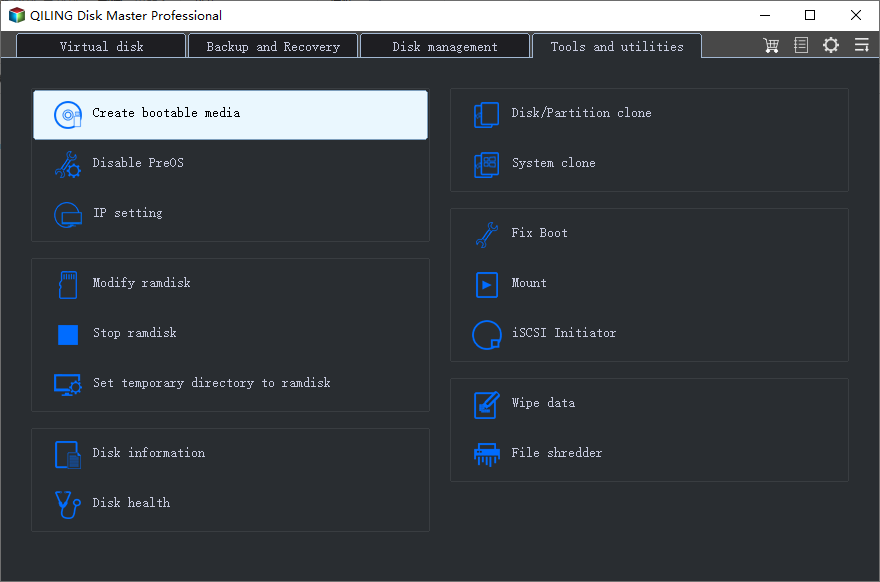
- To create a bootable media, launch the software, click on "Tools" and select "Create Bootable Media", then choose the desired bootable disc type (Windows PE) and boot device (USB, CD/DVD or ISO file). Clicking "Next" will initiate the creation of a bootable media that can be used to boot any computer.
2. Remove SID on the computer you want to backup.
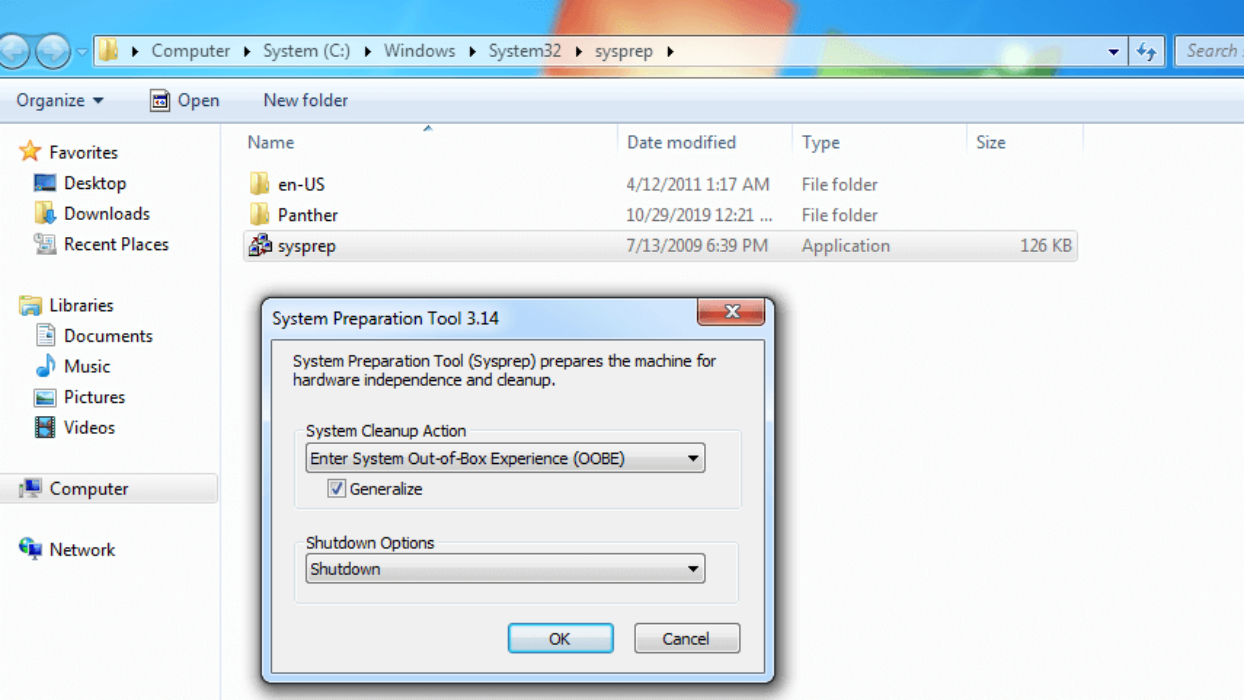
To prepare a Windows system for deployment, open the Run dialog box by pressing "Win + R" and enter "sysprep" in the textbox. Then, run Sysprep.exe and select the "Enter System OOBE" option, check the "Generalize" box, and choose "Shutdown" to ensure compatibility after deployment. This step is crucial to avoid potential issues.
3. To back up your computer, first boot the computer you want to backup from the created bootable USB, then use Qiling Disk Master to create a system image.
- Insert the bootable USB and boot the target computer from it. The bootable USB should have been created using Qiling Disk Master as described in the steps above.
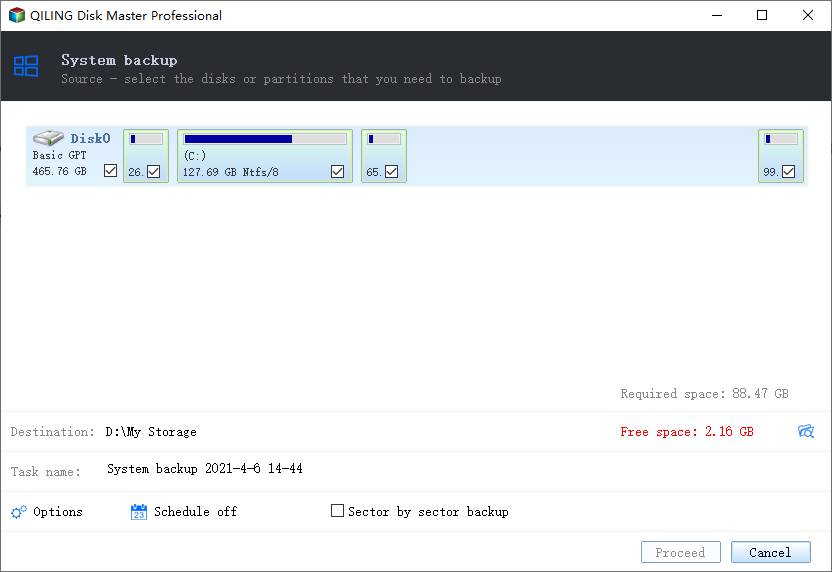
- In the main page of Qiling Disk Master, click "Backup" > "System Backup" to create a system backup, or select Disk Backup to create a disk backup.
- Select a network share or NAS to store the backup image, ensuring it's on the same network segment as all client and server computers, then proceed with the operation. For detailed steps, refer to the guide on backing up Windows 10 to a network drive.
Deploy Image to Multiple Computers Step by Step
After preparing server and client computers and creating a system image backup, you can deploy the image to multiple computers in a few simple steps.
1. To use Qiling Image Deploy Free edition, download, install, and launch the software. Alternatively, you can access it within the Qiling Disk Master Technician or Technician Plus edition by navigating to "Tools" and selecting "Qiling Image Deploy".
2. To create a bootable ISO file, click "Create bootable media" and then click Next. This will allow you to boot up client computers over a network.
Tips:
- If the drivers are incompatible with your hardware and the WinPE can't start on client computers, select the option to manually create a bootable WinPE ISO. This allows you to create Windows PE and add compatible device drivers to it by clicking "Make WinPE" and then "Add Drivers". You'll then need to manually select the ISO files by clicking "Browse".
- The DHCP server is enabled by default if you're using a router, which assigns IP addresses to computers. To ensure automatic connection, tick the "Enable DHCP" box, but be aware that there should only be one DHCP server in a LAN to avoid IP address distribution issues.
3. After starting the Qiling Image Deploy program, it will prompt "The service has started, waiting for connect…". To proceed, start all client computers and set the PXE boot or network boot as the first boot option. Once booted, the screens will display the IP address of the server and client computers, as well as the connection status for each client computer.
The server computer can see the connection status of all client computers and click "I confirm..." and "Next".
Tips:
- Client computers need to wait until the prompt "The service has started, waiting for connect…." appears before they can boot successfully.
4. Specify backup image and image deployment settings.
- To add a share or NAS device, click "Browse" then "Add share or NAS device". Enter the display name, IP address, username, and password. Finally, select the backup image (.fvd file) you want to deploy.
- Select all or choose specific client computers to deploy the image.
- Set the disk number and deployed computers at a time.
- To set the computer name for client computers, click on the "Settings" option. Additionally, the Technician edition allows for batch presetting of IP addresses and performing dissimilar hardware restore, which is useful when the hardware of client computers, such as CPU or motherboard, differs from the computer where the system image was created.
5. To deploy an image to multiple computers over the network, confirm all settings and click the "Start Deploy" button. This process can be initiated after shutting down or restarting the client computers, allowing for a seamless image restoration experience.
The free edition allows deployment of images on unlimited PCs running Windows 11/10/8/7/XP/Vista, and up to 20 servers. For more than 20 servers, consider Qiling Image Deployment Technician.
If you're unable to find what you're looking for and need additional assistance, please don't hesitate to send an email to [email protected] or visit www.Qilingtech.com for further help.
Summary:
You can easily deploy images to multiple computers using software like Qiling Image Deploy and Qiling Disk Master Standard. The technician edition of Qiling Image Deploy allows you to batch preset IP addresses and perform dissimilar hardware restores, eliminating worries about network issues and boot failures.
You can use Qiling Disk Master Technician or Technician Plus for system or disk backup and image deployment, eliminating the need to download Qiling Image Deploy separately. This tool is compatible with both UEFI and Legacy boot computers, making it a versatile option. For a detailed comparison, please refer to the edition comparison page.
Notes:
- To avoid errors and potential data loss, all client computers must use the same disk number as the server computer when using this software, and ensure that any restoration is done to the correct disk.
- The disk number on client computers starts at 0 and can range up to 256.
- The number of deployed computers is between 1 and 33, and the more computers deployed, the longer the deployment time. A suggested number is 5, which would restore 5 computers at a time, repeating the process for the next 5 computers.
- To avoid network issues and boot failures, it's recommended not to reuse computer names and IP addresses within the same Local Area Network (LAN). This approach helps prevent potential conflicts and ensures smooth network operations.
FAQs:
Q: Why are "Local IP" and "Server IP" showing different network segments on a client computer, and the connection status shows "None"?
A: This issue is usually caused by multiple DHCP servers running in the same LAN, which leads to IP address conflicts and prevents the client from properly connecting to the server. To resolve it, ensure that only one DHCP server is active in the LAN by disabling the others. This will prevent conflicts and establish a stable network connection.
Q: Can I restore just one disk from a backup image that contains multiple disks?
A: No, the software can only restore the first disk from a multi-disk backup image. A backup image containing multiple disks is treated as a single entity, and restoring individual disks from it is not supported. If you need to restore specific disks separately, you should create separate backup images for each disk.
Q: Why does the disk format of the client computer change from GPT to MBR or vice versa after restore?
A: When restoring a backup image to a client computer, the software will delete all data on the destination disk and change its format to match the format of the backup image. For example, if the backup image has an MBR disk format but the client computer has a GPT format, the software will automatically convert the client computer's disk to MBR before proceeding. If the disk formats are already the same, the software will directly create the partitions to complete the restore. In short, the client computer's disk format will always be overwritten to match the backup image's format.
Q: How do I ensure the client computer is bootable after restoring a system image?
A: To ensure a successful boot after restoration, verify that the boot mode in BIOS matches the restored disk type. If the restored disk is GPT, the boot mode should be set to EFI/UEFI; if it is MBR, set it to Legacy boot mode. Additionally, confirm that the computer name and IP address assigned to the client computer are not already in use by another device on the same LAN, as conflicts can prevent the system from booting properly.
Q: Can I use the Windows PE ISO created by Qiling Disk Master with Qiling Image Deploy?
A: No, the Windows PE ISO created by Qiling Disk Master cannot be used with Qiling Image Deploy because it does not contain the necessary components to communicate with the Qiling Image Deploy server. You must use the Qiling Image Deploy software itself to create the Windows PE ISO file, which will include the required network communication modules for server-client deployment.
Q: Why is the client computer stuck on the "PXELINUX 6.03" page and showing "Respond to boot request"?
A: This typically happens when there is an IP address conflict in the LAN — another computer may have the same IP address that the DHCP server assigned to the client. The client computer is attempting to boot via PXE (Preboot Execution Environment) but cannot find a valid boot image due to the network conflict. To resolve this, turn off the conflicting computer or change its IP address, then reboot the client computer to try the operation again.
Related Articles
- Top 4 Practices for NTBackup in Windows Server 2003
This guide explains Top 4 Practices for NTBackup in Windows Server 2003 with clear steps, key checks, and practical tips. - How to Use Windows Server Backup for Active Directory Backup
Backing up Active Directory is important for Windows Server users. Learn how to backup Active Directory 2008/2012/2016 efficiently in this article. - Top 5 Best PC Clone Software Free Download🔥
If you are looking for PC clone software to create clones, you are in the right place. In this post, we will show you the top 5 PC clone software and what you need to consider before choosing the tool. - How to Upgrade Acer Aspire Laptop to SSD in Windows 10/8/7/XP?
Learn how to Upgrade Acer Aspire Laptop to SSD in Windows 10/8/7/XP with clear steps, key checks, and practical tips. - Fast Way to Backup Windows 7 to USB Drive [Free]
This guide explains Fast Way to Backup Windows 7 to USB Drive with clear steps, key checks, and practical tips. - Backup Windows.old Folder for Downgrading to Previous Windows Version
After upgrading to Windows 10/8/7, it's better to backup Windows.old folder so that you can downgrade to the previous Windows version at anytime.
Products
Articles & Tutorials
- Data Recovery
- Data Backup
- File Recovery
- File Backup
- File synchronize
- System Backup and Restore
- Disk and Partition Clone
- Technical articles
- Disk Master Help
- Windows Deleted File and Disk Recovery Tutorials
- Windows File and Data Recovery Tutorials
- More Windows Tutorials for Install, Security, Files, and PC Tips
- Windows Boot, Repair, and Recovery Environment Tutorials
- Windows Backup Tutorials
- Windows Restore Tutorials
- Windows Clone and Migration Tutorials
- Windows Server Backup, Recovery, and Management Tutorials
- Windows Disk, Partition, and Storage Management Tutorials