Move an Encrypted Virtual Disk to Another Computer
An encrypted container is designed to travel. The encryption stays with the file, and the only thing that does not move is the password, which you carry in your head. What breaks during a move is almost always procedural: copying a container while it is mounted, interrupting a large transfer, or opening it on a PC whose account does not have permission to the files inside the volume. Each of those has a straightforward fix.
What travels with the container
Travels: the ciphertext, the container header, the encryption algorithm metadata, and the inner file system with its file names.
Does not travel: the password, the keyfile if one was used, the drive letter, and the software that can open the format. Only the first of those is truly portable; the last two need attention before the move.
Before copying, confirm you know which tool created the container and whether a keyfile is part of the setup. A container whose keyfile was stored inside the same folder is effectively lost once the password alone no longer opens it.
Dismount before you copy
Step 1. Close every program that has a file open inside the mounted volume, including editors, PDF readers, and backup agents.
Step 2. Dismount the container from the tool's interface. Do not simply close the window. A container still mounted has pending writes in the cache, and copying it at that moment can produce a corrupt file.
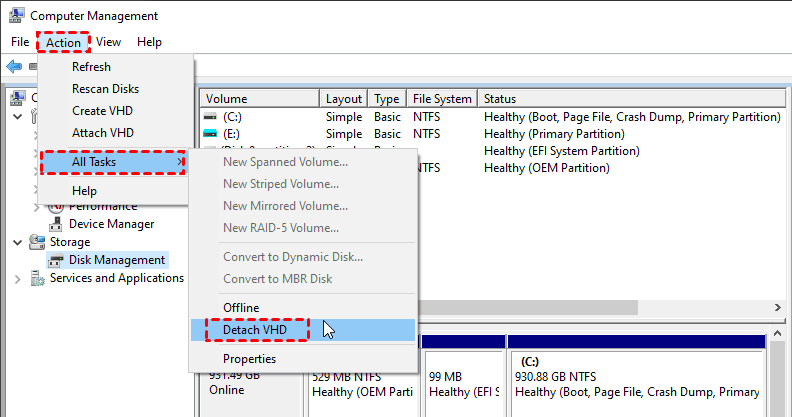
Step 3. Confirm the drive letter has disappeared from File Explorer. If it is still there, the volume is still mounted and the file is still locked.
Step 4. If you must copy over a network share, make sure no other computer has the container mounted. A read-write mount takes an exclusive lock; a second mount over SMB will either fail or corrupt the file.
Copy and verify the transfer
Step 1. Copy the container file rather than moving it. A copy leaves the original intact if the transfer fails partway.
Step 2. Use a file system that can hold a single large file. FAT32 cannot store anything over 4 GB, and containers are frequently larger than that.
Step 3. Compare the size of the file at both ends, or compute a hash. On Windows, run certutil -hashfile "path\to\container" SHA256 on both machines and compare the two values. This is the only reliable way to know the copy is intact.
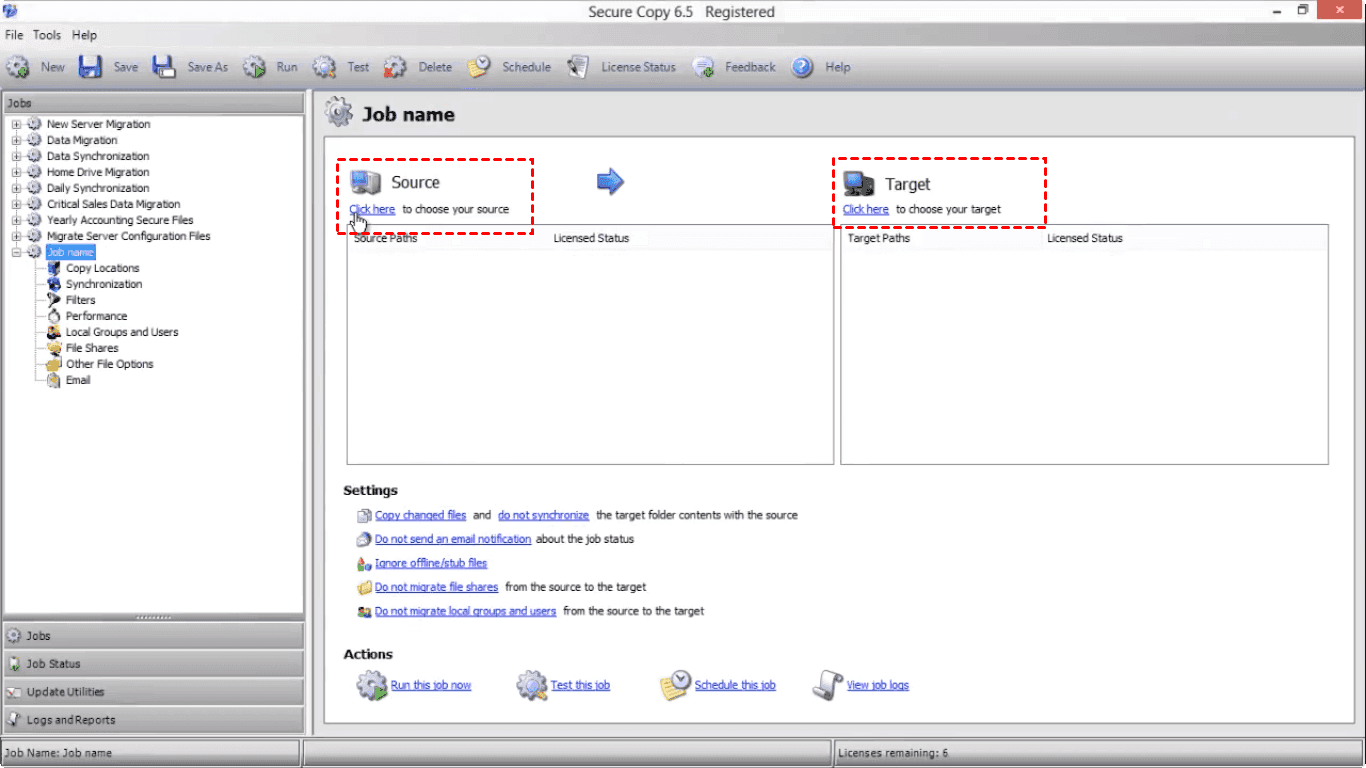
Step 4. Keep the original until the new copy has been mounted and its contents verified.
Open it on the target PC
Step 1. Install a compatible program on the destination computer. Containers are usually readable by a specific tool family, so check the file extension or the header before assuming compatibility.
Step 2. Mount the container read-only the first time. If the password or keyfile is wrong, a read-only attempt cannot damage the volume, and you can retry with the correct credentials.
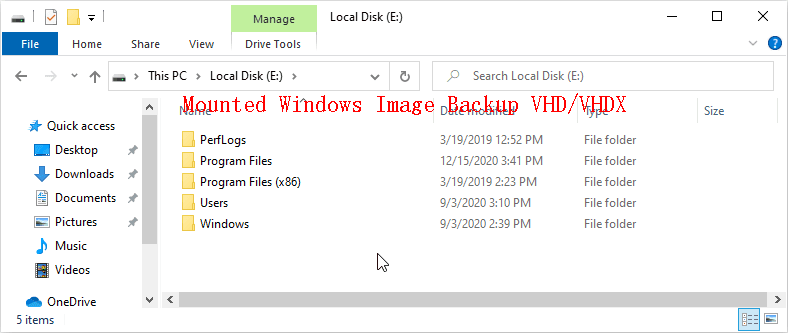
Step 3. Open one or two files to confirm they are intact, then dismount and remount read-write for normal use.
Fix ownership and permissions
If the inner volume is NTFS, every file inside carries an access control list that refers to the user accounts of the original PC. Those accounts do not exist on the new machine, so files can open as "access denied" even though the container mounted correctly.
Step 1. Mount the container, right-click the drive, open Properties then Security then Advanced, and change the owner to your account on this PC. Apply the change to all subfolders.
Step 2. Replace the existing permissions with permissions inherited from the new parent, or grant your account full control explicitly. Do this only on a container you own.
Step 3. Format the container's inner volume as exFAT instead of NTFS if it will move between machines regularly. exFAT does not store per-file ACLs, so this class of problem disappears, at the cost of weaker journaling.
Related Articles
- Mount an Encrypted Virtual Disk on Windows 11
How mounting works, and what to check when a container refuses to open. - Create a Secure Encrypted Backup Container
Build a container sized for backup data and keep it verifiable over time. - QILING Safe Disk Standard
Create containers up to 2048 GB and move them between Windows PCs.
Products
Articles & Tutorials
- Data Recovery
- Data Backup
- File Recovery
- File Backup
- File synchronize
- System Backup and Restore
- Disk and Partition Clone
- Technical articles
- Disk Master Help
- Windows Deleted File and Disk Recovery Tutorials
- Windows File and Data Recovery Tutorials
- More Windows Tutorials for Install, Security, Files, and PC Tips
- Windows Boot, Repair, and Recovery Environment Tutorials
- Windows Backup Tutorials
- Windows Restore Tutorials
- Windows Clone and Migration Tutorials
- Windows Server Backup, Recovery, and Management Tutorials
- Windows Disk, Partition, and Storage Management Tutorials