Password Protect an External Hard Drive in Windows 11
"Password protect" is used to describe three different things, and only one of them protects the data. A folder hidden by a lock utility, a drive letter disabled in Disk Management, and a truly encrypted volume all look similar in a screenshot, but only encryption keeps the contents unreadable once the enclosure is opened or the drive is attached to another PC. This guide separates those cases and shows how to encrypt a large external drive properly.
What password protection really means
- Real encryption. Every sector is encrypted with a key derived from your password. Removing the drive from its enclosure or attaching it to another computer reveals nothing but ciphertext. This is the only method that survives an attacker with physical access.
- Software lock. A utility asks for a password before it shows or mounts the drive. The files remain in plain form, so any other tool that reads the disk directly bypasses the lock entirely.
- Firmware or hardware lock. The enclosure or drive requires a password before it presents the volume to the operating system. Protection depends on the vendor's implementation, which you cannot inspect.
If the drive leaves your desk, only the first category counts.
Check your Windows edition
Step 1. Press Win + I, open System then About, and read the edition line.
Step 2. If it says Pro, Enterprise, or Education, BitLocker To Go is available and is the simplest option.
Step 3. If it says Home, the removable-drive option is absent. Use a third-party container tool or a cross-platform encryption program instead; see Encrypt a USB drive without BitLocker.
Step 4. Regardless of edition, confirm that the drive appears with a letter in This PC and that you can write to it. Encryption fails on a drive with a file system error.
Encrypt the external hard drive
Step 1. Copy the drive's contents somewhere else first. A large external HDD can take many hours to encrypt, and an interruption during the first pass may leave the volume unreadable.
Step 2. Right-click the drive in File Explorer and choose Turn on BitLocker.
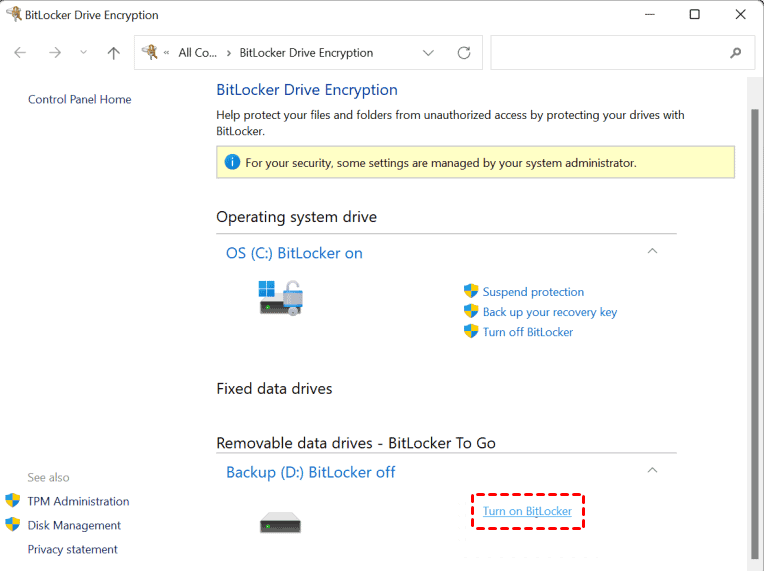
Step 3. Enter a password. For a drive holding long-term archives, use a passphrase rather than a short complex string; you will type it far less often than you think, and length is what protects it.
Step 4. Save the recovery key outside the drive. Print it or store it in a password manager. Do not save it to the same disk.
Step 5. Choose Encrypt used disk space only for a drive that has always been yours, or Encrypt entire drive if it previously held files you have deleted. On a multi-terabyte HDD, the second option can run overnight.
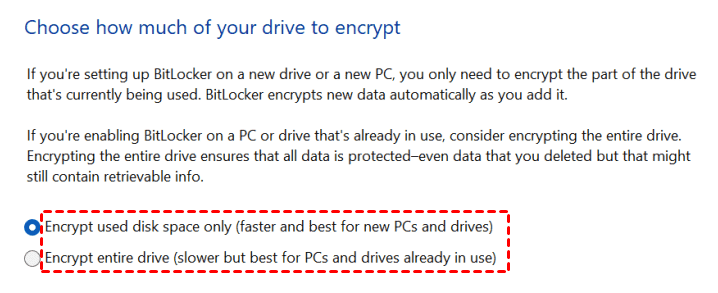
Step 6. Start encryption and leave the drive connected. Do not sleep the PC or unplug the enclosure until it finishes.

Using a container instead
If you are on Windows 11 Home, or if the drive must also be readable on a Mac, a container tool such as Qiling Safe Disk writes an encrypted file to the drive and mounts it as a drive letter. The rest of the drive stays usable for ordinary files.
Unlock it on another PC
- Windows 11 Pro or 10 Pro. Plug in the drive, enter the password in the prompt, and the volume mounts normally.
- Windows 11 Home. BitLocker-encrypted drives open read-only on Home, and only if the drive was prepared for it. Do not count on writing to it.
- macOS and Linux. BitLocker volumes need third-party software. A VeraCrypt or container volume is more portable across systems.
- Automatic unlock. Windows can remember a drive for a specific PC. Leave this off for a drive that travels.
If you forget the password
With BitLocker, the recovery key opens the drive even when the password is lost. That is why storing it matters more than remembering the password. With VeraCrypt or a container tool, the password is the only key: there is no recovery key and no vendor override.
If neither the password nor the recovery key is available, the data is unrecoverable by design. Keep a written copy of the recovery key with your important documents, and test it once by unlocking the drive on a second computer.
Related Articles
- Encrypt an External SSD on Windows 11
Encryption scope, speed, and key handling for fast external SSDs. - Move an Encrypted Virtual Disk to Another Computer
Carry a container between PCs and mount it on a machine that has never seen it. - QILING Safe Disk Standard
Create a password-protected encrypted area on an external drive in a few steps.
Products
Articles & Tutorials
- Data Recovery
- Data Backup
- File Recovery
- File Backup
- File synchronize
- System Backup and Restore
- Disk and Partition Clone
- Technical articles
- Disk Master Help
- Windows Deleted File and Disk Recovery Tutorials
- Windows File and Data Recovery Tutorials
- More Windows Tutorials for Install, Security, Files, and PC Tips
- Windows Boot, Repair, and Recovery Environment Tutorials
- Windows Backup Tutorials
- Windows Restore Tutorials
- Windows Clone and Migration Tutorials
- Windows Server Backup, Recovery, and Management Tutorials
- Windows Disk, Partition, and Storage Management Tutorials