PC Crashing Randomly in Windows 10
Random Windows 10 crashes can come from drivers, overheating, bad RAM, failing storage, update problems, malware, or power issues.
Understand the problem
Because random crashes can damage open files, protect important data before testing hardware or changing drivers.
- Confirm the disk, partition, file system, Windows version, boot mode, or update state before making changes.
- Back up or recover important files before conversion, deletion, formatting, cleanup, reimage, or boot repair.
- For boot-related work, check BIOS or UEFI mode, boot order, system partition status, and recovery media first.
Use Windows built-in tools
Work from simple checks to deeper diagnostics.
- Check Reliability Monitor for crash patterns.
- Install pending Windows and driver updates carefully.
- Check CPU and GPU temperature under load.
- Run Windows Memory Diagnostic if blue screens or freezes continue.
- Check disk health and system files with SFC and DISM.
Use Qiling tools for guided steps
 Qiling Disk Master
Back up important files before troubleshooting unstable Windows 10 crashes.
Function. Back up important files before repair or conversion
Step 1. Connect an external drive or choose another safe destination with enough space for critical files on the crashing PC.
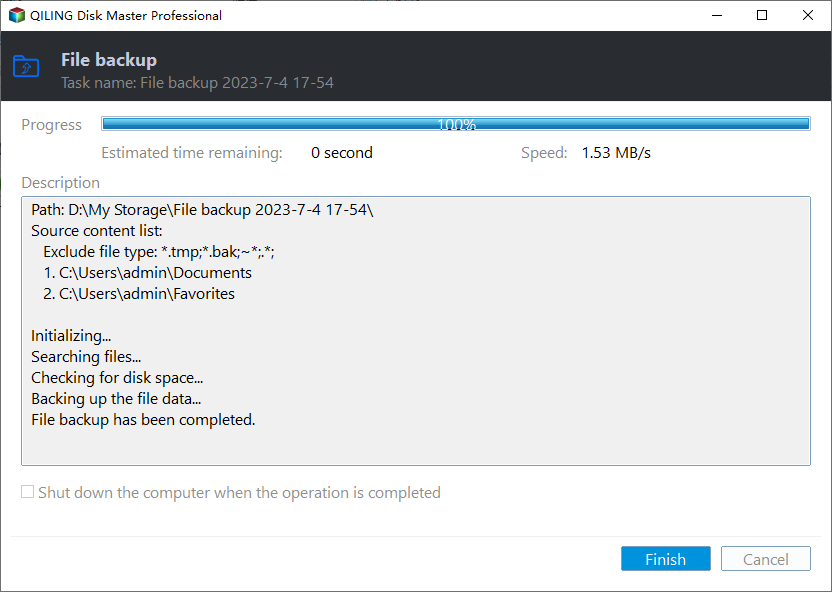
Step 2. Open Qiling Disk Master and choose File Backup. A backup gives you a rollback point before Windows repair, disk conversion, cleanup, or installation work.

Step 3. In the tree control, select the files and folders that must be protected. Back up work folders, photos, documents, and browser exports before hardware tests

Step 4. Choose another internal disk, external drive, NAS folder, or network path as the destination. Avoid saving the backup on the partition that will be changed.

Step 5. Review the task and click Proceed. Wait for the backup to finish before continuing.
Function. Create bootable media for offline repair
Step 1. Prepare an empty USB drive and connect it to a working computer. Back up the USB because it may be formatted.
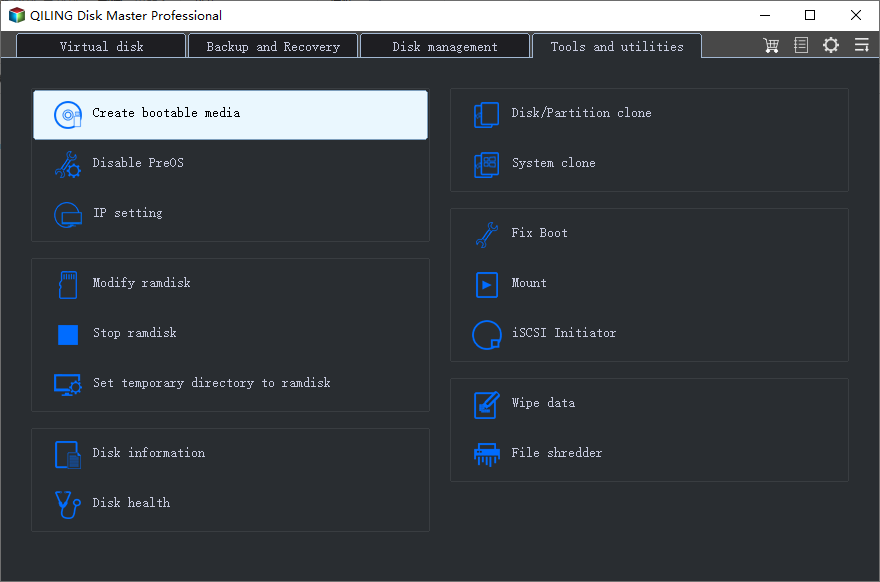
Step 2. Open Qiling Disk Master and choose Create Bootable Media. This helps when normal Windows startup or repair access is unavailable.
Step 3. Select the USB boot device option and choose the correct USB drive by capacity and drive letter.
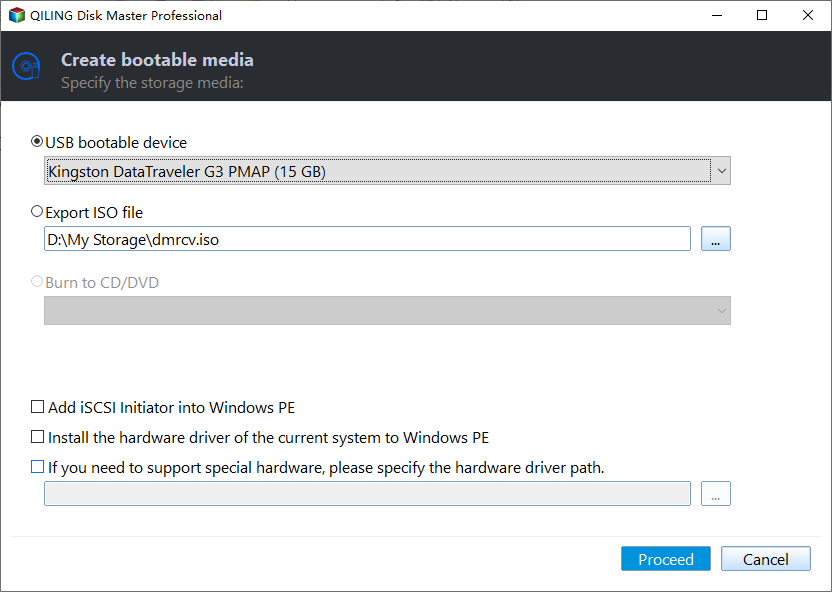
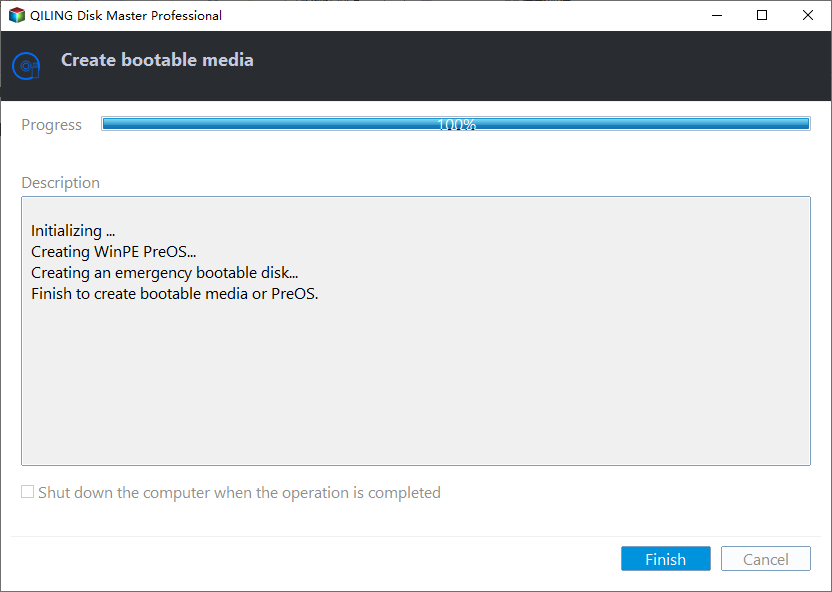
Step 4. Click Proceed and wait until creation finishes. Use the USB for file access or repair if Windows 10 stops booting.
Check the result
After each fix, use the PC normally and review Reliability Monitor. A stable system should stop logging repeated critical events.
Related Articles
- KMODE_EXCEPTION_NOT_HANDLED in Windows 11
Use the named driver and crash timing to narrow down a KMODE blue screen. - PC Suddenly Slow
Troubleshoot Windows performance problems that may appear before crashes. - Windows Black Screen After Upgrade
Fix display and startup issues that can accompany system instability.
Products
Articles & Tutorials
- Data Recovery
- Data Backup
- File Recovery
- File Backup
- File synchronize
- System Backup and Restore
- Disk and Partition Clone
- Technical articles
- Disk Master Help
- Windows Deleted File and Disk Recovery Tutorials
- Windows File and Data Recovery Tutorials
- More Windows Tutorials for Install, Security, Files, and PC Tips
- Windows Boot, Repair, and Recovery Environment Tutorials
- Windows Backup Tutorials
- Windows Restore Tutorials
- Windows Clone and Migration Tutorials
- Windows Server Backup, Recovery, and Management Tutorials
- Windows Disk, Partition, and Storage Management Tutorials