Qiling Disk Master vs. EaseUS Partition Master
Qiling Disk Master and EaseUS Partition Master both handle common Windows storage jobs, including partition changes and disk copying. Compare the edition you plan to use, because system migration, bootable-media, and advanced conversion features can be licensed differently from basic partition operations.
Main difference
EaseUS Partition Master is built around partition management, disk cloning, migration, conversion, and recovery functions. Qiling Disk Master covers the same storage-management ground while also providing backup and restore functions that can protect the source computer before a resize, conversion, or replacement.
Choose by the task in front of you
| Task | What to verify first |
|---|---|
| Extend C: drive | Unallocated space must be usable for the intended extension; make a backup before moving system partitions. |
| Move Windows to an SSD | Confirm used space fits the SSD and that the edition supports system-disk migration. |
| Copy a data disk | Check the destination will be erased and decide whether a clone or a backup is the right outcome. |
| Change MBR/GPT | Check firmware boot mode and back up before changing a system disk. |
Choose Qiling Disk Master when backup, restore, and clone tasks should stay in one workflow. Choose EaseUS Partition Master when its particular edition and disk-management tools match the job you already planned. Neither choice guarantees a bootable clone until you test the target disk in the actual computer.
A safe migration workflow with Qiling Disk Master
Step 1. Create an independent backup of personal files and record the BitLocker recovery key if the source system is encrypted.
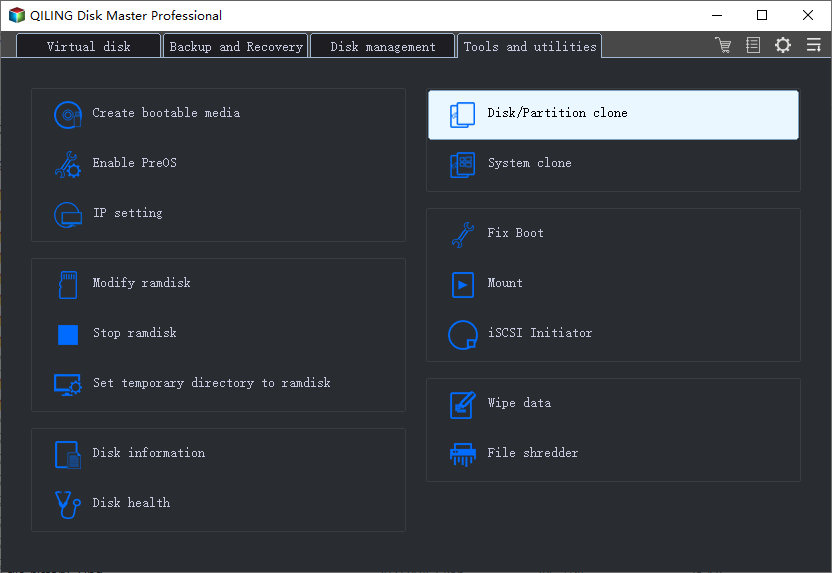
Step 2. Connect the destination SSD, open Qiling Disk Master, and choose the clone function that matches your goal. Use system cloning only when moving Windows; use disk cloning when all source partitions must move together.
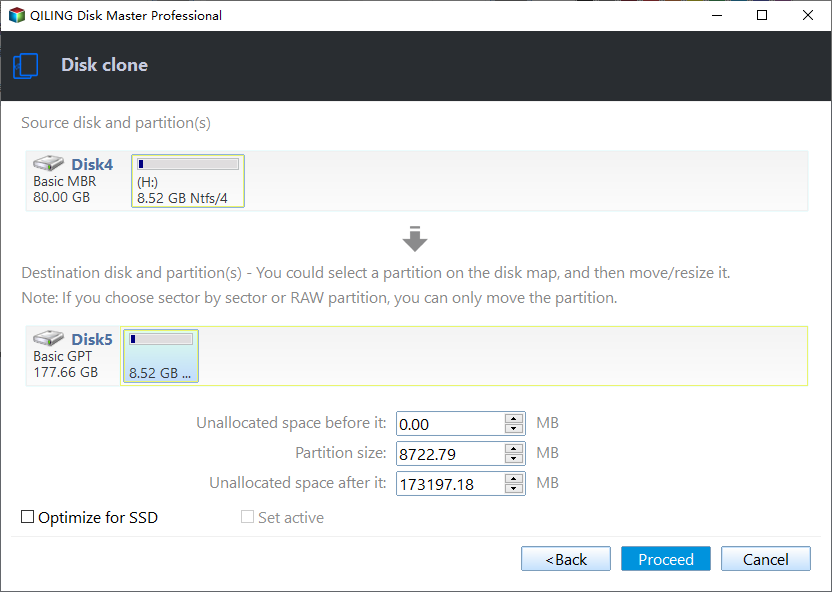
Step 3. Select source and destination carefully, confirm the destination overwrite warning, and review the planned partition layout.
Step 4. Click Proceed. When the operation ends, boot from the new drive and verify Windows, applications, and personal files before erasing the original.
Related Articles
- Disk Clone vs. System Clone
Choose the clone type that matches a full drive replacement or an operating-system move. - Convert GPT and MBR Disks
Check boot requirements before changing the partition style of a Windows disk.
Products
Articles & Tutorials
- Data Recovery
- Data Backup
- File Recovery
- File Backup
- File synchronize
- System Backup and Restore
- Disk and Partition Clone
- Technical articles
- Disk Master Help
- Windows Deleted File and Disk Recovery Tutorials
- Windows File and Data Recovery Tutorials
- More Windows Tutorials for Install, Security, Files, and PC Tips
- Windows Boot, Repair, and Recovery Environment Tutorials
- Windows Backup Tutorials
- Windows Restore Tutorials
- Windows Clone and Migration Tutorials
- Windows Server Backup, Recovery, and Management Tutorials
- Windows Disk, Partition, and Storage Management Tutorials