Qiling Safe Disk vs. VeraCrypt: Encrypted Containers
Qiling Safe Disk and VeraCrypt can both protect selected files inside an encrypted container that mounts as a drive. They are not replacements for a backup, and neither protects files that remain outside the locked container.
Protection scope
Safe Disk creates a password-protected .fvd container that mounts as a normal Windows drive. Its workflow is designed for creating, mounting, copying files, and unmounting a selected protected area. VeraCrypt also supports encrypted file containers and offers additional advanced options, including volume and system-encryption workflows. Those options require more careful setup and recovery planning.
Key differences
| Question | Safe Disk | VeraCrypt |
|---|---|---|
| Selected-file protection | Create and mount an encrypted container in a guided Windows workflow. | Create and mount an encrypted volume with more configuration choices. |
| Whole-system encryption | Not its purpose; use full-disk protection separately when needed. | Offers system-encryption options for supported configurations. |
| Portability | Copy the closed container file, then open it on a PC with compatible Safe Disk software. | Container access requires a compatible VeraCrypt installation and the correct password or key material. |
| Recovery | No forgotten-password backdoor; keep a backup and password record. | Also requires careful credential and rescue-media planning for the selected workflow. |
Choose the right model
Choose Safe Disk when you want an uncomplicated encrypted workspace for contracts, photos, backups, or other selected files on a Windows PC. Choose VeraCrypt when you understand its advanced volume or system-encryption options and need that level of control. For a lost laptop, full-disk protection such as BitLocker can complement either container workflow; a container alone does not encrypt the rest of the computer.
Create a Safe Disk container safely
Step 1. Back up the original files and choose a location with sufficient free space for the new container.
Step 2. Open Safe Disk, click Create, select the container location and size, choose AES-256, and set a unique password you can store safely.
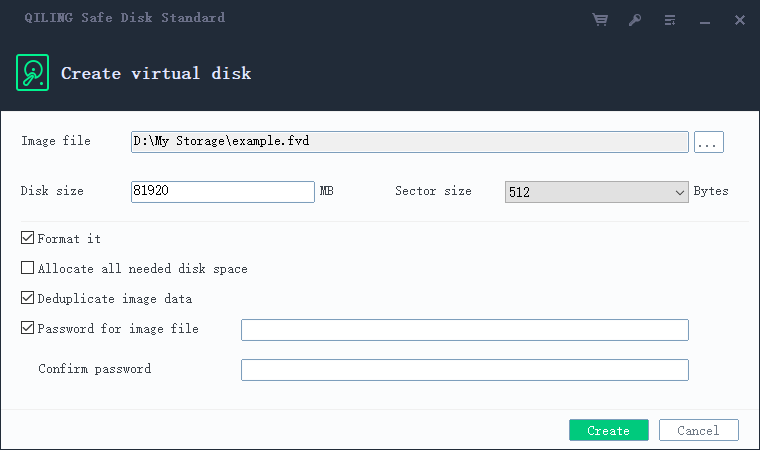
Step 3. Create the image, select it in the program, enter its password, choose a drive letter, and click Mount.
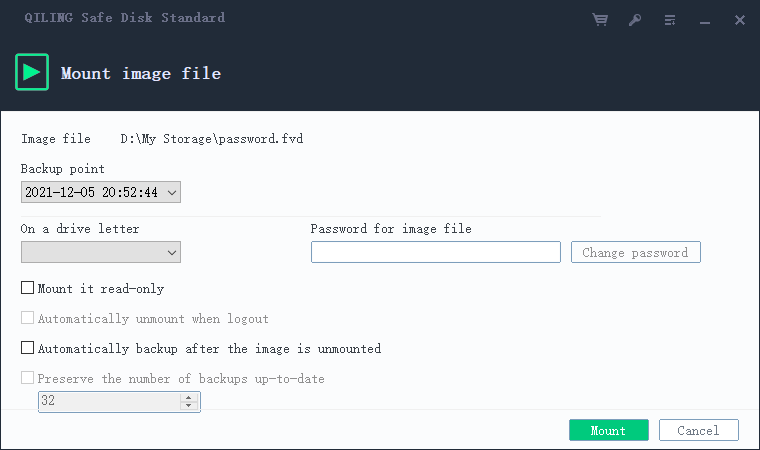
Step 4. Copy a test file into the mounted drive, unmount it, mount it again, and verify the file opens. Only then copy the remaining files and decide whether unencrypted originals should be removed.
Related Articles
- Encrypted Container vs. BitLocker
Choose selected-file protection or whole-volume encryption according to the data you need to protect. - Create a Password-Protected Virtual Disk
Learn the practical checks that keep a virtual encrypted drive usable and recoverable.
Products
Articles & Tutorials
- Data Recovery
- Data Backup
- File Recovery
- File Backup
- File synchronize
- System Backup and Restore
- Disk and Partition Clone
- Technical articles
- Disk Master Help
- Windows Deleted File and Disk Recovery Tutorials
- Windows File and Data Recovery Tutorials
- More Windows Tutorials for Install, Security, Files, and PC Tips
- Windows Boot, Repair, and Recovery Environment Tutorials
- Windows Backup Tutorials
- Windows Restore Tutorials
- Windows Clone and Migration Tutorials
- Windows Server Backup, Recovery, and Management Tutorials
- Windows Disk, Partition, and Storage Management Tutorials