Encrypted Container vs. BitLocker: Which Fits Your Files?
An encrypted container and BitLocker can both protect data at rest, but they cover different boundaries. A QILING Safe Disk container is a password-protected .fvd file that appears as a virtual drive after mounting. BitLocker encrypts a Windows volume; BitLocker To Go applies that approach to a removable drive. Neither choice replaces a backup.
What each method protects
Safe Disk container: Only files saved inside the mounted .fvd image are covered by that image's encryption. Ordinary files elsewhere on the PC or USB drive are not covered. You can copy the closed container file as one item, but another Windows PC needs compatible Safe Disk software and the password to open it.
For a comparison of two encrypted-container workflows rather than container encryption versus whole-volume encryption, see Qiling Safe Disk vs. VeraCrypt.
BitLocker on a data or system volume: BitLocker protects the selected volume rather than a chosen folder. A BitLocker-protected Windows system volume helps protect data on a lost, powered-off PC; BitLocker To Go is the removable-drive variant. Microsoft's BitLocker FAQ documents the removable-drive scope and unlock methods.
BitLocker on a VHDX: A virtual disk file can also contain a BitLocker-protected data volume. This is closer to a portable encrypted container in shape, but it requires the Windows VHDX and BitLocker setup described in the password-protected virtual disk guide. A plain VHDX without BitLocker is not an encrypted container.
Access while open: Once either protected drive is unlocked and mounted, apps running in that Windows session can read files the user can access. Encryption alone does not stop malware, an unlocked-session intruder, or someone reading an unencrypted copy outside the protected area.
Choose by the way you use files
Choose a container when you want to protect a selected project, keep unprotected files on the same USB drive, or back up one closed encrypted image. Before relying on it, test mounting a copy on every Windows PC where you expect to work.
Choose BitLocker when the entire laptop volume or removable drive must be protected. Check that the Windows edition and organization policy support the required BitLocker controls, and save the recovery key away from the protected volume. BitLocker Drive Encryption is provided on supported Pro, Enterprise, and Education editions; do not assume Windows Home offers the same manual controls. Microsoft's edition guide gives the current availability.
Use both only for a reason: For example, a protected system volume can cover the laptop while a separate container organizes files for a particular exchange. Two layers also mean two sets of credentials and a more complicated recovery plan; test both before deleting any unprotected source.
Recommended product for a selected-file container
If you need to protect a set of documents rather than the entire PC or USB volume, QILING Safe Disk Standard offers a password-protected virtual drive in an .fvd file. This is a practical choice for a project you want to close, back up, or move as one encrypted image. It is not a replacement for BitLocker when every file on a lost device must be protected.
Step 1. Back up the original files. Open Safe Disk and choose its create-image function. Select a location with enough space, name the new .fvd file, set its virtual disk size, and enter and confirm an image password.
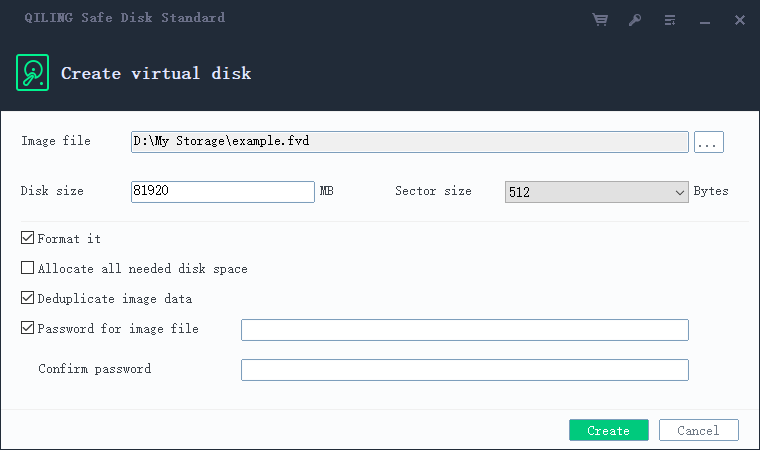
Step 2. Review the image location and size. If your version offers formatting during creation, use it only for this new empty image. Click Create and wait for the image to appear in the Safe Disk list.
Step 3. Select the new image, choose an unused drive letter, enter the same password, and click Mount. Leave read-only mode off while adding files.
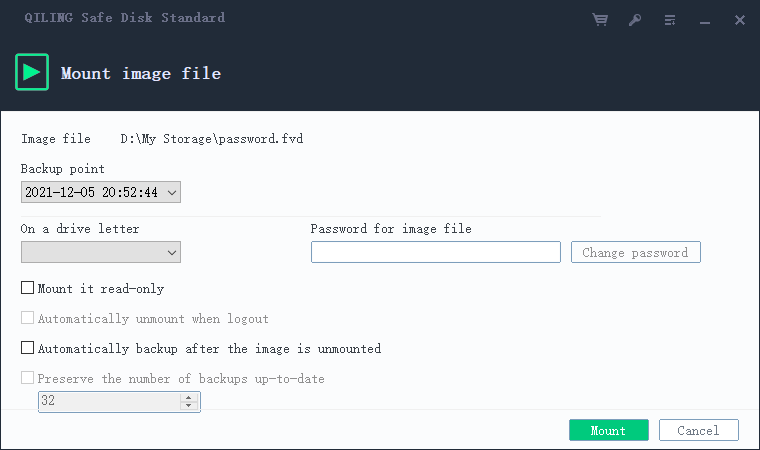
Step 4. Open the mounted drive in File Explorer and copy a test file into it. Reopen that file from the virtual drive, then copy the remaining selected files. Check a few files before changing or removing any unencrypted originals.
Step 5. Close files in the virtual drive, choose Unmount, and confirm the drive letter disappears. Back up the closed .fvd file on separate storage. On a second approved Windows PC, confirm that compatible Safe Disk software can add and mount a copy with the password.
Move data without leaving a gap
Step 1. Make an independent backup and confirm it opens. Identify every copy of the sensitive files, including Downloads, email attachments, sync folders, and the USB drive.
Step 2. Create the chosen protected destination. For Safe Disk, follow the encrypted-container steps. For a removable whole-drive workflow, follow the BitLocker To Go guide. Confirm encryption is active before copying private files.
Step 3. Copy a small test file, lock or unmount the destination, unlock it again, and reopen the file. Then copy the remaining data and check representative files. Keep the original and backup until the protected copy has passed the test.
Step 4. Plan removal of unencrypted originals separately. Deleting an ordinary file is not proof that every previous copy or recoverable trace has been securely erased.
Common questions
Does a Safe Disk container encrypt the entire USB stick? No. It covers files placed inside the image; files outside it remain outside that protection.
Is a password-protected folder the same thing? Not necessarily. A folder name or Windows account password does not by itself create an encrypted virtual drive. Verify the protection method rather than relying on a lock icon or name.
What if the password is forgotten? Keep recovery material according to the chosen tool. BitLocker has a recovery-key workflow; do not assume an independent Safe Disk image can be unlocked with that key.
Related Articles
- Virtual Drive vs. Full-Disk Encryption
Choose a protection boundary based on lost-device, shared-file, and active-session risks. - Protect Selected Files on USB
Set up a Safe Disk container on removable storage without claiming the whole drive is encrypted. - Encrypt an External SSD on Windows 11
BitLocker To Go scope and recovery-key handling for external SSDs. - Encrypt a USB Drive Without BitLocker
Alternatives for Windows 11 Home and drives that must also work on Mac.
Products
Articles & Tutorials
- Data Recovery
- Data Backup
- File Recovery
- File Backup
- File synchronize
- System Backup and Restore
- Disk and Partition Clone
- Technical articles
- Disk Master Help
- Windows Deleted File and Disk Recovery Tutorials
- Windows File and Data Recovery Tutorials
- More Windows Tutorials for Install, Security, Files, and PC Tips
- Windows Boot, Repair, and Recovery Environment Tutorials
- Windows Backup Tutorials
- Windows Restore Tutorials
- Windows Clone and Migration Tutorials
- Windows Server Backup, Recovery, and Management Tutorials
- Windows Disk, Partition, and Storage Management Tutorials