How to Password-Protect Files on a USB Drive in Windows
You may want to carry private work files on a USB stick while leaving other files easy to share. A Safe Disk encrypted container can hold the private set as a password-protected .fvd file. This is not the same as encrypting the entire USB drive: files outside the container remain readable, and another computer needs compatible software to open the container.
Prepare the USB drive and backup
Step 1. Open the USB drive in File Explorer and check its letter, free space, and existing files. Copy the files you cannot afford to lose to a separate drive. Do not format the USB stick to create an encrypted container.
Step 2. Decide which files must be private and how much space they need. Keep additional room for later changes and a second copy of the container. If the drive frequently disconnects or reports errors, replace it before trusting it with sensitive data.
Create a container on the USB drive
Step 1. Install QILING Safe Disk Standard and open its create-image function. Set the image location to a folder on the USB drive, not to your PC's C drive. Give the new file a recognizable .fvd name.
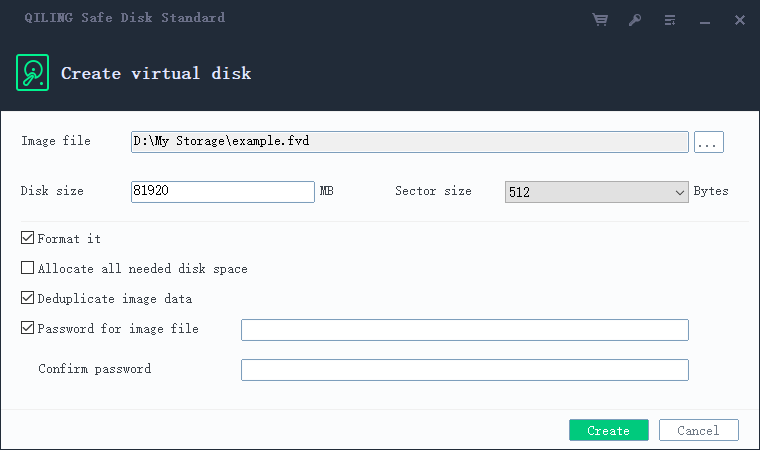
Step 2. Choose a virtual disk size that fits both the intended files and the USB drive's free space. Set and confirm a strong, unique password. For a new empty image, use the create-and-format setting if required by the application, then select Create. Recheck that the .fvd file appears on the USB drive.
Add files and test another PC
Step 1. Select the new image in Safe Disk, choose a free virtual-drive letter, enter the password, and select Mount. Open the virtual drive in File Explorer and copy a small test file into it. Reopen the copied file before adding the rest of the private documents.
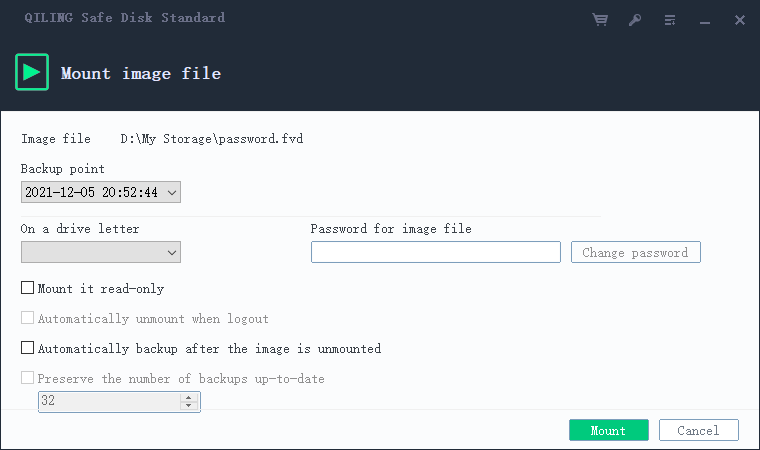
Step 2. Copy the remaining private files into the mounted drive. Verify a few of them, close any open documents, and select Unmount in Safe Disk. Confirm the virtual drive letter disappears, then safely eject the USB drive.
Step 3. On another Windows computer with a compatible Safe Disk edition, connect the USB drive. Add the existing .fvd image if it is not listed, enter its password, and mount it. Open a test file, then unmount before removing the USB drive. Do not assume the container can open on a PC without the required software.
Step 4. Keep a separate backup of the unmounted .fvd file and store the password securely. Copying private files into the container does not automatically remove their original, unencrypted copies from the USB drive or the PC.
Choose full-drive protection when needed
If every file on the removable drive must be protected, consider an entire-drive method such as BitLocker To Go on a supported Windows edition. It encrypts the removable volume, while the Safe Disk workflow above protects only files placed inside its container. Check the receiving computers and recovery-key requirements before choosing either method. See the container versus BitLocker comparison for the trade-offs.
Related Articles
- Create an Encrypted Container in Windows 11
Set the size, password, and backup routine for a new Safe Disk image. - BitLocker To Go in Windows 11
Use volume-wide protection when selected-file encryption is not enough for a USB drive. - Password Protect an External Hard Drive in Windows 11
Which protection methods apply to large external drives and what each covers. - Encrypt a USB Drive Without BitLocker
Container and third-party options when BitLocker To Go is unavailable.
Products
Articles & Tutorials
- Data Recovery
- Data Backup
- File Recovery
- File Backup
- File synchronize
- System Backup and Restore
- Disk and Partition Clone
- Technical articles
- Disk Master Help
- Windows Deleted File and Disk Recovery Tutorials
- Windows File and Data Recovery Tutorials
- More Windows Tutorials for Install, Security, Files, and PC Tips
- Windows Boot, Repair, and Recovery Environment Tutorials
- Windows Backup Tutorials
- Windows Restore Tutorials
- Windows Clone and Migration Tutorials
- Windows Server Backup, Recovery, and Management Tutorials
- Windows Disk, Partition, and Storage Management Tutorials