How to Turn on or off Bitlocker to Go in Windows 11
What Is Bitlocker to GO in Windows 11?
Bitlocker to Go is a drive encryption feature that secures data on external drives, USBs, and SD cards by encrypting them with a strong password or PIN.
Windows 11 requires a Trusted Platform Module (TPM) chip for the best experience, and since you can't install Windows 11 on a device without TPM.
After encrypting your data, you can only access it with a password, recovery key, or smart card. To avoid being locked out, you can manually save a copy of the recovery key.
✎What Is the Difference between BitLocker and BitLocker to Go?
Bitlocker is primarily used to encrypt and protect the operating system and fixed data drives, while Bitlocker to GO is specifically designed for removable devices such as USB flash drives, SD cards, and others.
✎ Is Windows 11 Home Bitlocker Available?
Windows 11 Home doesn't support BitLocker drive encryption, but you can use Windows 11 Device encryption instead, which requires an additional $99 or upgrading to a more expensive version.
✎ Does My PC Support TPM?
To check if a TPM is working on a Windows PC, open the TPM management tool by pressing the Win + R keys and typing "tpm.msc". If the status is "The TPM is ready for use", it's working properly. If not, it will display "Compatible TPM cannot be found".
How to Turn on Bitlocker to Go in Windows 11
To enable Bitlocker to Go in Windows 11, you need to log in with administrator privileges, and then follow the steps:
Step 1. Click Start > Settings > Storage > Advanced storage settings and click on Disks & volumes.

Step 2. Select the removable drive (a USB flash drive) with the volume to encrypt, then choose the volume and click on the Properties button.
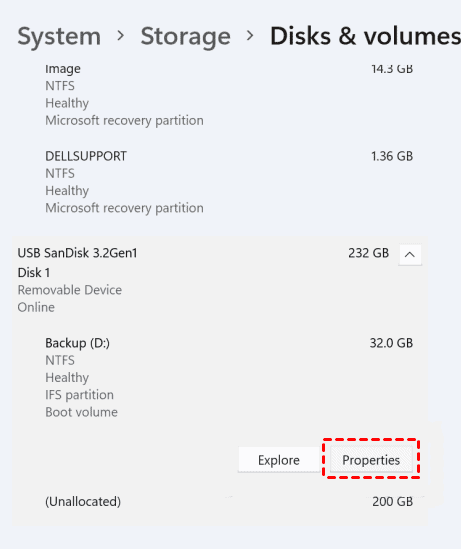
Step 3. Go to Bitlocker and click on Turn on BitLocker.
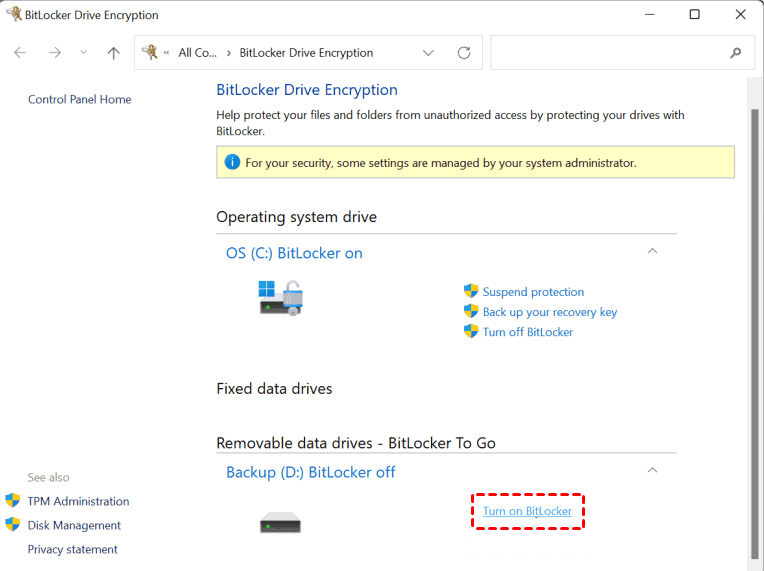
Step 4. Go to Removable data drives BitLocker To Go and click Turn on BitLocker.
Step 5. To unlock this USB drive, select to use a password or smart card, then enter your password twice and click Next.
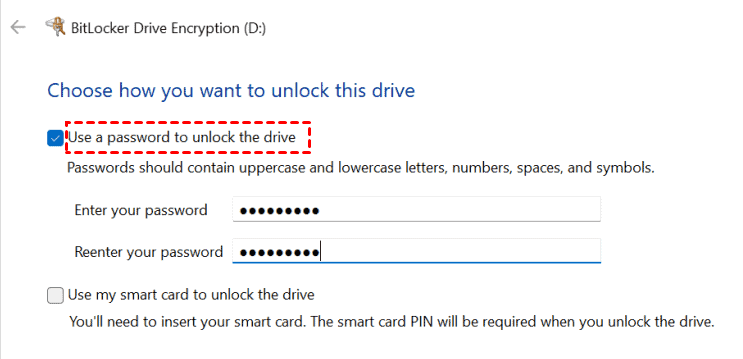
Note: A smart card is a physical device used for authentication that connects to a smart-card reader and a computer. It allows users to log in with a Personal Identification Number (PIN) and securely stores digital identity information, including security credentials and digital signatures.
Step 6. Save your Windows 11 Bitlocker recovery key by either storing it in your Microsoft account, saving it to a file, or printing it out. Click Next.

Notes:
- To use a Microsoft account, you need to sign in with your account.
- You can rename the file if you save it to a file and the recovery key contained text documents on your PC.
- To print the recovery key, you need a printer.
Step 7. Select the item you want to encrypt - only used disk space or the entire drive. Then, click Next.
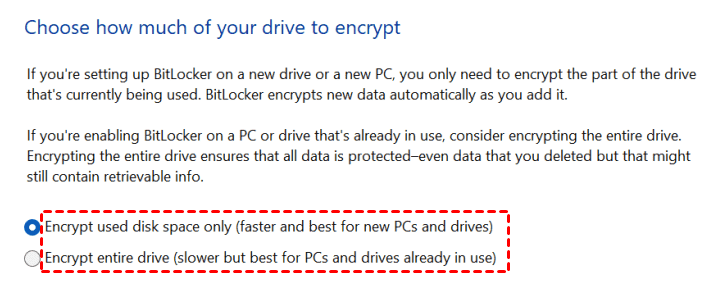
Step 8. To enable Bitlocker on a USB drive, select the "compatible mode" option, click "Next", and proceed with the setup.

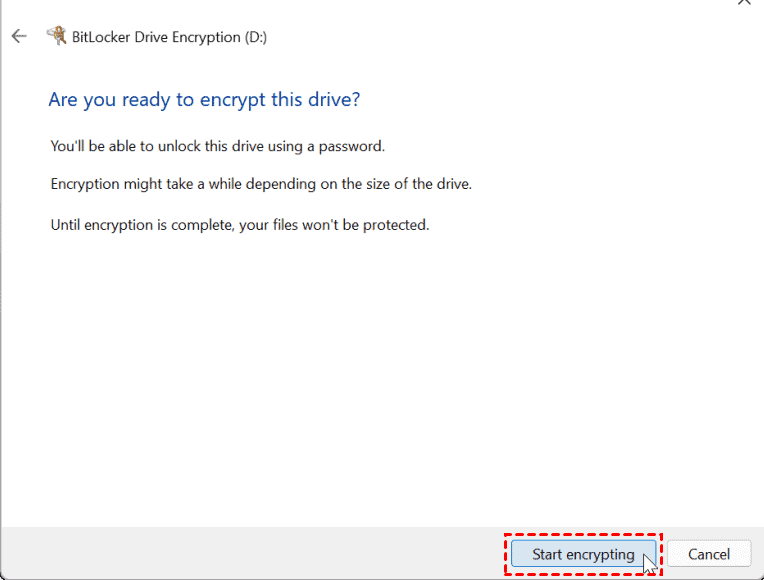
Step 9. Confirm you are ready to encrypt this USB drive and click Start encrypting to download Bitlocker in Windows 11.
How to Use Bitlocker to Go Encrypted Drive in Windows 11
To access your data, you need to unlock the encrypted drive by entering the correct password. This will decrypt the drive and allow you to view your files. The yellow lock icon will disappear, and you'll be able to access your data as usual.
Step 1. Open File Explorer, and find the encrypted drive. It has a yellow lock icon.
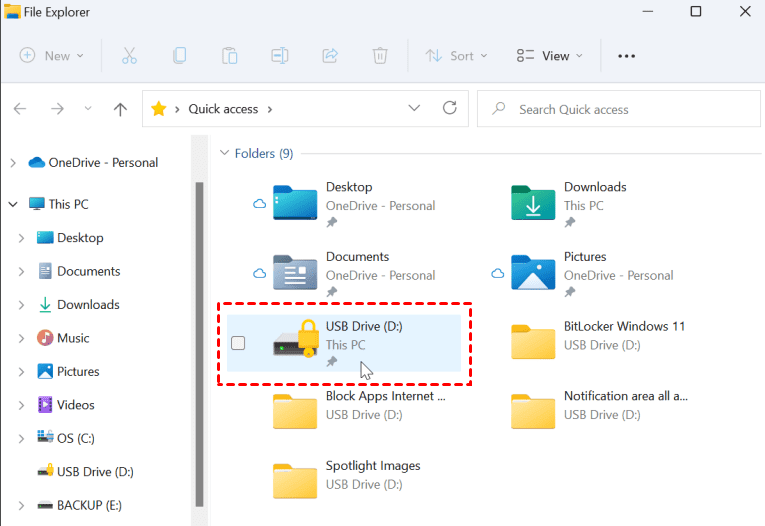
Step 2. Click the encrypted drive and you will be asked to enter the password. Type in and click Unlock.
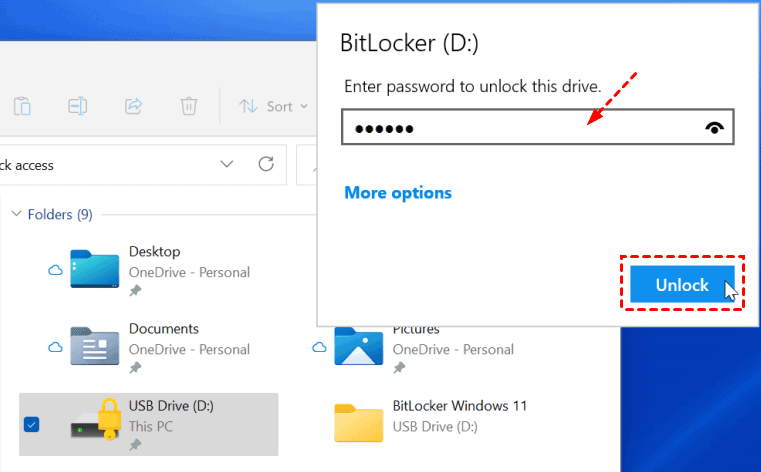
Step 3 (optional). Click More options if you forgot the password, and enter the previously saved recovery key.
How to Turn off Bitlocker to Go in Windows 11
To turn off Bitlocker to Go in Windows 11, go to Settings > Update & Security > Device Security, click on Manage BitLocker, then click on Turn off BitLocker. Alternatively, you can go to the Control Panel > BitLocker > Turn off BitLocker. After turning it off, you can remove the BitLocker recovery key from the USB drive.
Step 1. Click Start and type in Control Panel. Then, select the top result.
Step 2. Go to System and Security and click BitLocker Drive Encryption.
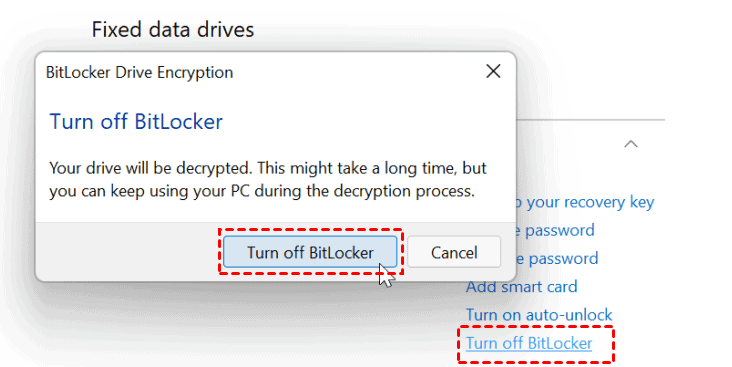
Step 3. To disable BitLocker on a removable data drive, go to Removable data drives BitLocker To Go, click Turn off BitLocker twice, and it will start to decrypt your USB drive.
More Effective Way to Protect Files in Windows 11
Windows 11 Bitlocker to Go allows you to encrypt a removable drive, but if you only want to encrypt specific files, this method can be impractical and time-consuming.
You can directly backup and encrypt files with a powerful file backup software like Qiling Disk Master Professional, ensuring that no one can access the files without the password you set during the backup process, which applies to all Windows 11 editions, including Home.
Step 1. Download Qiling Disk Master Professional, install, and open it. Then click Backup > File Backup.

Step 2. Select files or folders to encrypt, then choose another volume on this USB flash drive or a different path to receive the encrypted data.

Step 3. To encrypt the selected data, click Options and turn Enable encryption for backups under the General tab, then type the password twice and click OK.

Step 4. Confirm you select all of the files to encrypt and click Proceed to backup and encrypt files on a USB drive.

📔 Important: good and sustainable data protection
Qiling Disk Master only backs up selected files currently on a USB drive, and any changes made to them will not be included unless a regular backup is scheduled. However, it still offers a convenient feature to automatically copy files when a USB is connected.

📔 Important: backup disk full
Qiling Disk Master will continuously create backups for a scheduled task until the backup disk is full, and also enables features like compression, splitting, and incremental backup to help save disk space.
To prevent continuous consumption of backup space, enable automatic backup cleanup in Backup Scheme. This will automatically delete backup files and free up disk space for new backups.

With the help of Qiling Disk Master Professional, it's easy to backup and encrypted files in Windows systems, including Windows 11 and previous versions. For server users, Qiling Disk Master Server is a suitable option, supporting systems from 2003 to 2022.
Summary
To ensure data security and prevent unauthorized access, you can easily enable Bitlocker to Go in Windows 11. This feature will encrypt all data on a removable device or the entire drive, providing an added layer of protection for your sensitive information.
To encrypt specific files or folders, it's more effective to use a powerful backup software that can track changes and manage disk space, allowing you to backup and encrypt only the files you need, while also keeping track of changes and optimizing disk usage.
Related Articles
- How to Easily Disable Bitlocker Encryption in Windows 11 (8 Ways)
You can learn what is Bitlocker encryption and how to disable Bitlocker encryption in Windows 11 as well as a better way to password your file. Please read on. - Password Protect USB Drive in Windows 10 Easily (2 Ways)
You can learn 2 easy ways to password protect USB drive in Windows 10, including Windows built-in feature and the professional third-party software. You can read on to know the detailed information. - How to Encrypt External Hard Drive in Windows 11 (2 Ways)
You can learn why encrypt external hard drive in Windows 11 and 2 easy solutions to achieve the goal. The graphic tutorial will be included in each method. Keep reading to know more details. - How to Upgrade Processor on Laptop [i5 to i7/i3 to i5/i3 to i7]
Learn how to upgrade a laptop processor from i3 to i5 or i7, what risks to check first, and how to back up data before hardware changes. - How to Deploy Windows 7/XP/10 Image over Network in the easiest way?
Learn how to Deploy Windows 7/XP/10 Image over Network in the easiest way with clear steps, key checks, and practical tips. - Best Free Microsoft Deployment Toolkit (MDT) Alternative
This guide explains Best Free Microsoft Deployment Toolkit (MDT) Alternative with clear steps, key checks, and practical tips.
Products
Articles & Tutorials
- Data Recovery
- Data Backup
- File Recovery
- File Backup
- File synchronize
- System Backup and Restore
- Disk and Partition Clone
- Technical articles
- Disk Master Help
- Windows Deleted File and Disk Recovery Tutorials
- Windows File and Data Recovery Tutorials
- More Windows Tutorials for Install, Security, Files, and PC Tips
- Windows Boot, Repair, and Recovery Environment Tutorials
- Windows Backup Tutorials
- Windows Restore Tutorials
- Windows Clone and Migration Tutorials
- Windows Server Backup, Recovery, and Management Tutorials
- Windows Disk, Partition, and Storage Management Tutorials