Recover Deleted OneDrive Files on Windows 11
OneDrive keeps deleted files in several places, and which one holds your file depends on how it was deleted and how long ago. A file removed in File Explorer goes to the local Recycle Bin and to the cloud recycle bin. A file deleted from the OneDrive website skips the local bin. A file overwritten with wrong content is not deleted at all, and needs version history instead. Work through the options in the order below; most recoveries succeed at step one.
Where deleted OneDrive files go
- Local Recycle Bin. Files deleted from the synced OneDrive folder on this PC. Emptied when you empty the bin, and often only holds items for a limited period.
- OneDrive recycle bin. Every file deleted from the cloud or from a synced PC lands here. Personal accounts keep items for 30 days; work and school accounts typically keep them for 93 days.
- Version history. Earlier copies of a file that was edited or overwritten. Available as long as the file still exists.
- Files Restore. Rolls the whole OneDrive back to a point in time up to 30 days earlier. Useful after ransomware or a mass deletion.
Shift + Delete and a delete performed by an application can bypass the local bin but still reach the cloud recycle bin.
Stop the deletion from spreading
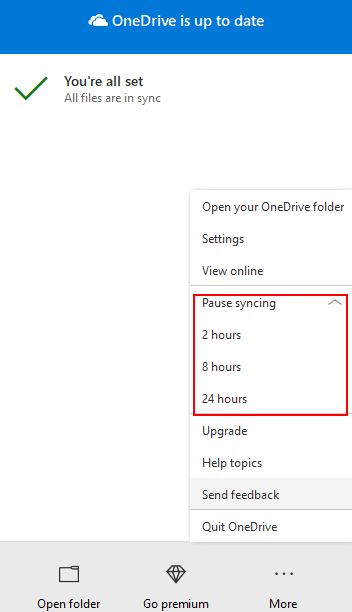
Step 1. If files are disappearing right now, pause syncing before doing anything else. Right-click the OneDrive cloud icon in the notification area, open Settings, and choose Pause syncing.
Step 2. If you are on a PC that shows files missing while another device still has them, do not let that device sync. A sync from the device that still holds the data can restore them; a sync from the emptied device propagates the deletion.
Step 3. Do not create new files with the same names in the same folders while you are deciding. They can overwrite the space the recovery depends on.
Restore from the recycle bin
Step 1. Check the local Recycle Bin first. Open it, find the item, right-click, and choose Restore. This is the fastest path when the file was deleted on this PC.
Step 2. If it is not there, sign in at onedrive.com in a browser and open Recycle bin in the left navigation pane.
Step 3. Select the file or folder and choose Restore. Restored items return to their original location.
Step 4. If the item was in a shared folder, the owner's recycle bin may hold it instead of yours. Ask the owner to check.
Version history and Files Restore
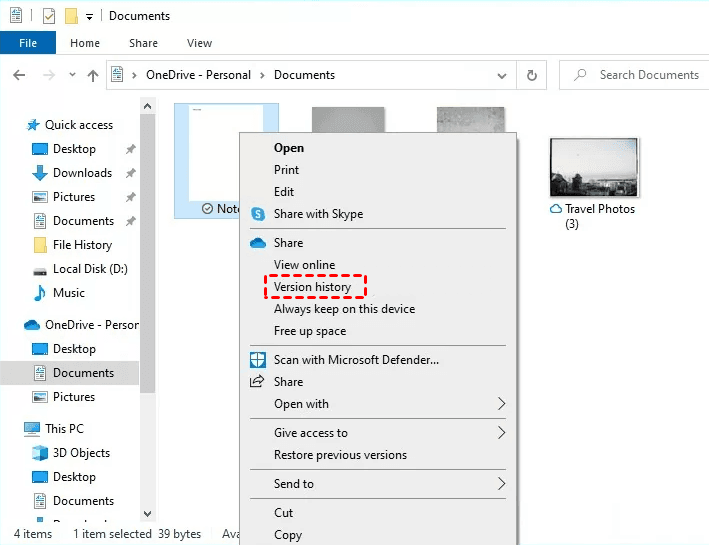
Step 1. For a file that was overwritten rather than deleted, right-click it in File Explorer and choose Version history. Pick an earlier version and restore it. This works for Office documents and most common file types.
Step 2. For a mass deletion or an encryption incident, open OneDrive settings in the browser, go to Restore your OneDrive, pick a date within the last 30 days, and restore. Review the activity summary before confirming, because this rolls back everything, including changes you want to keep.
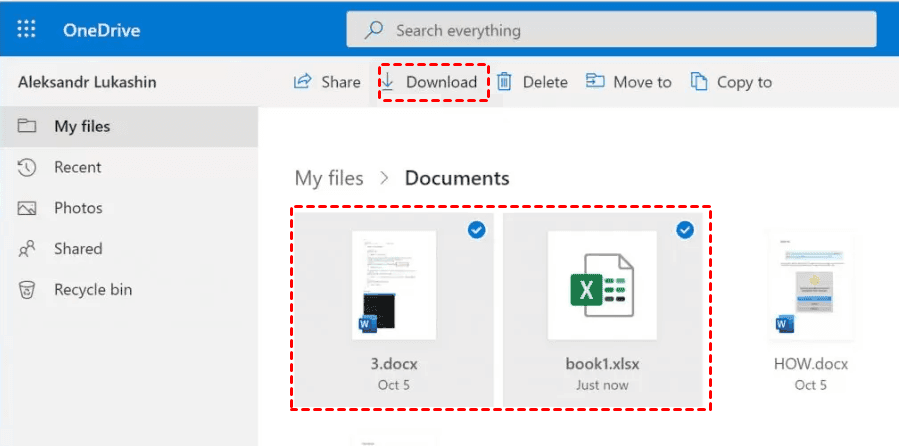
Step 3. If the file was in a SharePoint or Teams library, use that library's own recycle bin and version history. Those retention periods are usually longer than personal OneDrive.
After 30 days or after a permanent delete
Once the retention period passes, no Microsoft tool will bring the file back. At that point your options are limited to what remains on the local disk.
- Check other devices. A phone, tablet, or older laptop may still hold a cached copy that has not synced.
- Check other accounts. A personal and a work account are separate storage locations with separate recycle bins.
- Scan the local disk. If the file existed in the OneDrive folder on this PC and the space has not been overwritten, a recovery tool can sometimes find it. Stop writing to that drive first. The same method is described in Recover data from a formatted USB drive and works on any volume.
Reduce the risk next time
Turn on Files On-Demand only for files you can re-download, keep a second copy of irreplaceable documents outside OneDrive, and confirm the retention period of your account type before you rely on the recycle bin.
Related Articles
- Recover Overwritten Excel Files on Windows 11
Version history, temp files, and disk scans for a workbook that was saved over. - Recover Data from a Formatted USB Drive on Windows 11
How to scan a volume for files whose entries have already been removed. - Recover Files After a Windows 11 Reset
What a reset removes, and where personal files may still be found afterwards.
Products
Articles & Tutorials
- Data Recovery
- Data Backup
- File Recovery
- File Backup
- File synchronize
- System Backup and Restore
- Disk and Partition Clone
- Technical articles
- Disk Master Help
- Windows Deleted File and Disk Recovery Tutorials
- Windows File and Data Recovery Tutorials
- More Windows Tutorials for Install, Security, Files, and PC Tips
- Windows Boot, Repair, and Recovery Environment Tutorials
- Windows Backup Tutorials
- Windows Restore Tutorials
- Windows Clone and Migration Tutorials
- Windows Server Backup, Recovery, and Management Tutorials
- Windows Disk, Partition, and Storage Management Tutorials