Recover Overwritten Excel Files on Windows 11
An overwritten workbook is a different problem from a deleted one. The file still exists, so there is nothing in the Recycle Bin, and the contents have been replaced in place. Whether the old data is recoverable depends almost entirely on how the save happened: an edit that has not been closed, an autosaved cloud copy, a shadow copy on the volume, or only the new data written over the old sectors. Check the options in the order below, from fastest and most certain to slowest and least certain.
What "overwritten" means in Excel
Excel writes a workbook by replacing the file, not by editing it in place. The steps it goes through determine what is left behind.
- Saved and still open. The previous state may still be in the undo stack. This is the only case where recovery is guaranteed.
- Saved and closed, stored in OneDrive or SharePoint. A full version history exists on the server. Recovery is reliable.
- Saved and closed, stored locally. Recovery depends on volume shadow copies, Excel's own recovery files, or luck.
- Saved over an old file, then the disk was reused heavily. The old sectors are likely gone. Stop writing to the drive before you try anything.
Undo while the file is open
Step 1. Do not close Excel. Closing flushes the file and clears the in-memory history.
Step 2. Press Ctrl + Z repeatedly until the data returns. If AutoSave is off and you have saved, this will not reach back past the save.
Step 3. If the change is already saved but the file is still open, use File then Info and look for Version History or Manage Workbook. Both can surface an earlier copy without closing the file.
Step 4. Use Save As with a new name before doing anything else, so that the damaged version is not overwritten again.
Autosave and recovery files
Step 1. Check the Excel AutoRecover folder. Open File Explorer, paste %AppData%\Microsoft\Excel into the address bar, and look for files with an .asd extension or folders named after the workbook. Files here are usually unsaved or crashed-session copies.
Step 2. Check the workbook's own folder for .tmp files with a similar name and a recent timestamp. Excel sometimes leaves a temp copy during a save.
Step 3. Open the candidate in Excel and compare it with what you expect. If it is the right version, save it under a new name immediately.
Step 4. Ignore files that begin with ~$. Those are lock files that record who has the workbook open; they contain no spreadsheet data.
Check unsaved work
If Excel closed unexpectedly and offered to recover files but you dismissed the prompt, reopen Excel and look at File then Info then Manage Workbook then Recover Unsaved Workbooks. The list survives until the files are deleted or the folder is cleaned.
Version history and Previous Versions
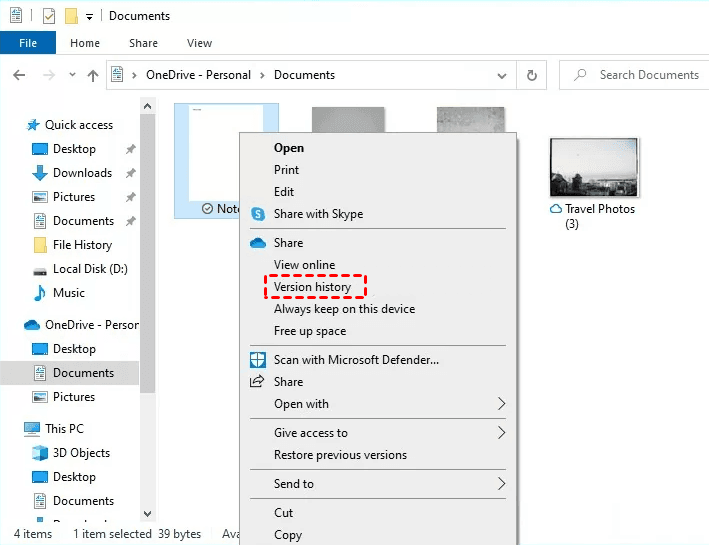
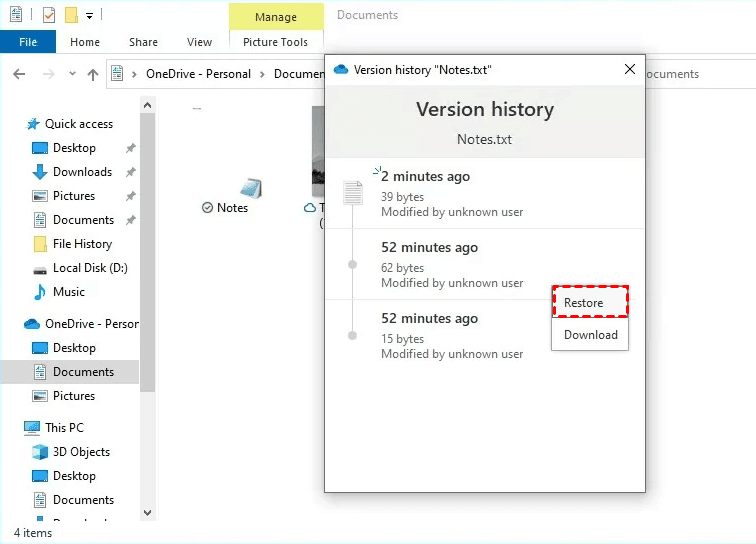
Step 1. For a cloud-saved workbook, right-click the file in File Explorer and choose Version history. Pick the version from before the overwrite and restore it.
Step 2. For a local workbook, right-click it, open Properties, and select the Previous Versions tab. Any entry there comes from a restore point, File History, or a third-party backup agent. Open the entry, then copy the workbook out rather than restoring the whole volume.

Step 3. Check File History if it was ever enabled: Control Panel then File History then Restore personal files. The copy of the workbook from an earlier timestamp will be in the dated folder.
Disk scan and prevention
When none of the above yields a usable copy, a recovery tool can sometimes find an older version of the workbook in unallocated space. It works best when the overwrite was recent, the file was large, and the drive has not been busy since.
Step 1. Stop using the drive that held the workbook. Every new file written can occupy the sectors you are trying to recover.
Step 2. Scan the volume with a recovery tool and filter the results by extension and modification date. Recover to a different drive.
Step 3. Expect partial results. An overwritten file is the hardest recovery case there is, and success is not guaranteed even with the best tool.
Prevent the next overwrite
- Save the workbook to OneDrive or SharePoint. Version history is the only mechanism that recovers an overwrite reliably.
- Turn on AutoSave for cloud files, and keep the AutoRecover interval at the default ten minutes or shorter.
- Enable File History on an external drive for local workbooks.
- Keep dated copies of important workbooks. A filename with a date is a crude but effective version control system.
Recommended tools
Two Qiling tools cover the two halves of the problem: getting a workbook back after it has been saved over, and making sure the next overwrite costs you nothing.
Recover an overwritten workbook with Deep Data Recovery
Deep Data Recovery scans the volume for workbook remnants, lets you preview what it finds before recovering anything, and restores Word, Excel, PDF, photo, and video files to a different drive. Because a saved-over workbook may already be gone from the disk, treat the scan as a chance rather than a guarantee.
Keep scheduled backups with Disk Master Professional
Qiling Disk Master Professional can back up the folders that hold your workbooks on a daily or hourly schedule, keep several previous versions, and restore a single file without touching the rest of the drive. Point the task at your project folder or a synced OneDrive directory, and the next accidental save becomes a copy you can roll back.
Related Articles
- Recover Deleted OneDrive Files on Windows 11
Recycle bins, version history, and Files Restore for cloud-stored documents. - Recover Data from a Formatted USB Drive on Windows 11
What a formatting operation removes, and how a scan can still find file data. - Back Up Windows 11 to an External SSD
A scheduled backup that keeps a recoverable copy of everyday documents.
Products
Articles & Tutorials
- Data Recovery
- Data Backup
- File Recovery
- File Backup
- File synchronize
- System Backup and Restore
- Disk and Partition Clone
- Technical articles
- Disk Master Help
- Windows Deleted File and Disk Recovery Tutorials
- Windows File and Data Recovery Tutorials
- More Windows Tutorials for Install, Security, Files, and PC Tips
- Windows Boot, Repair, and Recovery Environment Tutorials
- Windows Backup Tutorials
- Windows Restore Tutorials
- Windows Clone and Migration Tutorials
- Windows Server Backup, Recovery, and Management Tutorials
- Windows Disk, Partition, and Storage Management Tutorials