SD Card Not Showing Up in Windows 7/8/10: Fixes
When an SD card does not show up in Windows 7, 8, or 10, the problem may be the card reader, a missing drive letter, a damaged file system, or an outdated driver. Start with non-destructive checks. Format the card only after recovering files you need.
Why is the SD card not showing up?
- The SD card is not fully inserted, the reader is faulty, or the USB port is not supplying a stable connection.
- Windows detects the card but does not assign a drive letter.
- The file system is RAW, corrupted, or unsupported by the device that created the card.
- The card-reader driver is disabled, outdated, or damaged.
- The SD card has physical damage or failing flash memory.
Method 1. Check the SD card connection
Step 1. Safely remove the SD card, inspect the contacts for dust or damage, and insert it again until it clicks into place.
Step 2. Try another USB port. If you use an external reader, test another reader or connect the card to a different computer.
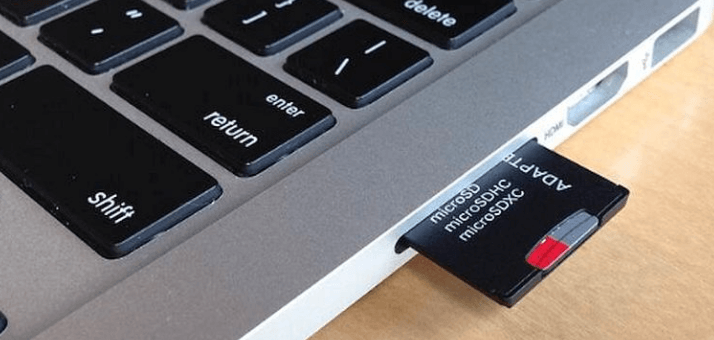
Step 3. Open File Explorer and Disk Management. If the card appears in Disk Management but not File Explorer, continue with the drive-letter method.
Method 2. Assign a drive letter
Step 1. Press Win + R, type diskmgmt.msc, and press Enter to open Disk Management.
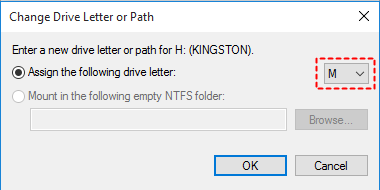
Step 2. Find the SD card by its capacity. Right-click its healthy partition and choose Change Drive Letter and Paths.
Step 3. Select Add, choose an unused letter, and click OK. Reopen File Explorer to check whether the card now appears.
Method 3. Repair the file system
Step 1. If the SD card has a drive letter, open Command Prompt as administrator.
Step 2. Run chkdsk X: /f, replacing X with the SD card letter. This checks the file system and repairs logical errors.
Step 3. If Windows reports the card as RAW or asks to format it, stop writing to the card and recover important files before trying repair or formatting.
Method 4. Update the SD card driver
Step 1. Right-click Computer or This PC, choose Manage, and open Device Manager.
Step 2. Expand Disk drives and Memory technology devices. Right-click the SD card or card reader and select Update driver software.
Step 3. Restart Windows after the update. If the reader still does not appear, uninstall the reader device, restart the computer, and let Windows reinstall the driver.
Method 5. Recover data before formatting
 Deep Data Recovery
Deep Data Recovery can scan an SD card for files when it is RAW, inaccessible, or missing from File Explorer but still detected by Windows.
Step 1. Stop using the SD card and connect it to the computer through a stable card reader. Open Deep Data Recovery and choose Fast Scan first. This mode is suitable when the SD card is RAW, inaccessible, or not shown in File Explorer but still appears in Disk Management.
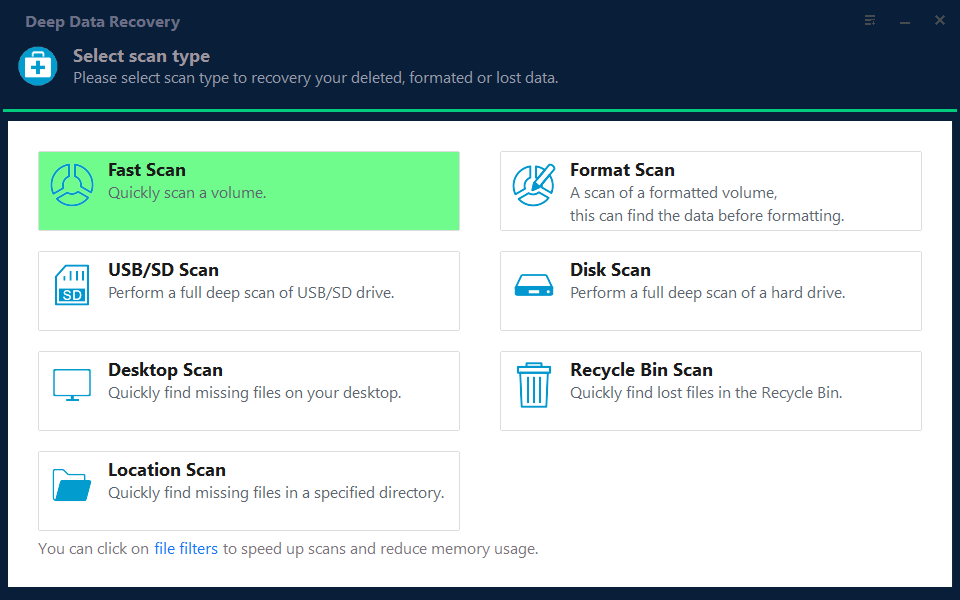
Step 2. Select the SD card by its capacity, drive letter, or disk label. If the card has no drive letter, choose the removable disk that matches the SD card size. Do not select the drive where you plan to save recovered files.

Step 3. Start the scan and wait for the program to list deleted, lost, and existing files. If the first results do not contain the files you need, let the scan finish before stopping it.
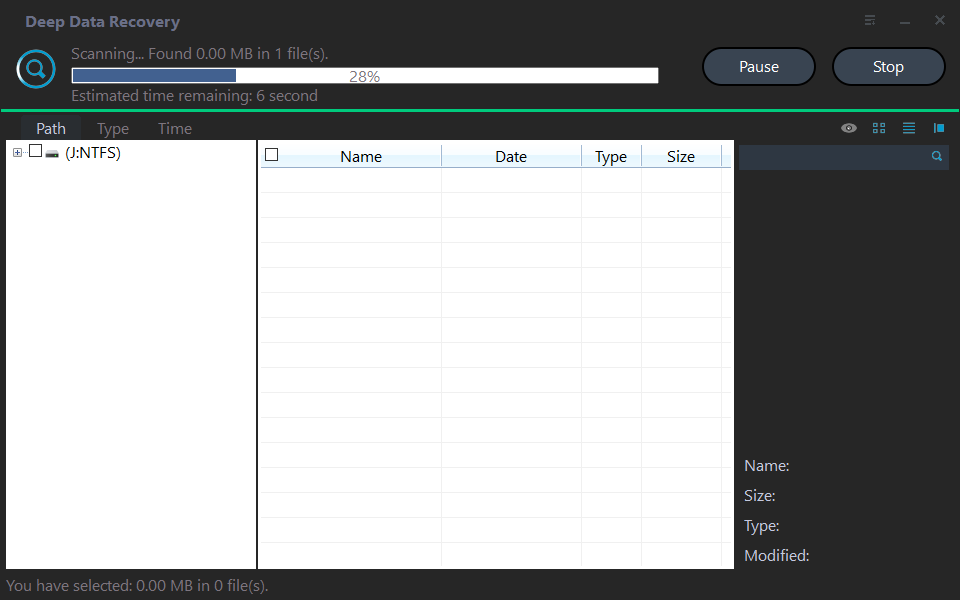
Step 4. Preview the found files, select the photos, videos, documents, or folders you need, and click Recover.

Step 5. Save recovered files to another healthy drive, such as the computer hard drive or an external disk. Do not save them back to the problem SD card.
Step 6. After the files are safe, format the SD card in File Explorer or Disk Management if you want to reuse it. Replace the card if it repeatedly disconnects, becomes RAW again, or fails to format.
Conclusion
Check the SD card, reader, and drive letter first. If Windows detects the card but cannot open it, recover important files before formatting or replacing the card.
Related Articles
-
Unallocated Partition Recovery
Recover files before recreating or formatting storage that Windows cannot access normally. -
Convert USB to FAT32 or NTFS
Choose a compatible file system after backing up removable-drive data.
Products
Articles & Tutorials
- Data Recovery
- Data Backup
- File Recovery
- File Backup
- File synchronize
- System Backup and Restore
- Disk and Partition Clone
- Technical articles
- Disk Master Help
- Windows Deleted File and Disk Recovery Tutorials
- Windows File and Data Recovery Tutorials
- More Windows Tutorials for Install, Security, Files, and PC Tips
- Windows Boot, Repair, and Recovery Environment Tutorials
- Windows Backup Tutorials
- Windows Restore Tutorials
- Windows Clone and Migration Tutorials
- Windows Server Backup, Recovery, and Management Tutorials
- Windows Disk, Partition, and Storage Management Tutorials