Windows 11 23H2 Update: Check Support, Eligibility, and Upgrade Options
A guide written when Windows 11 23H2 was new may no longer point to the right upgrade for your computer. The first step is to identify your installed version and edition, then choose an update that is still supported and approved for your hardware.
This guide explains where 23H2 fits, how to prepare for a feature update, and what to do when Windows Update does not offer the version you expected.
Check version, edition, and support first
Press Windows + R, enter winver, and note the version and build. Then open Settings > System > About to check the edition. A computer already running a newer version does not need to downgrade simply because an older application guide mentions 23H2.
As of September 24, 2026, Windows 11 23H2 Home and Pro are out of support; their servicing ended on November 11, 2025. Enterprise and Education servicing ends on November 10, 2026. Confirm the edition-specific dates in Microsoft's Windows 11 release information.
For a personal PC, use an eligible supported release offered through Windows Update. If an organization specifically requires 23H2 for testing or a managed application, let its administrator choose the approved installation media and migration schedule.
Create a recovery point outside the computer
A feature update can affect drivers and applications. Save your encryption recovery key, confirm administrator access, and connect the laptop to power. Check that essential applications support the target version and that the system disk has adequate working space.
Step 1. Connect an external disk. In Qiling Disk Master, open the disk or partition backup function. Choose a backup of the Windows disk when you need to restore the operating system and its boot partitions together.
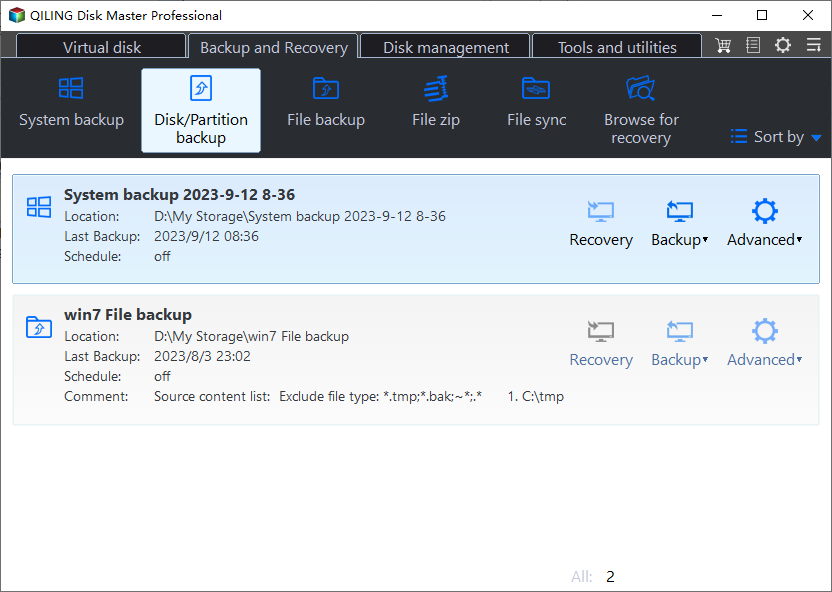
Step 2. Select the source disk and check that the Windows and required system partitions are included. A backup of Documents alone will not restore the operating system.
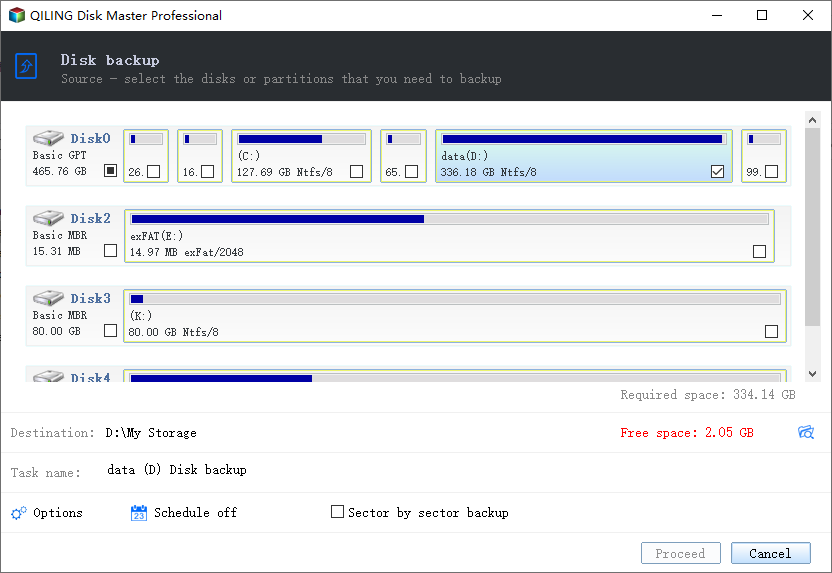
Step 3. Choose a destination on the external disk and click Proceed. Let the task finish and inspect the result. Keep a separate copy of especially important files for convenient access.
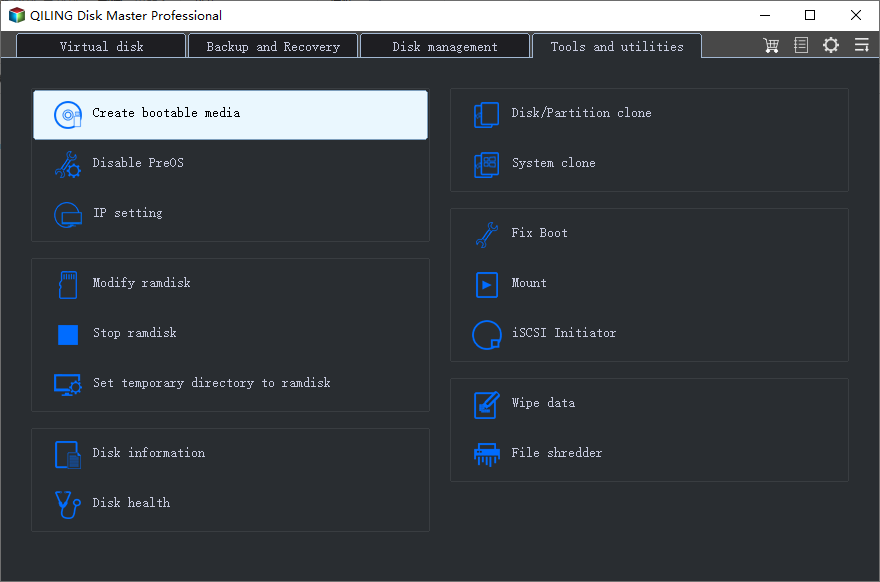
Step 4. Create and test rescue media before upgrading. Confirm that the recovery environment can access the image and internal disk; a backup you cannot reach when Windows fails is not a complete recovery plan.
Install the supported update offered to your PC
Step 1. Open Settings > Windows Update and check for updates. Install required current updates first and restart if requested.
Step 2. Read the exact version named in the feature-update offer. The current Installation Assistant and download page should not be assumed to provide 23H2 specifically.
Step 3. If the offered release is suitable, select its download and installation option. Keep a stable connection and power supply, and allow space for temporary installation files.
Step 4. Save work before scheduling the restart. Do not interrupt installation simply because the progress percentage remains unchanged briefly.
Step 5. After signing in, run winver again. Test networking, audio, printers, security software, and your main applications before deleting rollback files or the pre-update backup.
If 23H2 is missing or the update fails
Version 23H2 originally had an enablement-package path for eligible 22H2 installations, but that history does not mean every Windows version can use the same package. Do not install a package intended for a different build or architecture.
If the device is managed, check with the administrator for a target-version policy. For a compatibility hold, review the named driver or application issue rather than bypassing the block. For an actual failure, record the error code and update history, restart, and use Windows Update troubleshooting before retrying.
When approved ISO media is necessary, starting Setup from within a compatible Windows installation can offer an in-place upgrade that retains applications. Booting from the USB normally leads to a different installation workflow. Read the final retention summary and cancel if it does not preserve the items you intended to keep.
Related Articles
- Windows 11 Blue Screen After an Update
Use the crash circumstances to choose between driver repair, update removal, and recovery. - Make Windows 11 Faster
Find resource bottlenecks and apply targeted changes instead of disabling essential protections.
Products
Articles & Tutorials
- Data Recovery
- Data Backup
- File Recovery
- File Backup
- File synchronize
- System Backup and Restore
- Disk and Partition Clone
- Technical articles
- Disk Master Help
- Windows Deleted File and Disk Recovery Tutorials
- Windows File and Data Recovery Tutorials
- More Windows Tutorials for Install, Security, Files, and PC Tips
- Windows Boot, Repair, and Recovery Environment Tutorials
- Windows Backup Tutorials
- Windows Restore Tutorials
- Windows Clone and Migration Tutorials
- Windows Server Backup, Recovery, and Management Tutorials
- Windows Disk, Partition, and Storage Management Tutorials