Best Free OS Migration Software | Migrate OS to SSD/HDD
Case: how do I migrate OS to SSD for free?
You can use software like Qiling Disk Master to migrate a larger HDD to a smaller SSD. These tools allow you to clone the entire drive, including the operating system, programs, and data, to the smaller SSD, even if it's smaller. Some of these options also offer free versions or trials, and can be run from a bootable USB drive or CD/DVD. Alternatively, you can use the built-in Windows feature called "Disk Cleanup" to free up space on the larger drive, and then use the built-in "Disk Management" tool to shrink the larger drive and clone it to the smaller SSD.
When replacing a hard drive with a larger one or a smaller SSD, one challenge is transferring the operating system (OS) to the new disk. Instead of reinstalling Windows from scratch, which can be time-consuming and requires an installation media, you can use free OS migration software to transfer the system to the new disk. This approach can save time and effort.
Why need free software to migrate OS?
Free WOS migration software allows users to migrate their operating system to a new SSD or HDD for free, freeing up disk space and improving performance while keeping the OS organized, all without the time-consuming process of reinstalling the system.
- Install new computer: You can use free OS migration software to transfer your old operating system and applications to a new computer, saving you time and effort that would be spent on reinstalling the system and apps. This way, you can keep your familiar setup and get started quickly on your new device.
- Upgrade hard drive: If your computer is running low on disk space or performing poorly, you can consider upgrading the hard drive to a Solid-State Drive (SSD) or a larger Hard Disk Drive (HDD). This can be done using free OS migration software to transfer your system.
Migrate OS with free tool Backup and Restore
Backup and Restore is a backup software for Windows that allows you to back up your system and restore it at any time. It is compatible with Windows 7, 8, 10, and 11.
What steps should I take before starting any operation?
- Create a system image backup with Backup and Restore feature.
- To migrate data, get a hard disk or SSD that is equal to or larger in size than the source disk, ensuring the migration process is successful.
I'll wait for your response before rewriting the response in one paragraph)
Step 1. Type backup and restore on the search box and select it.
Step 2. Click Recover system settings or your computer under the recovery tab.
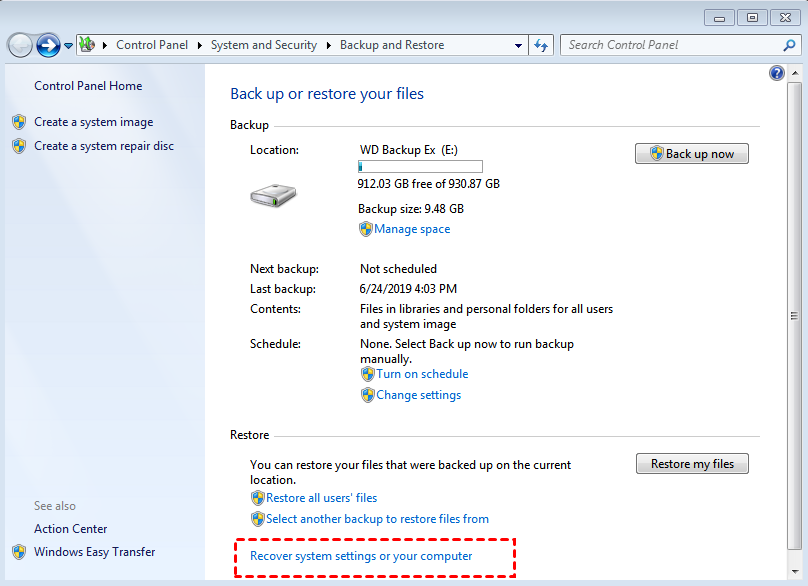
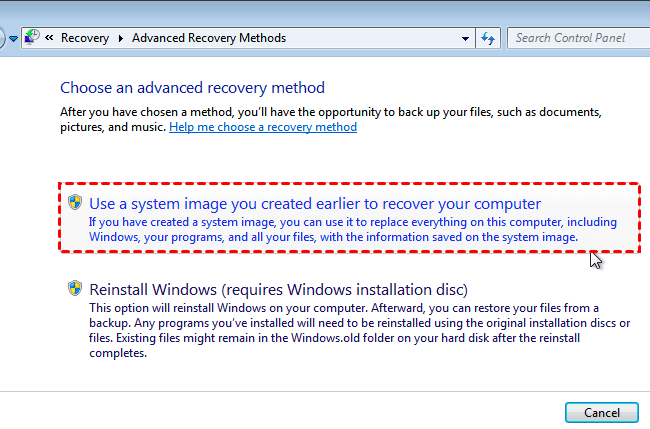
Step 3. Click Advanced recovery methods and select Use a system image you created earlier to recover your computer subsequently.
Step 4. Click Skip and Restart to get access to the System Recovery Options window.
Step 5. After selecting language and keyboard, click Next to start Windows 7 scanning your hard drive for a system image.
Step 6. Select Use the latest available system image (recommended) or Select a system image, and click Next.
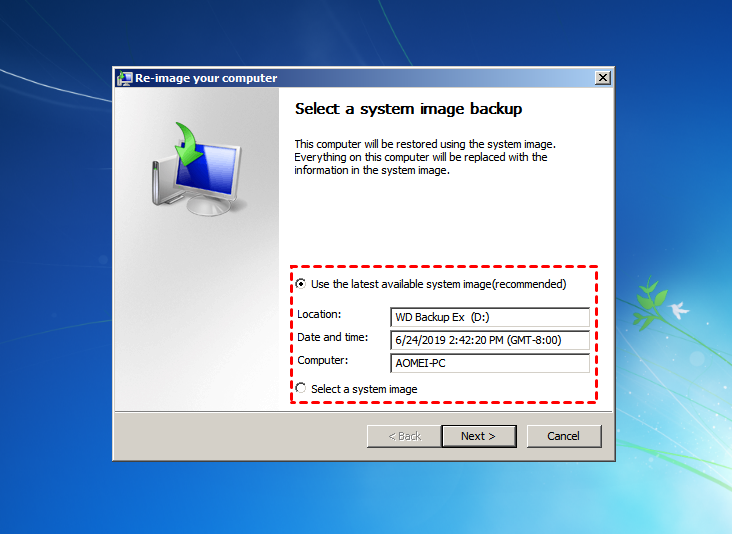
Step 7. Follow the on-screen instructions to finish OS migration task.
Migrate OS with best free OS migration software Qiling Disk Master🔥
Qiling Disk Master Standard is the most popular free OS migration software due to its outstanding features.
★ A daily/weekly/monthly backup feature is available, allowing users to keep multiple backups and restore any previous version as needed.
★ Incremental or differential backup allows users to save time and disk space by only backing up changed files, rather than creating a full backup each time. (Differential backup is a paid feature.)
★ This backup software supports backing up to any device that Windows can detect, including external hard drives, USB flash drives, cloud drives, and NAS.
★ This tool can help create bootable media to boot Windows when it fails, allowing you to then restore a system image from an external hard drive or other devices.
★ The "Restore system image to smaller drive" feature is particularly useful for users who want to migrate their OS to a smaller SSD. This is possible as long as the used space on the source disk is smaller than or equal to the destination disk.
To migrate your operating system to a Solid State Drive (SSD) using Qiling Disk Master, you should first prepare your system by backing up your data, ensuring you have a valid operating system installation media, and disabling any unnecessary startup programs. Then, you can create a bootable USB drive with the Qiling Disk Master software, boot from it, and follow the on-screen instructions to clone your existing hard drive to the new SSD.
☛ To prepare a solid state drive (SSD), plug it into your computer and ensure it can be detected. The next step depends on where you want to migrate the OS to.
☛ Download Qiling Disk Master Standard, install and launch it. Use it to create a system backup and store the system image in a safe location.
After all the things done, follow steps below and restore with free OS to SSD migration software.
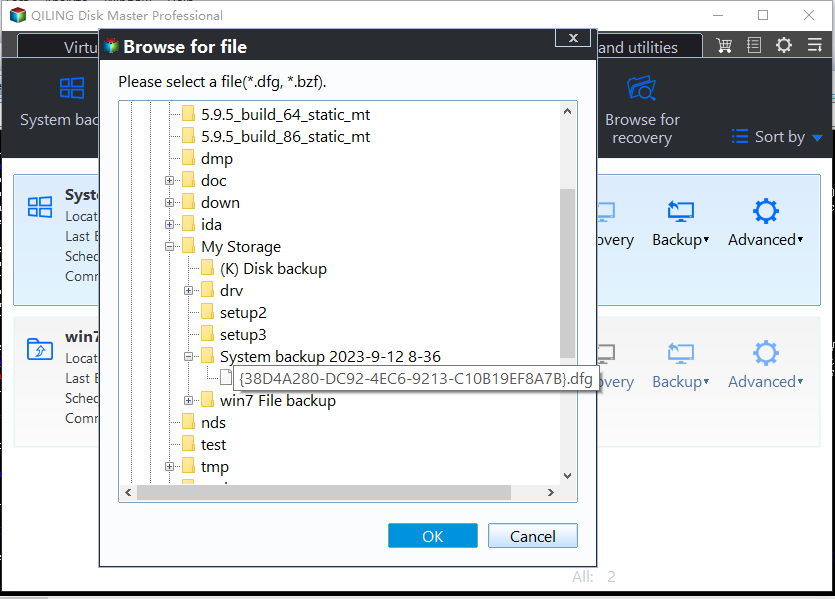
Step 1. Launch Qiling Disk Master Standard, click Restore and Select Task. If no backup task is listed, click Back and select an image file.
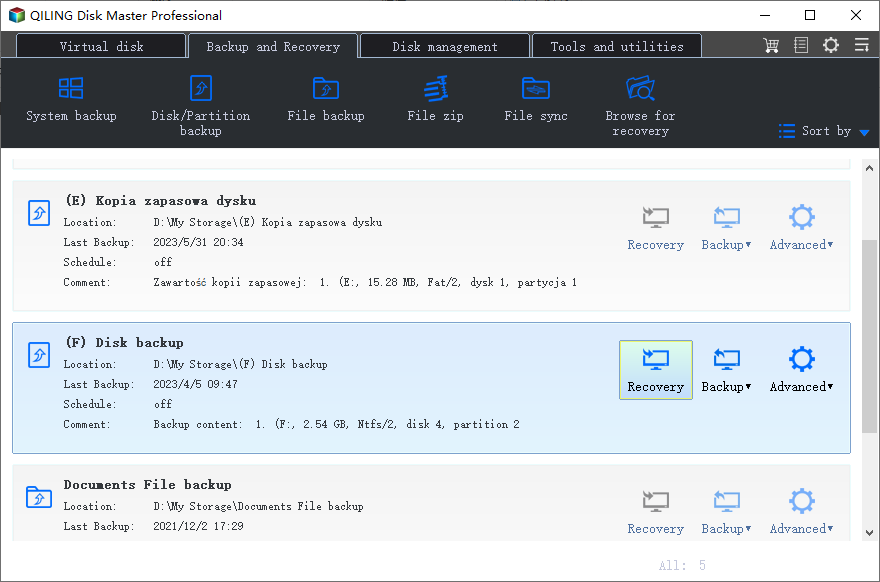
Step 2. Click the system backup in the list and hit Next.
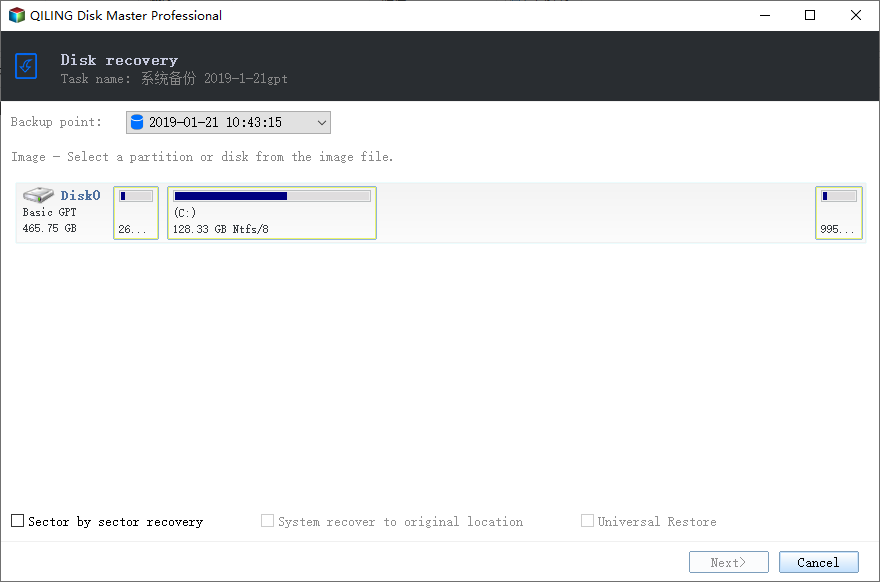
Step 3. Tick Restore system to other location, then click Next.
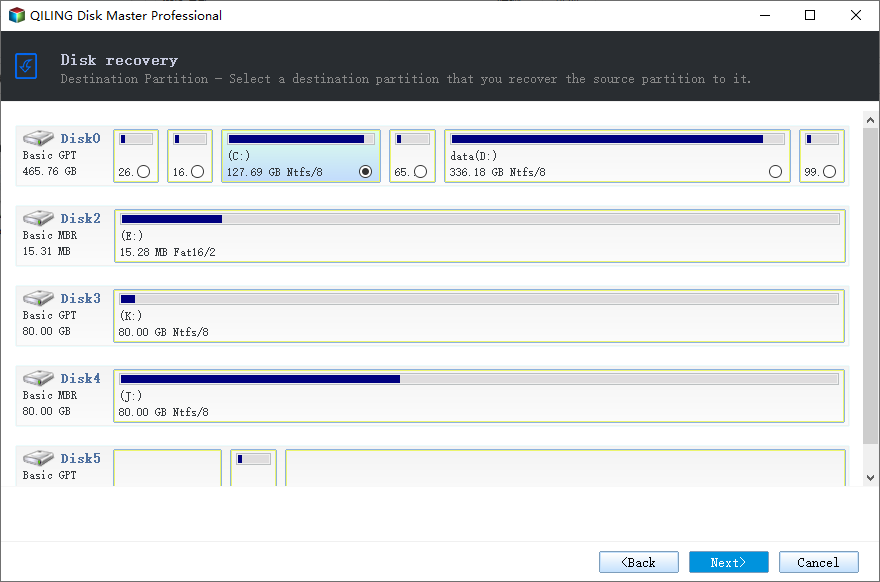
Step 4. Then, select SSD as destination disk and click Next.
Step 5. To complete the migration, click on "Proceed" after previewing the operation summary, and then click "Finish" once the progress reaches 100%. This will successfully migrate the OS to the SSD, allowing you to boot directly from it.
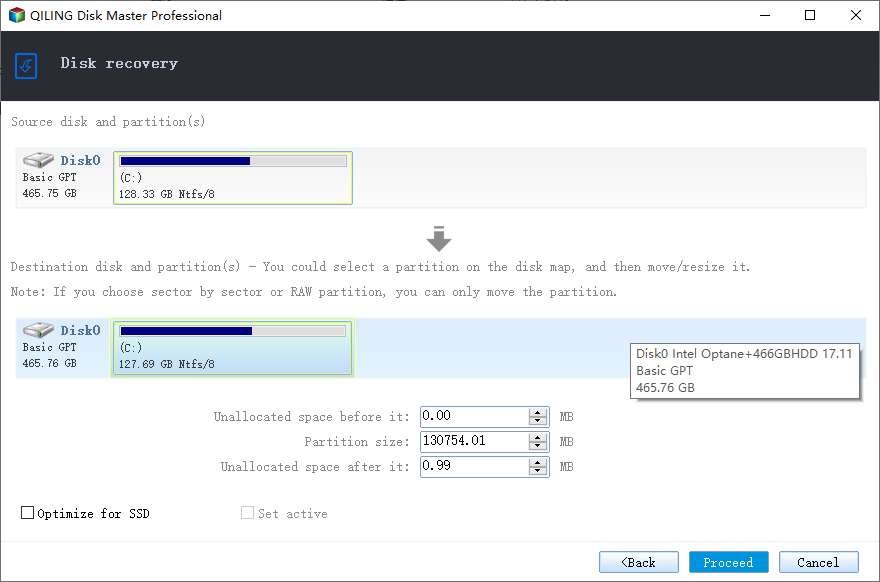
Notes:
◆ If you want to restore a system to different hardware and ensure the computer can boot, upgrade to Qiling Disk Master Professional and select the Universal Restore option.
◆ If you're restoring to an SSD, you can check the box for SSD Alignment, which is intended to enhance SSD performance.
Advanced way to migrate OS to SSD or larger HDD
In Professional or higher editions, you can use the System Clone feature for OS migration, which transfers the OS to another drive directly, eliminating the need for a restoration process.
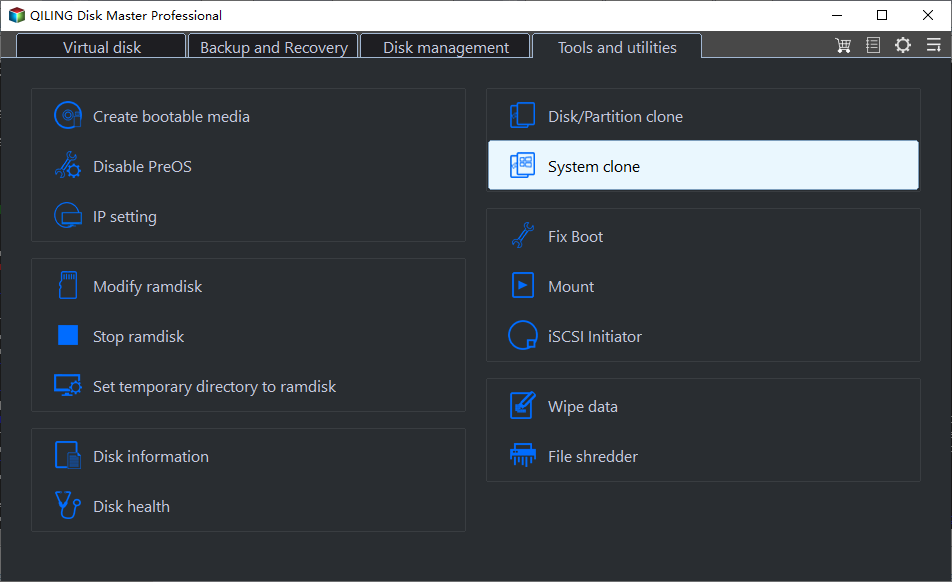
Drop it in the box
When your disk is running low on space or you want better performance, consider using free OS migration software like Qiling Disk Master Standard to upgrade your system.
Qiling Disk Master offers excellent features to optimize backup and restore, including scheduled backup options and image compression and splitting. It also supports SSD alignment and creating bootable media. Additionally, the Technician and Technician Plus editions allow for the use of the Image Deploy tool, which enables the deployment of system images to multiple computers over a network.
Related Articles
- Free Samsung M.2 SSD Migration Software for Windows 10/8/7
- Migrate OS to SSD in Windows 10/8/7 without Reinstalling
- The Best SanDisk SSD Data Migration Free Software [2021]
- Get the Best Free SSD Migration Tool for Windows Here!
- Best Windows 10 Data and OS Migration Tool (2 Ways)
- Best Way to Backup Laptop to External Hard Drive
In this article, you are going to learn how to back up Dell, Lenovo, HP, Toshiba, Sony, Acer, Samsung, or ASUS laptop with the best way.
Products
Articles & Tutorials
- Data Recovery
- Data Backup
- File Recovery
- File Backup
- File synchronize
- System Backup and Restore
- Disk and Partition Clone
- Technical articles
- Disk Master Help
- Windows Deleted File and Disk Recovery Tutorials
- Windows File and Data Recovery Tutorials
- More Windows Tutorials for Install, Security, Files, and PC Tips
- Windows Boot, Repair, and Recovery Environment Tutorials
- Windows Backup Tutorials
- Windows Restore Tutorials
- Windows Clone and Migration Tutorials
- Windows Server Backup, Recovery, and Management Tutorials
- Windows Disk, Partition, and Storage Management Tutorials