Best Kingston Hard Drive Cloning Software
Why Clone Hard Drive to Kingston SSD?
Compared to traditional HDDs, SSDs are more popular due to their lower power consumption, reduced noise, and faster read and write speeds. As a result, many users choose to clone their HDD to an SSD, ensuring data preservation and accelerating boot speed when booting from the SSD.
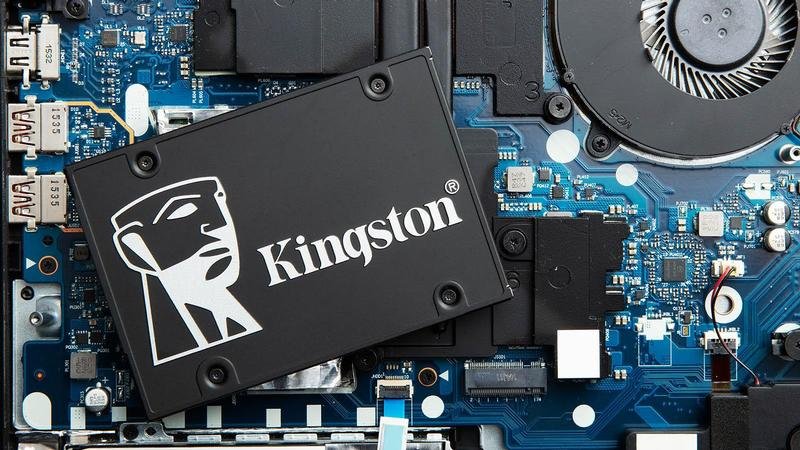
Kingston is a well-known brand that offers a variety of SSD models, including KC2500, DC1000M, DC1000B, DC500, KC600, A2000, and A400.
When Do You Need Kingston SSD Software?
You need to use Kingston SSD cloning software in the following cases.
- Upgrade your old hard drive to a Kingston SSD.
- Upgrade your original Kingston SSD to a larger one.
- Migrate your operating system to a Kingston SSD without reinstalling.
- 1. Connect the new Kingston SSD to your computer using a SATA cable.
- Make the new Kingston SSD as the boot drive.
Kingston SSDs offer a software called Qiling Disk Master that allows users to clone their operating system to a new Kingston SSD, but it may not be compatible with all types of Kingston SSDs and can be difficult to use. Additionally, cloning errors may occur when using this software.
If you're looking to clone a disk to a Kingston SSD, you'll need a professional SSD cloning software that supports cloning to all types of Kingston SSDs. Fortunately, there is a reliable software that can help you with this task.
The Best Kingston Hard Drive Cloning Software
Qiling Disk Master Professional is the best choice for cloning hard drives to Kingston SSDs, offering a seamless process in Windows 11/10/8.1/8/7/XP/Vista. Its secure boot guarantee ensures a hassle-free cloning experience, making it the go-to professional cloning software.
- Easy-to-use: The interface is easy to understand, and the cloning process can be completed by following the page prompts step by step.
- Support many clone types: The software offers three types of cloning: System Clone, Disk Clone, and Partition Clone.
- Secure boot: After cloning your data to the Kingston SSD, you can boot your computer directly from the cloned drive, eliminating the need for a separate boot drive or cloning to a different SSD.
- Intelligent clone: It will only clone the used sectors of a larger HDD to a smaller SSD, making it possible to clone a larger HDD to a smaller SSD.
- Live clone: The cloning tasks can run in the background, allowing you to use your computer normally without closing any programs.
- Support performance optimization for different SSDs: The Kingston SSD Alignment feature can speed up the reading and writing performance of your Kingston SSD, as well as other brands like Samsung, WD, Crucial, and Intel.
- Support multiple storage devices: You can clone a disk to various storage devices, including solid-state drives (SSDs), hard disk drives (HDDs), local disks, external disks, USB drives, and even network locations.
How to Clone HDD to Kingston SSD using Best Cloning Software
If your Kingston SSD is a blank disk, you can clone your hard drive to it directly using Qiling Disk Master Professional. However, if your target SSD is not blank, you should first back up your important files and data, as the cloning process will erase the existing data on the target disk.
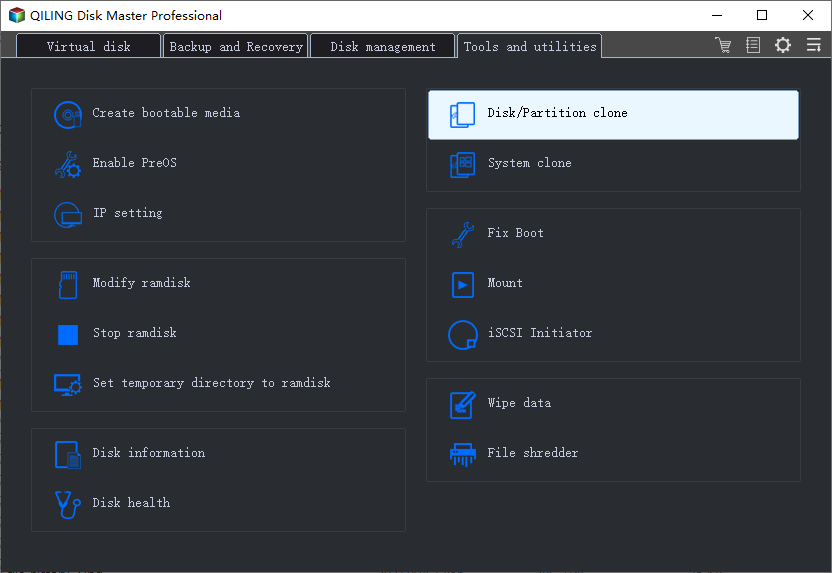
Step 1. 1. Connect the Kingston SSD to your computer and ensure it can be detected. 2. Download and install Qiling Disk Master Professional. 3.
Notes:
- If you want to clone the OS only, you can use the System Clone feature.
- The Professional edition supports cloning both data disks and system disks from MBR to MBR/MBR to GPT, or GPT to GPT/GPT to MBR. If you only need to clone data disks, the free Standard edition is available.
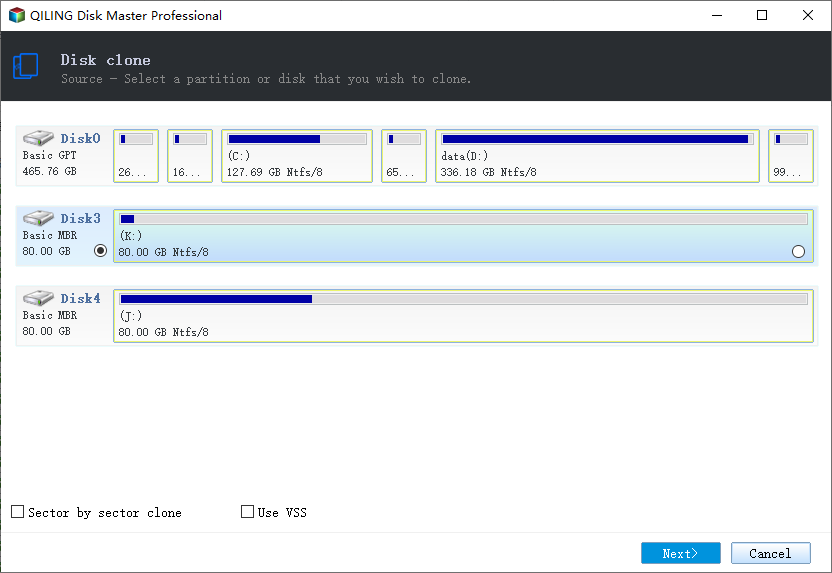
Step 2. Select the hard drive you want to clone as the source disk.
Step 3. Select your Kingston SSD as the destination disk.
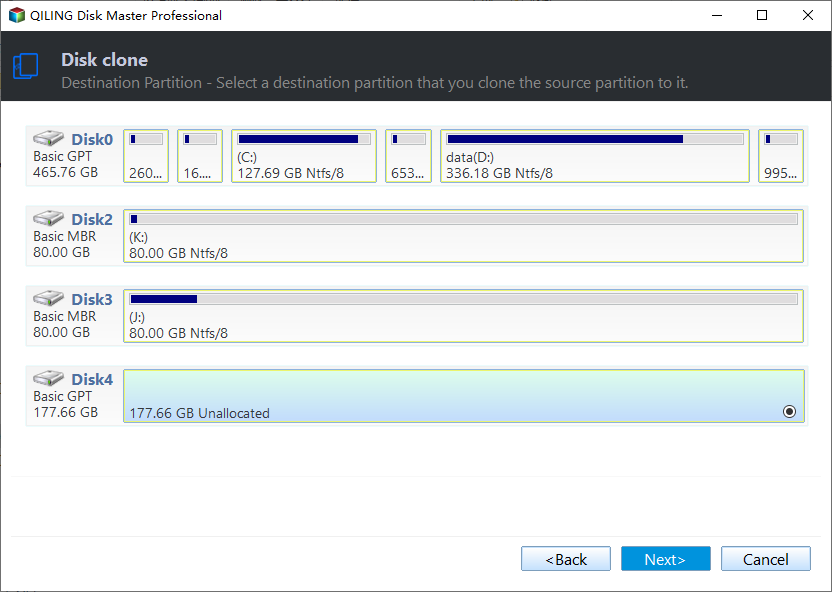
Step 4. To accelerate the reading and writing speed of your Kingston SSD, tick the SSD Alignment option and then click Proceed to clone the HDD to the Kingston SSD.
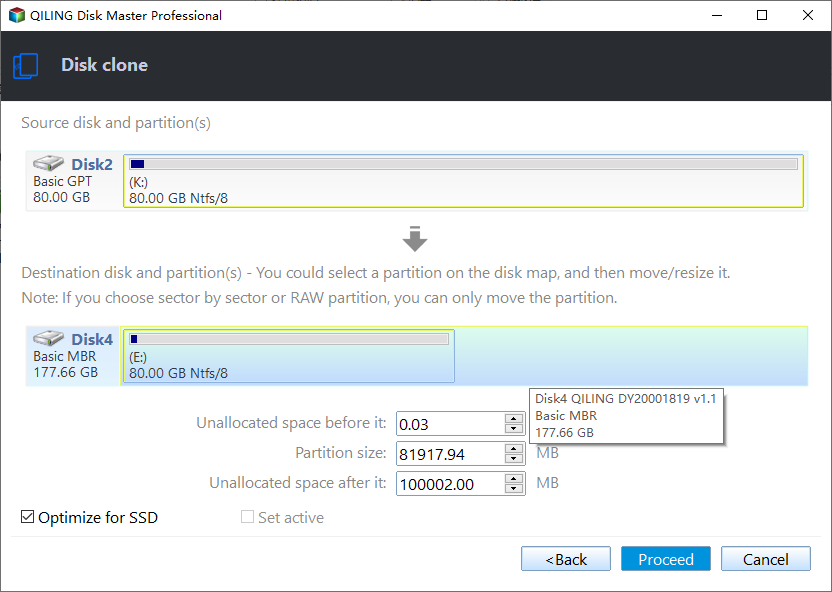
Notes:
- Edit Partitions: To change the partition size, you can either do it manually or automatically using this feature.
- Sector By Sector Clone: The software will only clone used sectors by default, but you can also clone all sectors by checking the "Sector By Sector Clone" box.
Summary
The Qiling Disk Master Professional is a reliable Kingston hard drive cloning software that allows you to clone your hard drive to a Kingston SSD with ease. By following a few simple steps, you can successfully transfer your operating system, installed programs, and data to the new SSD, resulting in a significant boost to your computer's boot speed. Once the cloning process is complete, you can boot your computer from the SSD and access all your files and programs as usual.
This software supports System Clone, Partition Clone, and other features, allowing users to download and explore its capabilities further.
Related Articles
- Clone HDD to Kingston SSD and Boot Successfully [Verified]
Learn how to clone your hard drive (HDD) to a Kingston SSD using the best hard drive cloning software, Qiling Disk Master, in Windows 7, 8, 10, and 11, and successfully boot from the cloned SSD drive. - Migrate OS to Kingston SSD without Reinstalling | 4 Easy Steps
You will find the best way to migrate OS to Kingston SSD with the Kingston SSD cloning software, only a simple clicks, and ensure it's bootable after cloning. - Best Free SSD Cloning Software for Windows 10/8/7
With the best free SSD cloning software for Windows 11, 10, 8, 7, you can easily migrate your HDD to SSD or clone SSD to SSD with minimal effort. This page recommends three pieces of free software that can help you achieve this with the least care. - Best Free Windows 10 Clone Software to Migrate OS and Data
If you are looking for the best free clone software for Windows 10 to migrate OS and data from HDD to SSD, Qiling Disk Master Standard will be an ideal choice. The easy-to-use interface is acclaimed by a lot of users. - Guide: How to Set NVMe as Boot Drive
Set an NVMe SSD as the boot drive in Windows by preparing the disk, changing BIOS settings, and checking startup. - How to Speed up Dell (Inspiron) Laptop on Windows 11/10/8/7?
Speed up a Dell Inspiron laptop with disk cleanup, startup optimization, hardware checks, and SSD upgrade options.
Products
Articles & Tutorials
- Data Recovery
- Data Backup
- File Recovery
- File Backup
- File synchronize
- System Backup and Restore
- Disk and Partition Clone
- Technical articles
- Disk Master Help
- Windows Deleted File and Disk Recovery Tutorials
- Windows File and Data Recovery Tutorials
- More Windows Tutorials for Install, Security, Files, and PC Tips
- Windows Boot, Repair, and Recovery Environment Tutorials
- Windows Backup Tutorials
- Windows Restore Tutorials
- Windows Clone and Migration Tutorials
- Windows Server Backup, Recovery, and Management Tutorials
- Windows Disk, Partition, and Storage Management Tutorials