MBR2GPT Is Not Recognized in Windows: How to Fix
What does this error mean?
If Command Prompt says MBR2GPT is not recognized, Windows cannot find the tool. This usually happens on unsupported Windows versions, in a limited recovery environment, or when the command path is not available.
Check Windows version and command location
Step 1. Press Win + R, type winver, and confirm you are using Windows 10 version 1703 or later, Windows 11, or a supported Windows Server version.
Step 2. Open Command Prompt as administrator and run:
C:\Windows\System32\mbr2gpt.exe /?
Step 3. If help text appears, use the full path when running the command.
Run MBR2GPT from the correct environment
Step 1. For an online conversion, open an elevated Command Prompt in Windows.
Step 2. For offline conversion, boot into Windows Recovery Environment and open Command Prompt.
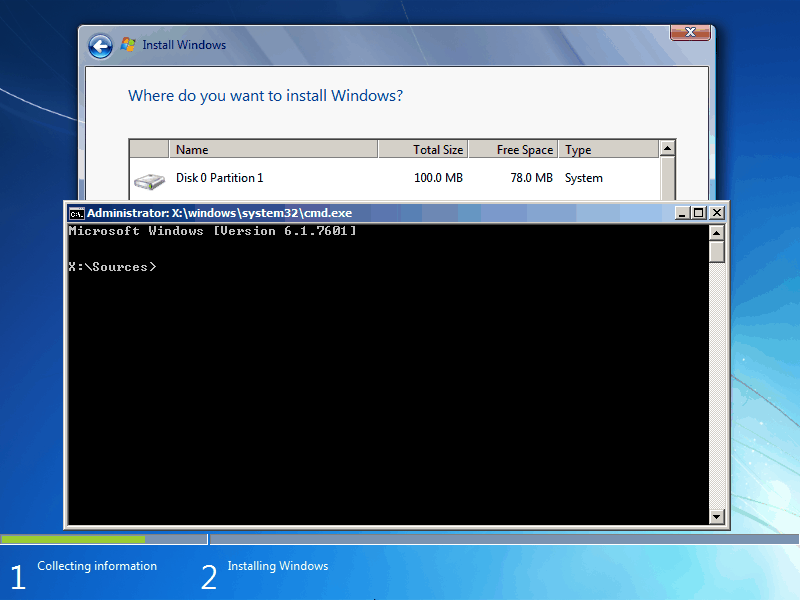
Step 3. Use the full path if the short command is not recognized.
Validate the disk before conversion
Step 1. Run:
mbr2gpt /validate /disk:0 /allowFullOS
Step 2. If validation passes, run:
mbr2gpt /convert /disk:0 /allowFullOS
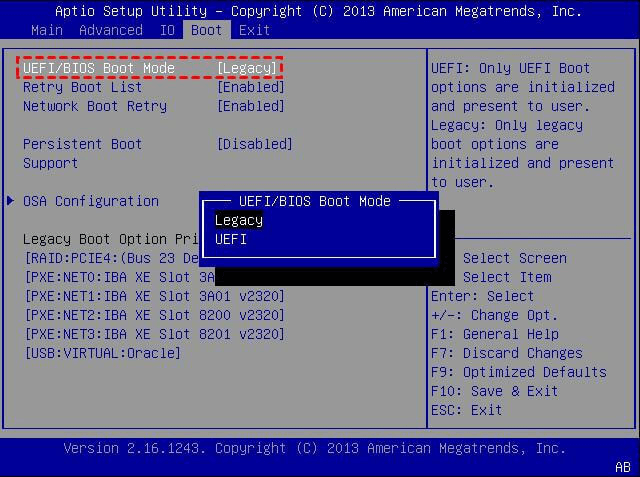
Step 3. Restart the PC and change BIOS boot mode from Legacy to UEFI.
Back up before converting MBR to GPT
 Qiling Disk Master
Before converting a system disk, create a full system backup with Qiling Disk Master so you can restore Windows if boot mode or partition changes fail.
Step 1. Connect an external hard drive, another internal disk, or a network location with enough free space. Do not save the backup image on the MBR system disk that will be converted.
Step 2. Open Qiling Disk Master and choose System Backup. The program will automatically select the Windows system partition and the boot-related partitions that are needed for startup.
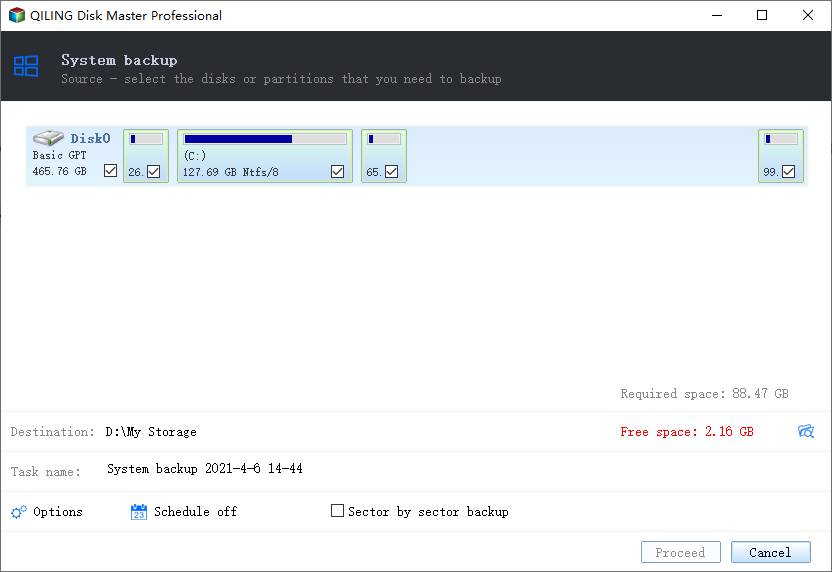
Step 3. Check the selected partitions carefully. For an MBR-to-GPT conversion, the backup should include the Windows partition and any system, boot, recovery, or reserved partitions shown in the system backup task.
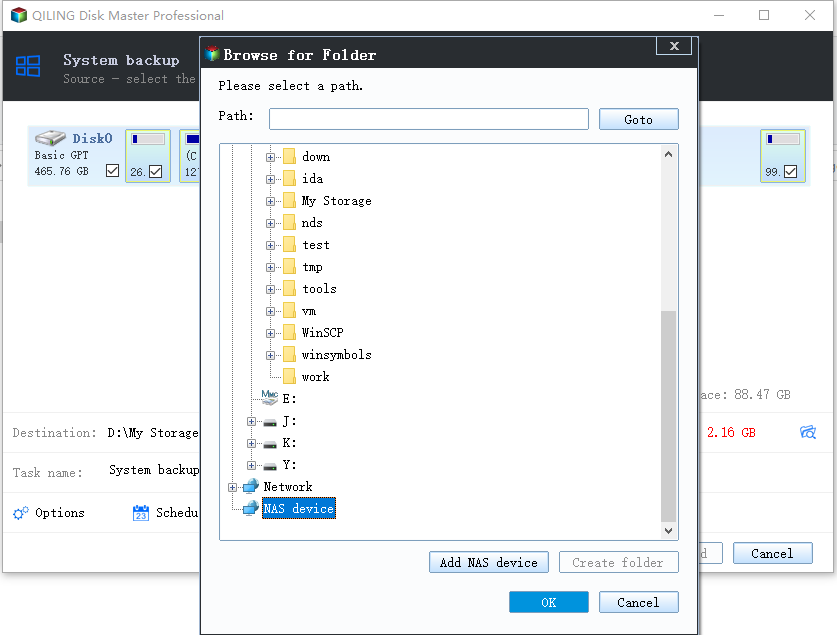
Step 4. Click the destination area and choose the external drive, another disk, or a NAS/shared folder as the backup destination. Make sure the destination will not be changed during MBR2GPT conversion.
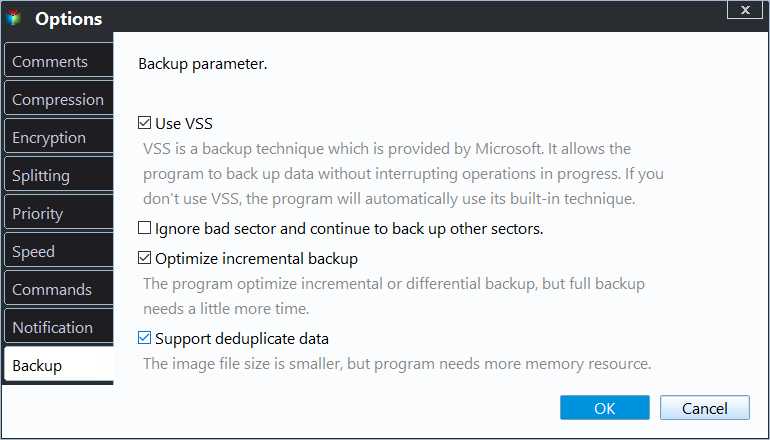
Step 5. Open Options if you need compression, password protection, splitting, or VSS settings. Keep VSS enabled when backing up the running Windows system.
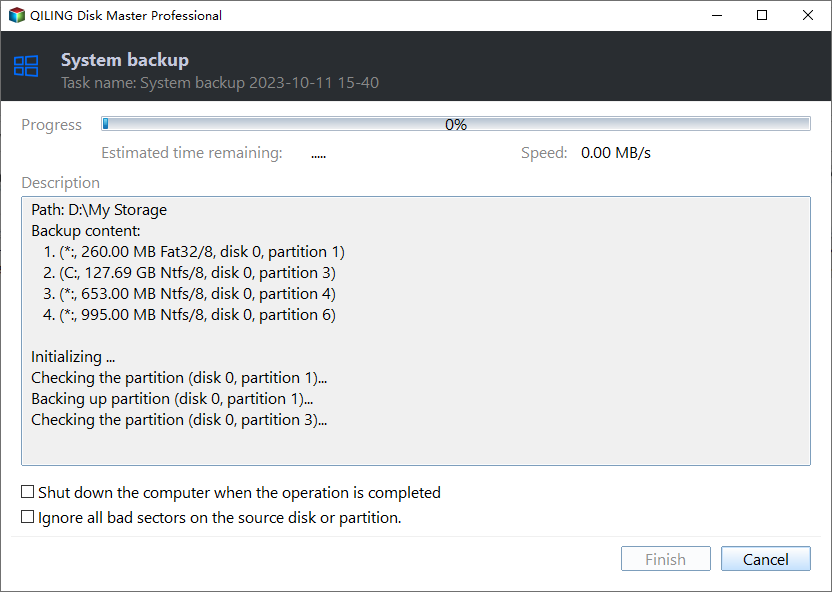
Step 6. Review the source partitions and destination path, then click Proceed to start the backup. Wait until the task finishes and do not disconnect the destination drive.
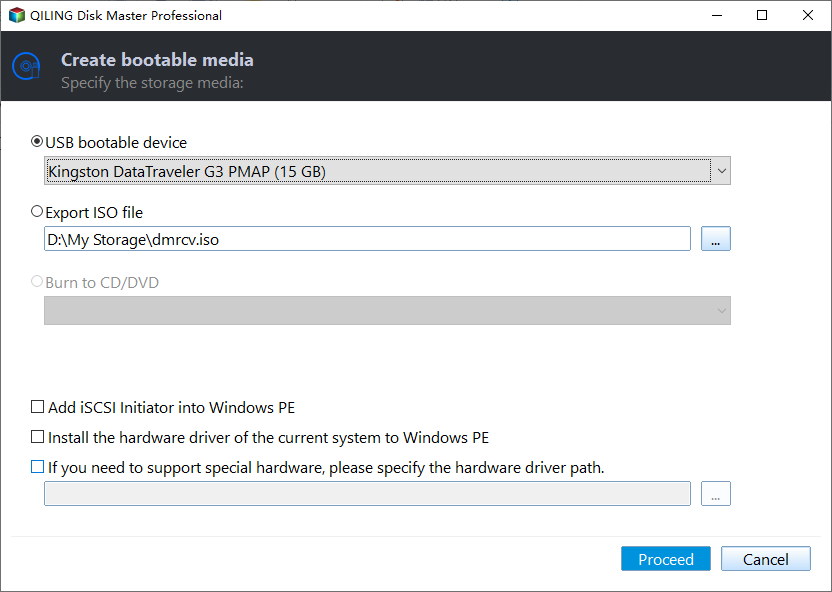
Step 7. Create bootable media from Qiling Disk Master. If Windows cannot boot after conversion or after changing firmware from Legacy to UEFI, boot from this media and restore the backup image.
Step 8. Open the backup destination and confirm the image file exists. If possible, browse or check the backup image before running mbr2gpt /convert.
Conclusion
MBR2GPT is not recognized when Windows cannot locate the tool or the environment does not support it. Check version, use the full path, validate the disk, and prepare a backup before conversion.
Related Articles
-
Convert MBR to GPT for Windows 11 Update
Prepare disk style and boot mode for Windows 11 requirements. -
How to Solve "The Selected Disk Is of the GPT Partition Style" on Windows
Match installation boot mode with disk partition style. -
How to Install Windows 11 without Secure Boot and TPM
Review Windows 11 installation limits before changing firmware settings. -
Convert to MBR Disk Not Available in Windows
Learn why the MBR conversion option may be unavailable and how to prepare the disk.
Products
Articles & Tutorials
- Data Recovery
- Data Backup
- File Recovery
- File Backup
- File synchronize
- System Backup and Restore
- Disk and Partition Clone
- Technical articles
- Disk Master Help
- Windows Deleted File and Disk Recovery Tutorials
- Windows File and Data Recovery Tutorials
- More Windows Tutorials for Install, Security, Files, and PC Tips
- Windows Boot, Repair, and Recovery Environment Tutorials
- Windows Backup Tutorials
- Windows Restore Tutorials
- Windows Clone and Migration Tutorials
- Windows Server Backup, Recovery, and Management Tutorials
- Windows Disk, Partition, and Storage Management Tutorials