Merge Logical Drive with Primary Partition in Windows
Can logical and primary partitions be merged directly?
Windows Disk Management does not truly merge two partitions while keeping both sets of files. To combine space, you normally back up the logical drive, delete it, remove the extended partition container if needed, and then extend the primary partition into adjacent unallocated space.
Before merging partitions
- Back up every file from the logical drive.
- Confirm the logical drive is beside the primary partition you want to extend.
- Do not delete boot, recovery, or OEM partitions.
- Make sure the target partition uses a supported file system such as NTFS.
Method 1. Back up and delete the logical drive
Step 1. Copy files from the logical drive to another internal disk, external drive, or network folder.
Step 2. Open Disk Management and right-click the logical drive.
Step 3. Choose Delete Volume. Confirm only after the backup is complete.
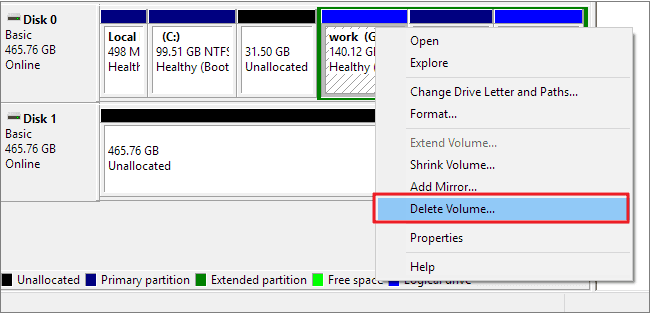
Step 4. If the space remains inside a green extended partition, delete the extended partition container as well.
Method 2. Extend the primary partition
Step 1. Right-click the primary partition that is adjacent to the unallocated space.
Step 2. Select Extend Volume.
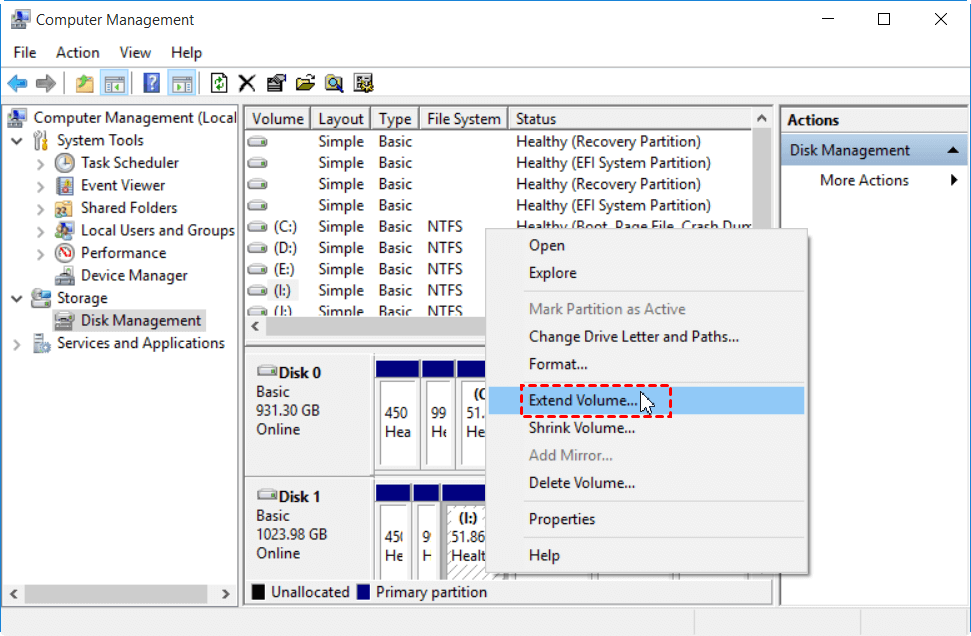
Step 3. Add the available space and finish the wizard.
Step 4. Restore the backed-up files to the enlarged primary partition.
Method 3. Use partition software with preview
 Qiling Disk Master
Qiling Disk Master provides a visual preview for resizing and moving partitions, which helps reduce mistakes before applying changes.
Step 1. Back up the files on the logical drive first. Although the program can preview partition changes, merging space still changes the disk layout and should not be done without a backup.
Step 2. Open Qiling Disk Master and check the disk map. Confirm the primary partition, the logical drive, and the free or unallocated space are on the same disk.
Step 3. If the free space is not next to the primary partition, right-click the partition between them and choose Move/Resize. Move the partition so the unallocated space becomes adjacent to the primary partition you want to enlarge.
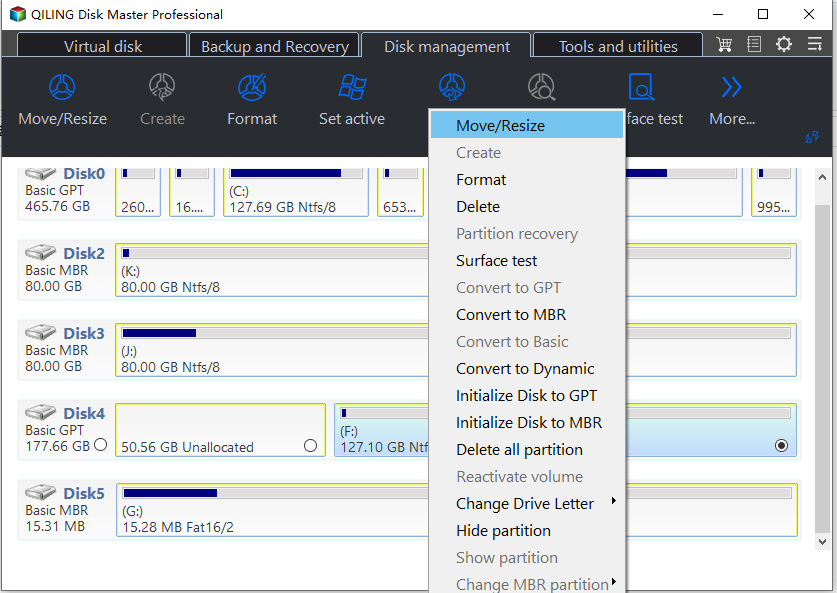
Step 4. Select the target primary partition and use Move/Resize to extend it into the adjacent unallocated space. Adjust the partition size carefully and keep enough space for other partitions if needed.
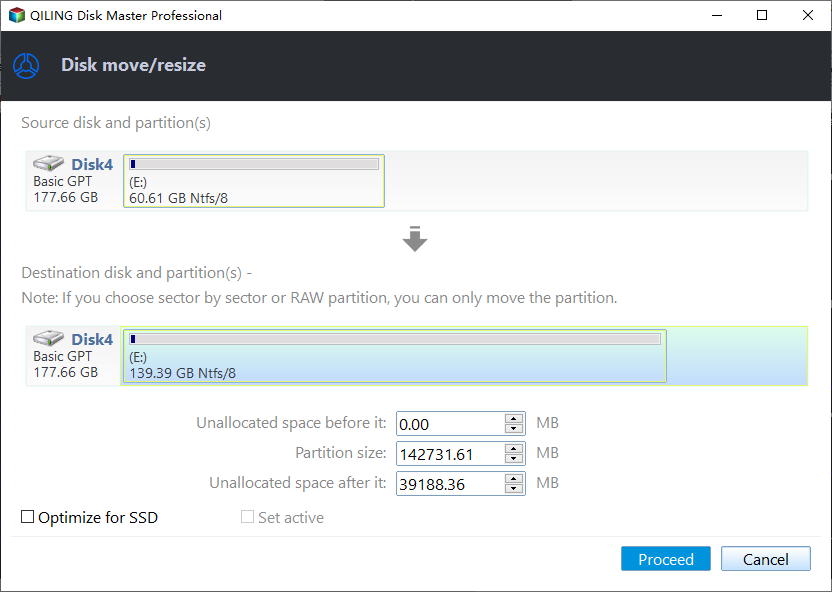
Step 5. Review the preview layout. Make sure the primary partition is enlarged, the logical drive space is no longer needed, and no boot, recovery, or OEM partition is selected by mistake.
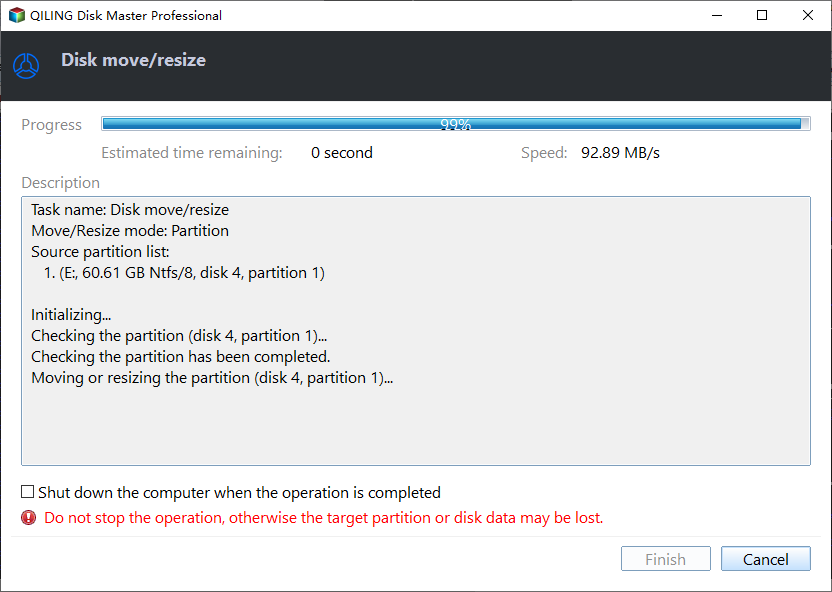
Step 6. Click Proceed to apply the pending operations. Keep the computer powered on and do not disconnect the disk while partitions are being moved or resized.
Step 7. After the operation finishes, open File Explorer and Disk Management to confirm the primary partition has the expected capacity. Then copy the files from the backup back to the enlarged primary partition.
Conclusion
To merge a logical drive with a primary partition, protect the logical drive files first. Then create adjacent unallocated space and extend the primary partition into it.
Related Articles
-
Convert Primary Partition to Logical in Windows 7 with Ease
Understand primary and logical partition differences before changing disk layout. -
Free Merge Partitions without Losing Data in Windows 11/10/8/7
Merge partition space with less risk by preparing backups and checking partition order. -
How to Use the Extend Partition Wizard to Extend A Partition?
Extend partitions when Windows built-in tools cannot use the desired space. -
Split Partition without Losing Data in Windows
Create a new partition safely when you need to divide free space instead of merging it.
Products
Articles & Tutorials
- Data Recovery
- Data Backup
- File Recovery
- File Backup
- File synchronize
- System Backup and Restore
- Disk and Partition Clone
- Technical articles
- Disk Master Help
- Windows Deleted File and Disk Recovery Tutorials
- Windows File and Data Recovery Tutorials
- More Windows Tutorials for Install, Security, Files, and PC Tips
- Windows Boot, Repair, and Recovery Environment Tutorials
- Windows Backup Tutorials
- Windows Restore Tutorials
- Windows Clone and Migration Tutorials
- Windows Server Backup, Recovery, and Management Tutorials
- Windows Disk, Partition, and Storage Management Tutorials