System Reserved Partition Missing in Windows: Causes and Fixes
What does the System Reserved partition do?
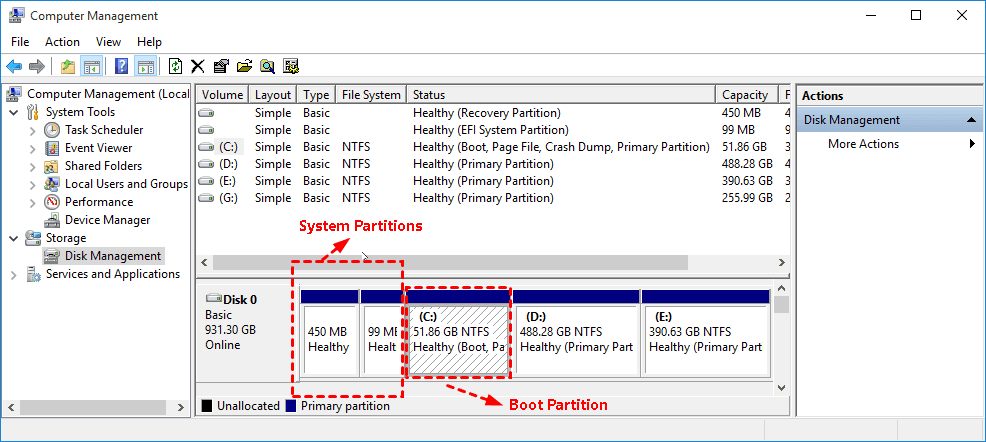
The System Reserved partition is a small hidden partition created during Windows installation on BIOS/MBR computers. It stores Boot Manager, BCD files, and startup data. On UEFI/GPT computers, the EFI System Partition plays a similar role.
Why is the System Reserved partition missing?
- It was deleted while cleaning partitions.
- A disk cloning job copied only the C drive and skipped boot partitions.
- The partition has no label or drive letter, so it looks invisible in File Explorer.
- Windows was converted between MBR and GPT without rebuilding boot files correctly.
Check whether Windows still has boot files
Step 1. Open Disk Management and look for a 100 MB to 500 MB partition marked System, Active, or EFI System Partition.
Step 2. If Windows cannot boot, start from a Windows installation USB and open Repair your computer > Troubleshoot > Command Prompt.
Step 3. Run diskpart, then list disk, select disk 0, and list partition to check partition layout.
Repair boot files from Windows Recovery
Use this method when the Windows partition is intact but startup files are missing.
Step 1. In Command Prompt, find the Windows drive by running dir C:, dir D:, and other letters until you see the Windows folder.
Step 2. For BIOS/MBR disks, mark a small primary partition active or use the Windows partition if no separate reserved partition exists.
diskpart
select disk 0
list partition
select partition X
active
exit
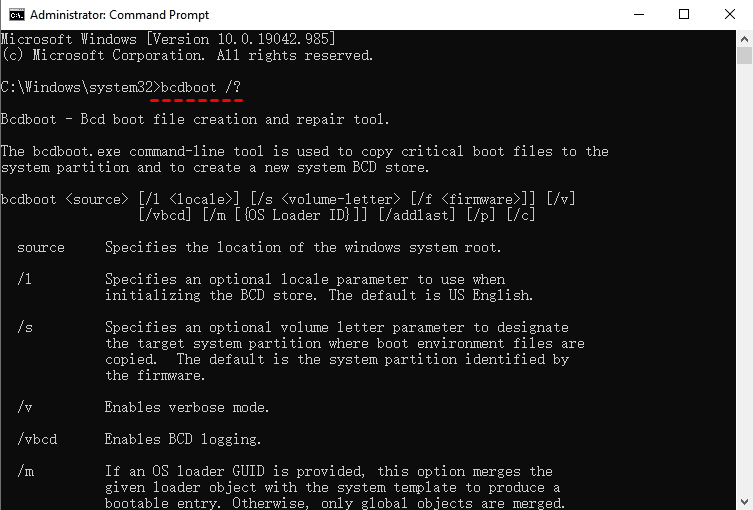
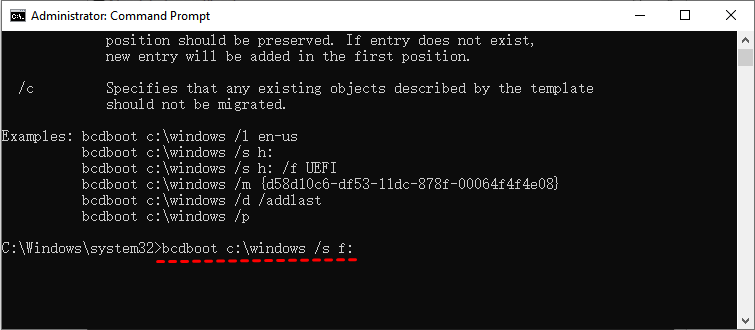
Step 3. Rebuild boot files with bcdboot C:\Windows /s C:. Replace C: if Windows uses another letter in recovery mode.
Create safer backup before partition repair
Partition repair changes boot records. If Windows is still bootable, make a system backup first.
 Qiling Disk Master
Qiling Disk Master can back up the system disk, including hidden boot partitions, before you repair or recreate startup structures.
Step 1. Connect an external drive that has enough free space for a system image. Do not place the backup on the system disk or on a partition that may be changed during repair.
Step 2. Open Qiling Disk Master, choose Backup, and select System Backup. This includes Windows and the hidden boot-related partitions required for startup.
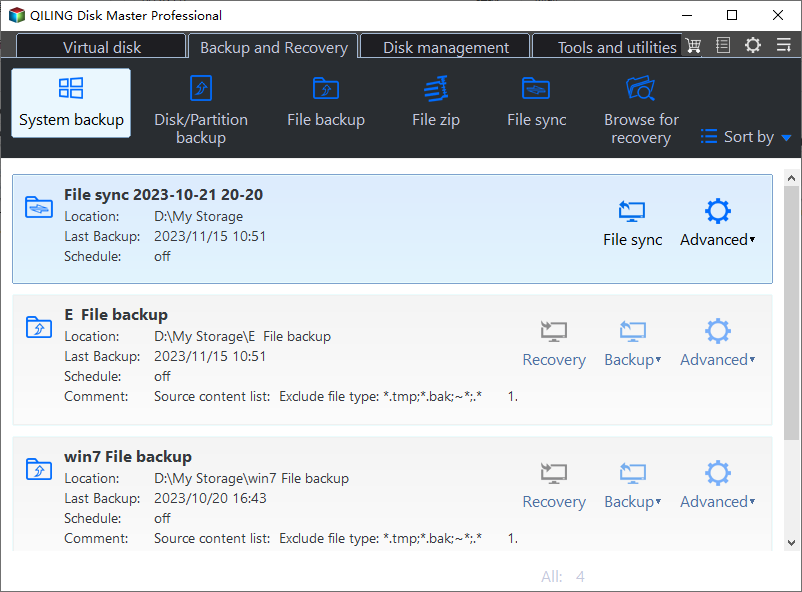
Step 3. Select the external drive or a reliable network location as the destination. Give the task a clear name that identifies it as the backup made before boot partition repair.
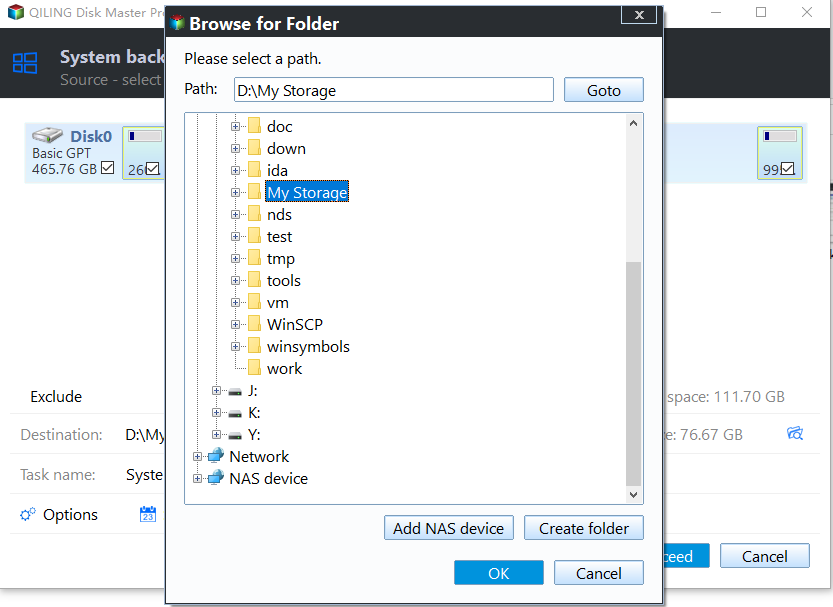
Step 4. Review the selected system partitions and destination, then click Proceed. Keep the computer powered on until the backup completes.
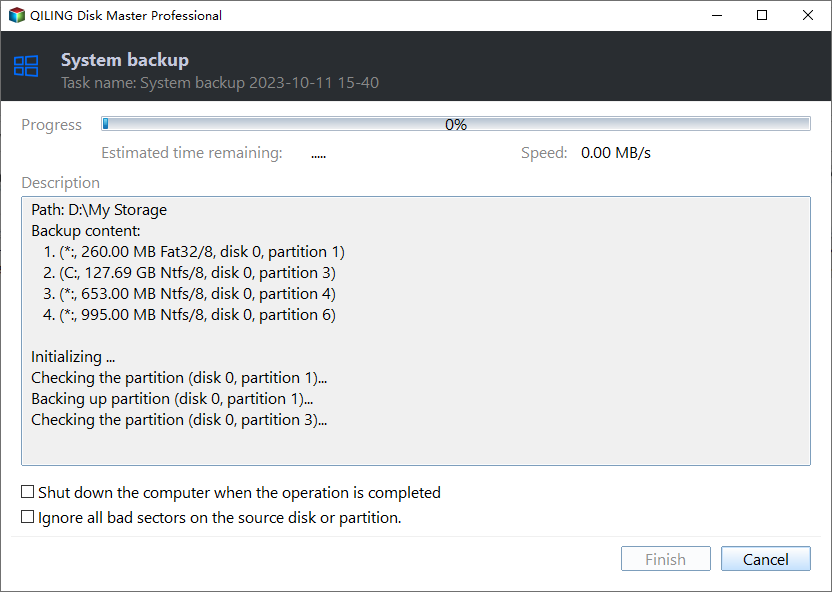
Step 5. Create bootable recovery media while Windows is available. Keep the backup and recovery USB until Windows has booted successfully several times after the System Reserved partition repair.
Conclusion
A missing System Reserved partition does not always mean data is lost. First identify the disk style and boot files, then rebuild startup files carefully. Back up the system before any partition write operation.
Related Articles
-
How to Increase System Reserved Partition Windows 7, 8, 10, 11?
Extend a small System Reserved partition when Windows update or BitLocker needs more startup space. -
How to Recover or Create EFI Partition on Windows 11
Repair missing EFI partitions and rebuild boot files on UEFI-based Windows computers. -
MBR Repair Tool: Repair Damaged MBR in Windows 11, 10, 8, 7
Fix damaged master boot records when Windows cannot start from an MBR disk.
Products
Articles & Tutorials
- Data Recovery
- Data Backup
- File Recovery
- File Backup
- File synchronize
- System Backup and Restore
- Disk and Partition Clone
- Technical articles
- Disk Master Help
- Windows Deleted File and Disk Recovery Tutorials
- Windows File and Data Recovery Tutorials
- More Windows Tutorials for Install, Security, Files, and PC Tips
- Windows Boot, Repair, and Recovery Environment Tutorials
- Windows Backup Tutorials
- Windows Restore Tutorials
- Windows Clone and Migration Tutorials
- Windows Server Backup, Recovery, and Management Tutorials
- Windows Disk, Partition, and Storage Management Tutorials