How to Backup OneDrive to NAS like Synology or QNAP
Why backup OneDrive to NAS
Microsoft OneDrive is a popular cloud drive that offers a convenient and reliable way to store data. Unlike physical hard drives, OneDrive is more budget-friendly and safeguards against data loss due to system or hardware failures. It's an excellent option for offsite storage, but it's essential to use it in conjunction with other storage methods to ensure comprehensive data protection.
According to 3-To ensure safety, it's recommended to keep multiple backups in different locations. You can create your own backup plan based on your specific situation, such as backing up OneDrive to a Synology or QNAP NAS, or vice versa, backing up your NAS to a cloud drive. This approach provides an added layer of security and peace of mind.
You previously used OneDrive for cloud storage, but now you want NAS to take over, so you'll need to transfer all your files from OneDrive to the NAS.
Whichever case you are in, this article offers you effective solutions.
- How can you backup OneDrive to Synology or QNAP NAS
- Best free way to backup or sync cloud drive to NAS (no brands restrictions)
How can you backup OneDrive to Synology or QNAP NAS
Unfortunately, Microsoft OneDrive is not supported by Synology NAS's data transferring utility, Hyper Backup, which means you cannot backup OneDrive to a Synology NAS device. Similarly, QNAP NAS's Hybrid Backup Sync utility also does not support OneDrive. This limits the options for users who want to backup their OneDrive data to a NAS device.
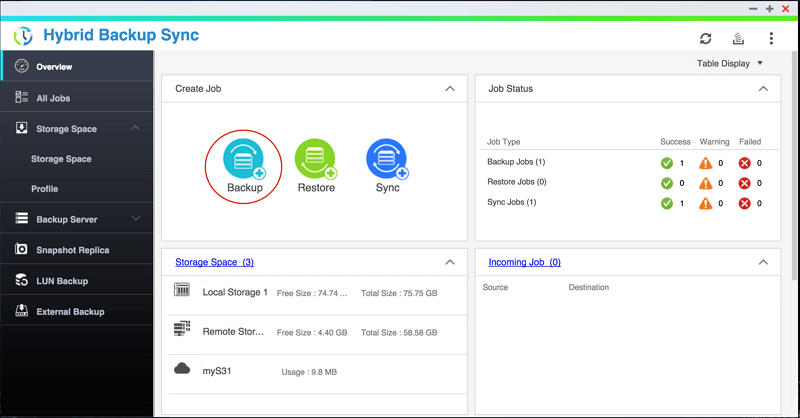
In HBS for QNAP, backing up OneDrive to the NAS is not allowed, but you can create a one-way or file sync task to transfer files from the cloud to the NAS instead.
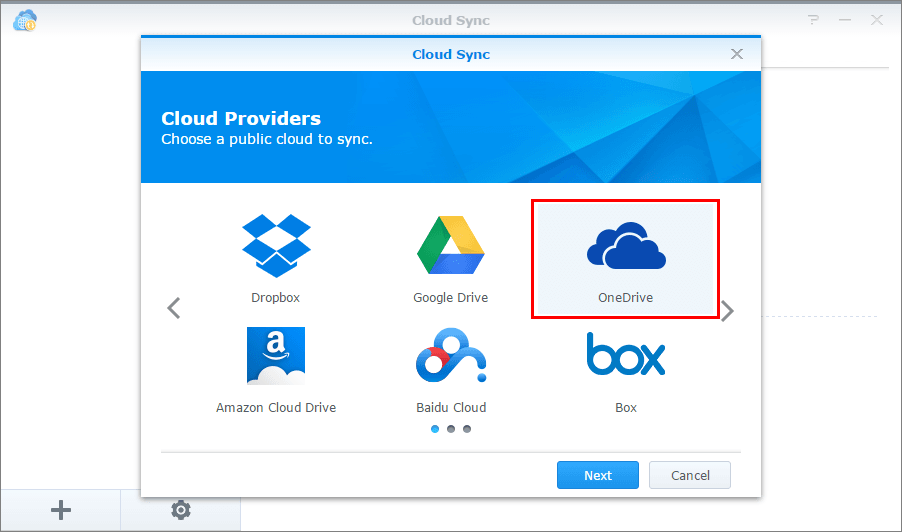
In addition to the mentioned tools, you can also install Cloud Sync on Synology Package Center or Cloud Drive Sync on QNAP QTS App Center, but these tools are specifically designed for syncing data, not backing it up.
You may wonder, what's the difference between backup and sync?
Sync, short for synchronize, means creating an exact copy of your source files, preserving their original format, so you can access and use the synchronized data directly.
Backup refers to a digital copy of data, typically stored in a compressed image file, which takes up less storage space and cannot be used without a restoration process.
How to sync or backup files from OneDrive to NAS?
If you want to copy files from OneDrive to NAS for direct use, syncing is a suitable option. Alternatively, you can use the built-in utility of your NAS to run a one-way or file sync, which can be helpful in achieving your goal. There are video tutorials available that demonstrate how to do this, such as two specific tutorials that can guide you through the process.
>> Sync OneDrive with Synology NAS
>> Sync QNAP NAS with cloud drive
If you want to store cloud files as a secondary backup on your NAS, image backup is a better option than exact copy. This method allows for more efficient use of space and time through options like incremental and differential backup. However, most NAS management tools and Windows backup utilities don't support image backup, so you may need to use a third-party program that offers complete backup options.
Best free way to backup or sync cloud drive to NAS
Qiling Disk Master Standard is a powerful backup and restore program for Windows that supports various storage devices as backup source or destination, including internal/external hard drives, USB drives, cloud drives, NAS, and more, making it easy to backup cloud files to any brand of NAS or vice versa.
Qiling Disk Master offers rich functionality for backing up files, folders, partitions, and operating systems, including backup modes, scheduling, compression, splitting, and encryption. It allows users to back up not only specific directories but also entire partitions, disks, or operating systems.
You can also sync files between cloud and NAS using the Sync feature. Unlike Hyper Backup or Hybrid Backup Sync, Qiling Disk Master is not limited to a specific NAS brand, allowing you to sync files between any supported devices. This feature makes it easy to keep your files up-to-date across different devices. You can download Qiling Disk Master to try it out.
Upgrading to Professional offers more powerful features, including auto deletion of old backups, File Sync, and event-based scheduling.
How to backup OneDrive to NAS with Qiling Disk Master:
1. Launch the software, navigate to the Backup tab and choose File Backup.

2. To backup your files, click on the appropriate option (Files or Folder) and navigate to the OneDrive folder where you want to select what you want to backup.

3. To set up your NAS, click on the destination select box, choose Share/NAS, and then click Add Share or NAS Devices to enter the required information for your NAS.
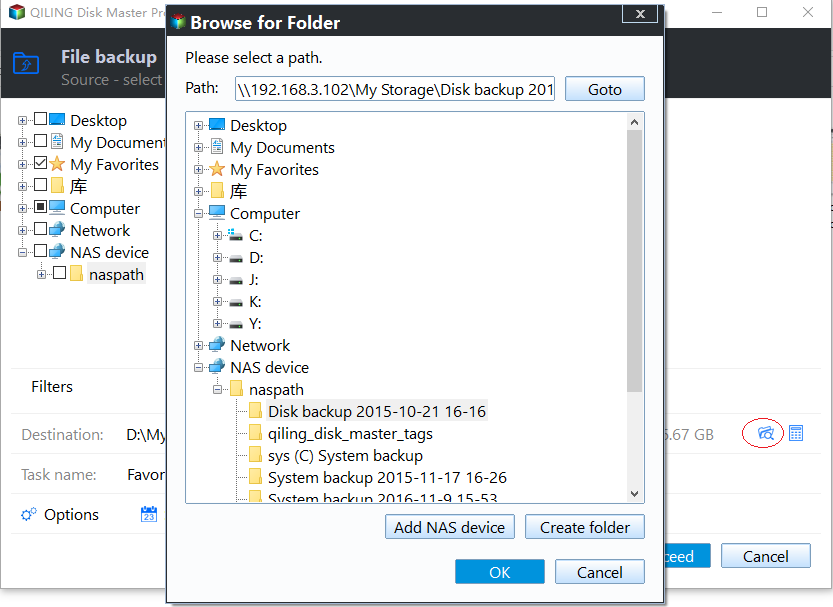
4. Configure settings in Options, Schedule or Scheme as desired, then click Proceed and wait for the process to complete.
◆ OptionsThe backup settings can be adjusted to customize the backup process. This includes options for backup mode, compression level, image file splitting, and adding comments to the backup.
◆ Schedule BackupThe software allows for automatic backup setup on a daily, weekly, and monthly schedule. Advanced editions offer additional features, such as event triggers and USB plug-ins. Users can also customize their backup schedule to include full, incremental, or differential backups.
◆ Backup Scheme: The advanced edition of the software allows for an automated backup scheme that automatically deletes older backups, ensuring that only the most recent backups are retained. This feature helps maintain a manageable backup storage size and prevents clutter.
How to Sync OneDrive to NAS with Qiling Disk Master:
1. Go to Backup tab and choose File Sync.

2. Click Folder to specify OneDrive folder as the source directory.

3. To add a NAS device, click on the destination select box and select "Share/NAS".
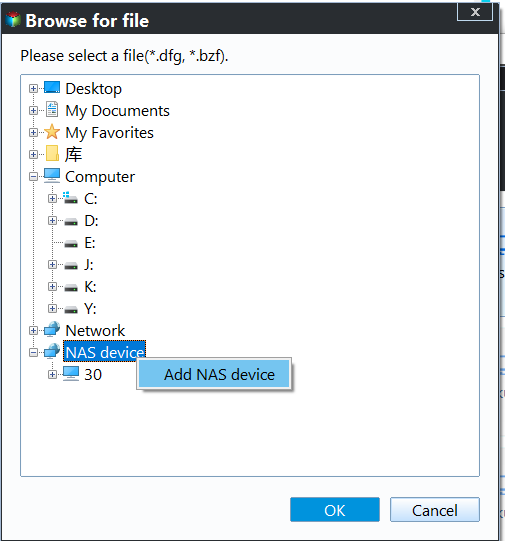
4. Manage sync settings and click Proceed.
◆ To automate file syncing, create a schedule, but for real-time syncing, upgrade to the Professional edition and use File Sync instead.
◆ There's also a File sync feature allowing to sync any changes between cloud drive and NAS mutually.
Verdict
If you want to back up OneDrive to a NAS like Synology or QNAP, Qiling Disk Master is a good option because it offers more backup features with no restrictions on cloud services or NAS brands. It also has a sync feature that allows for intact file copies.
Qiling Disk Master is a complete Windows backup and restore solution that allows easy backup to a cloud drive, enabling restoration in case of system breakdown or hard drive failures, and even deploying a system image to another computer without reinstalling.
Related Articles
- Top 2 Ways to Sync QNAP NAS to OneDrive in Windows 10/8/7
This guide explains Top 2 Ways to Sync QNAP NAS to OneDrive in Windows 10/8/7 with clear steps, key checks, and practical tips. - How to Backup Synology NAS to Cloud with Ease?
Learn how to Backup Synology NAS to Cloud with Ease with clear steps, key checks, and practical tips. - 3 Free Ways to Backup PC to OneDrive in Windows 10/8/7?
This guide explains 3 Free Ways to Backup PC to OneDrive in Windows 10/8/7 with clear steps, key checks, and practical tips. - How to Backup Office 365 Emails - Top 2 Methods of 2024
You can easily back up your Office 365 emails using two simple methods. This article will guide you through the process, allowing you to securely store your emails in a safe location. By following the steps outlined here, you'll be able to backup your Office 365 emails with ease. - Top 10 Ways to Fix Windows 7 Task Manager Not Responding
This guide explains Top 10 Ways to Fix Windows 7 Task Manager Not Responding with clear steps, key checks, and practical tips. - 3 Methods to Fix The Mounted Backup Volume Is Inaccessible
This guide explains 3 Methods to Fix The Mounted Backup Volume Is Inaccessible with clear steps, key checks, and practical tips.
Products
Articles & Tutorials
- Data Recovery
- Data Backup
- File Recovery
- File Backup
- File synchronize
- System Backup and Restore
- Disk and Partition Clone
- Technical articles
- Disk Master Help
- Windows Deleted File and Disk Recovery Tutorials
- Windows File and Data Recovery Tutorials
- More Windows Tutorials for Install, Security, Files, and PC Tips
- Windows Boot, Repair, and Recovery Environment Tutorials
- Windows Backup Tutorials
- Windows Restore Tutorials
- Windows Clone and Migration Tutorials
- Windows Server Backup, Recovery, and Management Tutorials
- Windows Disk, Partition, and Storage Management Tutorials