Top 10 Ways to Fix Windows 7 Task Manager Not Responding
- Solutions to Solve Windows 7 Task Manager Not Responding/Opening/Working
- Solution 1. Try Different Ways to Open Task Manager
- Solution 2. Switch to Another Account
- Solution 3. Scan Your Computer for Virus
- Solution 4. Uninstall Third-Party Apps
- Solution 5. Update Windows
- Solution 6. Restore System
- Solution 7. Run System File Checker
- Solution 8. Launch Task Manager via Registry
- Solution 9. Check Group Policy Editor
- Solution 10. Re-register Task Manager via Windows PowerShell
- Conclusion
Task Manager is a crucial utility in Windows 7 that displays computer performance, program, and process information. Users often rely on it to close unresponsive programs. However, if it's not working or can't be opened, it's frustrating.
Many Windows 7 users experience the issue of Task Manager not working, but it's easily solvable. This article provides 10 practical methods to fix the problem, which also applies to Windows 10/8.
Solutions to Solve Windows 7 Task Manager Not Responding/Opening/Working
If you're experiencing issues with the Task Manager, try restarting your computer first to see if that resolves the problem. If not, check the Task Manager itself to see if it's working. If it still doesn't work, try checking the following solutions.
Solution 1. Try Different Ways to Open Task Manager
Here are the methods to access the Task Manager in Windows 7: you can press Ctrl+Shift+Esc, right-click on the taskbar and select Task Manager, press Ctrl+Alt+Del and select Task Manager, or press Windows key + X and select Task Manager. If you're experiencing issues with opening the Task Manager, you can try these alternative methods to troubleshoot the problem.
1. Right-click the Taskbar and then choose Start Task Manager.
2. Press Ctrl+Shift+Esc together.
3. Press Ctrl+Alt+Del and choose Task Manager.
4. Type "task manager" in the Windows search bar and hit Enter. This will open the Task Manager, which displays a list of currently running processes, along with their memory and CPU usage.
Still can't open Task Manager in Windows 7? Keep reading to check the solutions to solve the problem.
Solution 2. Switch to Another Account
Users can try switching to another user account on Windows to resolve issues with the Task Manager not responding. Some users have reported that this method has fixed the problem on Windows 7.
Create a new user account: To create a new user account, go to the Start bar, click on Control Panel, then select User Accounts and Family Safety, and finally click on Add or remove user accounts under User Accounts. From there, click on Create a new account.
Switch to another account: To switch user, click the Start button, click the arrow next to Shut down, and select Switch User.
Solution 3. Scan Your Computer for Virus
You can run a deep scan with the antivirus to check for viruses, or use Microsoft Safe Scanner to scan the system for any potential threats. This could help resolve the Windows 7 Task Manager not responding issue.
Step 1. Search and download Microsoft Safe Scanner from the browser and launch it.
Step 2. Choose the type of scan to run and start the scan.
Step 3. Check the scan results displayed on your screen.
Solution 4. Uninstall Third-Party Apps
Some users suggest uninstalling third-party apps when meeting the Task Manager not working problem in Windows 7, as malware can prevent it from opening normally.
You can try running your computer in Safe Mode, which loads only the most basic drivers, to see if you can access the Task Manager normally. This can help you determine if malware is preventing you from opening it.
Step 1. Press the Windows key and also the R key together to open the Run box.
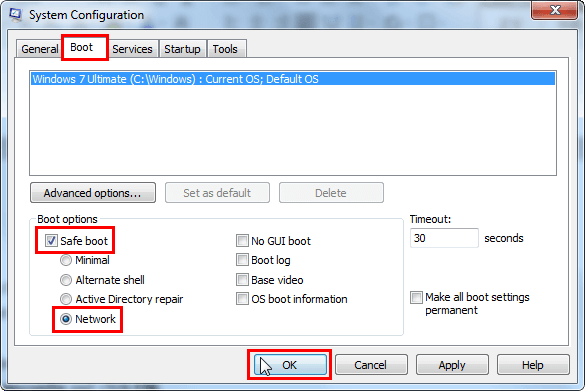
Step 2. Type msconfig and click OK.
Step 3. To initiate a safe boot, click on the "Boot" tab at the top of the interface, select "Safe boot" from the "Boot options," and then choose "Network" and click "OK" to confirm.
Step 4. Click Restart on the pop-up window to restart your computer.
If you can open the Task Manager in Safe mode, it suggests that the issue may be caused by malware or a specific program. To troubleshoot, first, run a full scan with your antivirus software to detect and remove any malicious programs. If the problem persists, try uninstalling recently installed programs to see if any of them are causing the issue. If you still encounter the problem, you may need to consider more advanced troubleshooting steps or seek professional assistance.
Solution 5. Update Windows
Task Manager not responding is a common issue among Windows users. If many users are experiencing this problem, Microsoft may release an update to fix it. To check if there's a new update available, you can do so.
Step 1. Click the Start menu > Choose Control Panel > Choose System and Security.
Step 2. Choose Check for updates under Windows update.
Step 3. If an update is available for your computer, download and install it. Once the update is complete, restart your computer. After restarting, check your Task Manager to see if the issue has been resolved. If no update is available, proceed with the next step.
Warning: To avoid data loss, back up your PC files before initiating Windows updates. This precautionary step can safeguard your important data and prevent potential losses during the update process.
Solution 6. Restore System
If your Windows system is damaged by a virus or incorrect operation, you may not be able to run Task Manager smoothly. In this case, you can try reinstalling your system, but this will erase all settings, applications, and data, and it's time-consuming. A more convenient solution is to use Qiling Disk Master Standard.
Qiling Disk Master is a free and comprehensive backup tool that allows users to backup and restore their entire system, disks, partitions, and individual files. It can also facilitate easy system restoration, ensuring that all data is preserved without any loss.
Step 1. Download Qiling Disk Master Standard and launch it > Click Backup and choose System Backup.
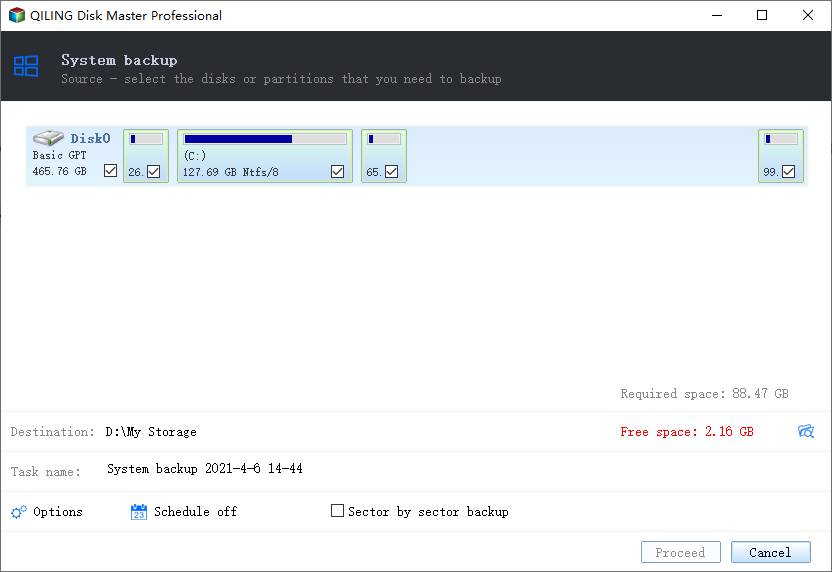
Step 2. The system automatically lists the partitions released to boot. Choose the destination path to save the backup image files, then click Proceed and wait for the process to complete.
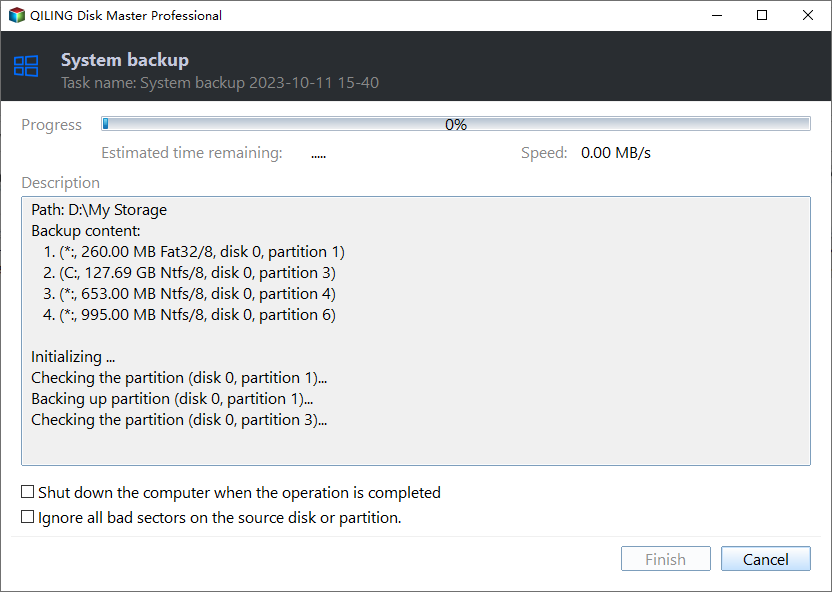
Step 3. When backup completed, go to Home and choose Restore option > Click Yes on the pop-up window.
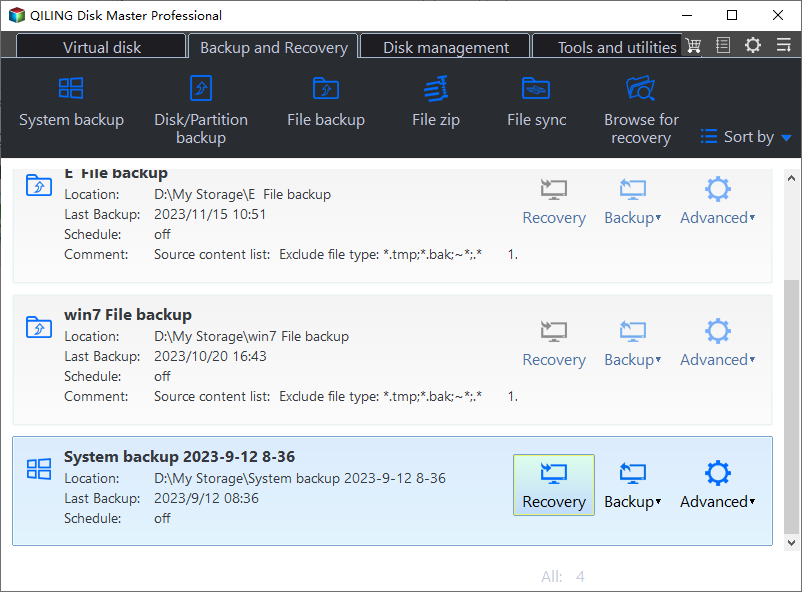
Step 4. Choose the backup image and click Next.
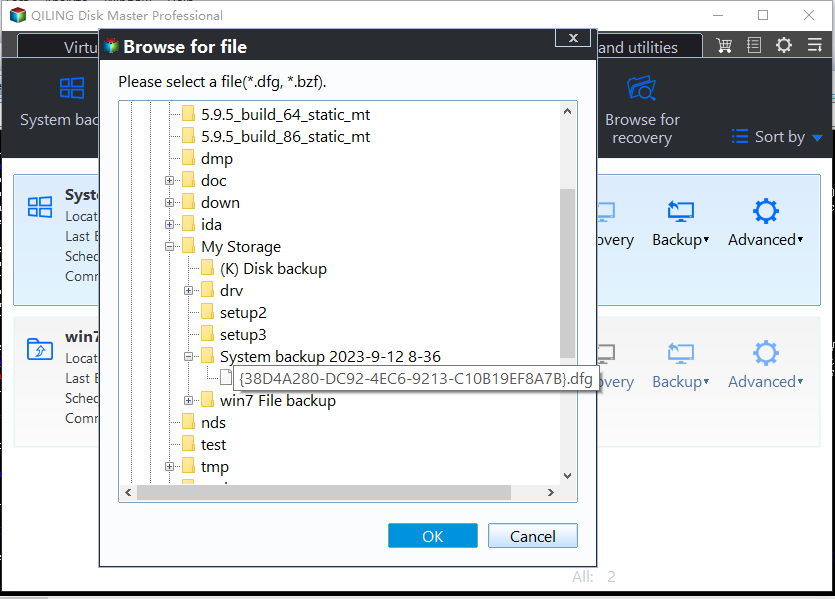
Step 5. Confirm the operation and click Proceed.
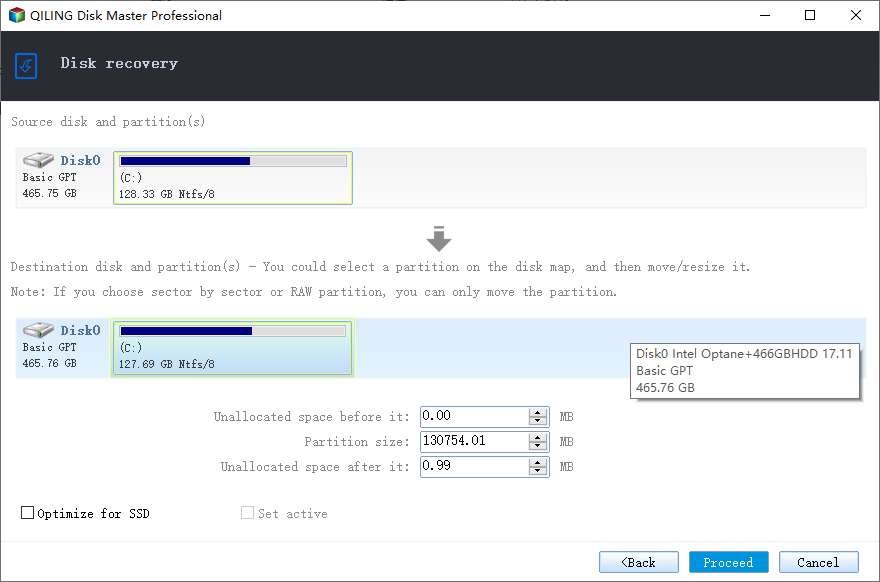
When the restore is finished, a pop-up window will appear asking to restart the computer. After restarting, check if the Windows 7 Task Manager is working properly. If it still doesn't work, continue to the next methods.
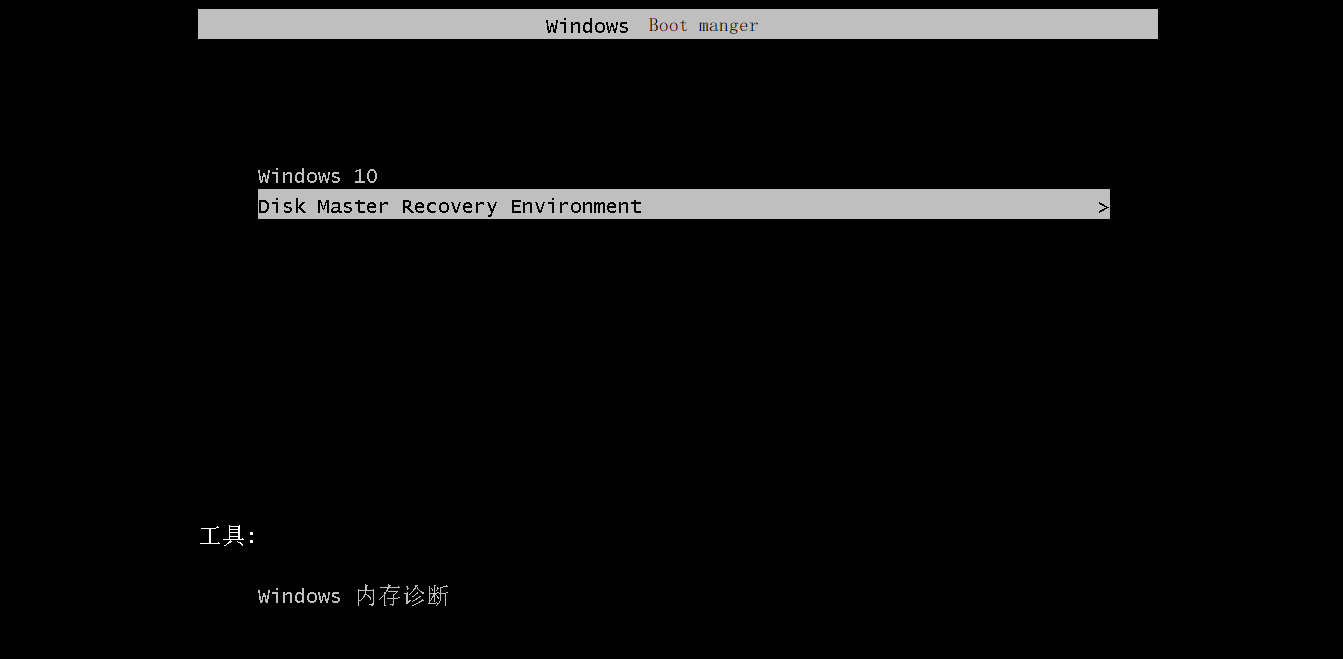
✐Easier way to backup and restore system without booting into Windows:
You can use Qiling Disk Master to backup your system and then restore it when needed, except for Qiling Disk Master itself. This method works well, especially when your computer is not working. During the backup process, it adds a boot menu to the computer and allows you to specify a fast key to access it, such as F11 or A key. This way, you can easily and quickly restore your system image to a new hard drive when your computer encounters issues.
Solution 7. Run System File Checker
The System File Checker (SFC) utility in Windows allows users to scan for and restore corrupt system files, which can be used to troubleshoot issues such as an unresponsive Task Manager.
Step 1. Type "cmd" in the Start search bar, click on its name, and select "Run as administrator". Then, click "Yes" on the pop-up window to confirm.
Step 2. Type sfc/scannow and press enter.
Step 3. Restart your PC when the process is completed.
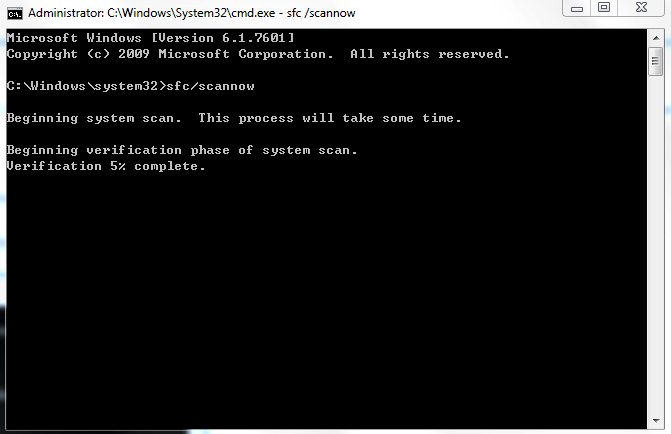
The corrupted system file will be replaced with the correct one, reverting any modified system files back to their original default state. After replacing the corrupted file, restart your computer and check your Task Manager again to see if the issue has been resolved.
Solution 8. Launch Task Manager via Registry
The Windows Registry is a database that stores operating system settings and options, as well as all hardware, software, and user settings, which can be modified to fix issues like the Windows 7 Task Manager not responding.
Step 1. To access the Registry Editor, press the Windows key and R key to open the Run box, then type 'regedit' and click OK. This will open the Registry Editor window, where you'll be prompted to click Yes on the User Account Control interface.
Step 2. Navigate to HKEY_CURRENT_USER > Software > Microsoft > Windows > CurrentVersion > Policies, and if the System key doesn't exist, create it by right-clicking on Policies and choosing New > Key.
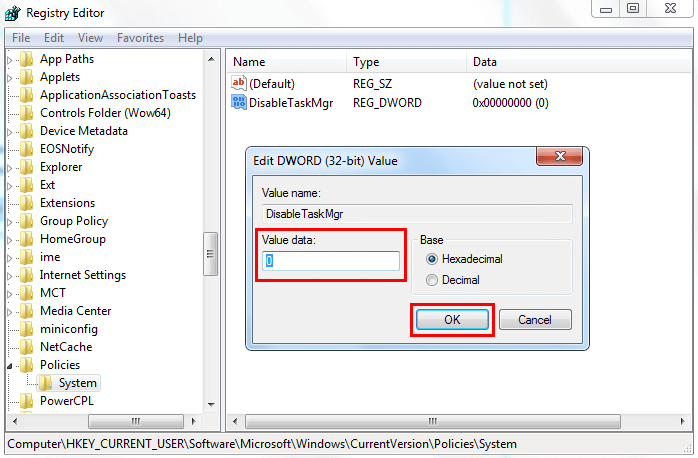
Step 3. To disable the Task Manager in Windows, go to the Registry Editor, navigate to the "HKEY_CURRENT_USER\Software\Microsoft\Windows\CurrentVersion\Policies\System" key, and create a new DWORD (32-bit) value named "DisableTaskMgr".
Step 4. Double-click DisableTaskMgr and set the value to 0 and click OK to confirm.
Step 5. Close the Registry Editor window and restart your computer. Then check the Task Manager.
Solution 9. Check Group Policy Editor
The Group Policy Editor is a tool that lets you modify system or setup procedures. If Task Manager is disabled in the settings, users may encounter the Task Manager not working problem in their Windows 7 PC.
Step 1. To access the Group Policy Editor on a Windows computer, press the Windows key and the R key to open the Run box, type gpedit.msc, and click OK. This will open the Group Policy Editor, allowing you to manage and configure various settings on your system.
Step 2. Navigate to the following key: User Configuration > Administrative Templates > System > Ctrl+Alt+Del Options.
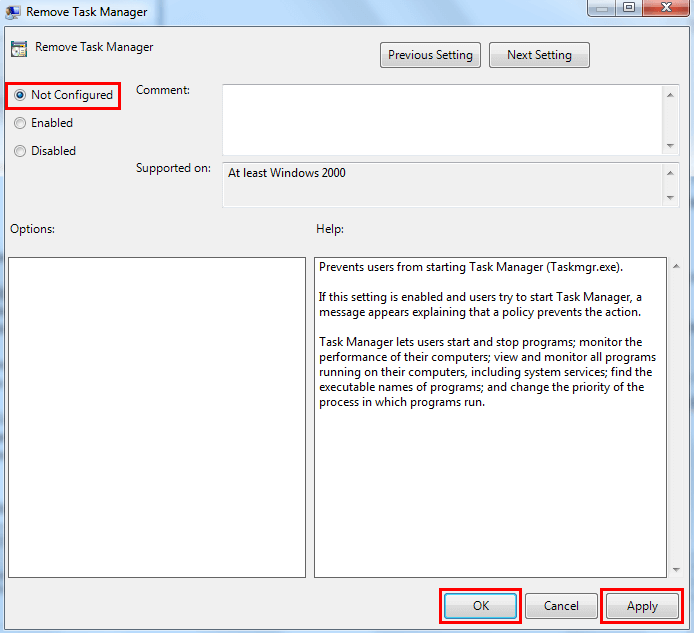
Step 3. To disable the "Remove Task Manager" setting, go to the Local Group Policy Editor, navigate to Computer Configuration > Administrative Templates > System > Ctrl+Alt+Del Options, double-click on "Remove Task Manager", and change the setting from "Enabled" to "Not Configured" or "Disabled". Click Apply and OK to confirm the changes. This will allow you to open the Task Manager again.
Solution 10. Re-register Task Manager via Windows PowerShell
Windows PowerShell is a command-line shell scripting language designed for system administration, and if you're experiencing issues with Windows 7 Task Manager not responding, you can try to re-register it.
Step 1. To run Windows Powershell as an administrator, start by typing "Windows Powershell" in the Start search bar, right-click its name, and select "Run as administrator". Then, click "Yes" to confirm on the pop-up window that appears.
Step 2. Copy and paste the following code and hit Enter: Get-AppXPackage -AllUsers | Foreach {Add-AppxPackage -DisableDevelopmentMode -Register "$($_.InstallLocation)\AppXManifest.xml"}
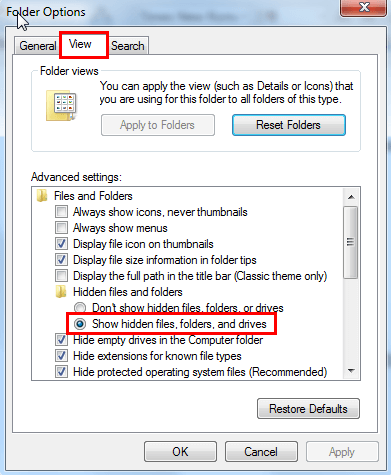
Step 3. To view hidden files, folders, and drives, go to the Start menu, click on Control Panel, then Appearance and Personalization, select Folder Options, choose the View tab, select Show hidden files, folders, and drives, and click OK to confirm.
Step 4. To resolve the issue, go to This PC > Local Disk (C:) > Users > your name > AppData > Local, delete the TileDataLayer folder, and then restart your computer.
Conclusion
If your Windows 7 Task Manager is not responding, opening, or working properly, try one of the methods mentioned above to fix the issue. Hopefully, one of them will be successful. If you prefer an easier way to manage your computer data, consider using Qiling Disk Master, which can help you backup and restore your system, disk, or partition, and even create a bootable USB to boot your computer when your Windows system crashes.
Related Articles
- Fixed: F11 System Recovery Not Working in Windows 7/8/10
You will learn how to easily fix F11 HP system recovery not working error with 3 solutions in this article. And, a safer way to protect system. - Top 6 Ways to Fix Windows 7 Offline Files Not Working Problem
This guide explains Top 6 Ways to Fix Windows 7 Offline Files Not Working Problem with clear steps, key checks, and practical tips. - (Solved) Outlook Not Showing Old Emails | 6 Ways
You will get all the possible reasons for Outlook 2016 or Windows 10 not showing old emails and 6 effective methods to fix it. To keep your emails safe, please back them up. - Top 2 Ways to Take an Outlook Personal Folders Backup
This article describes two ways to help users to take Outlook personal folders backup. You can choose the most suitable one according to your needs. - 4 Ways to Create Dell Windows 7 Recovery Media (Disk/USB)
This guide explains 4 Ways to Create Dell Windows 7 Recovery Media (Disk/USB) with clear steps, key checks, and practical tips. - How to Do Dell Factory Restore in Windows 7 Command Prompt
This tutorial shows you how to do Dell factory restore in Windows 7 Command Prompt and provides an alternative way to perform Dell factory restore efficiently.
Products
Articles & Tutorials
- Data Recovery
- Data Backup
- File Recovery
- File Backup
- File synchronize
- System Backup and Restore
- Disk and Partition Clone
- Technical articles
- Disk Master Help
- Windows Deleted File and Disk Recovery Tutorials
- Windows File and Data Recovery Tutorials
- More Windows Tutorials for Install, Security, Files, and PC Tips
- Windows Boot, Repair, and Recovery Environment Tutorials
- Windows Backup Tutorials
- Windows Restore Tutorials
- Windows Clone and Migration Tutorials
- Windows Server Backup, Recovery, and Management Tutorials
- Windows Disk, Partition, and Storage Management Tutorials