3 Methods to Fix The Mounted Backup Volume Is Inaccessible
The mounted backup volume is inaccessible
To protect your PC from system corruption, you can use Windows' built-in tool "Windows Server Backup" to create a system image. However, you may encounter an error message saying "there was a failure in preparing the backup image of one of the volumes in the backup set. (0x807800C5). The mounted backup volume is inaccessible. Please retry the operation."
How to fix "the mounted backup volume is inaccessible"
To fix the error "The mounted backup volume is inaccessible" (0x807800c5) in Windows Server Backup, you can try the following methods:
Fix 1: Use different destination
If the destination partition or target USB/external hard drive becomes inaccessible or corrupted, use another USB/external hard drive to complete the Windows system backup.
Fix 2: Rename the old backup folder
Find the backup folder, rename it to distinguish from new backups, and consider deleting it if it takes up a lot of space.
Fix 3: Make sure Volume Shadow Copy Service is running
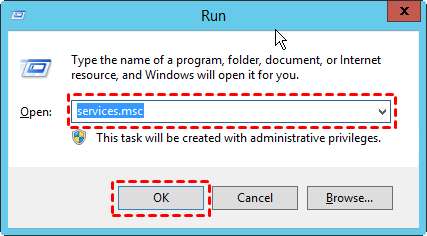
Step 1. Press the Windows key + R, then type services.msc and click OK. This will open the Services window where you can find and manage system services.
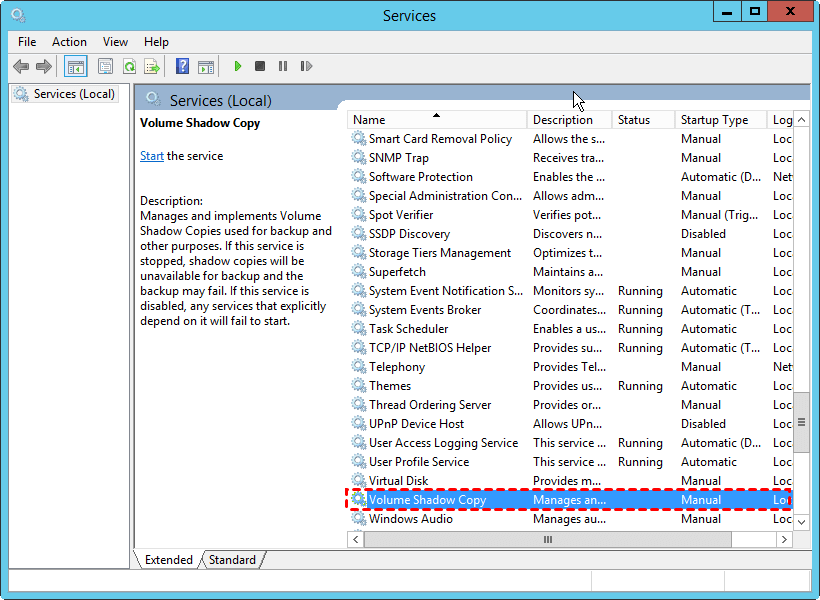
Step 2. To find the Volume Shadow Copy, go to the Control Panel, click on System and Security, and then click on Administrative Tools. In the Administrative Tools window, scroll down and double-click on Volume Shadow Copy to open its properties.
Step 3. Set the Startup type to Automatic and ensure the Service status is running by clicking on start.
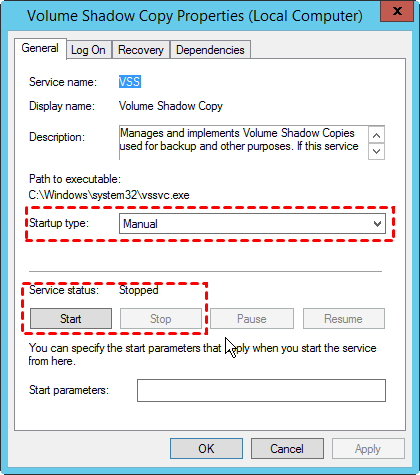
Step 4. Click Apply followed by OK.
Step 5. To resolve the Windows Backup error 0x807800C5, try rebooting your PC to save changes and see if the issue is resolved.
A better way to create system image backup
You can consider using a professional and reliable third-party backup software like Qiling Backup Server to create system image backups without errors. This software offers a straightforward process with minimal steps, saving you time. Additionally, it features a Schedule Backup option that allows you to set Daily/Weekly/Monthly Backup or Full backup, Incremental, and Differential backup options, providing flexibility and peace of mind.
This software allows for system image backups, which can be restored whenever needed, and also offers additional backup features like file and disk backups.
Now, download Qiling Disk Master Server, install and launch it. After that, follow the steps below to back up the system.
Step 1. On the left tab page, select Backup and then select System Backup.

Step 2. You can customize the task name to differentiate backups, and the system and boot related partition will be automatically listed, so you just need to select a destination path to save image files.

Step 3. You can create a scheduled system image backup by clicking "Schedule Backup" and setting up a schedule.
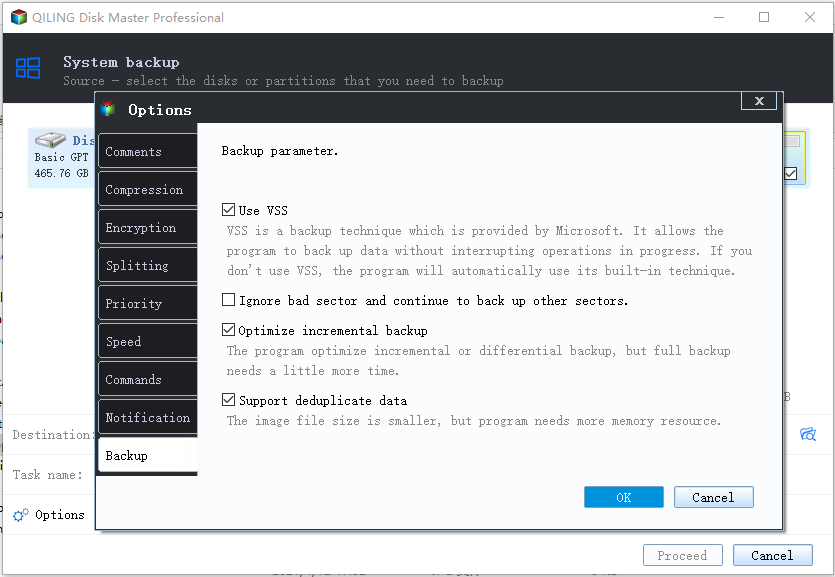
Step 4. Click Proceed button and wait for the process to complete.

✎ Advanced way to backup system without booting into Windows:
You can use Qiling Disk Master to create both a system image backup and a bootable media simultaneously, eliminating the need to create them one by one in Windows 10, 8, or 7.
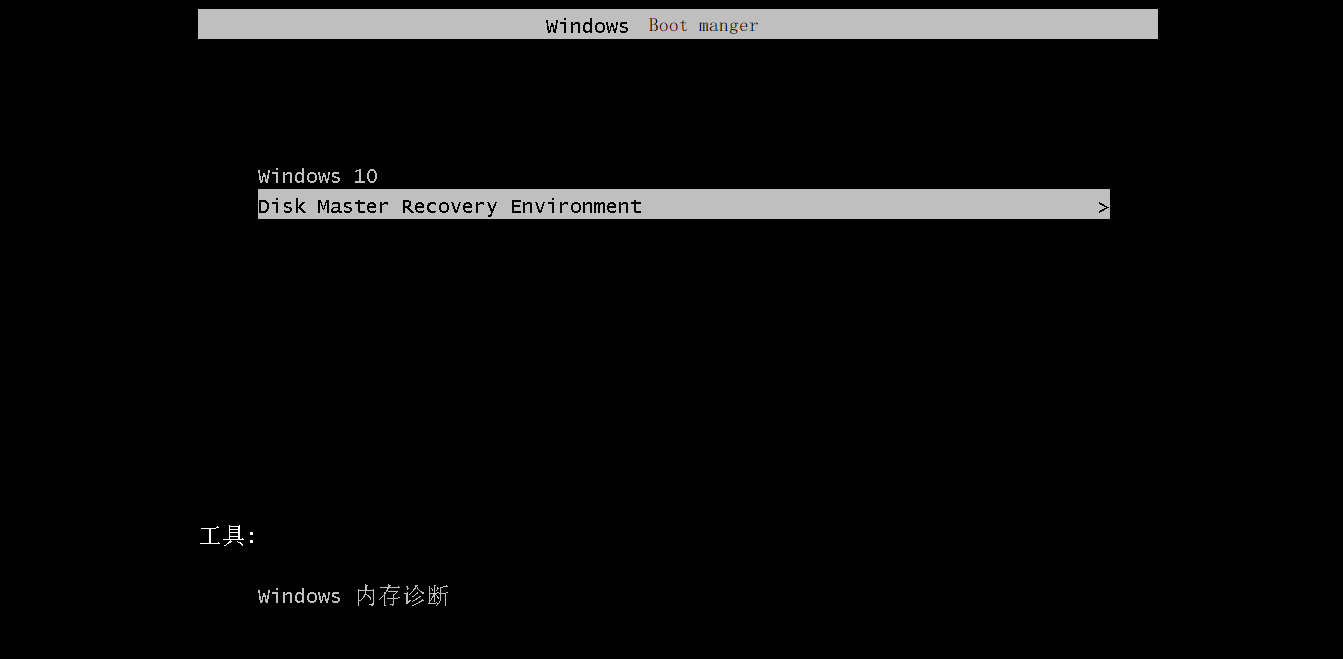
During the backup process, a new recovery partition is created, but it doesn't assign a drive letter to store the backup image and boot files, unless you select the recommended option. This means you don't need to worry about them. Additionally, a boot menu is added to the computer, allowing you to access it at the next startup or use a quick key, such as F11 or A.
Conclusion
If you're experiencing the error "The mounted backup volume is inaccessible", you can try the suggested methods to fix it, although this may be time-consuming and not always successful. A more efficient solution is to use Qiling Disk Master, which can easily back up your system, files, or disk, making it a better choice for your needs.
Qiling Disk Master Server is designed specifically for server users, while users of Windows Vista/XP/7/8/10 can use Qiling Disk Master Professional, which meets their requirements.
Related Articles
- How to Fix Windows Server Backup Incorrect Function
You will learn 5 quick solutions to Windows Server 2012 backup incorrect function. Also, if it does not work, you can try an easy alternative to backup files, system, partition, or disk as you like. - Top 3 Ways to Fix Windows Backup Keeps Failing
Fix Windows Backup keeps failing with three practical methods, and learn how Qiling Disk Master can create reliable system image backups when built-in backup tools fail. - 5 Methods to Fix System Image Backup Failed in Windows 10/8/7
Many reasons can cause system image backup failed in Windows 11, 10, 8, 7. This article includes 4 solutions to fix 3 different situations and a free backup tool to create system image easily. - Acronis Imaging Software for Windows 11/10/8/7 Free Download
Acronis imaging Software, also known as Acronis True Image, is one of the top disk imaging solutions among users. This article will introduce the popular software to you in detail and help you find the best alternative software to meet your higher requirements. - Error Loading Operating System in Windows 7 – How to Fix It Easily
Fix Error Loading Operating System in Windows 7 with practical methods, including checking BIOS settings, repairing boot files, and using bootable media when needed. - Top 3 Ways to Fix a Corrupted User Profile (Windows 7)
Knowing the causes of a corrupt user profile can help you easily and quickly fix a corrupted user profile in Windows 7/8/10. Thus, please find your cause first and then try 4 FREE ways in this article.
Products
Articles & Tutorials
- Data Recovery
- Data Backup
- File Recovery
- File Backup
- File synchronize
- System Backup and Restore
- Disk and Partition Clone
- Technical articles
- Disk Master Help
- Windows Deleted File and Disk Recovery Tutorials
- Windows File and Data Recovery Tutorials
- More Windows Tutorials for Install, Security, Files, and PC Tips
- Windows Boot, Repair, and Recovery Environment Tutorials
- Windows Backup Tutorials
- Windows Restore Tutorials
- Windows Clone and Migration Tutorials
- Windows Server Backup, Recovery, and Management Tutorials
- Windows Disk, Partition, and Storage Management Tutorials