How to Backup VMware Virtual Machine While Running | 4 Ways
- Why should you backup VMware virtual machine?
- Best 4 VMware virtual machine backup solutions
- Solution 1: Use Windows Backup and Restore
- Solution 2: Create a snapshot for VM
- Solution 3: Use reliable tool Qiling Disk Master
- Solution 4: Try agentless VM backup tool Qiling Backup
- Tips on restoring VMware virtual machine from backup
- Conclusion
Why should you backup VMware virtual machine?
A virtual machine is a software emulation of a computer system, providing the functionality of a physical computer. It has become increasingly popular, especially among enterprise users, as it allows them to perform complex and potentially hazardous operations without risking the safety of their physical computer.
VMware stands out among virtual machine software, offering a comprehensive range of products, including Fusion for Mac and Workstation Player for PC. With VMware, you can run Windows on a Mac or Linux on a Windows PC, providing flexibility and versatility.
Here are the common reasons why people would like to backup VMware virtual machine:
- Restoring a virtual machine from backup allows you to convert it into a physical computer, essentially turning a virtual machine into a physical one. This process involves using the backup to restore the virtual machine to a physical computer, effectively merging the two into a single physical machine.
- Before making significant changes to your VMware virtual machine, take a backup of the VM to ensure you can revert to its original state if needed. This precautionary step helps prevent data loss or unintended consequences from modifications.
- Backup for testing purposes or make a compressed data archive.
Creating a backup at the first place is a wise decision for data protection, as it safeguards against potential losses in case of system crashes or other accidents, especially when dealing with large volumes of data such as hundreds of virtual machines.
Best 4 VMware virtual machine backup solutions
To backup a virtual machine, make a copy of the folder containing the VM and paste it to another location, such as a USB flash drive or external hard drive, ensuring the VM is not running or suspended during the backup.
Here are four solutions to backup VMware virtual machine while running:
- Solution 1: Use Windows Backup and Restore
- Solution 2: Create a snapshot for VM
- Solution 3: Use reliable tool Qiling Disk Master🔥
- Solution 4: Try agentless VM backup tool Qiling Backup👍
Solution 1: Use Windows Backup and Restore
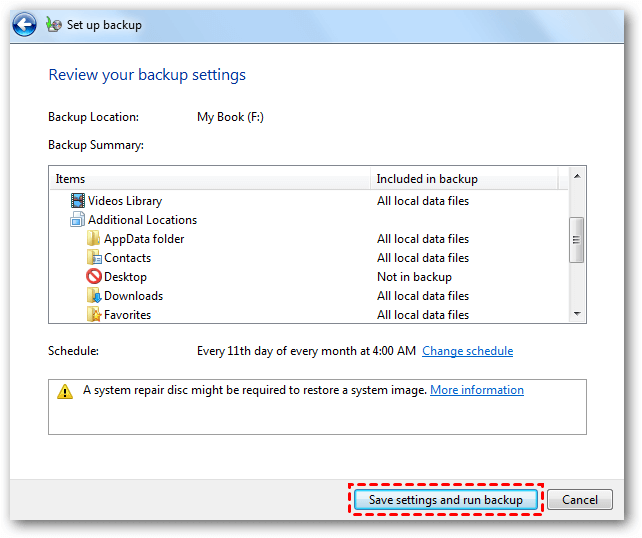
To backup a VMware virtual machine using Windows built-in backup tool, you can create a system image that includes the virtual machine's operating system and data. This can be done by selecting the VMware virtual machine as the backup location in Windows Backup and Restore, and choosing the appropriate backup options. This will allow you to create a backup of the virtual machine's operating system and data, which can be restored in case of a failure or disaster.
Step 1. On your VM running Windows 7, click Start > Control Panel > Back up your computer under System and Security, or type "backup and restore" in the Search box, and then click Set up backup.
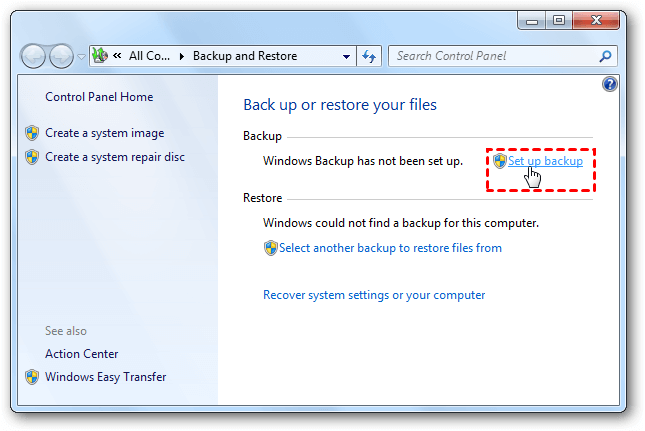
Tip: On a Windows 10 VM, go to Start > Settings > Update & Security > Backup, then click Go to Backup and Restore (Windows 7).
Step 2. Save the backup on an external hard drive or network location and click Next.
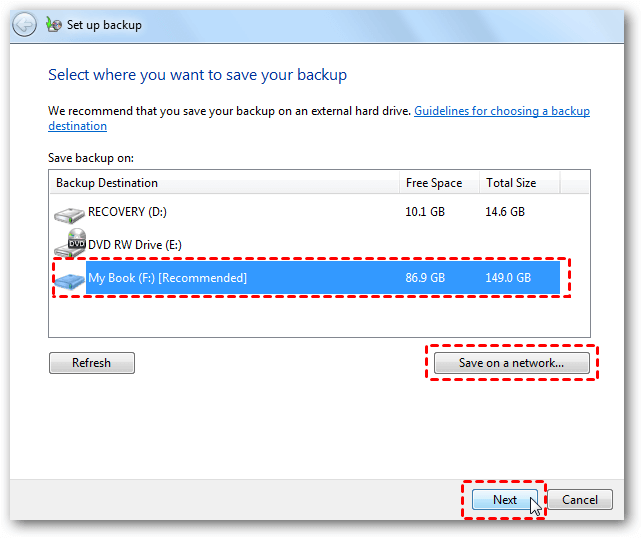
Tip: To backup to a USB drive, ensure it has sufficient capacity and is not used for a system image backup, as this will result in an error message stating the drive is not a valid backup location.
Step 3. At the next Window, select Let me choose.
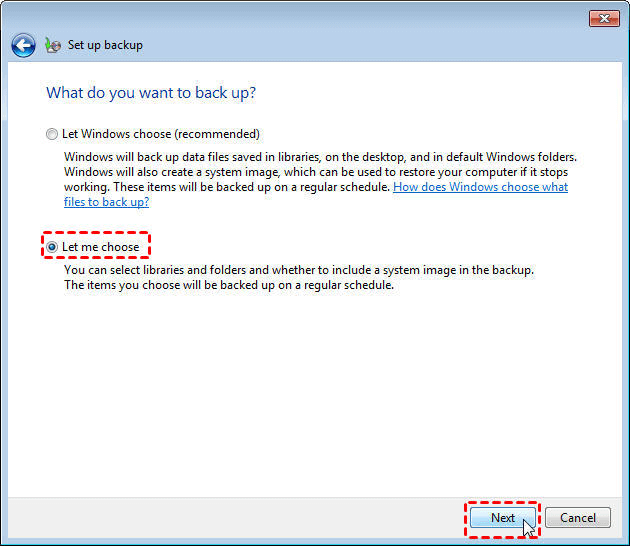
Step 4. Select the items you want to backup and then click Next. You can choose whether to include a system image of your virtual machine in the backup.
Step 5. Review your backup settings, confirm them, and click "Save settings and run backup".
Solution 2: Create a snapshot for VM
Creating a snapshot is a useful and fast way to backup VM. The snapshot can capture state, data, and hardware configuration of the running virtual machine. By using the snapshot, you can quickly restore virtual machine to its previous state. Let's see how to create a snapshot.
Step 1. In VMware Workstation, choose VM > Snapshot > Take Snapshot.
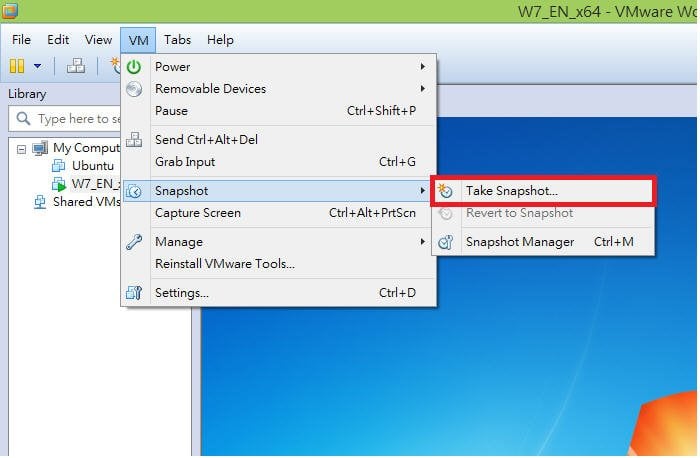
Step 2. Enter a name for the snapshot. This is a required field. Optionally, you can add a description for the snapshot. Click the Take Snapshot button and wait for the process to complete.
Note: This method has a limitation - snapshots are not useful for restoring individual files because they only restore the entire VM image to its previous state.
Solution 3: Use reliable tool Qiling Disk Master
Qiling Disk Master Professional is a powerful VM backup software that you can rely on.
- This software provides System Backup, Disk Backup, Partition Backup, and File backup features, allowing users to backup various types of data on their virtual machine.
- This software allows for easy backups to local disks, external hard drives, networks, DVD, and CD, and also enables simple backups to NAS.
- Even if Microsoft VSS (Volume Shadow Copy Service) doesn't work, Qiling's built-in technique allows you to backup a VMware virtual machine while it's running without interrupting it.
Here come the detailed steps. Take system backup as an example.
Step 1. Download the free trial of Qiling Disk Master, install and launch it on your virtual machine, then click System Backup under the Backup tab, or choose File Backup to backup important files and folders.

Step 2. By default, system-related partitions are selected as the backup source. To proceed, choose a destination path to store the backup image, such as an external hard drive or a network location.

Step 3. Confirm the operation and click Proceed.

Note: The software allows you to set up more advanced settings before proceeding, such as scheduling automatic incremental and differential backups, among other options.
Solution 4: Try agentless VM backup tool Qiling Backup
If you have multiple VMs that need to be backed up, the most convenient way to accomplish this task is to utilize Qiling Backup.
- It allows for creating complete and independent image-level backups of VMware ESXi and Hyper-V VMs from a central console.
- You can save backup images on a local drive, a network attached storage (NAS) device, or a network share, such as a cloud storage service.
- You can schedule unattended backup tasks to run daily, weekly, or monthly, and receive email notifications.
- The software allows for the creation of VM backups while the VMs are running or during shutdown, with the operations being the same in both cases.
To backup VMware virtual machines using Qiling Backup, you can follow these steps. First, install the Qiling Backup software on your system.
Tips on restoring VMware virtual machine from backup
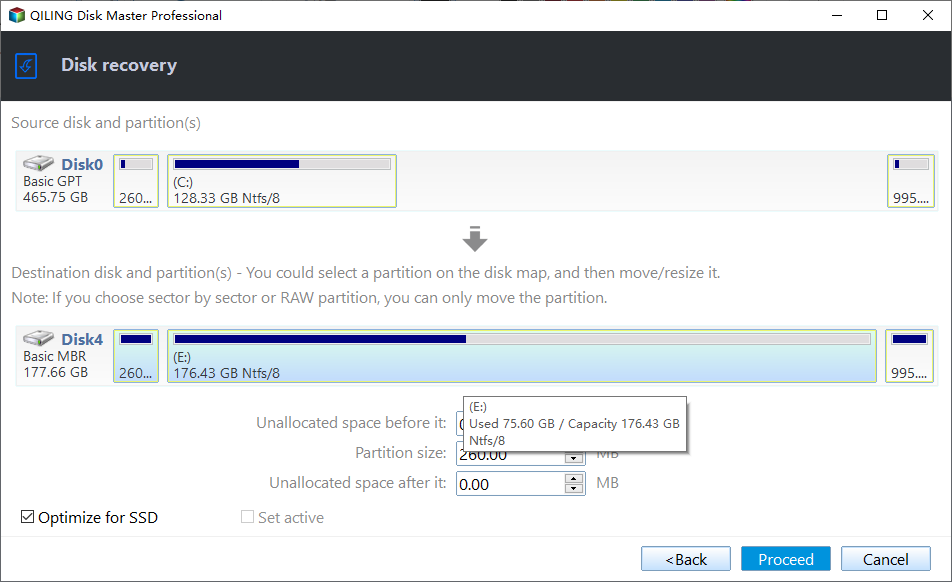
After creating a backup of your virtual machine, you can restore it with the corresponding backup tool whenever you need. You can also convert the virtual machine to a physical machine by restoring the backup image to another physical computer, using the Universal Restore feature provided by Qiling Disk Master, which ensures secure boot after recovery.
Conclusion
Backing up a VMware virtual machine while it's running can be done in four easy ways. Qiling Disk Master is a highly recommended option, offering features not available in Windows Backup and Restore, such as restoring the virtual machine to another computer and creating incremental and differential backups.
Qiling Disk Master is a reliable backup and restore software that also serves as perfect disk clone software, allowing users to migrate OS from HDD to SSD and perform dynamic disk clone operations with ease.
Related Articles
- Easy & Free Backup Strategy to Backup Virtual Machine
This article will reveal everything related to backing up virtual machine, including reasons, issues to consider, VM Snapshot and a step by step guide. - Windows Server Backup Restore to Virtual Machine (2 Ways)
This guide explains Windows Server Backup Restore to Virtual Machine (2 Ways) with clear steps, key checks, and practical tips. - How to Migrate Physical PC to Virtual Machine in Windows 10/8/7?
Physical PC to virtual machine migration is very helpful for users to do operations that may do harm to physical computer. Qiling Disk Master is a good software to convert physical PC to virtual machine. - Top 10 Best Desktop Imaging Software [2022 Reviews]
This guide explains Top 10 Best Desktop Imaging Software with clear steps, key checks, and practical tips.
Products
Articles & Tutorials
- Data Recovery
- Data Backup
- File Recovery
- File Backup
- File synchronize
- System Backup and Restore
- Disk and Partition Clone
- Technical articles
- Disk Master Help
- Windows Deleted File and Disk Recovery Tutorials
- Windows File and Data Recovery Tutorials
- More Windows Tutorials for Install, Security, Files, and PC Tips
- Windows Boot, Repair, and Recovery Environment Tutorials
- Windows Backup Tutorials
- Windows Restore Tutorials
- Windows Clone and Migration Tutorials
- Windows Server Backup, Recovery, and Management Tutorials
- Windows Disk, Partition, and Storage Management Tutorials