How to Convert Physical PC to Virtual Machine in Windows
Why migrate physical PC to virtual machine?
Operating Windows on a virtual machine is a wise choice for many users, as it helps avoid potential safety hazards and system crashes that can occur with incorrect operations.
Virtual machines like VirtualBox, VMware, Hyper-V, and Windows Virtual PC allow you to run multiple operating systems in a virtual environment, providing a safe space to perform tasks without risking the physical PC's safety.
To convert a physical computer to a virtual machine, the most effective method is to move the physical operating system (OS) to a virtual machine. This process typically involves the following steps:
Best PC to VM converter you need
The Qiling Disk Master is a backup software designed by Qiling TECH that allows users to migrate their operating system to a virtual machine.
- The software provides various backup options, including System Backup, Disk Backup, Partition Backup, and File Backup, to cater to different user needs and preferences.
- You can restore your computer to an earlier date and even restore system to a different computer whenever the need arises.
- With its easy-to-use interface, you can operate it without any help.
Qiling Disk Master supports different versions of Windows PC and Server OS, and we recommend the Professional version for PC users. You can download and install it on your Windows 11/10/8.1/8/7/Vista/XP PC.
How to convert computer to virtual machine
Here are the specific steps of migrating a physical PC to a virtual machine in one paragraph:
- To convert a physical PC to a VMware virtual machine, you need to install VMware Workstation first, followed by the steps to convert the physical PC.
- To prepare a USB flash drive to store a WinPE ISO file and the system image of a physical computer, you can use the Windows 10 Media Creation Tool or a third-party tool like Rufus to create a bootable USB drive. First, download the WinPE ISO file and the system image of the physical computer.
Operations on physical computer
Step 1. Connect a USB drive to your computer, then install and launch Qiling Disk Master.
Step 2. To create a bootable ISO file on the USB disk, click on the "Tools" menu and select "Create Bootable Media".
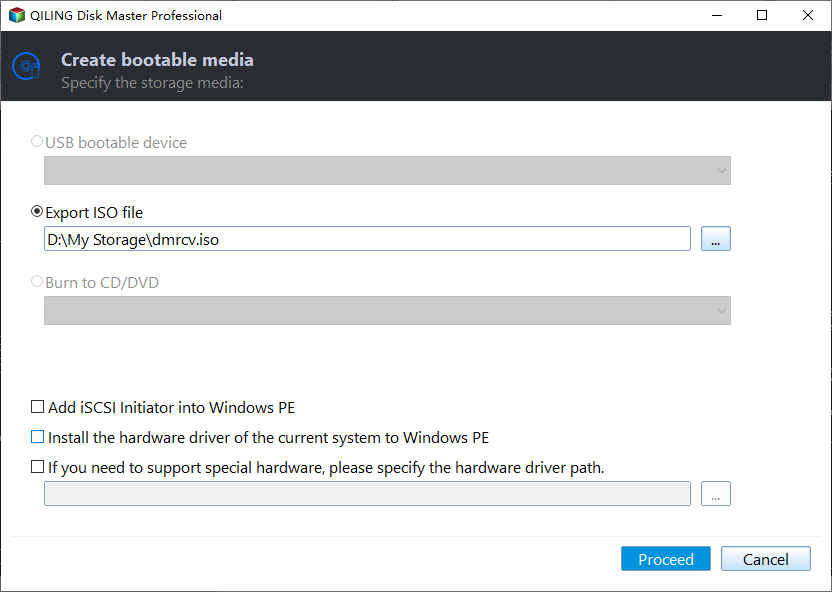
Step 3. To create a system backup image, select "Backup" > "System Backup" and save it on the USB stick.

Operations on virtual machine
Note: This method is only applicable to a VM using BIOS. If your virtual machine uses EFI firmware, you can create a bootable USB drive and use the USB drive as a physical hard drive to boot from it.
Step 1. Mount the ISO file in the VM console, select Power On to Firmware to boot into BIOS, and set CD-ROM Drive as the first boot option.
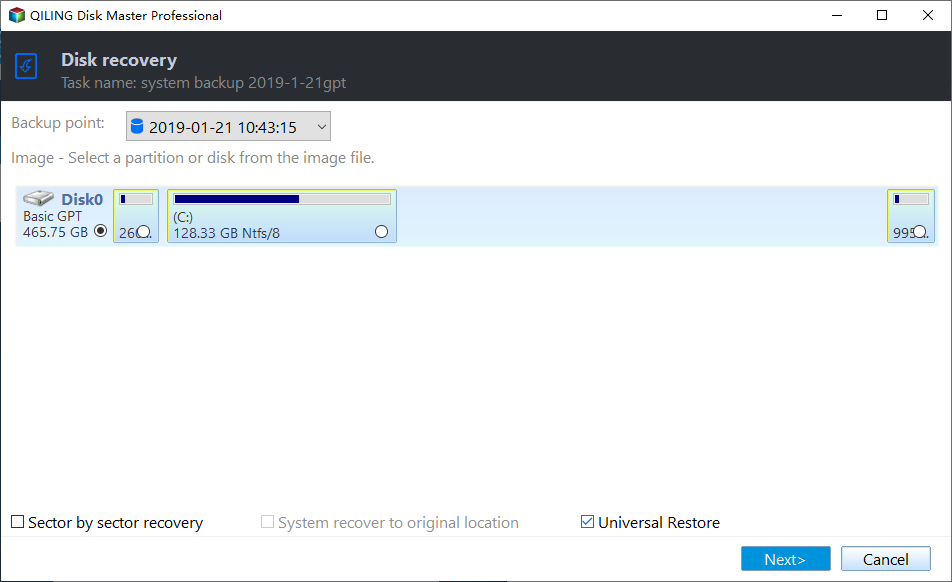
Step 2. Once logged in, you'll see the Loaded Qiling Disk Master. Select the "Restore" option and then choose "Select Task".

Step 3. Select the system backup task to restore and click Next.

Step 4. Select "Restore this system backup" and tick "Restore system to other location". Then, click "Next".
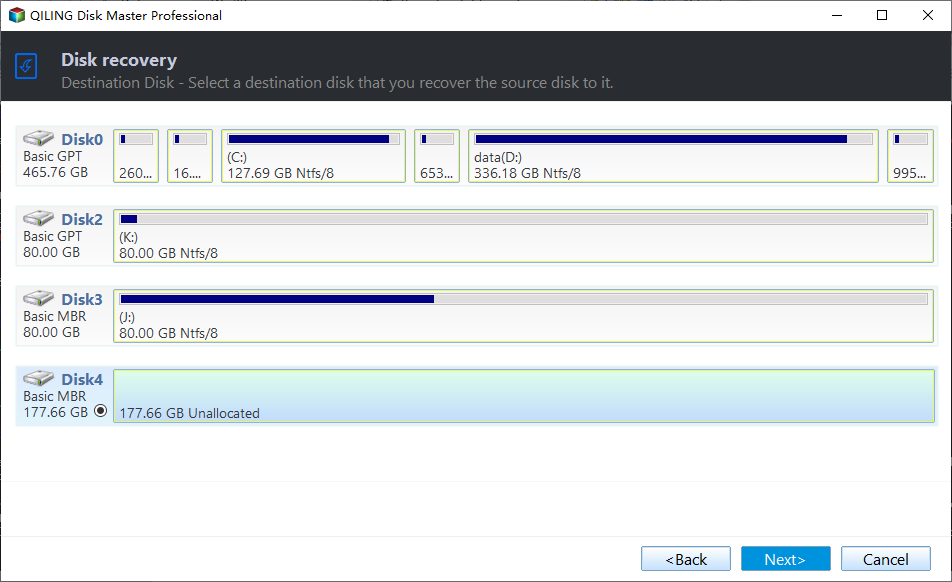
Step 5. Select the hard drive on the VM as the destination path and click Next.
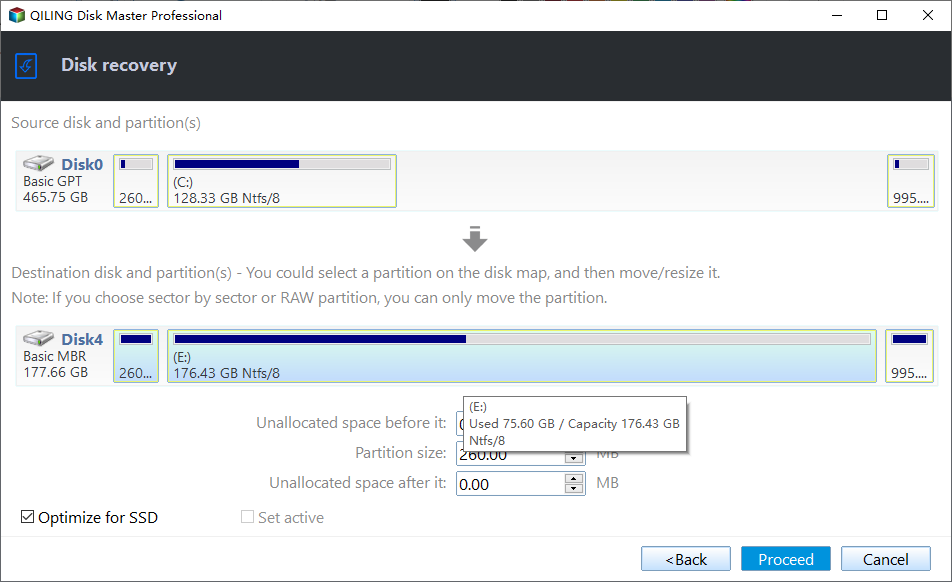
Step 6. On the "Operation Summary" page, confirm the operations and click Proceed. The Universal Restore option will be automatically selected if the physical PC and virtual machine have different hardware.
This method is very simple compared with other software. You can also use the PXE Boot Tool to replace the bootable ISO file. Besides migrating physical computer to virtual machine, Qiling Disk Master supports to convert virtual machine to physical (V2P) and even migrate virtual machine to virtual machine (V2V).
If you want to protect unlimited computers within your company, you can use Qiling Disk Master Technician, which allows you to deploy and restore system images on multiple computers over a network.
Related Articles
- Migrate Windows OS from Physical Computer to Virtual Machine
- 3 Best Practices for P2V (Physical to Virtual) Migration
- Convert Virtual Machine to Physical with Qiling Disk Master
- How to Reimage a Lenovo Laptop Step by Step
Learn the key steps, checks, and practical tips for this related guide. - Top 10 Best Email Backup Software in 2022 [New]
When it comes to the best email backup software, this guide is a must-read, providing the top 10 tools that can easily backup and restore Gmail, Outlook, and Hotmail accounts with simple clicks. - How to Enable SMB on Windows 10?
This post explains how to enable SMB on Windows 10.
Products
Articles & Tutorials
- Data Recovery
- Data Backup
- File Recovery
- File Backup
- File synchronize
- System Backup and Restore
- Disk and Partition Clone
- Technical articles
- Disk Master Help
- Windows Deleted File and Disk Recovery Tutorials
- Windows File and Data Recovery Tutorials
- More Windows Tutorials for Install, Security, Files, and PC Tips
- Windows Boot, Repair, and Recovery Environment Tutorials
- Windows Backup Tutorials
- Windows Restore Tutorials
- Windows Clone and Migration Tutorials
- Windows Server Backup, Recovery, and Management Tutorials
- Windows Disk, Partition, and Storage Management Tutorials