3 Best Practices for P2V (Physical to Virtual) Migration
Quick Navigation:
- What is P2V migration?
- Why do you need P2V migration?
- How to migrate from physical to virtual machine efficiently?
- To sum up
What is P2V migration?
P2V (Physical to Virtual) migration involves converting and migrating a physical computer image into a virtual machine (VM) using specialized software. This process takes the entire physical system, including its operating system, applications, and data, and transfers it to a virtual environment, allowing it to run on a virtual machine.
1. P2V tools save the physical machine's state and data as a virtual machine (VM) snapshot or image instance, allowing for easy migration to a virtual environment.
2. The VM manager or hypervisor tool allocates computing, memory, storage, and networking resources to the virtual machine (VM) as needed.
3. The hypervisor reinstalls the VM snapshot on the VM's allocated storage space.
After migration, the virtual machine will have the same state, stored data, applications, and system configuration as the physical machine it was cloned from, with the same resources allocated.
Why do you need P2V migration?
You want to migrate from a physical to a virtual machine for various reasons, including reducing hardware costs, increasing efficiency, and improving disaster recovery capabilities. This process, known as P2V migration, involves transferring data from a physical machine to a virtual one, allowing for easier management, scalability, and flexibility in a virtual environment.
● A virtual machine (VM) allows you to test and run applications or operating systems without affecting your physical computer. This means you can experiment and make changes without worrying about damaging your main device.
● Running a virtual machine (VM) requires less hardware, physical space, power consumption, and repairs compared to running a physical machine.
● A virtual machine (VM) allows users to run multiple operating systems on a single platform, making it a popular option for Mac users who want to run Windows applications, thereby making physical-to-virtual (P2V) a common method for doing so.
● Multiple virtual machines (VMs) can be run on a single physical machine, allowing for different test environments to be set up on a single computer. This enables efficient use of resources and simplifies the process of testing and development.
Since P2V migration is advantageous, what are P2V best practices?
How to migrate from physical to virtual machine efficiently?
There are three practical ways to complete P2V migration: Qiling Disk Master Professional, Microsoft Sysinternals Disk2vhd, and System Center Virtual Machine Manager (SCVMM). The best choice depends on whether you need a bootable system restore, a virtual disk file, or centralized Hyper-V management.
- Method 1: P2V via Qiling Disk Master Professional
- Method 2: P2V with Microsoft Sysinternals Disk2vhd
- Method 3: P2V by System Center Virtual Machine Manager (SCVMM)
Method 1: P2V via Qiling Disk Master Professional
Qiling Disk Master Professional offers a P2V migration method through its Universal Restore feature, allowing for a simple migration of Windows 10, 8.1, 8, 7, Vista, and XP from physical to virtual machines, eliminating boot issues caused by hardware differences post-migration.
To restore a Windows system image to a virtual machine, start by ensuring your physical computer is running the same version of Windows as the system image you're restoring. Then, create a virtual machine using a virtualization software such as VirtualBox or VMware, and configure it to use a virtual hard disk.
1. To create a bootable ISO file on a USB drive to start up a VM, create the ISO file on a host machine, then attach the USB drive to the host machine and copy the ISO file to the USB drive. If you're restoring a system image to multiple VMs, consider using a PXE boot tool to start up all VMs without repeatedly connecting and disconnecting the bootable drive.
2. Create a system image using Qiling Disk Master and save it on the same USB drive.
To migrate a Windows system from a physical machine to a virtual machine, follow these steps:
Step 1. Mount the ISO file in the VM console's CD/DVD section, then power on the VM to its firmware settings and set the CD-ROM drive as the first boot option.
Step 2. Once logged in, select "Restore" on the left pane and click "Select image file" to proceed with the Qiling Disk Master process.

Step 3. Locate the system image file on the USB drive and click "Next".
Step 4. To restore the system, select the backup you want to restore and check the box next to "Universal Restore" to ensure the system boots properly after the restoration. Click "Next" to proceed.
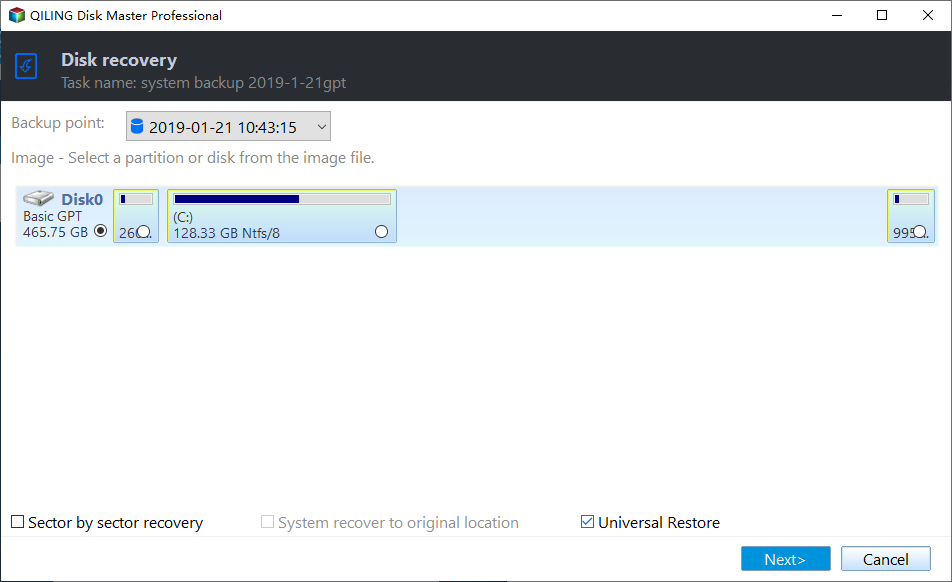
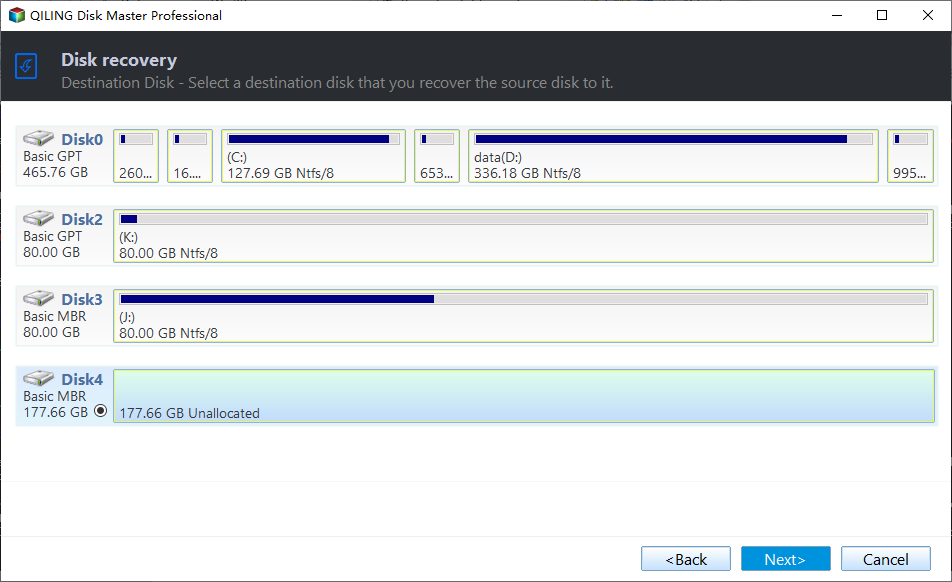
Step 5. Select the hard drive on the VM as the destination path and click "Next".
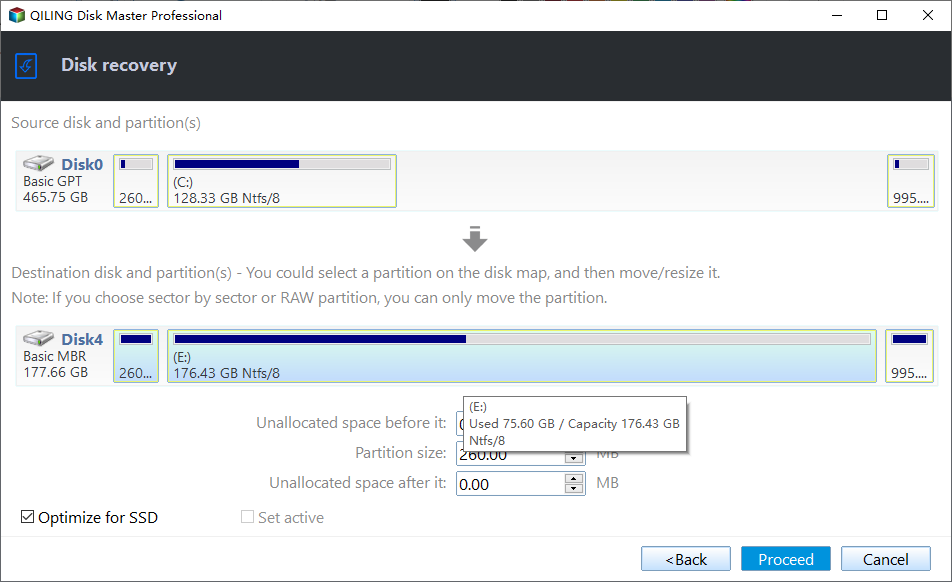
Step 6. Click "Proceed" on the Operation Summary page to start restoring the physical system image to the virtual machine.
✍ Tips: To migrate a Windows Server from a physical machine to a virtual machine, you can use Qiling Disk Master Server.
Method 2: P2V with Microsoft Sysinternals Disk2vhd
Disk2vhd is a utility that converts physical disks to VHD (Virtual Hard Disk) versions for use in Microsoft Virtual PC or Microsoft Hyper-V virtual machines. It only creates virtual disks from physical drives and does not build a VM or create any configuration. To perform a P2V (Physical to Virtual) migration with Disk2vhd, follow the instructions below.
1. Run Disk2vhd on your physical computer.
2. To create a VHD, select the volumes you'd like to include, choose the "Use Vhdx" and "Use Volume Shadow Copy" options as needed, and click "Create".
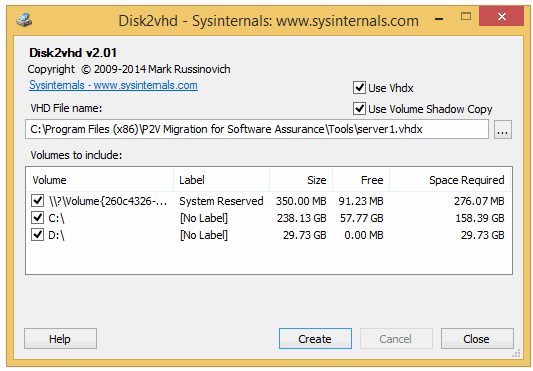
3. Create a virtual machine (VM) with the desired characteristics and add the virtual hard disk (VHD) to the VM's configuration as an IDE disk.
Method 3: P2V by System Center Virtual Machine Manager (SCVMM)
System Center Virtual Machine Manager (SCVMM) is a tool within the System Center suite that helps administrators centralize physical servers into a virtualized environment. To convert a physical machine to a virtual machine using SCVMM, follow the guidance below:
1. To set up SCVMM, first run the SCVMM server and configure it to manage the Hyper-V host that will be hosting your migrated VM. This will allow SCVMM to monitor and control the Hyper-V host, making it possible to migrate your VM to it.
2. Click "VMs and Services" on the left panel.
3. To convert a physical computer to a virtual machine, click the "Create Virtual Machine" drop-down on the ribbon and select "Convert Physical Machine". Follow the wizard to complete the conversion process.

Note: After the P2V migration is complete, a new VM should be created on the chosen Hyper-V host. To avoid running the physical server alongside the VM, disconnect it from the network. This ensures that only the VM version is running.
To sum up
To successfully perform a P2V (Physical to Virtual) migration in Windows, consider the following best practices: use Qiling Disk Master to migrate the operating system to a VM without boot issues, try Disk2vhd to create a virtual disk for use in a VM, or utilize SCVMM to combine multiple physical servers into a central virtualized environment.
Qiling Disk Master is a great P2V tool and powerful disk cloning software, also suitable as PNY SSD cloning software and supporting other common SSD brands.
Related Articles
- How to Migrate Physical PC to Virtual Machine in Windows 10/8/7?
- Prime USB Drive Sync Software for USB Auto Sync in Windows
- Disk Clone VS System Clone - All You Want to Know
- Error 0x80071AC3 on an External Hard Drive – Solved Now!
This page focuses on the error 0x80071AC3 on an external hard drive, analyzes possible causes for the error and provides quick fixes to it. - Does Backup Protect Against Ransomware?
A reliable backup helps protect data from ransomware by keeping recoverable copies outside the infected system, so you can restore files after malware attacks. - Does Clonezilla Work with Windows 10?🔥
Clonezilla can clone or back up Windows 10 disks, including the system, apps, and data. This article explains how it works and introduces an easier cloning option.
Products
Articles & Tutorials
- Data Recovery
- Data Backup
- File Recovery
- File Backup
- File synchronize
- System Backup and Restore
- Disk and Partition Clone
- Technical articles
- Disk Master Help
- Windows Deleted File and Disk Recovery Tutorials
- Windows File and Data Recovery Tutorials
- More Windows Tutorials for Install, Security, Files, and PC Tips
- Windows Boot, Repair, and Recovery Environment Tutorials
- Windows Backup Tutorials
- Windows Restore Tutorials
- Windows Clone and Migration Tutorials
- Windows Server Backup, Recovery, and Management Tutorials
- Windows Disk, Partition, and Storage Management Tutorials