Migrate Windows OS from Physical Computer to Virtual Machine
- Is it necessary to migrate OS to virtual machine?
- Need a professional backup and restore software
- How to migrate OS P2V and boot successfully
- Part 1: Create system image of physical computer
- Part 2: Export ISO image file of physical computer
- Part 3: Transfer OS to virtual machine and boot from it
- Written in the end
Is it necessary to migrate OS to virtual machine?
You can migrate your Windows Server 2003 to a virtual machine on the same hardware without reinstalling it. You can use VMware's vCenter Converter or a tool like Acronis to create a virtual machine from an existing installation. This process is often referred to as "P2V" (Physical to Virtual) migration. It's a relatively painless process that doesn't require reinstalling the operating system, and it will preserve the existing configuration and data. You can then run the virtual machine on VMware ESXi.
Some users may wonder whether P2V migration is necessary when the physical computer still works. A virtual machine is useful for testing, backup, recovery, and running another Windows environment without changing the original computer.
Although a VM still uses disk space and hardware resources, it is easier to copy, back up, restore, and move between hosts than a physical computer. This makes it helpful for testing, recovery, and keeping an old system available.
- The main advantage of using a virtual machine is that you can perform risky operations, such as testing software or reinstalling Windows, without damaging your physical machine. If anything goes wrong, you can simply restore the virtual machine from a system or disk backup, minimizing any potential damage.
- You can copy and paste data from a virtual machine to a physical machine as long as the VM Tools are installed in the virtual machine. This means that if you copy data to a physical machine before the virtual machine is damaged, you won't lose your data.
Need a professional backup and restore software
If you're transferring your OS from a physical computer to a virtual machine, you may encounter boot failure due to hardware issues. This is because the virtual machine's hardware is determined by the physical computer, which can lead to compatibility problems. In this case, you may need to troubleshoot or reinstall the OS to get it working properly.
To resolve the issue of dissimilar hardware, you should use a professional backup and restore software. I highly recommend Qiling Disk Master Server, which has two key features that can help you.
- Create Bootable Media: This feature allows you to create a bootable media, which can be used to boot a physical computer or virtual machine. You can choose from three options: creating a USB boot device drive, burning the bootable media to a CD/DVD, or exporting the ISO file. This flexibility caters to different needs and preferences.
- Universal Restore: This feature helps restore a Windows system image to different virtual hardware and keeps the migrated system bootable after restoration.
How to migrate OS P2V and boot successfully
You can use Qiling Disk Master Server to access your virtual machine, whether it's on the same computer or a different one, and the steps are similar, making it easy to follow.
The process of moving an OS to a virtual machine involves three parts: creating a system image backup, exporting the ISO image file, and restoring the virtual machine with the ISO file. Let's begin this process.
Part 1: Create system image of physical computer
To backup your system, use the "System Backup" feature in Qiling Disk Master Server. Download Qiling Disk Master, select "System Backup" on the main page, choose a destination path for your backup, and click "Proceed". The destination path can be an external hard drive, USB drive, cloud drive, NAS, or any other storage device your computer can recognize.

Part 2: Export ISO image file of physical computer
To export an ISO file, you will use the "Create Bootable Media" feature in Qiling Disk Master. Open the software, go to "Tools" > "Create bootable media", select the bootable disc type and PE boot mode, and then check the box to export an ISO file in the "Select Bootable Media" window. Click "Next" to proceed, and save the ISO image file to a USB drive.

Part 3: Transfer OS to virtual machine and boot from it
Step 1. Download the latest version of VMware, install and launch it.
Step 2. To change the connection of a virtual machine, open it using VMware, navigate to the "VM" and "Settings" options, select "CD/DVD" and choose "Use ISO image file", then click "Browse" to locate the image file on your USB and confirm the changes by hitting "OK".
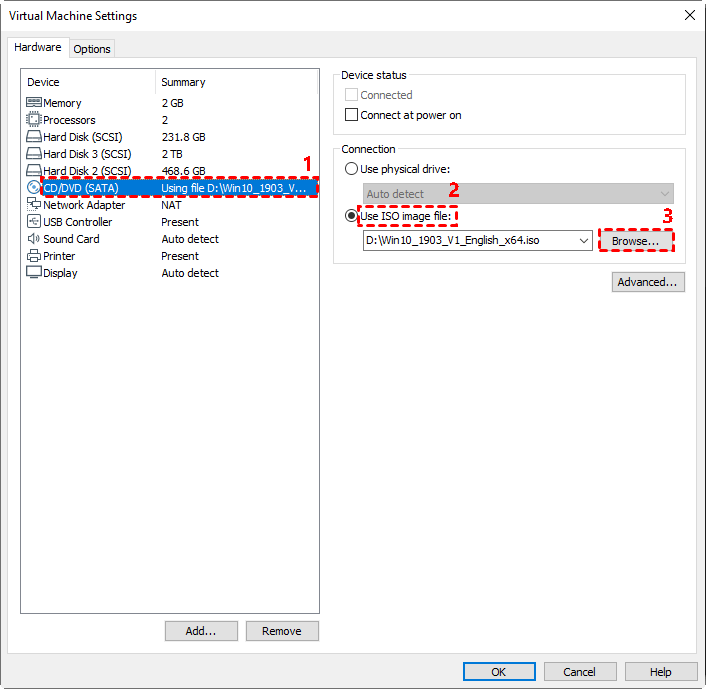
Step 3. Boot from the ISO image file created by Qiling Disk Master. Go to the Power option, select Power On to Firmware, go to the Boot tab, move CD/DVD as the first boot option, and press F10 to save changes and boot from the image file. This will display the main page of Qiling Disk Master.

Step 4. In the main page of Qiling Disk Master, click "Restore" and "Select Image File".

Step 5. Tick "Restore this system backup" and click "Next".
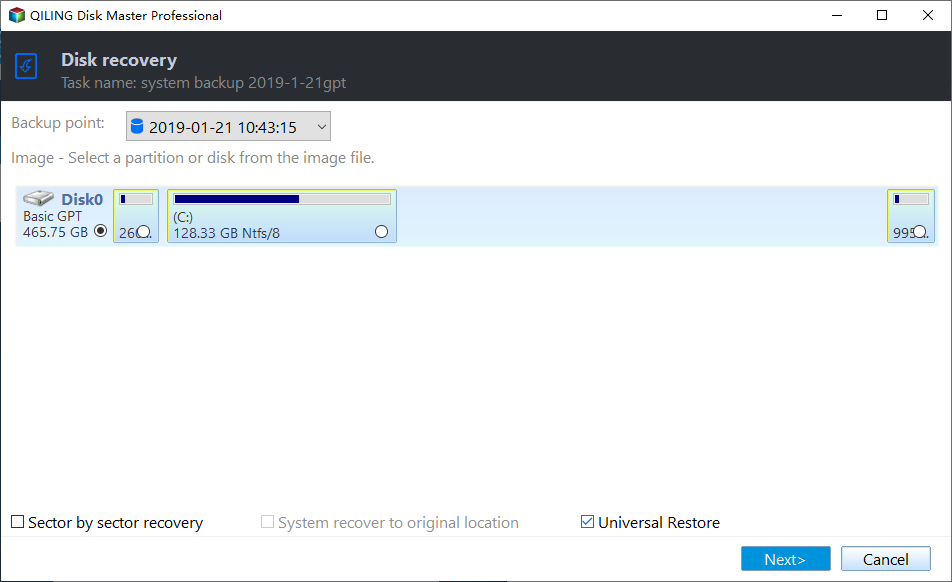
Step 6. Select a destination path for your backup and click Next.
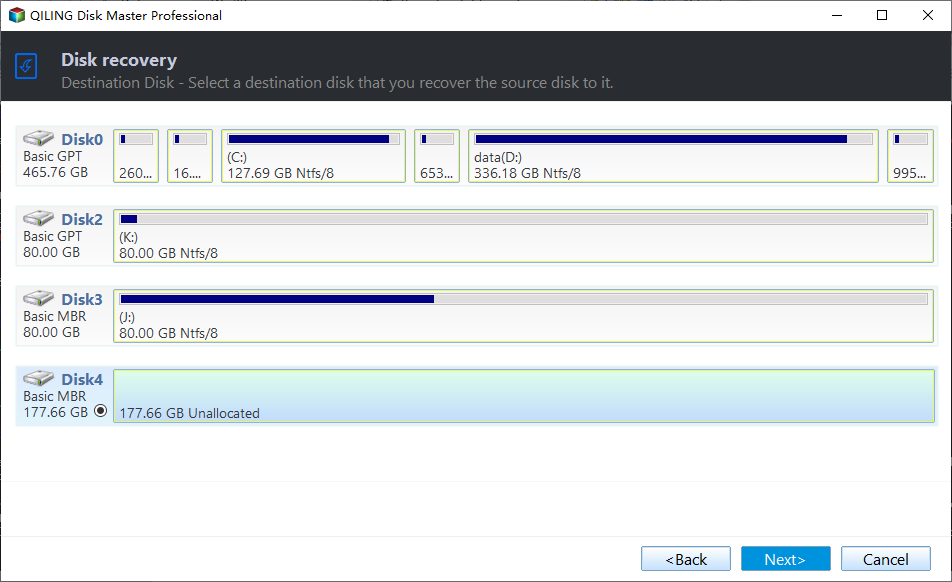
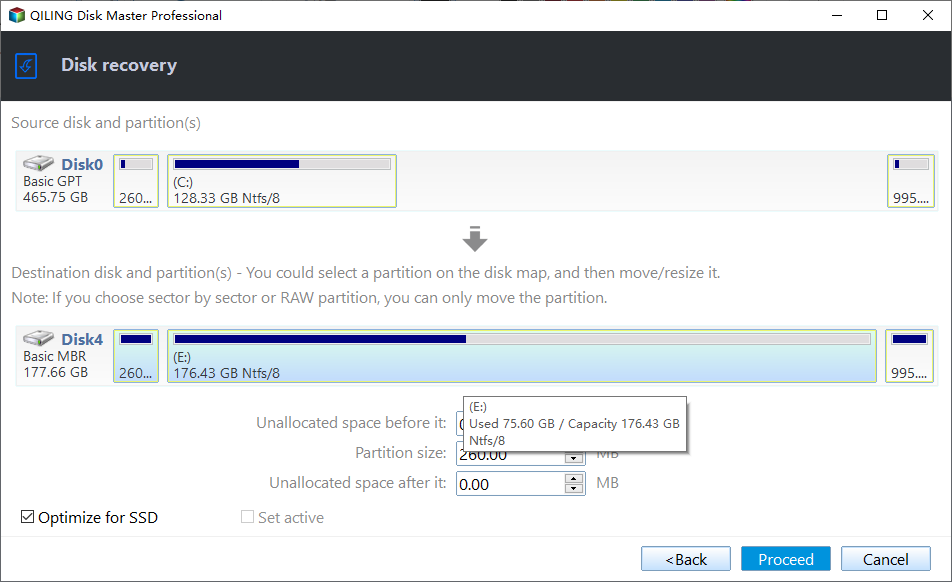
Step 7. If your virtual machine is on a computer with different hardware, the "Universal Restore" feature will be checked by default. If not, just ignore it. Then, click "Proceed".
Tips:
• PXE Boot Tool is another way to start a virtual or physical machine for universal restoration without attaching the ISO file each time.
• Qiling Disk Master supports migrating OS from a virtual machine to a physical computer (V2P) and from one virtual machine to another (V2V), in addition to migrating OS to VMware.
• There are several editions of Qiling Disk Master, each with its own features. The FREE Standard edition is recommended for most users, but if you need advanced features, you should consider the Professional or other advanced versions.
Written in the end
Migrating an operating system from a physical computer to a virtual machine is a similar process to migrating to a different physical computer. This can be achieved using the backup and restore feature. During the restoration process, it's essential to select the "Universal Restore" option if the computer has different hardware.
In a virtual machine, using an ISO image file is more convenient than a USB device or CD/DVD, so it's recommended to select "Export ISO file" in the "Select Bootable Media" window.
Related Articles
- How to Migrate Physical PC to Virtual Machine in Windows 10/8/7
Physical PC to virtual machine migration lets you test risky operations without affecting the original computer. Qiling Disk Master can help convert a physical PC to a VM. - 3 Best Practices for P2V (Physical to Virtual) Migration
This guide explains 3 Best Practices for P2V (Physical to Virtual) Migration with clear steps, key checks, and practical tips. - Convert Virtual Machine to Physical with Qiling Disk Master
Converting a virtual machine to a physical computer is more widely used than ever. The universal restore function in Qiling Disk Master supports to do it with simple operations. - How to Backup Alienware Laptop on Windows 7/8/10?
Find the best way to backup Alienware laptop in Windows 10, 8, 7 in case of data loss due to hardware failure, system crashes, etc. - How to Download Windows 11 for HP Laptop (2022)
This guide explains how to check whether Windows 11 is available for an HP laptop, review system requirements, and prepare before downloading or installing the update. - How to Edit Created Backup in Qiling Disk Master
Learn how to Edit Created Backup in Qiling Disk Master with clear steps, key checks, and practical tips.
Products
Articles & Tutorials
- Data Recovery
- Data Backup
- File Recovery
- File Backup
- File synchronize
- System Backup and Restore
- Disk and Partition Clone
- Technical articles
- Disk Master Help
- Windows Deleted File and Disk Recovery Tutorials
- Windows File and Data Recovery Tutorials
- More Windows Tutorials for Install, Security, Files, and PC Tips
- Windows Boot, Repair, and Recovery Environment Tutorials
- Windows Backup Tutorials
- Windows Restore Tutorials
- Windows Clone and Migration Tutorials
- Windows Server Backup, Recovery, and Management Tutorials
- Windows Disk, Partition, and Storage Management Tutorials