Best Computer Backup Devices and Software for Windows PCs
The necessity of backing up your PC
It's not uncommon for users to experience data loss on their computer, with a survey revealing three major data loss situations.
- Hardware/system failure (31%)
- Human error (29%)
- Virus, malware or ransomware (29%)
To prevent losing your data, it's crucial to have a backup system in place. This involves storing your computer data in a safe location, such as an external hard drive, cloud storage, or a USB drive, before any errors occur. Having a backup allows you to easily retrieve lost data or even repair a corrupted system, minimizing the risk of data loss.
Top 4 computer backup devices you can choose
In this part, I'll show you four types of backup devices that work perfectly for protecting computer data.
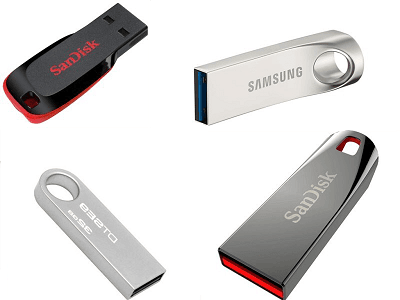
1. USB flash drives
USB drives can be used for transferring files and storing backup data, offering a compact and portable alternative to HDDs and SSDs, with capacities ranging from 4GB to 256GB.
You can choose between USB 2.0 and USB 3.0 connections, with the latter offering a faster transfer rate and compatibility with computers that only have USB 2.0.
2. External hard drives
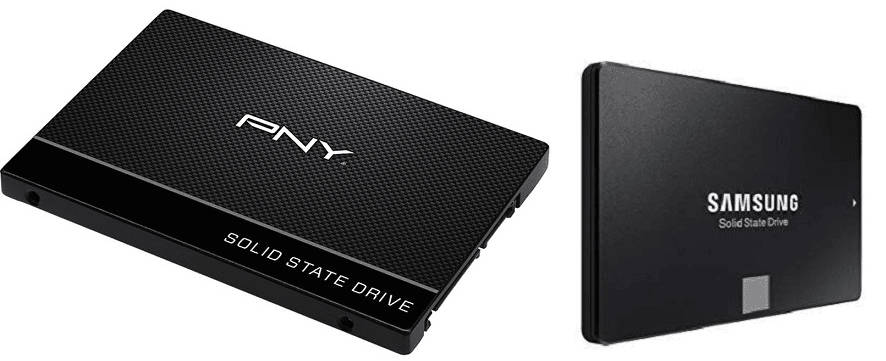
External hard drives come in two types: HDDs and SSDs, offering more storage space than USB sticks, making them ideal for business backups and long-term storage. Some external hard drives also come with backup and recovery software, such as Seagate Backup Plus, providing an added layer of convenience.
3. Network storage servers
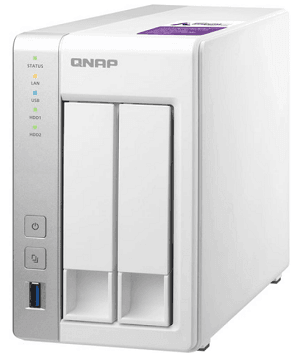
You can back up your computer to network storage, creating a shared folder accessible to all computers on the same LAN, providing a reliable backup place that's not affected by computer errors.
Network-NAS provides a space for holding backup images, allowing users to backup Windows to devices such as Synology, QNAP, and WD My Cloud.
4. Cloud services
Cloud services have become increasingly popular, allowing users to access their files from anywhere and anytime. They also provide a safeguard against hard drive crashes by backing up files. Various cloud storage options, such as OneDrive, Google Drive, Dropbox, and Amazon Cloud Drive, are available, although they often come with limited free storage.

Best computer backup software for Windows 11/10/8/7👍
After figuring out where to keep the backup data, you'll need reliable computer backup software to create backup tasks. Qiling Disk Master Standard, the best free backup software for Windows 11/10/8.1/8/7/Vista/XP, is highly recommended.
◉ It provides various backup types to backup the Windows OS, an entire disk, or a specific partition. Additionally, you can backup specific files.
◉ It enables you to backup to all storage devices mentioned above, including external hard drives, flash drives, and network storage devices.
◉ The Schedule feature allows you to create automatic backups, ensuring your backup data is always up-to-date.
◉ It can compress and split backup images to the desired size and format.
Download Qiling Disk Master now to have a try, and don't worry about complex operations as it has a user-friendly interface.
To backup your computer system, you can follow these steps:
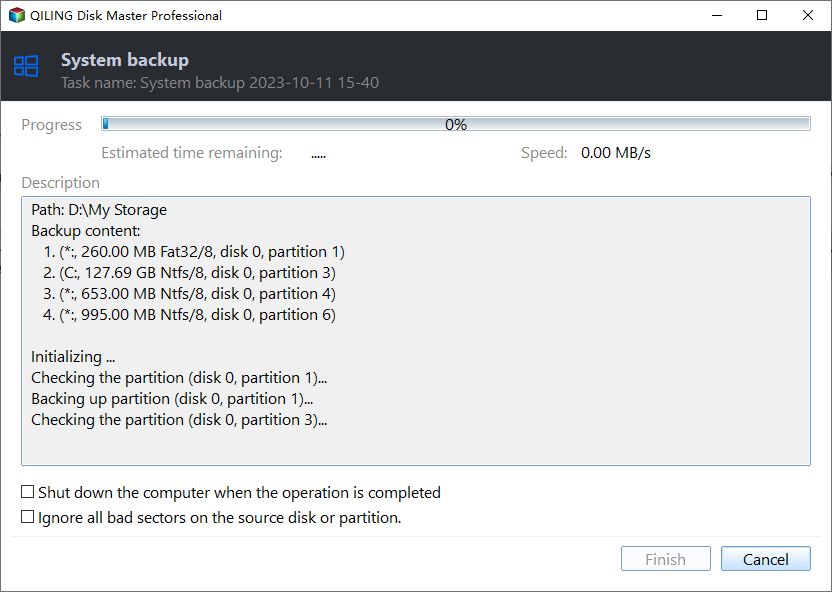
Step 1. Open Qiling Disk Master. Select System Backup under the Backup tab.

Step 2. The program will automatically select system-related partitions to back up, and you just need to choose a destination path to store the system image.

Step 3. To proceed, do more settings with Options and Schedule Backup if you like, then click Proceed to launch the process.
Tip: To enable automatic deletion of old backups using Backup Scheme, consider upgrading to the Qiling Disk Master Professional version.
To sum up
Qiling Disk Master is a top computer backup device and software that enables easy backup to a USB flash drive, external hard drive, network storage, and cloud service, and also serves as a cloning software to replace the C drive with an SSD.
Related Articles
- Best Way to Backup Multiple Computers to One External Drive
- Backup Hard Drives to Cloud - How to Make It Easily?
- How to Backup to External Hard Drive with Qiling Disk Master?
- Fresh Install of Windows 10 on SSD Without Losing Data?
Learn the key steps, checks, and practical tips for this related guide. - Perform Acer Boot System Recovery in 5 Steps
Quickly guide for Acer crushed operating system recovery when boot the machine up. - Acer eRecovery Management cannot install bootable file
Solutions for Acer eRecovery Management problem - Acer eRecovery Management cannot install bootable file.
Products
Articles & Tutorials
- Data Recovery
- Data Backup
- File Recovery
- File Backup
- File synchronize
- System Backup and Restore
- Disk and Partition Clone
- Technical articles
- Disk Master Help
- Windows Deleted File and Disk Recovery Tutorials
- Windows File and Data Recovery Tutorials
- More Windows Tutorials for Install, Security, Files, and PC Tips
- Windows Boot, Repair, and Recovery Environment Tutorials
- Windows Backup Tutorials
- Windows Restore Tutorials
- Windows Clone and Migration Tutorials
- Windows Server Backup, Recovery, and Management Tutorials
- Windows Disk, Partition, and Storage Management Tutorials