Safely Copy Windows 11/10/7 Image to Another Computer
Can you put a system image on another computer?
You can copy the Windows image from your old PC to your new PC, allowing you to retain familiar system settings and applications without needing to reconfigure or reinstall them.
Moving a Windows installation from one computer to another is possible in some cases, but there's no guarantee. Two major problems that may occur are that the operating system may not be compatible with the new computer's hardware, or the new computer may have conflicting software or drivers that prevent the Windows installation from functioning properly.
- Boot problem
When you install Windows on a computer, it sets itself up with drivers specific to that computer's motherboard and chipset, which can cause Windows to fail to boot on different hardware because some drivers may not work.
- Licensing problem
Using a retail license, you can reactivate Windows on a new computer by re-entering your product key. If you have an OEM license purchased by yourself, you can try reactivating it using Microsoft's "Phone Activation". However, if the OEM license was preinstalled on your old computer, you'll likely need to purchase a new license key as Microsoft won't allow reactivation in this case.
Yes, it's possible to restore a Windows system image to a different computer, but it requires some considerations to avoid hardware issues. You can use the Windows System Image Manager (SIM) to create a customized answer file that can be used to install the system image on a different machine.
Transfer system image to new computer via free tool
To avoid boot issues on dissimilar hardware, you can simply reinstall Windows from your new computer, reinstall important programs, and transfer files from your old PC to your new one.
If you find the whole process too complicated and time-consuming, you can use the specialized backup and restore software, Qiling Disk Master Professional, to simplify it.
- The software allows for various types of backups, including system data, disk/partition data, and personal data, to help users safeguard their important information.
- The software is embedded with the Universal Restore feature, which ensures a secure boot after restoring a system image to a different computer.
- The software allows users to migrate the operating system to an SSD on the same computer, eliminating the need for a backup and recovery process, through its System Clone feature.
- It allows you to create bootable media to boot a crashed computer or bare metal.
All Windows PC operating systems are supported, including Windows 11, 10, 8.1/8, 7, Vista and XP, and you can download the free trial of Qiling Disk Master by clicking the button below.
How to transfer operating system from one computer to another
To transfer a Windows 11/10/7 image to a new computer, you need to prepare by backing up your files, updating your Windows version, and making sure your system is up-to-date. Additionally, you should also ensure that your system is properly shut down and that you have the necessary tools and software to complete the transfer process.
Part 1. Create a system image on the old PC
To create a system image backup, click on the "Backup" option and select "System Backup". Then, follow the on-screen wizard to complete the process. It's recommended to save the image file in a network location for easy access from your new PC.

Part 2. Make a bootable USB drive
To create a bootable media, click on the "Tools" option and select "Create Bootable Media". Then, follow the on-screen instructions to complete the process.

Part 3. Restore the system image to a new computer
To copy a Windows image to your new PC, follow the steps below to restore the system image using Qiling Disk Master.
Step 1. Boot your new computer from the bootable drive you've created. This will allow you to install the operating system and other software on your computer. Follow the on-screen instructions to complete the installation process.
Step 2. Qiling Disk Master will load automatically. Click Restore and then Select Image File.

Step 3. In the pop-up window, select Share/NAS > Add Share or NAS Devices, then type the network path for the system image and click OK.
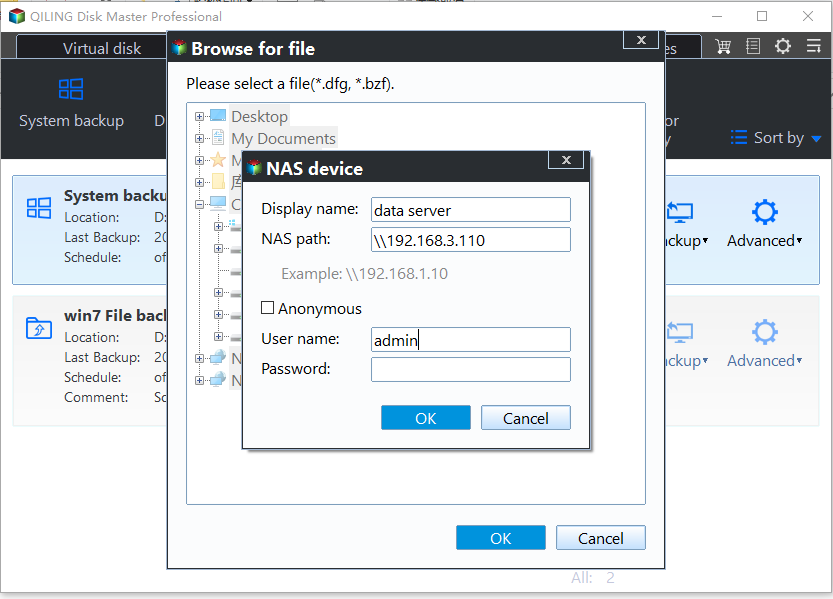
Step 4. Navigate to the system image folder, select the correct image file, and click OK.

Step 5. Select "Restore this system backup", tick "Restore system to other location" at the bottom, and click "Next".
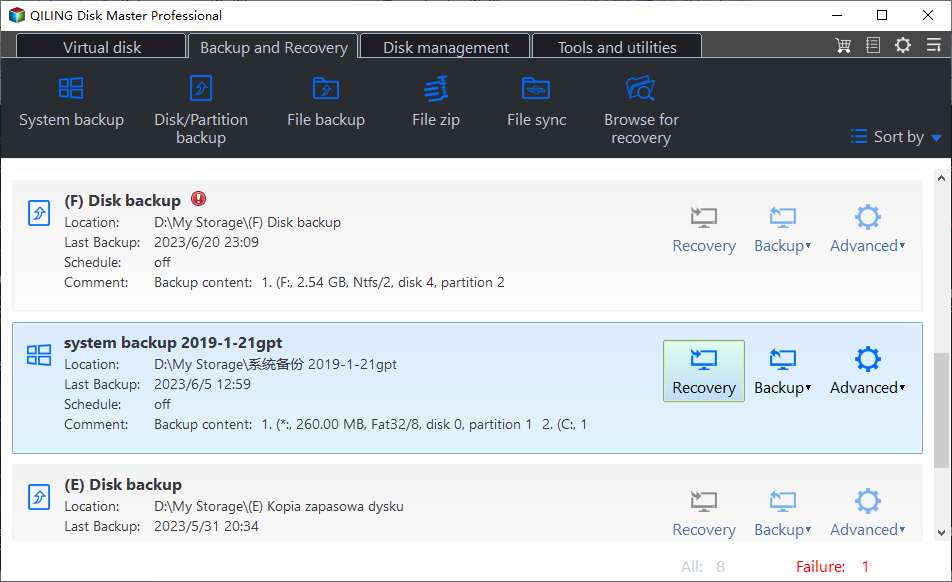
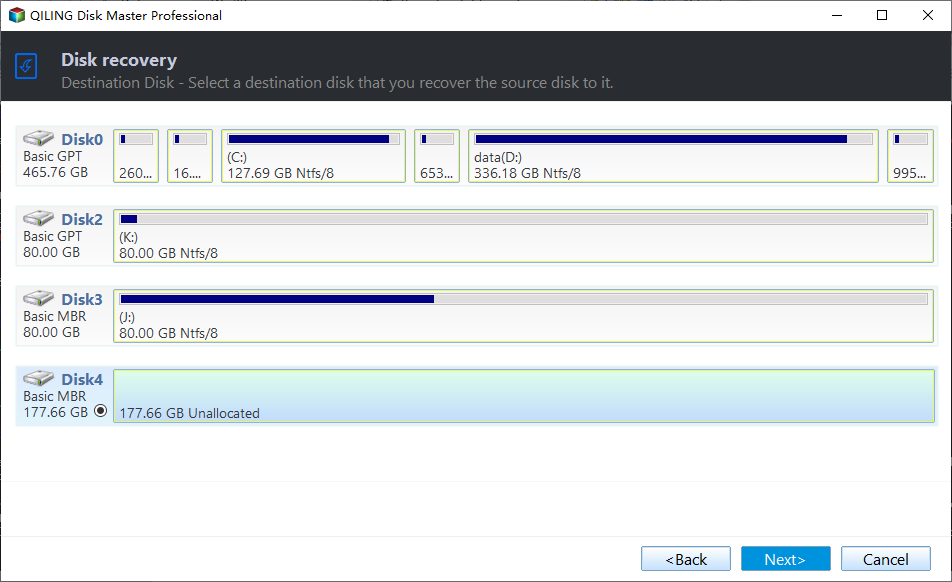
Step 6. To restore Windows image, select a destination to restore the image to and then click Next.
Step 7. To ensure a secure boot, select the "Universal Restore" option on the "Operation Summary" page and click "Proceed" to start the process.
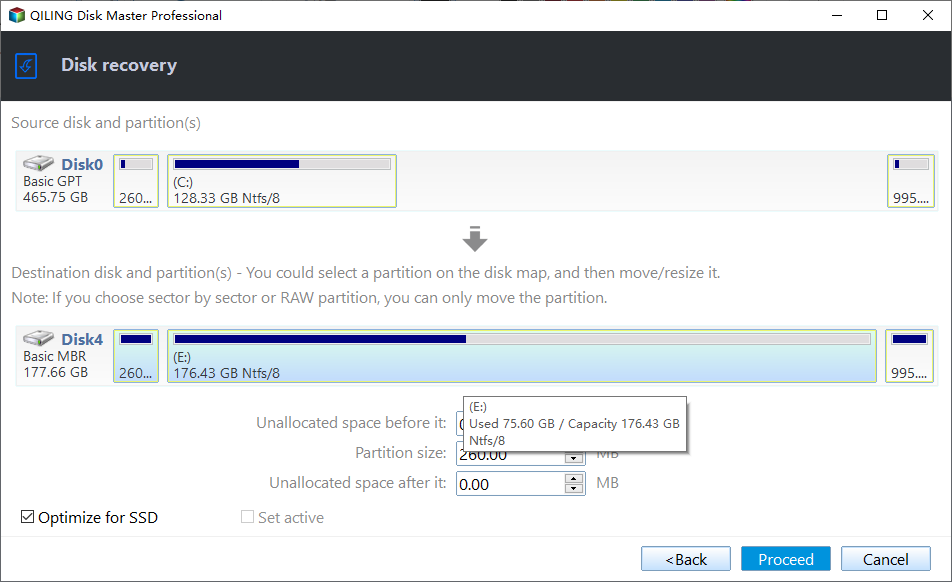
Note: If your new PC is using an SSD, it's suggested to enable SSD alignment to optimize SSD performance.
★ Video tutorial on moving Windows to dissimilar hardware:
Summary
Copying a Windows image to another computer can lead to boot and licensing issues, but Qiling Disk Master can help restore the system image to a different computer while ensuring it remains bootable. This tool is particularly useful for migrating an old server to a new server, making it a reliable solution for server upgrades.
Related Articles
- Move Windows 10 and its License to New Computer Easily
If you want to move Windows 10 to new computer easily without messing it up, continue to read on in this article for all the details and instructions about Windows transfer to a new computer. - Move Windows 11 Hard Drive to a New Computer (Worry-Free)
In this article, you'll learn how to move your old hard drive to a new computer without losing secure boot or your Windows 10/11 activation. The greatest thing is that you won't need to reinstall Windows 10/11 on your PC. - The Best Alternate for Paragon Migrate OS to SSD 4.0 - Qiling Backup
This article will introduce a safe and powerful alternative to Paragon Migrate OS to SSD 4.0. For anyone who thinks the Paragon software is too expensive that wants to find a cracked version, read this article to see how Qiling Backup can help you in the system migrate. - How to Recover Deleted or Lost Partition in Windows 10
You can run lost partition recovery within 4 steps with Qiling. Partition Recovery Wizard in Qiling Partition Master can recover deleted or lost partition in Windows XP/Vista/7/8/8.1/10 and Windows Server 2003/2008/2012. - Acer Completely Restore Operating System to Factory Default Settings
Completely restore operating system to factory default settings in Acer laptops, notebooks, desktops, etc. - What Is Acer Restore Key to Recover Operating System?
You will learn what is Acer restore key and how to use it for factory reset. Besides, you still can use Acer eRecovery Management.
Products
Articles & Tutorials
- Data Recovery
- Data Backup
- File Recovery
- File Backup
- File synchronize
- System Backup and Restore
- Disk and Partition Clone
- Technical articles
- Disk Master Help
- Windows Deleted File and Disk Recovery Tutorials
- Windows File and Data Recovery Tutorials
- More Windows Tutorials for Install, Security, Files, and PC Tips
- Windows Boot, Repair, and Recovery Environment Tutorials
- Windows Backup Tutorials
- Windows Restore Tutorials
- Windows Clone and Migration Tutorials
- Windows Server Backup, Recovery, and Management Tutorials
- Windows Disk, Partition, and Storage Management Tutorials