How to Use Acer Restore Key (Alt + F10) for Factory Reset
What is Acer Restore Key
The Acer restore key, also known as the Acer recovery hotkey or reset button, is a key or set of keys that, when pressed during startup, boot the computer into a recovery environment, allowing users to restore their Acer device to its factory settings.
The Acer restore key is Alt + F10, used to restore system to factory defaults in case of system failure due to various reasons.
How to Use Acer Recovery Key to Factory Reset PC
To do a factory reset on your Acer laptop using the Reset key, follow these steps. First, ensure your laptop is powered on and you're logged in to your user account. Next, locate the Reset key on your laptop, which is usually found on the keyboard.
Step 1. Press Alt + F10.
To reset an Acer computer, press the power button for 5 seconds to shut it down completely, then restart it. As soon as the Acer logo appears, press the Alt + F10 keys simultaneously. This will initiate the recovery process and allow you to reset the computer.

Step 2. Reset your PC.
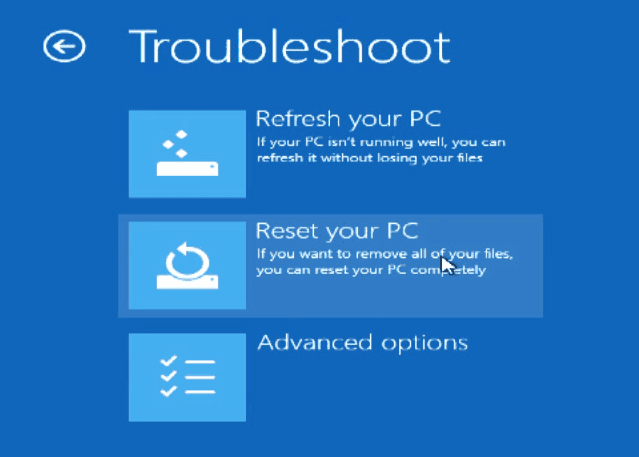
To reset your PC, go to Troubleshoot and select Reset your PC. Note that this process will delete all data created after the restoration. If you want to recover the system without losing files, choose Refresh your PC instead.
Step 3. Decide what to do with your files.
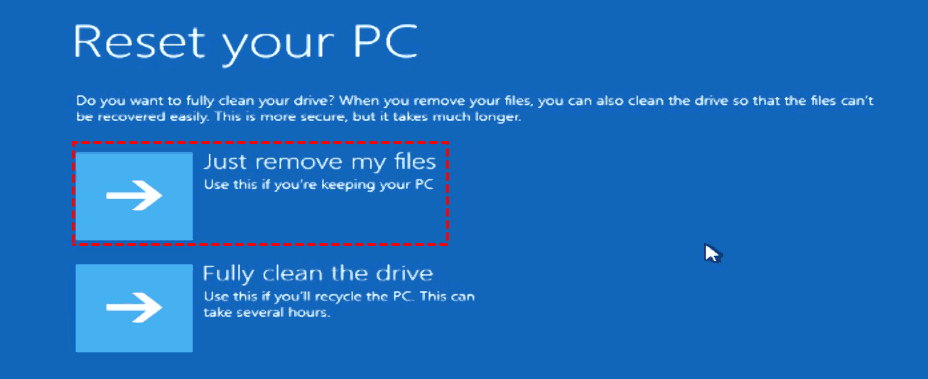
To proceed with the Windows 10 reset, click "Next" and select an option for your personal data. If you want to keep the PC after resetting, choose "Just remove my files." If you want to recycle the PC, choose "Fully clean the drive."
Step 4. Press Reset to begin the recovery.
Wait for a while, your computer will begin to install Windows. When it finishes, you could log onto Windows and reinstall those erased programs.
How to Use Acer eRecovery Management for Reset
Acer provides an alternative way to reset the computer to factory default settings using Acer eRecovery Management, in addition to the Alt + F10 restore key. To do this, you can follow the steps below.
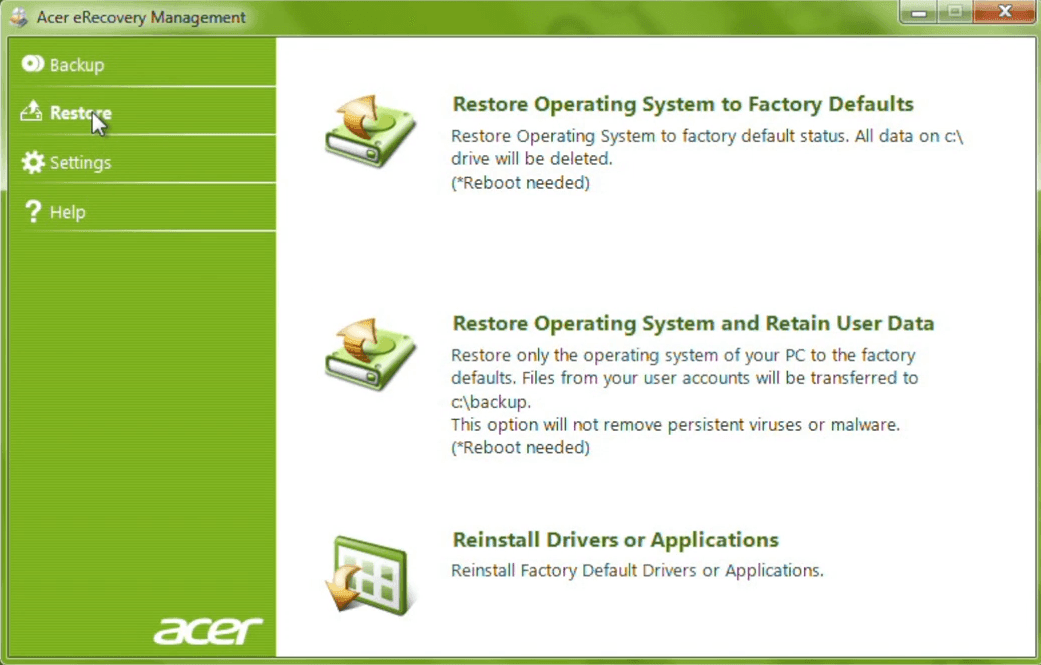
1. Open Acer eRecovery Management and choose Restore in the main window.
2. If you don't manually create a backup, select "Restore Operating System to Factory Defaults" to restore the system to its original settings. If you do create a backup, choose "Restore Operating System and Retain User Data" to store your data in the C:\backup folder.
3. Then follow the steps to restore Acer to default settings.
Both Alt + F10 restore key and Acer eRecovery Management can help users revert their computer to a working state, but sometimes these tools may not work as expected. The issue is often caused by problems such as bad sectors, a corrupted or deleted recovery partition, which can prevent the restore to factory settings.
You can restore Acer to its default or previous status using a reliable third-party one key recovery software. This can be done by creating an initial backup when you first get your computer, or by backing up its current status, including data and programs, to minimize data losses in case of issues. This way, you can easily restore your computer to its previous state without having to worry about data losses.
Create A New Acer Restore Key with Qiling Disk Master
Qiling Disk Master Professional is a powerful tool for creating backup images and recovery keys, offering a reliable and data-loss-avoiding solution, allowing users to recover their system to a previous state or a factory image with all changes included.
This software supports all major computer brands, including Acer, Lenovo, Asus, HP, Dell, Toshiba, Samsung, and Sony, allowing you to use its recovery key on any of them. Additionally, it enables the addition of a boot menu at the startup process.
Here is how to create new Acer recovery partition with simple clicks in Windows. Before that, please download and install this software first.
1. Perform Qiling Disk Master and click System Backup option.

2. To create a Qiling Recovery Partition on your Acer laptop, select a partition and tap "Proceed" to create a new recovery partition.

✎Note: In GPT disks, there are two partitions: one for booting (Qiling) and another for recovery (Qiling Recovery Partition). In contrast, MBR disks only have one recovery partition.
After creating a backup, you can use the Qiling Recovery Partition to restore your system at any time. To do this, launch the software or use its recovery key, then select OneKey System Recovery, choose the method and location to restore your system, and finally click Proceed.

The End
Acer's restore key, also known as Acer eRecovery Management, allows for a quick reset to default settings. However, to avoid losing data, creating a recovery partition with Qiling Disk Master is recommended, and it also provides alternative recovery keys such as F11 or A to initiate the system recovery process.
Related Articles
- How to Do a System Restore on Acer Laptop (Windows 7/8/10)
Learn how to Do a System Restore on Acer Laptop (Windows 7/8/10) with clear steps, key checks, and practical tips. - Acer eRecovery Management Not Working – How to Solve It Easily
If you encounter the problem of Acer eRecovery Management not working, read this article carefully to get effective solutions. - Acer eRecovery Management Missing Fixed [2 Ways]
This guide explains Acer eRecovery Management Missing Fixed with clear steps, key checks, and practical tips. - How to Perform Acer Aspire Recovery in Windows 10, 8, 7
Learn how to Perform Acer Aspire Recovery in Windows 10, 8, 7 with clear steps, key checks, and practical tips. - How to Backup Google Drive to OneDrive? Best Solutions
Google Drive and OneDrive are two popular cloud storage services, and sometimes users need to backup their Google Drive data to OneDrive for various reasons. However, many are unsure about the process. This passage aims to provide the best solutions for backing up Google Drive to OneDrive. - How to Backup Hard Drive to Another Hard Drive 2022 [Windows & Mac]
This page covers how to backup a hard drive to another hard drive and guides you step by step. Hope it can help with your backup plan.
Products
Articles & Tutorials
- Data Recovery
- Data Backup
- File Recovery
- File Backup
- File synchronize
- System Backup and Restore
- Disk and Partition Clone
- Technical articles
- Disk Master Help
- Windows Deleted File and Disk Recovery Tutorials
- Windows File and Data Recovery Tutorials
- More Windows Tutorials for Install, Security, Files, and PC Tips
- Windows Boot, Repair, and Recovery Environment Tutorials
- Windows Backup Tutorials
- Windows Restore Tutorials
- Windows Clone and Migration Tutorials
- Windows Server Backup, Recovery, and Management Tutorials
- Windows Disk, Partition, and Storage Management Tutorials