Solved: Kingston SSD Toolbox Not Detecting SSD in Windows 10
About Kingston SSD Toolbox
The Kingston SSD Toolbox is an installable application offered by Kingston Technology Company that allows users to monitor various aspects related to the status of their Sandforce-based Kingston SSD.
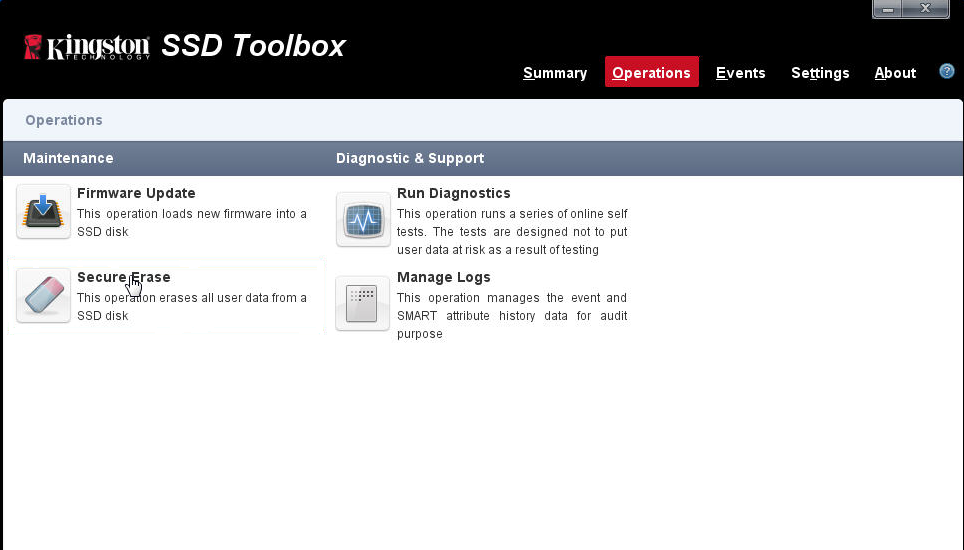
The Kingston SSD Toolbox allows you to perform various tasks, including checking the SSD's health and temperature, running a secure erase, and updating the firmware. You can also monitor the drive's usage and performance, and even clone the drive's contents to a new SSD.
- Monitor the health, status and usage of the SSD.
- View identification data includes the model name, serial number, and firmware version, among other details.
- Update drive's firmware.
- Run drive diagnostic scans.
- Securely erase data (Windows 7 only).
- Utilize self-A monitoring, analysis, reporting technology (SMART) system that generates detailed reports in .CSV format.
Kingston SSD Toolbox sometimes fails to detect Kingston solid state drives, causing issues for users who rely on it to monitor their SSDs.
Solution to Kingston SSD Toolbox not detecting SSD
To resolve the issue, revert back to the Microsoft default AHCI driver and then run the Toolbox, following the steps of uninstalling the Intel RST driver, disabling the Intel RST driver in the BIOS, and then reinstalling the Microsoft default AHCI driver.
Step 1. Click Computer. Then choose Manage.
Step 2. Go IDE ATA/ATAPI controllers > AMD SATA Controller or Intel SATA Controller.
Step 3. Right click on AMD SATA Controller or Intel SATA Controller. Then choose Update Driver software.
Step 4. Go Browse > Let me pick to select Standard AHCI from the list.
Step 5. Reboot the PC. Then launch the Toolbox.
If you've followed the instructions to install the Kingston SSD Toolbox, but it still doesn't recognize your drive, you're left in the dark about the SSD's status, including potential bad sectors or impending failure.
If Kingston SSD Toolbox can't find your drive, take a backup of your Kingston SSD first to prevent data loss, then try to resolve the issue.
Protect Kingston SSD with the best backup software
Qiling Disk Master Standard is a free software that makes it easy to backup Kingston SSDs and many other brands, including Samsung, SanDisk, and Intel.
The Kingston SSD image software runs smoothly on various Windows operating systems, including Windows 11, 10, 8, 7, Vista, and XP. Additionally, this software allows you to not only backup your SSD to a HDD partition, but also backup a hard disk drive to an SSD, making it compatible with various external hard drives.
Backing up a Kingston SSD is a straightforward process. You can download a free software and follow these simple steps to complete the backup process.
Before you do, you need to install this backup utility and connect the Kingston SSD to the PC.
Step 1. Open this software. Select Backup and recovery page. Then choose Disk Backup.

Step 2. The Task Name can be modified by your needs. Select the Kingston SSD by clicking Add Disk.

Step 3. Select the destination path. Then click Proceed.

Step 4. Wait for the Disk Backup Progress to be completed. Then you can click Finish.

Notes:
- In Step 3, you can find useful backup settings under the "Options" tab, including General, Backup Mode, Command, and Advanced. Here, you can add a comment or create a backup encryption, if needed, by clicking the General tab. Other features can also be customized according to your preferences.
- To automatically back up your Kingston SSD, you can schedule backups by clicking on the "Schedule" option in Step 3. This allows you to choose from various frequency options, including daily, weekly, and monthly backups, as well as event triggers and USB plug-in options, which are available in the paid version that can be upgraded to.
- In Step 3, you can click Scheme to automatically delete older backups, a feature supported by the paid version.
- When the backup task is in progress, clicking on "Check backup integrity on completion" will verify the data integrity of the backup image once the backup is finished. Additionally, you can choose to shut down, restart, hibernate, or put the PC to sleep once the backup is complete.
- To restore a disk backup image, go to Home, then select Disk Backup, and finally click Restore.
Summary
If Kingston SSD Toolbox isn't detecting your SSD in Windows 10, try reverting to the Microsoft default AHCI driver. If that doesn't work, use Qiling Disk Master Standard to protect your data, or create an incremental or differential backup if you only need to copy changes.
Qiling Disk Master is an all-in-one software that allows you to backup, restore, clone, and sync data. It can also clone a hard drive to a Kingston SSD, making it a convenient and efficient tool for various disk-related tasks.
Related Articles
- Best Free ADATA SSD Clone Software - Qiling Disk Master
- Create SSD Backup Image with Qiling Disk Master
- Best Free SSD Backup Software for Windows 10/8/7
- How to Create Clonezilla USB with Rufus (2023 Easy Guide)👍
Let's learn how to create Clonezilla USB with Rufus. This post will provide step-by-step instructions that will help you streamline the process of securing and managing your data. - Transfer Windows 7/8/10/11 OS from One Computer to Another
You can transfer the OS from one computer to another using Qiling Disk Master Professional, a tool that allows you to clone the OS and all data without losing any information. - Easy Way to Transfer Windows System to Different Computer
This guide explains Easy Way to Transfer Windows System to Different Computer with clear steps, key checks, and practical tips.
Products
Articles & Tutorials
- Data Recovery
- Data Backup
- File Recovery
- File Backup
- File synchronize
- System Backup and Restore
- Disk and Partition Clone
- Technical articles
- Disk Master Help
- Windows Deleted File and Disk Recovery Tutorials
- Windows File and Data Recovery Tutorials
- More Windows Tutorials for Install, Security, Files, and PC Tips
- Windows Boot, Repair, and Recovery Environment Tutorials
- Windows Backup Tutorials
- Windows Restore Tutorials
- Windows Clone and Migration Tutorials
- Windows Server Backup, Recovery, and Management Tutorials
- Windows Disk, Partition, and Storage Management Tutorials