Seagate Dashboard Delete Old Backups or Professional Way
Content of this article:
- Overview of Seagate Dashboard
- How to Use Seagate Dashboard to Delete Old Backups
- Backup Files and Delete Old Backup in a Professional Way
- Conclusion
Overview of Seagate Dashboard
Seagate Dashboard is a free backup software that is pre-loaded on every Backup Plus drive and Central hard drive, allowing users to protect, share, and save their data, and even safeguard shared content, with automatic system backups set up in a few easy steps.
Seagate Dashboard is compatible with both Mac OS X and Windows OS, and offers a Protect option for Windows PCs, which includes Protect Now and New Backup Plan options.
How to Use Seagate Dashboard to Delete Old Backups
You can use various backup software to protect your data, but accumulated backups can eventually lead to a full backup disk.
You can connect your Seagate Backup Plus to free up space for new backups by deleting old backups with it.
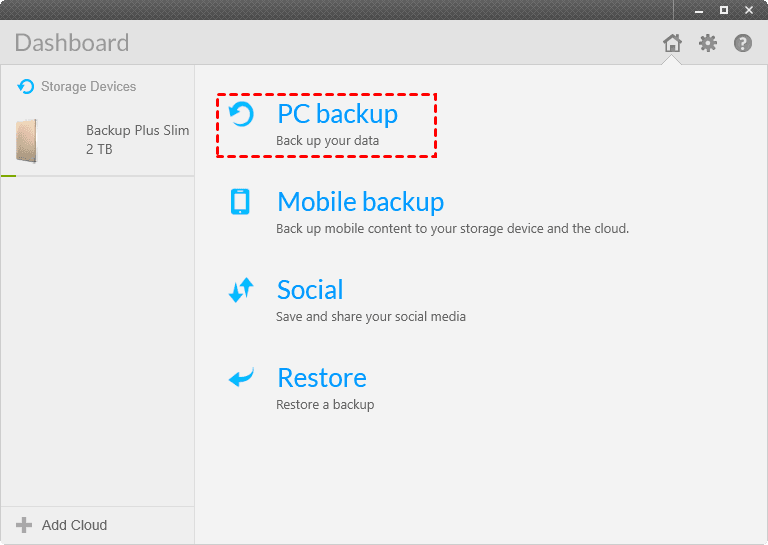
Step 1. Click PC Backup on the main page of Seagate Dashboard.
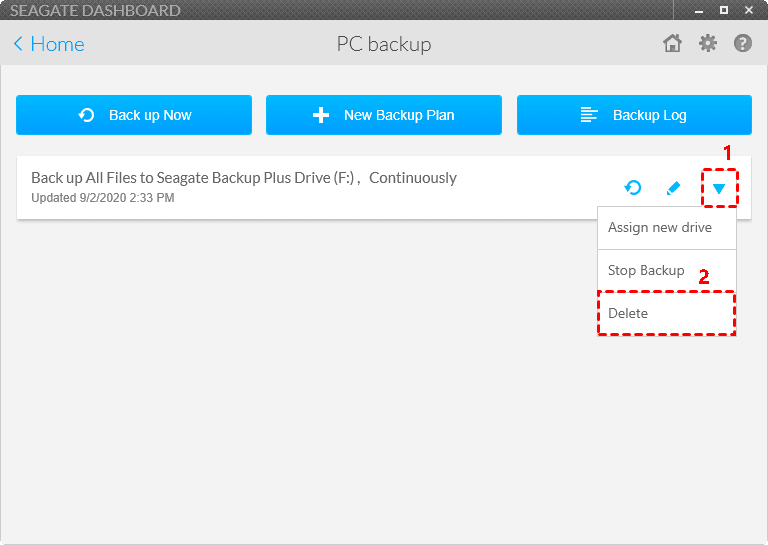
Step 2. To delete a backup plan, click the drop-down menu next to the plan you want to delete and select "Delete". Alternatively, click the box next to "Delete backed up files" to delete the files backed up by that plan.
To prevent losing data, you can use Seagate Dashboard to delete old backups and free up space, but also consider creating new backups to ensure your files are safe. This way, you can avoid data loss in case your computer fails.
If you recreate a backup of your files with Seagate Dashboard, you'll be stuck in a dead-end loop: your backup disk will have insufficient disk space due to accumulated backups, forcing you to delete old backups to free up space, only to start the loop again.
If you're tired of dealing with the hassle and potential risks of data loss, or the frustrating Seagate Dashboard is not working error, consider backing up your files and deleting old backups in a more efficient and professional manner.
Backup Files and Delete Old Backups in a Professional Way
To backup files and delete old backups in a professional way, Qiling Disk Master Professional offers reliable backup software that helps users reduce backup image size and free up space for new backups.
- With Schedule Backup, you can backup files daily, weekly, or monthly, ensuring all changes are saved and preventing data loss.
- With Backup Scheme, you can choose to backup only changed files with incremental or differential Backup, or directly delete old backup automatically with one of cleanup methods.
- With Options, you can compress or split backup image to smaller one, and backup only used sectors of file system with intelligent sector backup.
Stepwise guide to backup and manage disk space
Preparations for backup and deletion:
▸ Connect your Seagate Backup Plus drive or Central hard drive to your computer, ensuring it can be detected by your system.
▸ If your computer is a laptop, you'll need a SATA cable or adapter to connect your external drive.
▸Download Qiling Disk Master Professional and install it on your computer. It supports all server computers, including Windows Server 2003/2008(R2)/2011/2012(R2)/2016(R2)/2019/2022.
To backup files and delete old backups automatically, you can set up a scheduled task to run a backup software, such as Backblaze or CrashPlan, that will copy your files to a cloud storage service or an external hard drive. You can also use a script or a tool like BackupPC to automate the process.
Step 1. Launch this software, you will see its main page. Click Backup and File Backup subsequently.

Step 2. Click "Files" or "Folders" to select the files or folders you want to backup.

Step 3. Click the second box -> Computer/This PC -> select the Seagate hard drive on your computer as the backup destination.

Step 4. Click Options, Schedule Backup and Backup Scheme to set backup and cleanup rules, allowing you to retain multiple backups while ensuring space for new ones.
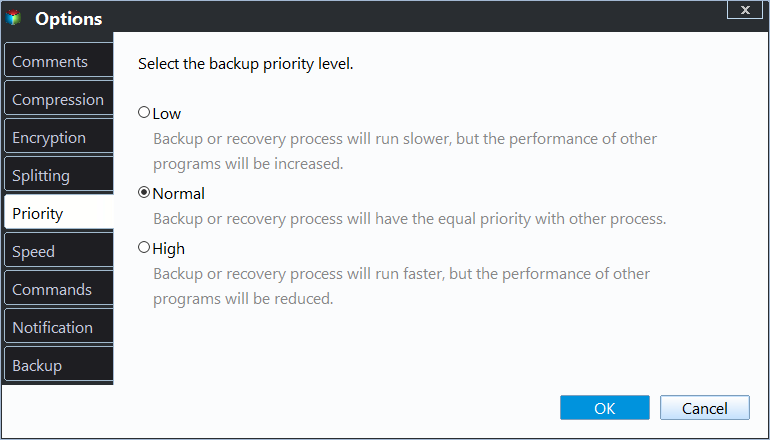
In the Options menu, click Advanced, where you can set the Compression and Splitting options.
- The compression level is set to normal by default, but can be changed to high.
- The default splitting is automatic, allowing for a customized size or predetermined size to be set.
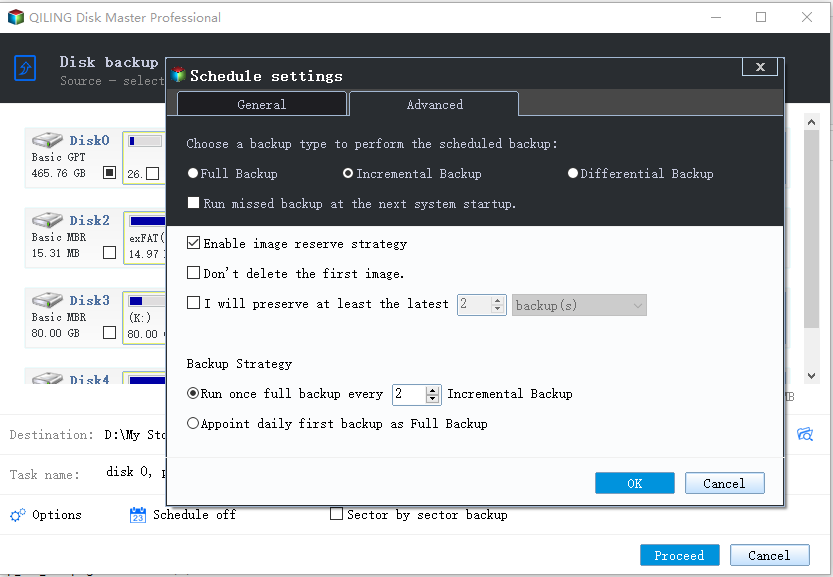
To schedule a backup, click on "Schedule Backup" and choose from the options: Daily, Weekly, Monthly, Event triggers, or USB plug in.

Click Backup Scheme, you will see both backup methods and cleanup methods in the following window.
- Backup Methods: You have three backup options: Full Backup, Incremental Backup (the default), and Differential Backup. The Full Backup method creates an exact copy of your files every time, while Incremental and Differential Backups save only changed files.
- Cleanup Methods: The four options for deleting old backups are By quantity, By time, By daily/weekly/monthly, and By space, allowing for automatic deletion and are available in all backup modes except for the last option which is only available in differential backup mode.
Step 5. Confirm the backup settings and click "Proceed" to backup files and delete old backups automatically based on the selected settings.
Conclusion
To avoid data loss, it's recommended to use a professional method to automatically delete old backups, rather than relying on manual deletion through Seagate Dashboard, which can result in loss of entire backup tasks. This ensures that your files are protected and can be recovered in case of a computer failure or virus attack.
Reliable backup software - Qiling Disk Master Professional optimizes backup image reduction by enabling automatic backup cleanup, also known as the backup retention policy, to automatically delete old backups. This feature can be applied to system backup, disk backup, and partition backup, making it a comprehensive solution for reducing backup image size.
Related Articles
- Best Seagate Dashboard Alternative - Qiling Disk Master Freeware
This guide explains Best Seagate Dashboard Alternative - Qiling Disk Master Freeware with clear steps, key checks, and practical tips. - Windows 7 Backup and Restore Automatically Delete Old Backups
This guide explains Windows 7 Backup and Restore Automatically Delete Old Backups with clear steps, key checks, and practical tips. - Windows Server Backup Delete Old Backups Automatically
This guide explains Windows Server Backup Delete Old Backups Automatically with clear steps, key checks, and practical tips. - The Solution to Windows Server Backup Disk Full
This guide explains The Solution to Windows Server Backup Disk Full with clear steps, key checks, and practical tips. - How to Delete the Windows.old Folder in Windows 10
- Quick Fixed: User Profile Service Failed the Logon Windows 10
You will learn 2 helpful ways to fix the User Profile Service failed the logon in Windows 10. Also, you need to pay attention to system and data security.
Products
Articles & Tutorials
- Data Recovery
- Data Backup
- File Recovery
- File Backup
- File synchronize
- System Backup and Restore
- Disk and Partition Clone
- Technical articles
- Disk Master Help
- Windows Deleted File and Disk Recovery Tutorials
- Windows File and Data Recovery Tutorials
- More Windows Tutorials for Install, Security, Files, and PC Tips
- Windows Boot, Repair, and Recovery Environment Tutorials
- Windows Backup Tutorials
- Windows Restore Tutorials
- Windows Clone and Migration Tutorials
- Windows Server Backup, Recovery, and Management Tutorials
- Windows Disk, Partition, and Storage Management Tutorials