Guaranteed: Clone 2TB MBR to 3TB GPT Disk Successfully with Full Capacity
Page Contents:
- Why clone hard drive from 2TB to 3TB?
- Cloning system drive 2TB MBR - 3TB GPT don’t work
- Important considerations for cloning 2TB MBR to 3TB GPT disk
- Best software you can use to clone MBR disk to GPT
- How to clone hard drive from 2TB MBR to 3TB GPT with full capacity
- Summary
Why clone hard drive from 2TB to 3TB?
Cloning a system disk from one partition style to another can be problematic. While cloning from MBR to MBR or GPT to GPT is relatively straightforward, attempting to clone from one partition style to the other can cause issues due to the differences in disk partitioning.
- First, the cloned drive won't boot.
- Second, the hard drive not show full capacity.
You want to clone a 2TB MBR hard drive to a 3TB GPT hard drive because you want to upgrade your storage capacity to take advantage of the larger 3TB drive, but the cloning process is complex due to the difference in partition table schemes between MBR and GPT. The MBR (Master Boot Record) scheme is used for smaller hard drives, while the GPT (GUID Partition Table) scheme is used for larger hard drives. Cloning a 2TB MBR drive to a 3TB GPT drive requires careful consideration of the partition table scheme and the potential for data loss or corruption.
The main reason to upgrade your computer is to store a large amount of data, such as high-definition videos and databases, on your computer. Additionally, upgrading your computer can also help improve its performance, making it boot faster, run programs smoothly, and open web pages more quickly, especially if your computer is outdated.
Cloning system drive 2TB MBR - 3TB GPT don’t work
You're trying to clone your 2TB drive with MBR to a 3TB drive with GPT using Acronis True Image WD Edition, but it's not converting the MBR to GPT. You might want to try a different cloning software or a manual conversion method. Have you considered using a tool specifically designed for converting MBR to GPT, such as Qiling Disk Master? These tools might provide the option to convert the partition style during the cloning process. Alternatively, you could try using a command-line tool like diskpart to convert the MBR to GPT.
You have a 3TB drive that boots fine initially, but when converted to GPT and resized to 3TB, it won't boot due to an MBR error. This suggests that the drive's boot partition or MBR is not being properly updated when converted from MBR to GPT, resulting in the error.
You can convert a MBR (Master Boot Record) disk to a GPT (GUID Partition Table) disk using various tools and methods. One popular option is the `gdisk` command-line utility, which can convert an MBR disk to GPT while preserving the existing partitions. Another option is the `fdisk` command, which can also convert an MBR disk to GPT.
The cloning process itself is fine, but it will erase the original disk and convert it to an MBR disk, which might not be ideal for larger disks like 3TB, as it can cause issues with booting.
A 3TB hard drive can become an MBR disk, which limits its capacity to 2TB, resulting in nearly 1TB of unused space. If you're experiencing this issue, reading this article carefully can help you resolve it successfully.
Important considerations for cloning 2TB MBR to 3TB GPT disk
So how to clone 2TB MBR to 3TB GPT in order to store data as much as possible and boost your computer? You need reliable t disk cloning software and be sure of the following two things.
First, be sure your computer supports UEFI mode: To clone a 2TB MBR disk to a 3TB GPT disk, it's essential to check if your computer supports UEFI mode, as MBR disks boot from Legacy BIOS and GPT disks boot from UEFI mode, requiring different boot partitions. This consideration ensures a smooth cloning process.
- To access the BIOS settings and change the boot order, follow these steps: restart your computer and continuously press F11, Del, F2, or other prompted keys until you enter the BIOS window. Once in the BIOS, navigate to the Boot menu.
- To see if there is a UEFI option, scroll down and select the "UEFI/BIOS Boot Mode" option.
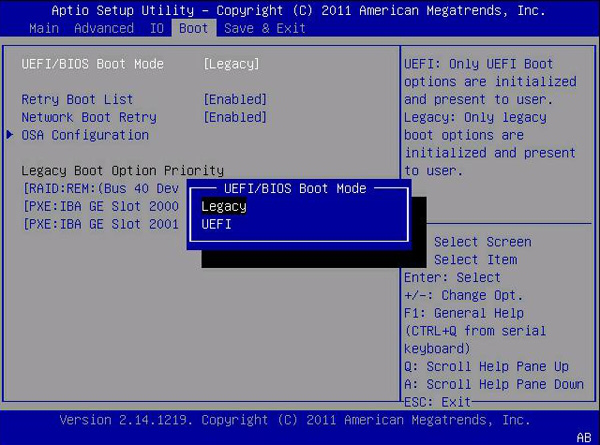
- If your computer shows both Legacy and UEFI, it supports UEFI mode, but if it only shows Legacy, it doesn't support UEFI mode.
Second, check if the cloning software supports resizing partition size on the destination disk. Cloning a disk creates an exact copy of the original hard drive, resulting in a new disk that is identical to the old one. However, if the new disk has a larger capacity, it will not display its full capacity until the disk size is resized.
- To clone a disk, download and install a cloning software, then open it and follow the same steps as if you were actually cloning the disk.
- When resizing a partition, you may see an option to adjust the partition size on the destination disk, which allows you to preview the effect of the resize operation. This option is usually labeled as something like "Resize the partition size on the destination disk", "Edit Disk", or "Edit Partitions". Clicking it allows you to see the final result of the resize operation.
If this software has such an option, you can directly click Proceed to clone 2TB MBR to 3GPT disk, Qiling Disk Master Professional can help with this.
Best software you can use to clone MBR disk to GPT
Unfortunately, Windows doesn't provide disk cloning software, only backup and restore software. You can create a system image, but restoring it may fail due to EFI/BIOS issues. It's recommended to use professional disk cloning software instead.
Qiling Disk Master Professional is a software that can clone a 2TB MBR disk to a 3TB GPT disk, preserving the original disk's structure and automatically creating an EFI partition during the cloning process, requiring only a boot mode change from Legacy to UEFI after cloning.
As for the capacity, The software has an "Edit Partitions" feature, which allows users to modify the partition size on the destination disk. This can be done by adding unused space to all partitions or manually adjusting the size of one or more specific partitions.
If your GPT disk is an SSD, it still supports 4k technology to accelerate the reading and writing speed of SSD disk as well as prolong its lifespan, making this software worth trying.
How to clone hard drive from 2TB MBR to 3TB GPT with full capacity
Qiling Disk Master Professional makes it easy to clone hard drives between MBR and GPT disks, and supports booting from a GPT disk in all versions of Windows 8/8.1/10/11 and 64-bit Windows 7/XP.
1. Run the Qiling Disk Master Professional software, click "Clone" in the main interface, and select "Disk Clone".

Tips:
★ If you only want to clone a system, you can select the "System Clone" option.
★ To clone a 2TB MBR hard drive to a 3TB GPT hard drive in server systems, use Qiling Disk Master Server instead.
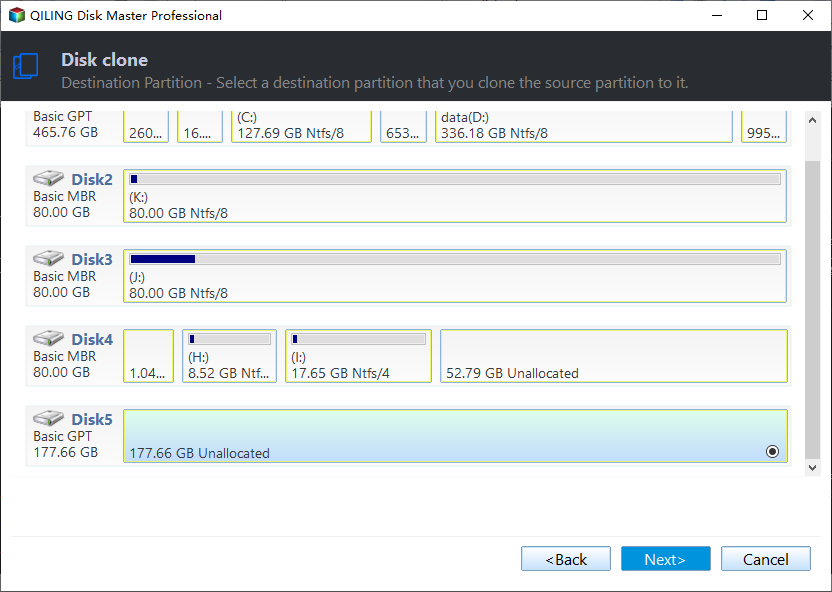
2. Select the 2TB MBR disk as the source disk and the 3TB GPT disk as the destination disk to proceed with the cloning process.
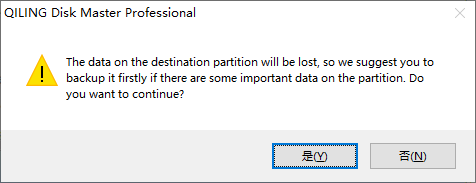
3. If the destination GPT disk does not have any important files, click OK to continue the disk clone process. If it does, click Cancel to stop the process and back up files to external hard drive or other storage devices first.
4. After clicking the option to edit partitions, you will see three choices at the lower left corner. To resize the disk, click "Edit Partitions" and select from the options, including "Add unused space to all partitions" or "Manually adjust partition size", which can be used to clone a 2TB MBR disk to a 3TB GPT disk.

Notes:
★ The Edit Partitions feature makes the Sector by Sector Clone unavailable, so ensure your MBR disk is not an encrypted disk.
★ When cloning a 2TB MBR hard drive to a 3TB SSD, make sure to enable SSD Alignment to ensure optimal performance.
5. Confirm the operations and click "Proceed" to clone the 2TB MBR to 3TB GPT disk. This process allows you to use your computer during the cloning, making it convenient and efficient.

Wait until the cloning process is complete, then go to the BIOS settings, change the Boot Mode from Legacy to UEFI, and save the changes. This will allow the computer to automatically boot from the cloned drive. If you encounter any issues, you can refer to additional resources on how to troubleshoot cloned drive boot problems.
Summary
With Qiling Disk Master Professional, you can clone a 2TB MBR hard drive to a 3TB GPT hard drive, allowing you to boot from the cloned drive and utilize the full 3TB capacity.
Qiling Disk Master allows you to create a backup of a 2TB MBR hard drive and then restore it to a GPT disk, making it possible to move files and OS from one computer to another with different hardware.
Related Articles
- An Easy Way to Clone 2TB HDD to 1TB SSD with Secure Boot
Cloning 2TB HDD to 1TB SSD can be easy with the help of best disk cloning software. And it also applies to clone 1TB SSD to 2TB SSD as well. - Clone Hard Drive with Different Size | Easy & Free
With reliable cloning software - Qiling Disk Master Professional, you can clone hard drive of different size and boot it up, whether it's a larger HDD or smaller SSD. - How to Clone MBR to GPT Disk in Windows 10/8/7 Directly
Use this guide for How to Clone MBR to GPT Disk in Windows 10/8/7 Directly, with cloning or migration steps, boot checks, and tips to keep data safe during the move. - FIX Error: Acronis True Image For Crucial Not Working
Learn how to FIX Error: Acronis True Image For Crucial Not Working with clear steps, key checks, and practical tips. - Easily Migrate Windows 10 from One PC to Another in 2022
If you're looking for a suitable Windows 10 migration software, you've come to the right place. Read this post, you will get the most effective method. - How to Clone 2TB MBR to 4TB Disk Without Losing Capacity
Clone a 2TB MBR disk to a 4TB drive and use full capacity by choosing the right partition style and clone settings.
Products
Articles & Tutorials
- Data Recovery
- Data Backup
- File Recovery
- File Backup
- File synchronize
- System Backup and Restore
- Disk and Partition Clone
- Technical articles
- Disk Master Help
- Windows Deleted File and Disk Recovery Tutorials
- Windows File and Data Recovery Tutorials
- More Windows Tutorials for Install, Security, Files, and PC Tips
- Windows Boot, Repair, and Recovery Environment Tutorials
- Windows Backup Tutorials
- Windows Restore Tutorials
- Windows Clone and Migration Tutorials
- Windows Server Backup, Recovery, and Management Tutorials
- Windows Disk, Partition, and Storage Management Tutorials