Can You Clone a Windows Disk Without Rebooting?
Many cloning tools can copy a running Windows installation using a consistent snapshot, but “without reboot” is not a guarantee for every source volume or edition. A locked partition, encryption state, or pre-boot copy phase may still require a restart. Even when copying finishes live, testing the new boot disk requires a shutdown or reboot.
Prepare a consistent source and destination
Step 1. Check the source disk's health and back up irreplaceable files separately. Finish pending Windows updates, close large databases and virtual machines, and pause workloads that cannot tolerate a snapshot. Record any BitLocker recovery key.
Step 2. Connect the new SSD/HDD and confirm its model, capacity, and connection stability. The destination must hold all used source data and the required boot partitions. Copy off any existing destination files because cloning overwrites them.
Clone the complete Windows disk
Step 1. Launch Qiling Disk Master and open Disk Clone in an edition that supports cloning a system disk. Select the physical source disk that contains Windows, EFI/System Reserved, and recovery partitions.
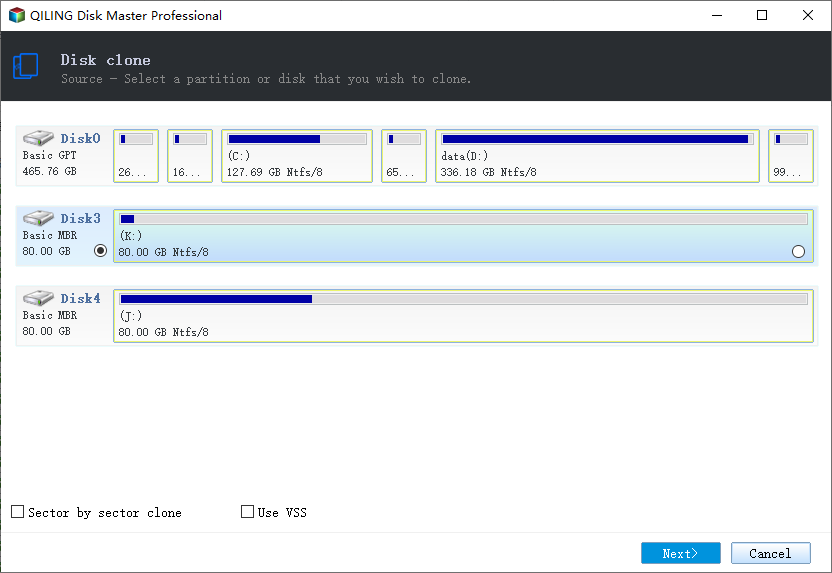
Step 2. Select the new disk as destination. Read the model and capacity again, because its current contents will be replaced.
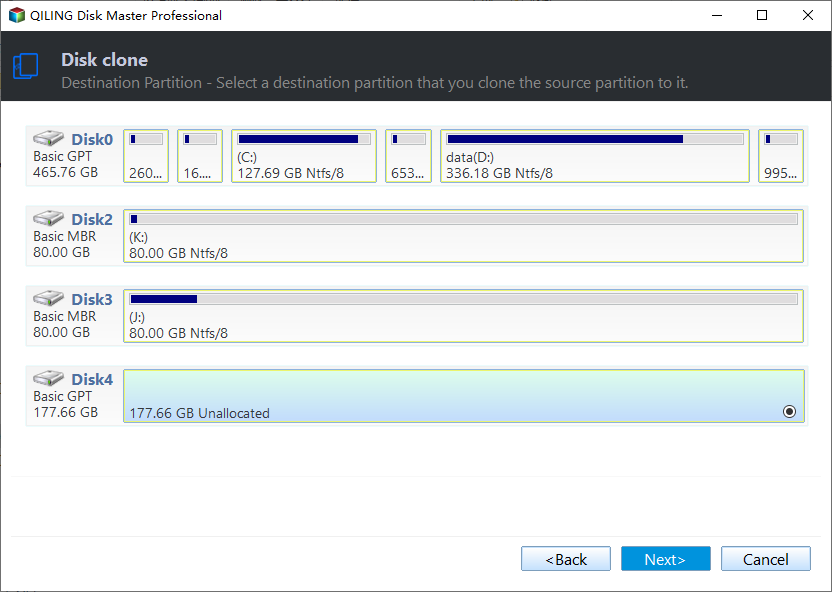
Step 3. Review the partition map. On an SSD, enable alignment; on a larger destination, adjust partition sizes if offered. Confirm that all boot-related partitions are included and the source and destination have not been reversed.
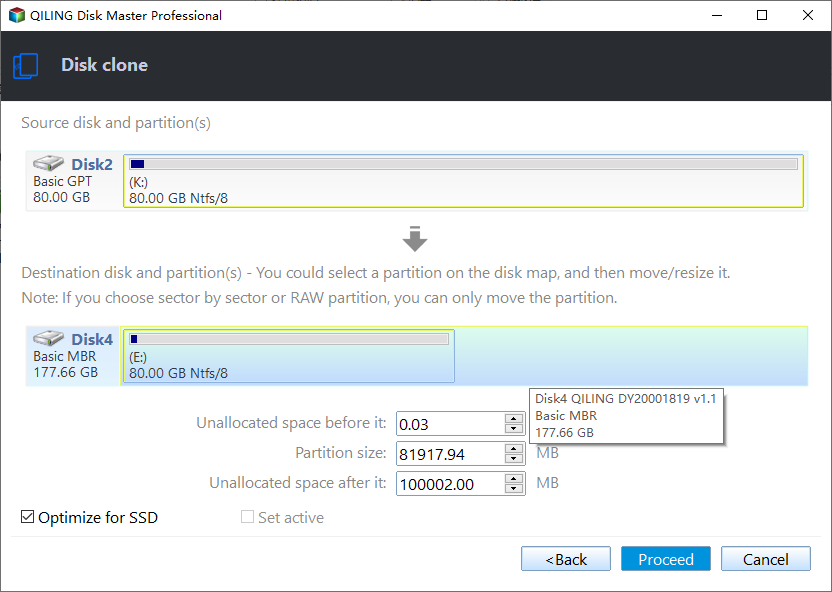
Step 4. Click Proceed and let the copy finish. If the application asks for a restart to handle locked data, save work and accept it rather than interrupting the operation. Do not unplug either disk while copying.
Boot-test the new disk
Step 5. Shut down completely, then install the cloned disk in the intended boot position. Temporarily disconnect the original where practical; otherwise choose the clone's Windows Boot Manager in the one-time boot menu. This prevents the old disk from masking a failed clone.
Step 6. When Windows starts, open Disk Management to confirm the booted disk and expected partition sizes. Open important files and applications. Keep the original untouched until this independent test passes; only then reconnect or repurpose it.
When a live clone is unsuitable
If snapshot creation fails, the drive has read errors, or applications need transactional consistency, use offline boot media or application-aware backup. A successful copy does not replace an independent backup or repair a failing source disk.
Related Articles
- Cloned Drive Shows BOOTMGR Missing
Troubleshoot startup after changing the boot disk. - Make a Bootable Windows 10 Clone
Review boot-partition and firmware requirements.
Products
Articles & Tutorials
- Data Recovery
- Data Backup
- File Recovery
- File Backup
- File synchronize
- System Backup and Restore
- Disk and Partition Clone
- Technical articles
- Disk Master Help
- Windows Deleted File and Disk Recovery Tutorials
- Windows File and Data Recovery Tutorials
- More Windows Tutorials for Install, Security, Files, and PC Tips
- Windows Boot, Repair, and Recovery Environment Tutorials
- Windows Backup Tutorials
- Windows Restore Tutorials
- Windows Clone and Migration Tutorials
- Windows Server Backup, Recovery, and Management Tutorials
- Windows Disk, Partition, and Storage Management Tutorials