Best Way to Clone Dual Boot Hard Drive to SSD
A dual boot hard drive allows you to install two operating systems on the same hard disk, without overwriting the first one. This means you can choose to boot from either operating system at startup, giving you the flexibility to use different systems depending on your needs.
This article will explore the possibility of cloning a dual-boot system, including whether non-Windows systems can be cloned, and provide guidance on the best way to clone a dual-booting Windows system.
- Situations to Clone Dual Boot Hard Drive
- Will Non-Windows System Be Cloned?
- Dual-boot Disk Cloning Software for Windows
- How to Clone Dual Boot Hard Drive to SSD
- Over to You
Situations to Clone Dual Boot Hard Drive
Cloning a dual-boot system is feasible, and the process is similar to cloning a single-booting operating system drive. There are three common situations to consider: 1) cloning a dual-boot system with the same operating systems, 2) cloning a dual-boot system with different operating systems, and 3) cloning a dual-boot system with a different version of an operating system.
1. Clone disk to a larger disk for big capacity. Desktop computers typically have multiple drive bays to hold multiple drives, whereas most laptops have only one drive bay, limiting the number of drives that can be installed.
2. Replace HDD with SSD for better performance. Your computer's traditional hard drive may not be sufficient for smooth gaming or multitasking, as it can slow down with large files and multiple tasks.
3. Avoid reinstalling the operating system and programs. When your computer experiences issues like hardware failure, system crashes, or viruses, you might be prompted to reinstall Windows. However, this process can be lengthy and prone to errors, making it less suitable for average users.
Will Non-Windows System Be Cloned?
In windows-Qiling Disk Master Professional can effortlessly clone a dual-boot system, including the operating system, system reserved partition/EFI partition, boot files, installed programs, and personal files. However, if the existing system is not Windows, such as Linux, this software won't work, and alternative options like Clonezilla may be considered.
To clone the entire disk, including both operating systems, use the "Disk Clone" feature. This will copy everything on the disk, including the current running operating system. Alternatively, if you only want to clone the current running operating system, use the "System Clone" feature. However, keep in mind that cloning both operating systems may not guarantee success and may require cloning the previous version between the two systems.
Dual-boot Disk Cloning Software for Windows
This article guides you through the process of transferring a dual-boot setup to a new SSD or hard drive using Qiling Disk Master Professional, a reliable software solution.
Qiling Disk Master Professional is a reliable disk cloning software that supports cloning hard drives, including dual-boot and dynamic disks, in various Windows versions, as well as system and partition cloning. The cloning process is straightforward, similar to cloning in a single operating system.
In addition, it has some useful features you may need.
- Clone disk to larger disk without left unallocated space. The disk cloning software creates an exact copy of the original disk, resulting in a cloned disk that is identical to the original. Any extra space on the cloned disk becomes unallocated and invisible. To address this, you can adjust the partition size of the destination disk using the "Edit Partitions" feature during the cloning process.
- Clone large HDD to smaller SSD with intelligent clone feature. Clone large HDD to smaller SSDWith the help of an intelligent clone, this software only clones used sectors, so you only need to ensure that the used space on the old disk is smaller than or equal to the new disk.
- Clone MBR disk to GPT disk without converting partition styleClone MBR disk to GPT diskThe software can clone a disk with a different partition style by converting the target disk during the cloning process, eliminating the need for a separate conversion step.
- Improve SSDs' performance with "SSD Alignment". This feature allows your SSD to have a faster reading and writing speed, and can extend its lifespan.
- Clone all sectors or not with "Sector by sector clone"This feature allows you to clone all sectors, including unused ones.
How to Clone Dual Boot Hard Drive to SSD
To transfer a dual-boot hard drive to an SSD, start by preparing a blank SSD disk and downloading Qiling Disk Master Professional. If your computer is a laptop, you may also need an SATA-to-USB adapter or enclosure to connect the SSD.
To clone a hard drive with dual-boot, follow these steps: first, ensure that both operating systems are installed on separate partitions, and that the boot order is set to prioritize the operating system you want to keep. Next, use a cloning software to create an exact copy of the hard drive, including all files, settings, and operating systems. This process will preserve the dual-boot functionality, allowing you to boot into either operating system after the cloning is complete.
Clone Hard Drive with Dual-Boot
Step 1. Connect your SSD and ensure it can be detected. Launch Qiling Disk Master and select Disk Clone under the Clone tab.

Step 2. Select the Source Disk that you want to clone and click Next.
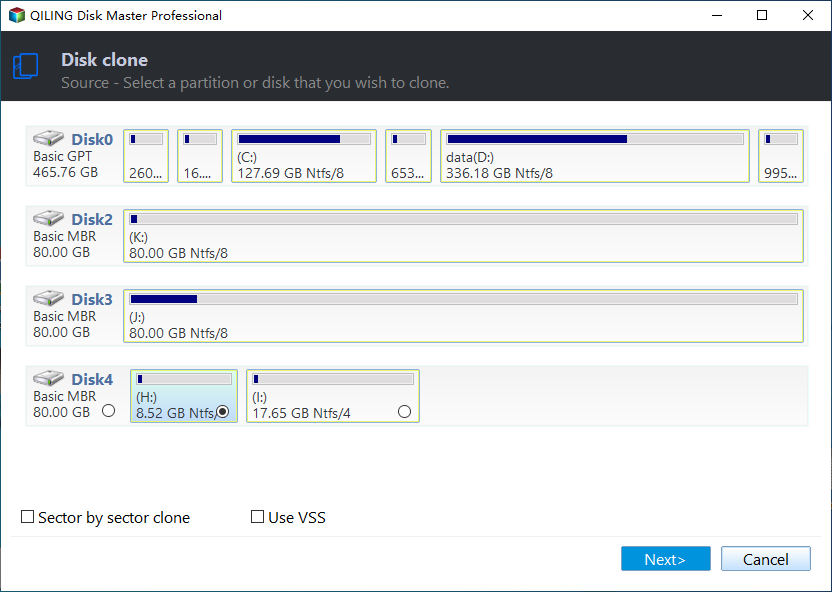
Step 3. Select your SSD hard drive as Destination Disk, then click Next.
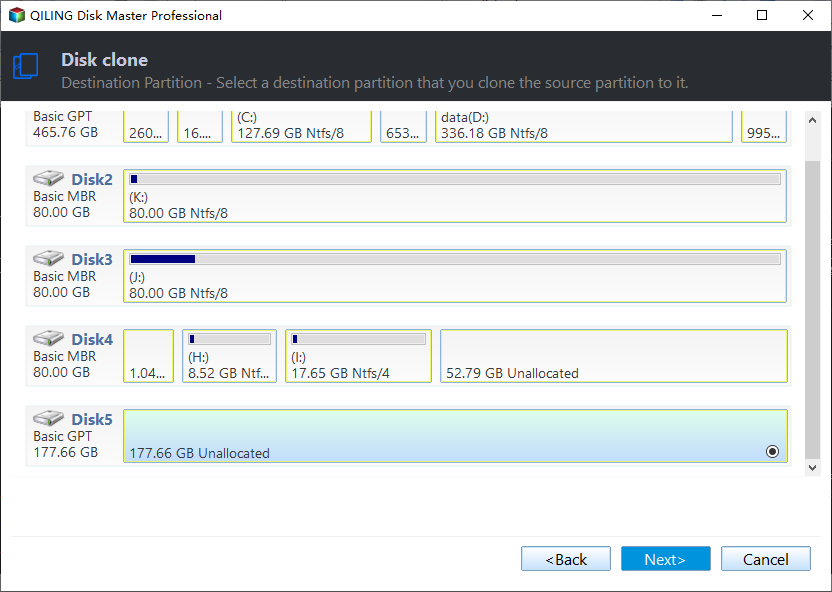
Step 4. Tick SSD Alignment to boost the performance of SSD disk and click Proceed to clone hard drive with dual-boot.

The cloning process will begin after you confirm the backup of your personal files. Please note that the data on the destination disk will be overwritten, so it's essential to back up any important files before proceeding. This is a crucial step to ensure that you don't lose any valuable data during the cloning process.
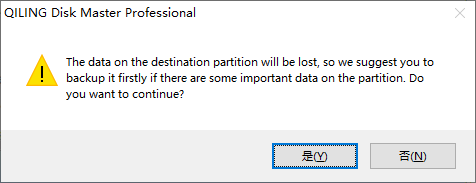
If the destination disk has a different partition style than the source disk, CloneGPT can convert it. For example, if the source disk is GPT and the destination disk is MBR, CloneGPT can convert the destination disk from MBR to GPT. This feature can also be used to edit partition sizes if the SSD is larger.
- Copy without resizing partitions: It will not resize the partition size.
- Add unused space to all partitions: It will redistribute the unallocated space to each partition of the target disk, proportional to the disk size.
- Manually adjust partition size: This feature allows you to extend unallocated space to any partition on the destination disk you want.
Notes:
◓ Before cloning, please unplug any extra storage devices, to ensure the image file is intact.
◓ Before you format your hard drive, make sure you have a successful dual-boot system in place, ensuring that your computer can boot into both operating systems. This is crucial to avoid losing access to your original operating system.
◓ After the dual-If the boot system can boot successfully, it's likely still functional and you can consider formatting the HDD and using it as storage, assuming it still works well.
◓ This software is also applied for SSD migration dual boot.
Boot from Cloned Dual-boot SSD
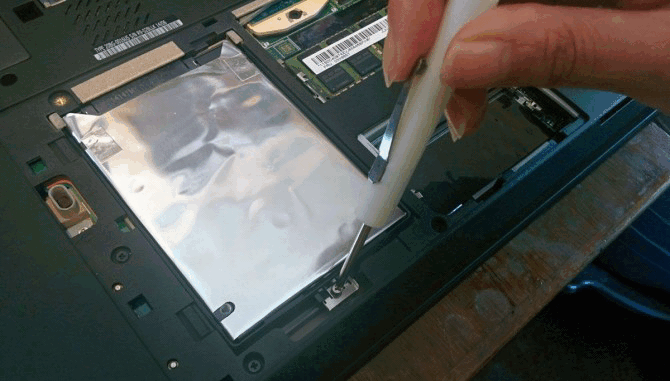
Step 1. To swap a HDD and SSD, use screwdrivers to remove the screws holding the HDD in place. Tilt the disk at an angle of 30-40 degrees to prevent damage while removing and inserting it. Then, insert the SSD into the same slot, ensuring it's securely fastened with screws.
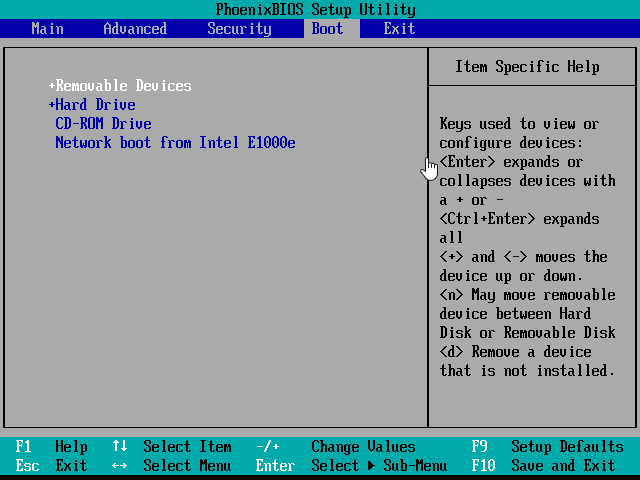
Step 2. To resolve the issue, restart your computer and access the BIOS settings. Press the ESC key when prompted, navigate to the Boot tab, and set the cloned SSD as the first boot option. Save the changes and restart your computer again. This should allow your computer to boot from the cloned SSD.
Over to You
Qiling Disk Master is a great tool for cloning a dual-boot hard drive in Windows operating systems, including 7/8/8.1/10/11/XP/Vista. It allows you to quickly complete the cloning process and also offers flexibility in editing partition sizes on the destination disk, as well as features to speed up and increase the lifespan of SSDs, and clone all disk sectors. Try it out now!
This software offers a range of professional backup and restore features, including system backup, disk backup, file backup, incremental and differential backup, and event triggers. It also supports USB plug-in, backup schemes, and the creation of bootable media, as well as PXE boot tools and dissimilar hardware restore.
Related Articles
- How to Clone A Hard Drive with Multiple Partitions
- Solution to Samsung Data Migration Multiple Partitions Clone
- Cloned SSD Won’t Boot in Windows 10/8/7 - How to Solve
- Successfully Clone HDD to SSD Including Recovery Partition
Qiling Disk Master, as a professional disk clone software, is able to clone HDD to SSD including recovery partition successfully. - Easy Way to Clone System Disk to SSD with Secure Boot
By cloning system disk to SSD, you can avoid the reinstallation of Windows and other apps if you need to replace your current system hard drive. - How to Clone Toshiba Hard Drive to SSD with Secure Boot
To clone Toshiba hard drive to SSD, you can find a right software to easily achieve. Here, we recommend you Qiling Disk Master, which helps to clone Toshiba hard drive within four simple steps.
Products
Articles & Tutorials
- Data Recovery
- Data Backup
- File Recovery
- File Backup
- File synchronize
- System Backup and Restore
- Disk and Partition Clone
- Technical articles
- Disk Master Help
- Windows Deleted File and Disk Recovery Tutorials
- Windows File and Data Recovery Tutorials
- More Windows Tutorials for Install, Security, Files, and PC Tips
- Windows Boot, Repair, and Recovery Environment Tutorials
- Windows Backup Tutorials
- Windows Restore Tutorials
- Windows Clone and Migration Tutorials
- Windows Server Backup, Recovery, and Management Tutorials
- Windows Disk, Partition, and Storage Management Tutorials