Easiest | Clone IDE to SATA HDD/SSD in Windows 11/10/8/7
Quick Navigation:
- Why clone IDE hard drive to SATA?
- SATA vs. IDE: more details
- Preparations for IDE hard drive cloning to SATA
- Prime disk cloning software to clone IDE to SATA
- How to clone IDE hard drive to SATA SSD simply
- How to boot from the cloned SATA drive
- Conclusion
Why clone IDE hard drive to SATA?
IDE (Integrated Drive Electronics) and SATA (Serial Advanced Technology Attachment) are two different types of interfaces used to connect storage devices to a computer's system bus. Cloning IDE to SATA is possible for various reasons, including compatibility and convenience.
✦ Replace old hard drive with modern hard drive. If your computer is old, its hard drive may still use an older type called IDE, but modern hard drives or solid state drives (SSDs) use a newer type called SATA. In this case, you'll need to clone the IDE drive to a SATA drive.
✦ Improve reading and writing speed. Cloning your IDE hard drive to a SATA hard drive can significantly speed up your computer, as SATA has a maximum data transferring rate of 6GB/s, which is much faster than the typical 100MB/s rate of IDE. This upgrade can bring a noticeable improvement in your computer's performance.
Cloning an IDE hard drive to a SATA drive allows you to upgrade your hard drive without reinstalling Windows, transferring all data, including the operating system, applications, and user files, to the new drive, saving time and effort compared to a fresh install.
SATA vs. IDE: more details
|
|
SATA (Serial ATA) |
IDE (Integrated Drive Electronics) |
|
Cable |
Thinner and more flexible cables. |
Bulkier and less flexible ribbon cables. |
|
Connectors |
Smaller connectors, easier to plug. |
Larger and sometimes harder to plug connectors. |
|
Hot-Swapping |
Supports hot-swapping (connecting/disconnecting drives while the system is running). |
Generally does not support hot-swapping. |
|
Compatibility |
Widely compatible with modern systems. |
Older technology, becoming less compatible with modern systems. |
|
Max Devices |
Supports one device per port (with AHCI). |
Supports two devices per port (master/slave configuration). |
|
Power Consumption |
Lower power consumption. |
Higher power consumption. |
Preparations for IDE hard drive cloning to SATA
Before cloning your IDE hard drive to a SATA drive, ensure you prepare the following:
1. Check if your computer board supports SATA. If it does, you can connect your SATA disk with a SATA cable and power cable. If not, you'll need to buy an IDE-to-SATA adapter to connect your SATA drive.
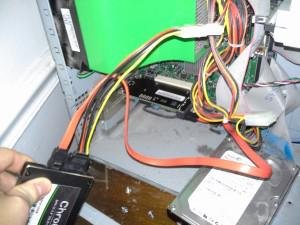
2. Get a SATA HDD/SSD. If you want to enjoy even faster speed, a SATA SSD is recommended.
3. Find a reliable hard drive duplicator.
Prime disk cloning software to clone IDE to SATA
Qiling Disk Master Professional is the best disk cloning software for Windows, allowing users to clone, backup, and restore disks with ease. It supports Windows 11/10/8.1/8/7/Vista/XP, making it a versatile tool for various operating systems. The software offers a range of features, including disk cloning, backup, and restore, as well as the ability to clone disks to larger or smaller capacity disks, making it an ideal solution for users who need to upgrade or replace their disks.
|
🍀 Concise Interface |
It's user-The software has a user-friendly interface that makes it easy to operate, even for someone with little computer knowledge. |
|
💾 Disk Clone |
This software allows you to clone a larger hard drive to a smaller solid state drive (SSD) without resizing partitions on the larger drive, and also supports upgrading from a smaller drive to a larger one. |
|
🎯 Partition Clone |
Cloning a single partition, including NTFS, FAT32, and exFAT, is supported, allowing for the creation of an exact replica of the partition. |
|
💻 Safe Boot |
The destination disk will successfully boot after cloning, so there's no need to be concerned about boot issues. |
Wanna have a try? Download and install Qiling Disk Master now.
How to clone IDE hard drive to SATA SSD simply
To clone an IDE hard drive to a SATA SSD, follow these steps: first, backup any important data on the target SATA SSD as it will be overwritten during the cloning process. Then, use Qiling Disk Master to clone the IDE hard drive to the SATA SSD. This process will transfer all data from the IDE hard drive to the SATA SSD, effectively replacing the SATA SSD with a cloned version of the IDE hard drive.
Step 1. Connect the target SATA SSD to your computer and ensure it is detected.
✎ If your system can't recognize the SATA drive, try restarting your computer, then change the SATA Controller Mode to IDE Mode in the BIOS settings and attempt again.
Step 2. Run Qiling Disk Master, click Clone on the left pane and select Disk Clone.

✎ To migrate only the operating system from the IDE hard drive to the SATA drive, you can use the System Clone feature in the IDE. This feature allows you to clone the OS from the original drive to the new SATA drive, effectively transferring the OS to the new drive without affecting any other data.
Step 3. Select the original IDE hard drive as the source disk and click Next.

Step 4. Connect the SATA SSD to your computer, select it as the destination disk, and click Next.

Step 5. To optimize SSD performance, select the "SSD Alignment" option, confirm the operation, and click "Proceed" to enhance the speed and efficiency of your solid-state drive.

>> This sector-by-sector clone process will duplicate every sector on the source IDE disk, regardless of whether it contains data or not. The destination disk must be equal to or larger than the source disk in size to accommodate the cloning process.
How to boot from the cloned SATA drive
1. To access the BIOS (Basic Input/Output System) settings, you need to restart your computer and press a specific key (often Del or F2) as soon as it starts booting. This will take you to the BIOS setup screen, where you can make changes to your computer's settings, such as the boot order, time and date, and other advanced options.
2. To view all hard drives on your computer, go to the Boot tab and use the down arrow (↓) or up arrow (↑) key to highlight Hard Drive, then press Enter. This will show you all the hard drives connected to your computer.
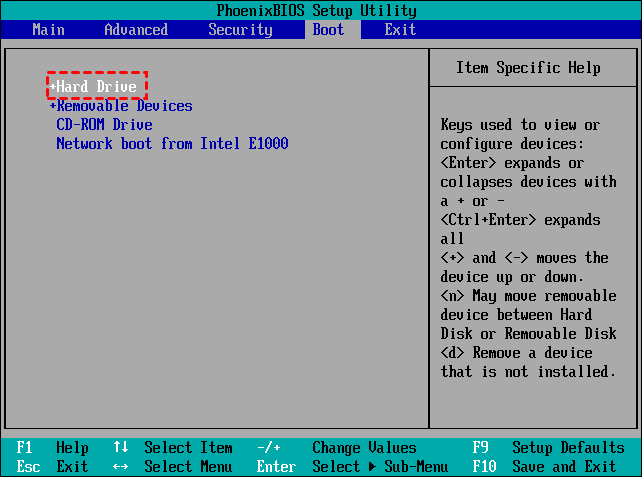
3. To prioritize your SATA drive, select it from the list and use the "+" or "-" key to move it to the first order, making it the primary boot drive.
4. Press F10, select Yes to save changes, restart your computer, and it will boot from your SATA drive.
Conclusion
Qiling Disk Master makes it easy to clone IDE hard drives to SATA, eliminating concerns about hard drive sizes or boot failure. This tool is not only a cloning feature, but also a professional backup and sync software that helps with data backup and file transfer. Additionally, it allows you to create bootable media to boot your computer in case of boot failure, making it a reliable solution for your hard drive needs.
Related Articles
- Easiest Solution to Upgrade IDE Hard Drive to SATA SSD in Windows
This guide explains Easiest Solution to Upgrade IDE Hard Drive to SATA SSD in Windows with clear steps, key checks, and practical tips. - Best IDE to IDE Duplicator to Clone IDE Hard Drive in Windows
This article discusses how to clone old IDE to new IDE hard drive or SATA drive without reinstalling Windows 11/10/8/7/XP/Vista. The easiest way is using IDE to IDE duplicator. - Quick Way to Clone SATA to SSD Along with Windows 10/8/7
This guide explains Quick Way to Clone SATA to SSD Along with Windows 10/8/7 with clear steps, key checks, and practical tips. - Best Hitachi Hard Drive Cloning Software - Qiling Disk Master
This guide explains Best Hitachi Hard Drive Cloning Software - Qiling Disk Master with clear steps, key checks, and practical tips. - [Windows]What Is Unallocated Space And How to Get It?
Here, you are going to learn what is unallocated space and how to get it on Windows 11, 10, 8, 7. - Fix "Windows detected a hard disk problem" in Win 10/7/8
This article illustrates the possible reasons and corresponding solutions to the Windows detected a hard dsik problem in Windows 11, 10, 8, and 7. Let's get started below.
Products
Articles & Tutorials
- Data Recovery
- Data Backup
- File Recovery
- File Backup
- File synchronize
- System Backup and Restore
- Disk and Partition Clone
- Technical articles
- Disk Master Help
- Windows Deleted File and Disk Recovery Tutorials
- Windows File and Data Recovery Tutorials
- More Windows Tutorials for Install, Security, Files, and PC Tips
- Windows Boot, Repair, and Recovery Environment Tutorials
- Windows Backup Tutorials
- Windows Restore Tutorials
- Windows Clone and Migration Tutorials
- Windows Server Backup, Recovery, and Management Tutorials
- Windows Disk, Partition, and Storage Management Tutorials