Quickly Clone SATA Hard Drive to SSD in Windows 11/10/8/7
Quick Navigation:
- Upgrade SATA hard drive to SSD
- Prime SATA to SSD clone software - Qiling Disk Master Professional
- How to clone SATA HDD to SSD in Windows 11/10/8/7 without reinstalling🔥
- Prepare for SATA hard disk clone
- Detailed clone steps
- Enable TRIM for SSD maintenance
- Frequently asked questions: Clone SATA to SSD
- Conclusion
Upgrade SATA hard drive to SSD
The SATA interface and hard drives have been widely used since their introduction in 2002. For improved I/O speed, cloning a SATA drive to a Solid-State Drive (SSD) is a recommended upgrade. Alternatively, you can also replace your SATA drive with a regular SSD, which also uses the SATA interface, making it a straightforward and convenient upgrade.
Instead of reinstalling Windows and all programs on a new SSD, consider using the SSD for the operating system and the old HDD for storage. This approach can save you from the hassle of reinstalling everything. To achieve this, you'll need software that can clone data from the old HDD to the new SSD, specifically a SATA to SSD clone software.
Prime SATA to SSD clone software - Qiling Disk Master Professional
For cloning a SATA HDD to an SSD, there are various disk cloning tools available, with Qiling Disk Master Professional being a top recommendation due to its exceptional performance and advanced features.
- The software can clone everything on a SATA disk, including the operating system, programs, and files, and ensure a secure boot after transferring the data to an SSD. This is the most fundamental and essential feature, making the software's other capabilities meaningful.
- This tool allows you to directly clone the Master Boot Record (MBR) to a GUID Partition Table (GPT) or vice versa, eliminating the need to convert the partition style, which is a major relief for users who have purchased a new SSD with a different partition style.
- Qiling Disk Master can help you clone a large HDD to a smaller SSD, as long as the used space on the HDD is smaller than the available space on the SSD, making it a standout tool among other cloning software.
- This feature allows you to clone all sectors, whether they are used or not, if desired, by using the "Sector By Sector Clone" option.
- For unallocated space left after cloning, you can use the "Edit Partitions" feature to either automatically or manually add the unallocated space to all partitions.
- For SSDs, there's an additional option called "SSD Alignment" that can enhance their performance.
Additionally, it is so user-Don't worry, managing all the operations is a breeze! To clone SATA to SSD in Windows 11/10/8/7, just follow the simple steps outlined in the next part. It's easy peasy!
How to clone SATA HDD to SSD in Windows 11/10/8/7 without reinstalling🔥
Prepare for SATA hard disk clone
Before using SATA to SSD clone software, it's essential to check a few things, especially if you're cloning an SSD to another SSD in a laptop.
1. If your computer has a removable back panel, you can access the hard drive. If not, check your laptop manual for instructions on how to access the hard drive or contact the computer manufacturer.
2. Check the number of drive bays on your desktop/laptop to determine the best way to connect the target SSD, either with an external SATA-to-USB adapter or a SATA cable and power cable.
3. Confirm the correct form factor and interface of the replacement SSD to ensure it can be installed in the original location of the HDD.
4. Ensure the SSD has enough space to hold everything on the original HDD, otherwise the cloning process may fail due to insufficient disk space.
5. Keep a copy of the system or disk backup in advance to avoid data loss in case the cloned SSD won't boot.
Detailed clone steps
Connect your SSD drive to your computer and initialize it if you are asked. Then follow the steps below to perform the Windows 10 hard drive cloning.
1. To clone your old hard drive to a new SSD, download and run SATA to SSD cloning software - Qiling Disk Master on your computer.
2. At the Home screen, click the "Clone" button and then select "Disk Clone" to clone a SATA disk to an SSD in one step.

3. To specify the source and destination disks, click on the SATA disk to select it as the source disk, then click on the SSD to select it as the destination disk, and finally click "Next".

4. The Operation Summary screen should have the option "SSD Alignment" checked, as the destination disk is an SSD, and then proceed with clicking "Proceed" to run the SATA to SSD clone task.

💜 Related tips:
You can click Edit Partitions to resize partitions or convert partition style of the destination disk.
- Copy without resizing partitions: It will not resize the partition size.
- Add unused space to all partitions: It will reallocate the unallocated space to each partition of the target disk, appropriate for the disk size.
- Manually adjust partition size: This feature allows you to extend unallocated space to any partition on the destination disk as desired.
- Convert the destination disk from MBR (GPT) to GPT(MBR): The partition style of the destination disk can be converted to match the source disk's style if necessary.
You can run the software in the background while using the computer, and it will clone the SATA hard drive to the SSD. Once the process is complete, you can physically replace the SATA hard drive with the SSD using a screwdriver, taking care to lift the old drive at an angle before removing it.
Notes:
• If your computer is not bootable, you can create a bootable media to load the software to clone a SATA disk to an SSD without loading Windows.
• If you only need to migrate the OS to an SSD in Windows 10, you can choose the "System Clone" option instead of cloning the whole hard drive.
• If you encounter a cloned SSD that won't boot after cloning, you can visit the provided link to learn more.
• Compared to SATA SSDs, NVMe SSDs have a significantly faster transfer speed. If you're willing to invest a bit more, it's recommended to clone Windows 10 to an NVMe SSD for improved performance.
Enable TRIM for SSD maintenance
To ensure your Solid-State Drive (SSD) is correctly recognized and to improve its performance and lifespan, you should enable the TRIM feature. This feature helps maintain the SSD's health by efficiently managing data and reducing wear and tear. By enabling TRIM, you can optimize your SSD's performance and prolong its lifespan.
You can check if TRIM is enabled by running the command prompt as administrator and typing `fsutil behavior query DisableCompression` and pressing enter. If the output is 0, TRIM is enabled. If the output is 1, TRIM is disabled.
fsutil behavior query DisableDeleteNotify
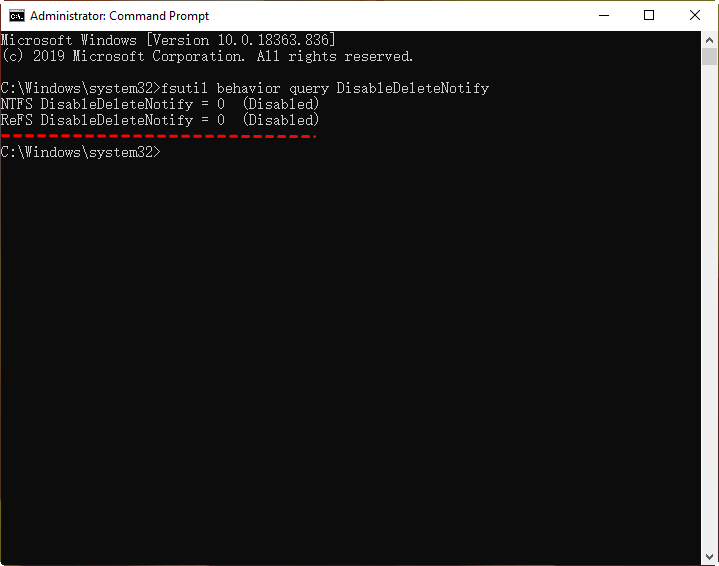
Please copy and paste the command to enable TRIM to fix the issue with your screen. The command is: `sudo fstrim -v /`
fsutil behavior set DisableDeleteNotify 0
Frequently asked questions: Clone SATA to SSD
1. How do I move Windows 10 to SSD without reinstalling?
You can move Windows 10 to an SSD without reinstalling everything by using reliable disk cloning software, which can help you complete the task in a few clicks.
2. Is a 256GB SSD better than a 1TB hard drive?
The main difference between SSDs and HDDs lies in their transfer speeds and storage capacities. SSDs generally offer twice or more the transfer speed of HDDs, but have much smaller capacities, such as a 256GB SSD being four times smaller than a 1TB HDD. Ultimately, the choice between the two depends on your priorities: if you need great performance, an SSD is the way to go, but if you require a lot of storage space, a HDD is the better option.
3. How do I clone my SATA SSD to NVME SSD?
Cloning a SATA SSD to an NVMe SSD is a straightforward process that can be accomplished using reliable disk cloning software, such as Qiling Disk Master, which supports cloning various types of SSDs including SATA, NVMe, and PCIe.
Conclusion
With the help of Qiling Disk Master, cloning a SATA drive to an SSD in Windows 11/10/8/7 is a straightforward process. After cloning, you can boot your computer directly from the SSD and enjoy improved performance, including faster loading speeds and a smoother gaming experience.
Qiling Disk Master is a backup and restore software that helps protect your system and data. It offers various backup options, including system backup, disk backup, partition backup, and file backup, as well as scheduled backup features to regularly back up your files.
Related Articles
- How to Clone Hard Drive to SSD with Free Software?
- How to Clone Hard Drive to SanDisk SSD in Windows 7/8/10?
- Free Samsung M.2 Migration Software for Windows 10/8/7
- Clone Windows Server 2011 Hard Drive to HDD/SSD Effortlessly
Learn the key steps, checks, and practical tips for this related guide. - How to Clone C Drive in Windows Server 2019 Effortlessly?
Use this guide for How to Clone C Drive in Windows Server 2019 Effortlessly?, with cloning or migration steps, boot checks, and tips to keep data safe during the move. - Clone Hard Drive in Windows Server 2003/2008/2012 without Reinstalling
We will introduce you to one server cloning software that is able to clone hard drive in Windows Server 2003, 2008, 2012, 2016, 2019, 2022, etc. Scroll down to get it now if you are looking for such software!
Products
Articles & Tutorials
- Data Recovery
- Data Backup
- File Recovery
- File Backup
- File synchronize
- System Backup and Restore
- Disk and Partition Clone
- Technical articles
- Disk Master Help
- Windows Deleted File and Disk Recovery Tutorials
- Windows File and Data Recovery Tutorials
- More Windows Tutorials for Install, Security, Files, and PC Tips
- Windows Boot, Repair, and Recovery Environment Tutorials
- Windows Backup Tutorials
- Windows Restore Tutorials
- Windows Clone and Migration Tutorials
- Windows Server Backup, Recovery, and Management Tutorials
- Windows Disk, Partition, and Storage Management Tutorials