Clone MBR to GPT SSD or HDD in Windows 10 or 11 Safely
- Can I clone MBR to GPT SSD directly?
- MBR VS GPT & Legacy VS UEFI
- How to clone MBR to GPT disk without boot failure?
- Follow-up work after MBR to GPT disk copy
Can I clone MBR to GPT SSD directly?
Cloning a 500GB MBR partitioned disk to a 1TB GPT partitioned SSD is possible, but the cloned disk will also need to be converted to GPT. This can be achieved using tools like Qiling Disk Master for cloning, followed by Qiling Dynamic Disk Converter to convert the cloned disk to GPT. After conversion, the GPT SSD should be bootable, but some older systems might experience issues, so it's recommended to test the cloned disk in a virtual machine or on a spare system before switching to it as the primary drive.
Cloning an MBR system disk to a GPT disk is possible without a reinstallation, allowing for a direct transfer of the operating system and data.
When your old hard disk is running out of space, the most effective way to boost system speed is to replace the current drive with a Solid-State Drive (SSD), which can significantly improve performance.
Cloning the Master Boot Record (MBR) is a necessary step when moving an operating system to a new computer, especially if the old computer uses the MBR partition style, as it contains essential boot information that allows the computer to recognize and boot from the correct drive. If the MBR is not cloned, the computer may fail to boot or display a blue screen of death. Cloning the MBR along with the SSD ensures a successful boot.
MBR VS GPT & Legacy VS UEFI
To duplicate an MBR disk to GPT, you'll need to convert the MBR disk to GPT first, which involves creating a new GPT disk and then copying the data from the MBR disk to the GPT disk, ensuring that the partition table and GUIDs are correctly updated. This process requires technical expertise and specialized software to ensure a successful conversion.
▶ Part 1. MBR vs. GPT
The Master Boot Record (MBR) and GUID Partition Table (GPT) are two different partition tables used in Windows systems, describing the partitions on a hard drive or SSD and helping the OS identify and access files. The MBR, being older and more limited, contrasts with the newer and more flexible GPT, which is designed to handle larger storage capacities and provides more features and functionality.
▶ GPT supports disks larger than 2 TB in size while MBR cannot.
▶ The GPT disk partitioning style supports volumes up to 18 exabytes in size and up to 128 partitions per disk. The MBR disk partitioning style supports volumes up to 2 terabytes and allows up to 4 primary partitions per disk.
▶ GPT disk provides greater reliability The partition table on this type of disk is protected by replication and cyclical redundancy check, unlike MBR partitioned disks, where the data critical to platform operation is located in partitions, rather than in unpartitioned or hidden sectors.
▶ GPT partitioned disks have redundant primary and backup partition tables for improved partition data structure integrity.

▶ Part 2. Legacy vs. UEFI
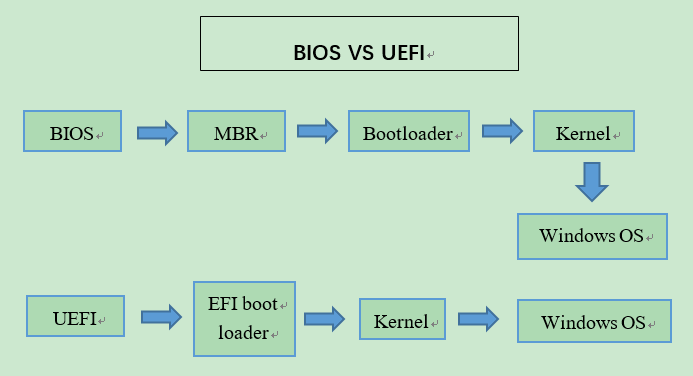
Legacy BIOS is being replaced by UEFI, which allows for faster booting of operating systems like Windows. UEFI skips the testing process that Legacy BIOS performs, making it quicker to prepare for boot.
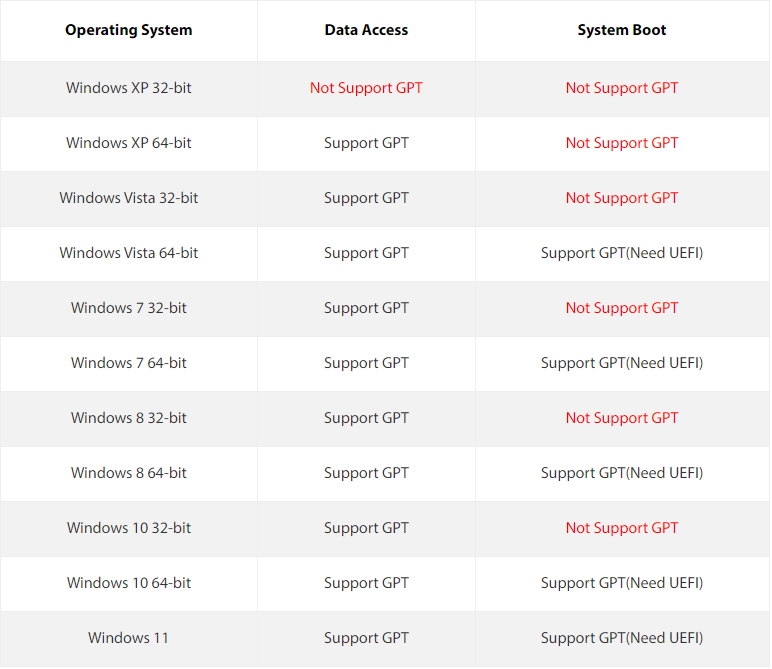
If your OS is 64-If your computer's motherboard supports UEFI boot mode, it's a good idea to clone your MBR system disk to GPT and use UEFI boot mode, especially if you plan to upgrade to Windows 11 in the future.
To check if your PC supports both Legacy and UEFI, you can open the System Information window by pressing Windows + R, typing "msinfo32" and clicking "OK", then view the BIOS Mode in the System Information window to see if your system is set up for both Legacy and UEFI.
How to choose a reliable software to clone MBR to GPT SSD
To successfully clone the Master Boot Record (MBR) to a GPT SSD, reliable disk cloning software is required, which should have a user-friendly interface, support multiple disk formats, provide a bootable clone, and have a good reputation among users and experts, in addition to being able to clone MBR to GPT SSD.
➹ Clone compatibility
The software should be able to clone data between different partition styles, including both MBR and GPT disks, allowing for seamless cloning from MBR to GPT or vice versa without prior conversion.
➹ Disk size flexibility
Look for software that can intelligently handle disk sizes, offering a default mode that copies only used data, allowing you to clone a larger drive to a smaller one, and also a function to copy every bit of data if your GPT disk is larger. This feature is particularly useful for cloning a larger GPT disk to a smaller one, where the software can detect the used space and copy only that, or copy every bit of data if needed.
➹ Additional clone options
A reliable cloning tool should provide features to maximize disk space utilization and facilitate conversion of the destination disk's partition style if needed, such as partition resizing and optimizing SSD performance.
How to clone MBR to GPT disk without boot failure?
To migrate a system MBR disk to a GPT SSD or HDD, ensure your operating system and motherboard support GPT disks and UEFI boot mode, then use Qiling Disk Master Professional to clone the MBR disk to the GPT SSD or HDD.
☞ Qiling Disk Master allows cloning a disk from MBR to GPT format without needing to convert the destination disk, and also supports cloning from GPT to MBR.
☞ This tool enables the transfer of only OS-related partitions from a MBR disk to a GPT disk using the Migrate OS to SSD function, excluding data partitions.
☞ The software can make a 4K alignment to improve SSD's performance during the cloning process.
☞ The Professional edition is for Windows 11/10/8.1/8/7 and can be used with Qiling Disk Master Server for Windows 2022, 2019, 2016, 2012, or 2008.
You can download its demo version to have a try!
To clone MBR to GPT SSD, connect the GPT SSD to your computer and ensure it's detected. Install necessary software and follow its instructions to complete the cloning process, effectively transferring your existing MBR to the GPT SSD and upgrading your storage system.
Step 1. To clone a disk using Qiling Disk Master Professional, navigate to the Tools and utilities page and click on "Disk Clone".

Step 2. Choose the MBR system disk as the source disk.
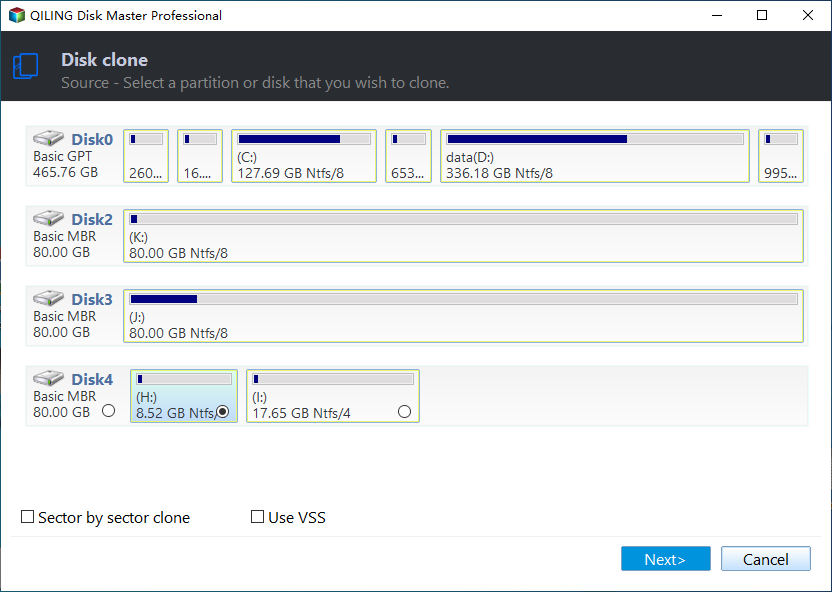
Step 3. To prepare the GPT disk as the target disk, select it and check the box for "Optimize the performance of SSD" if it's an SSD.
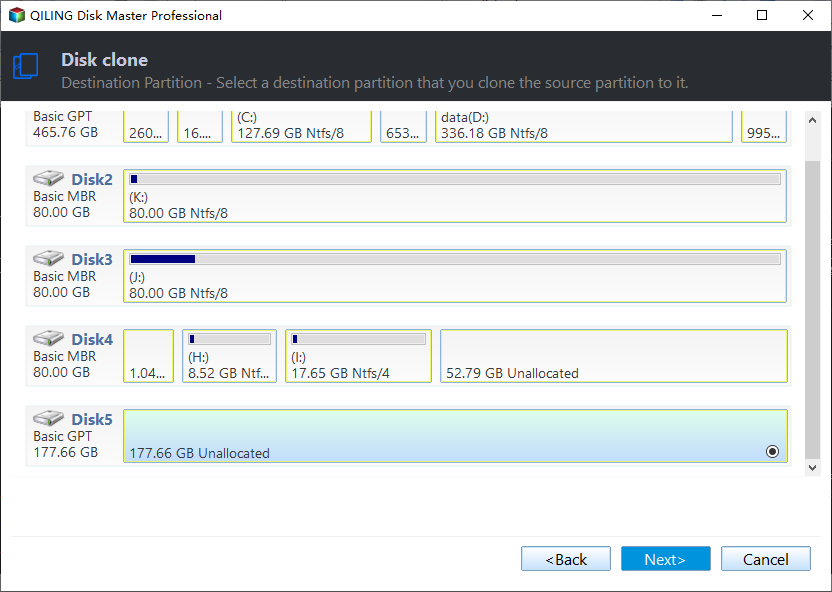
Step 4. Here you can edit partitions on the target disk.

Step 5. Once you're in the main interface, confirm your operation and click "Proceed" to execute it.
Read the note about how to boot the operating system from the target disk, remember it, and then click "Finish".

▪ When cloning an MBR disk to a GPT disk, the cloning process may leave unallocated space that can be used to add it to another drive or create a new partition, maximizing the disk's capacity.
▪ After verifying that the computer can boot from the GPT destination disk, you can use Qiling Disk Master Professional to completely replace your old MBR source disk, effectively giving up on it.wipe the old hard drive completely and irrevocably.
Follow-up work after MBR to GPT disk copy
After cloning the MBR disk with OS installed to GPT, you need to change the boot mode from Legacy to UEFI due to the different boot modes for MBR and GPT.
1. After turning off your computer, press a functional key (usually F1, F2, F3, or F10) repeatedly as soon as the first screen appears to enter the BIOS setup, and then reboot your computer.
2. To change the boot mode to UEFI/BIOS Boot Mode, go to the BOOT tab, select UEFI/BIOS Boot Mode, and toggle the Legacy Mode to UEFI, then save and exit the interface.
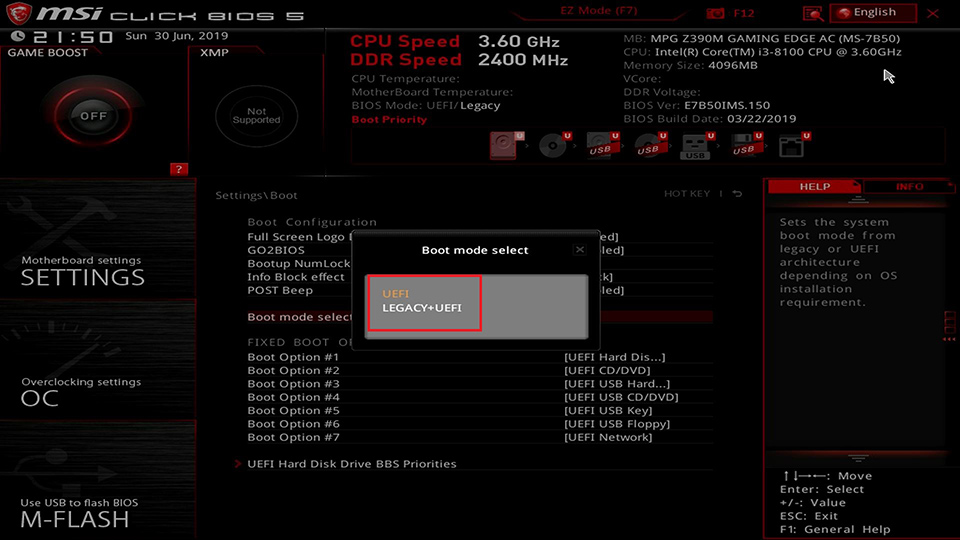
PS.: To keep both the old and new disk, set the new drive as the prior boot device in BIOS to boot from the target drive.
Frequently Asked Questions (FAQs) about cloning MBR to GPT SSD
☀ Can I clone an MBR disk to a smaller GPT SSD?
You can clone an MBR disk to a smaller GPT SSD if the data on the MBR disk can fit within the available space on the GPT SSD.
☀ Will cloning my MBR to a GPT SSD cause data loss?
When using a reliable cloning tool, the cloning process should not cause any data loss, but it's still recommended to create a backup before proceeding.
☀ Can I convert an MBR disk to GPT without cloning?
To convert an MBR disk to GPT without cloning, you can use the built-in Windows utility called MBR2GPT, which converts the disk's partition table from MBR to GPT, but requires manual configuration of partitions and boot settings. Alternatively, you can use the Disk Management tool, but this method may involve additional steps and configuration.
☀ Do I need to reinstall my operating system after cloning MBR to GPT?
You don't need to reinstall the OS after cloning MBR to GPT, as the cloned GPT SSD should be bootable and your system should function normally.
Last line
Cloning an MBR disk to a GPT SSD can be a complex process, but with the right tool and guidance, it can be accomplished smoothly. Using Qiling Disk Master, you can successfully transfer your MBR disk to a GPT SSD, ensuring your data remains intact and compatible with modern systems.
Qiling is a powerful tool that can move installed programs, create bootable media, reset Windows passwords, and recover lost files, among other features.
Related Articles
- How to Factory Reset HP Laptop Without Password
Learn how to Factory Reset HP Laptop Without Password with clear steps, key checks, and practical tips. - Fix File Explorer Not Responding on Windows 11/10 | 8 Plans
Learn how to Fix File Explorer Not Responding on Windows 11/10 | 8 Plans with clear steps, key checks, and practical tips. - How to Fix Raw Drive Without Format Using CMD [Quick & Safe]
This passage will focus on how to fix RAW drive without format using CMD. And you will also get the best alternative of CMD to fix RAW drive quickly and safely.
Products
Articles & Tutorials
- Data Recovery
- Data Backup
- File Recovery
- File Backup
- File synchronize
- System Backup and Restore
- Disk and Partition Clone
- Technical articles
- Disk Master Help
- Windows Deleted File and Disk Recovery Tutorials
- Windows File and Data Recovery Tutorials
- More Windows Tutorials for Install, Security, Files, and PC Tips
- Windows Boot, Repair, and Recovery Environment Tutorials
- Windows Backup Tutorials
- Windows Restore Tutorials
- Windows Clone and Migration Tutorials
- Windows Server Backup, Recovery, and Management Tutorials
- Windows Disk, Partition, and Storage Management Tutorials