[Full Guide] Upgrade From Windows 10 to Windows 11 without Losing Data
About Windows 11
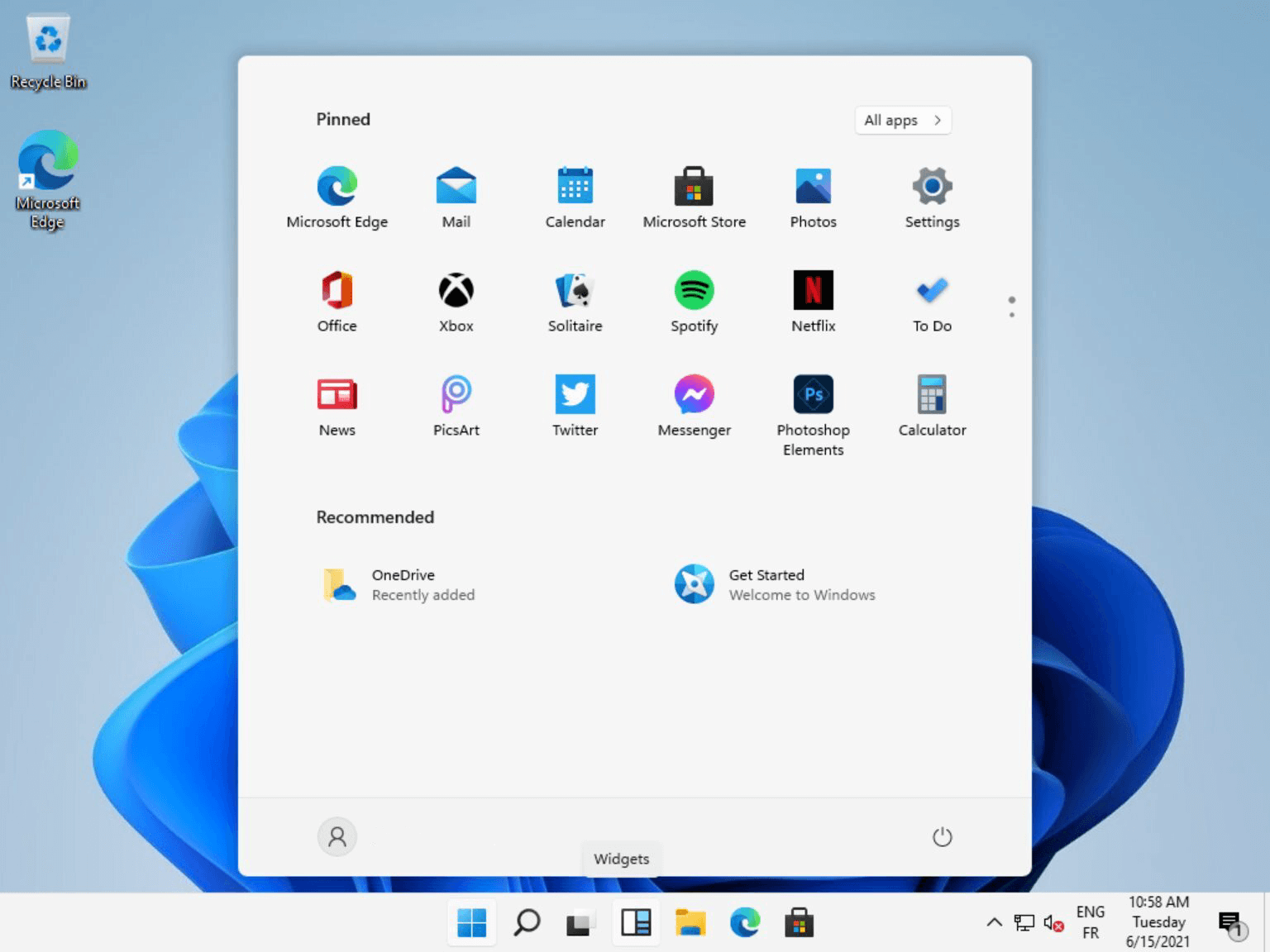
Windows 11 offers a new UI interface and innovative features to support the current mixed working environment, aiming to improve work efficiency in a flexible experience. However, its system requirements differ from previous Windows versions.
Microsoft's official announcement states that Windows 11 supports UEFI boot mode and GPT system disks, which means that to upgrade from Windows 10, you'll need to convert your MBR system disk to GPT.
Please read the following next paragraph to learn some related information.
What you should know before upgrading to Windows 11?
UEFI (Unified Extensible Firmware Interface) is a type of firmware that replaces the traditional BIOS (Basic Input/Output System) on computers. GPT (GUID Partition Table) is a type of disk partitioning scheme that is used with UEFI.
MBR and GPT are two different disk partition styles. MBR is an older style that requires a traditional BIOS to boot and has limitations, such as supporting hard drives up to 2 TB and only 4 primary partitions or 3 primary + 1 extended partition. In contrast, GPT is a newer style that boots via UEFI and has much greater capabilities, including supporting partitions up to 9.4ZB and having no limit on the number of partitions.

How do I upgrade from Windows 10 to Windows 11 step by step?
Now, it's time to talk about the method of upgrading from Windows 10 to Windows 11. You may need to use the Windows 11 requirement check tool to check if your PC can install Windows 11.
▶ Part 1. Convert MBR to GPT
Windows 11 only supports GPT+UEFI, so you'll need to convert your system disk from MBR to GPT before changing the boot mode to UEFI.
To convert a disk from MBR to GPT without losing data, using Qiling Disk Master Professional is a good choice. This process involves just three steps, and the software guarantees a successful conversion of the system disk from MBR to GPT. You can download the demo version to see how it works.
Tip: It's generally recommended to have a backup of your computer before upgrading to Windows 11, especially if you need to restore Windows 11 to Windows 10. This is because the upgrade process can be complex and may result in data loss or system instability if something goes wrong.
Step 1. Install and run Qiling Disk Master Professional, then right-click the disk (such as the system disk) and select "Convert to GPT" to convert it.
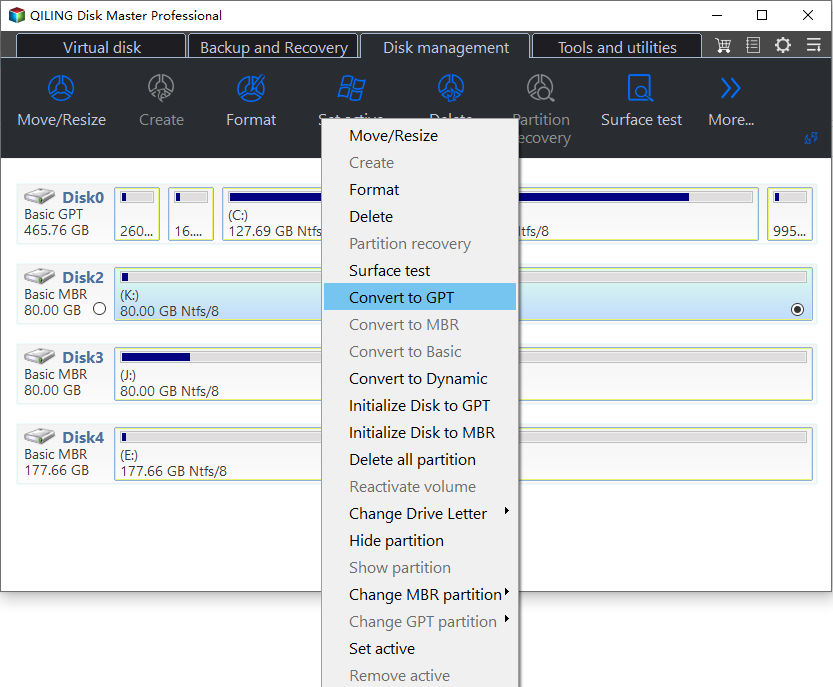
Step 2. Waiting to convert the partitions.
▶ Part 2. Change Legacy BIOS to UEFI
After successfully converting system disk from MBR to GPT, you also need to change Legacy BIOS to UEFI.
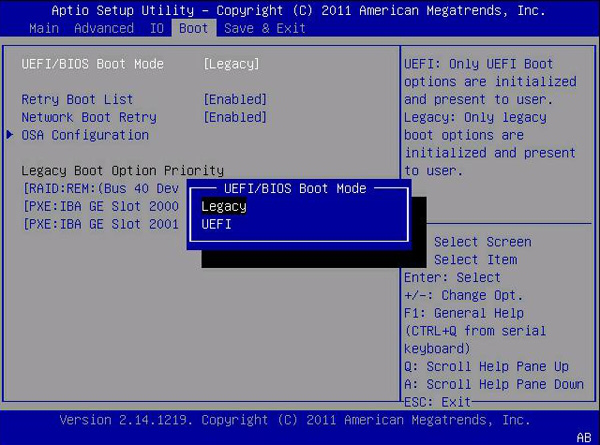
Step 1. After restarting the computer, enter the BIOS by pressing the key prompted at the bottom of the screen, which may vary from machine to machine. The BIOS will appear on the screen.
Step 2. To change the UEFI/BIOS Boot Mode to UEFI, select UEFI/BIOS Boot Mode in the Boot column using the arrow keys, change Legacy to UEFI, save the changes, and exit.
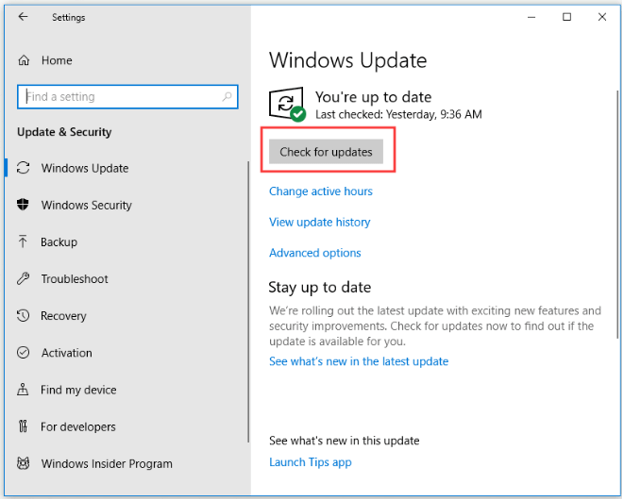
After completing the process, go to Settings, click on Update & Security, and select Check for updates to upgrade to Windows 11.
Conclusion
Upgrading from Windows 10 to Windows 11 involves converting the system disk from MBR to GPT, a process that can be easily accomplished with Qiling Disk Master, which also offers a server version to cater to Windows Server users.
Related Articles
- How to Create New Partition from C Drive in Windows 7 Home?
This tutorial will introduce how to create partition from C drive in Windows 7 Home Basic using Disk Management and freeware Qiling Disk Master. - The Top Six Ways to Fix Windows 7 running slow
This guide explains The Top Six Ways to Fix Windows 7 running slow with clear steps, key checks, and practical tips. - 7 Easy Ways to Fix Windows 11 Stuck on Boot Screen
This guide explains 7 Easy Ways to Fix Windows 11 Stuck on Boot Screen with clear steps, key checks, and practical tips. - Can Windows 10 Be Cloned [2024 Fullest Guide]
This article covers the theme Can Windows 10 Be Cloned and introduces a professional tool to clone Windows 10. - Beginners' Shot: Clone Windows 11 for Free with Step-by-Step Guide
This guide explains Beginners' Shot: Clone Windows 11 for Free with Step-by-Step Guide with clear steps, key checks, and practical tips. - How to Clone Windows 11 to New Computer [Step-by-Step Guide]
This article provides a step-by-step guide on cloning Windows 11 to a new computer, including a detailed introduction to a professional tool that can assist with the cloning process.
Products
Articles & Tutorials
- Data Recovery
- Data Backup
- File Recovery
- File Backup
- File synchronize
- System Backup and Restore
- Disk and Partition Clone
- Technical articles
- Disk Master Help
- Windows Deleted File and Disk Recovery Tutorials
- Windows File and Data Recovery Tutorials
- More Windows Tutorials for Install, Security, Files, and PC Tips
- Windows Boot, Repair, and Recovery Environment Tutorials
- Windows Backup Tutorials
- Windows Restore Tutorials
- Windows Clone and Migration Tutorials
- Windows Server Backup, Recovery, and Management Tutorials
- Windows Disk, Partition, and Storage Management Tutorials