Clone Operating System from HDD to SSD Drive Safely
- Can I clone OS from HDD to SSD?
- Great software for OS cloning from HDD to SSD
- Steps to clone operating system from HDD to SSD
- What to do after cloning OS from HDD to SSD?
- Bottom line
"Can I clone OS from HDD to SSD?"
You can clone your OS from a traditional HDD to a new SSD drive using a cloning software. The process involves selecting the source and target drives, initiating the cloning process, and verifying the clone. This will transfer the entire OS, including the MBR partition table, to the SSD drive, which should improve boot speed. Some popular cloning software options include Qiling Disk Master. Be sure to choose a software that supports MBR partition tables and is compatible with your OS.
If you're looking to copy your Windows operating system from a hard drive (HDD) to a solid state drive (SSD), you'll be able to take advantage of the SSD's faster read and write speeds, leading to a quicker boot time and faster loading of applications and files. This can make your Windows experience feel much more responsive and efficient.
Great software for OS cloning from HDD to SSD
To clone an operating system like Windows 11, Windows 10, Windows 8, and Windows 7 from a hard disk drive (HDD) to a solid-state drive (SSD) and boot from the cloned SSD successfully, the easiest way is to use a professional disk cloning utility. With numerous OS cloning software options available, it can be challenging to choose the right one, but Qiling Disk Master Professional is a better choice for this task.
- ★Highlights of this powerful OS clone to SSD tool:
- To clone the OS partition from a hard disk drive (HDD) to a solid-state drive (SSD) using the "Migrate OS to SSD Wizard", follow these steps: The process involves creating a system image of the HDD, which includes the OS partition, and then transferring this image to the SSD. This is done using the built-in utility in Windows, specifically the "Migrate OS to SSD Wizard", which automates the cloning process, ensuring a seamless transition of the operating system and all its components to the new SSD.
- To clone the entire operating system disk to an SSD drive, use the "Disk Clone Wizard". This tool allows you to create an exact duplicate of your existing operating system disk onto a new SSD drive.
- Clone your operating system from a larger hard drive to a smaller solid state drive (SSD) as long as the SSD has enough space to hold the used space of the source OS disk or partition.
Steps to clone operating system from HDD to SSD
As described above, you can clone OS to SSD via "Migrate OS to SSD Wizard" and "Disk Clone Wizard". Here, we will show you the details of the first method.
Part 1. Preparations before cloning Windows 11, 10, 8, 7 to SSD
Please ensure you have done the following preparatory work
1. Connect the SSD drive to your computer
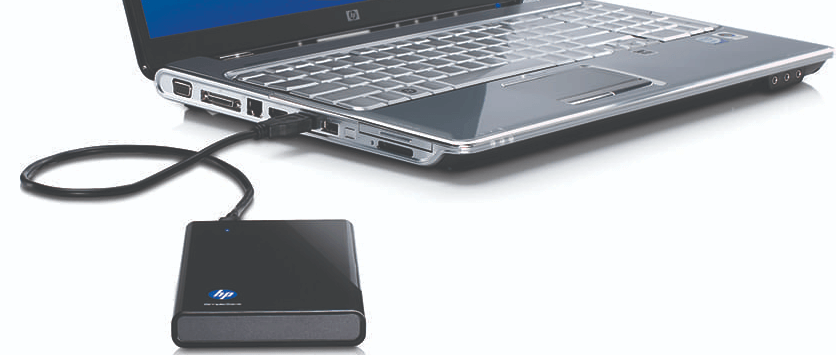
To start the cloning process, you should connect the destination solid-state drives to your computer. This is a straightforward task if you have a desktop with extra disk drive bays, but may require a SATA-to-USB cable for laptops. Once connected, plug your SSD into the SATA-to-USB adapter, then plug that into your computer.
2. Check out the capacity
To ensure a smooth OS clone to SSD process, the SSD capacity should exceed the used space on your system and boot partition(s), so you can clone your entire system to the SSD without any issues. If the SSD doesn't have enough unallocated space, you can either delete another existing partition to free up space or shrink the source system partition to make it smaller and fit into the available space on the SSD.
3. Back up important data
This process will wipe data on the target SSD drive, so please make a backup in advance if there is something vital for you.
4. Check out the partition style and boot mode
To avoid boot issues when cloning an operating system from a hard drive (HDD) to a solid-state drive (SSD), you need to check the SSD's partition style and ensure it matches the computer motherboard's boot mode. If they don't match, you can convert the SSD's partition style to match the source disk. This can be done by checking the partition style in Disk Management.
Part 2. Start copying operating system from HDD to SSD
Step 1. Install and run Qiling Disk Master Professional. Click "Tools" page, and choose "System Clone".

Step 2. In the next window, choose an unallocated space on the destination SSD, and then click "Next" to go on.

Step 3. In the pop-out window, you can adjust the partition size, location, and drive letter for the new SSD or stick with the default settings and click "Next".

Step 4. A helpful note for boot problems will appear. Read it and click "Proceed" to start copying the operating system from the HDD to the SSD.

If you want to move all partitions (including the Windows partition and data partitions) on the system disk to an SSD, you can try using the Disk Clone Wizard.
What to do after cloning OS from HDD to SSD?
After copying the operating system from HDD to SSD using Qiling Disk Master Professional, you'll need to take additional steps to boot your computer from the destination disk.
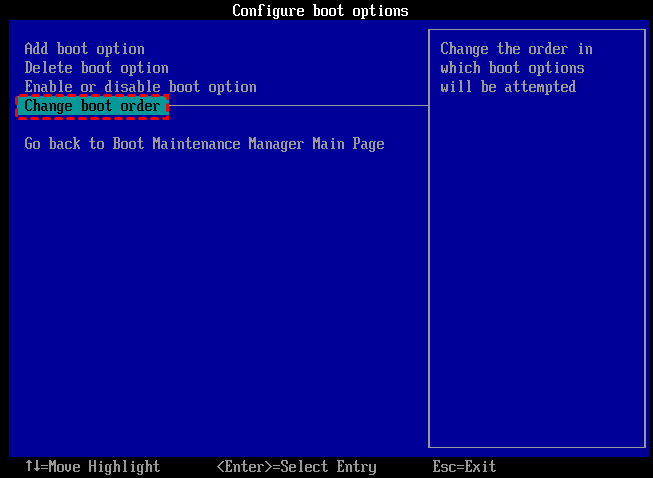
Step 1. Reboot your PC and press a specific key (Del, Esc, F1, F2, F8, F9, etc) constantly to enter BIOS.
Step 2. To set the cloned SSD as the primary boot drive, navigate to the Boot tab, select the cloned SSD as the prior boot drive using the arrow keys, save the changes, exit, and restart your computer.
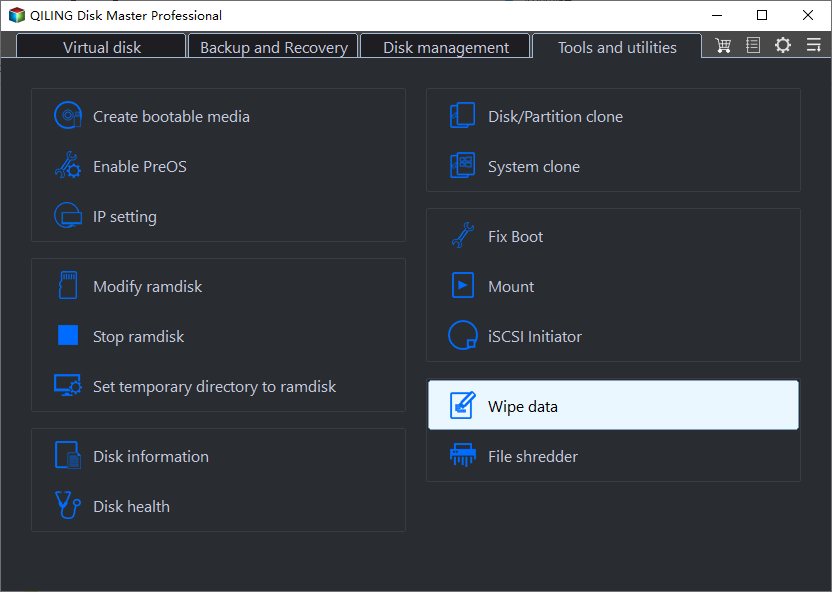
After verifying that the cloned SSD drive boots successfully, you can erase the old system partition or disk for reuse using the "Wipe Partition" or "Wipe Hard Drive" feature of Qiling Disk Master.
Bottom line
With Qiling Disk Master Professional, you can clone an operating system from a hard drive to a solid state drive, improving boot speed, and also perform advanced functions such as converting MBR to GPT or vice versa, cloning partitions, and merging partitions. This software is suitable for cloning Windows Server operating systems, including 2022, 2019, 2016, 2012, 2008, and 2003.
Related Articles
- Easily Move Windows Server 2012 to New Hard Drive without Boot Issues (Two Ways)
No matter you want to move entire Windows Server 2012 hard drive, or just migrate Windows Server 2012 operating system partition to a new disk, Qiling Disk Master Server can make it easy to move Windows Server 2012 to new hard drive. - How to Clone Windows Server 2012 (R2) to SSD at Ease?
To clone Windows Server 2012 (R2) to SSD without losing data, you can turn to disk cloning software, Qiling Disk Master Server. - Successfully Clone HDD to SSD Including Recovery Partition
Qiling Disk Master, as a professional disk clone software, is able to clone HDD to SSD including recovery partition successfully.
Products
Articles & Tutorials
- Data Recovery
- Data Backup
- File Recovery
- File Backup
- File synchronize
- System Backup and Restore
- Disk and Partition Clone
- Technical articles
- Disk Master Help
- Windows Deleted File and Disk Recovery Tutorials
- Windows File and Data Recovery Tutorials
- More Windows Tutorials for Install, Security, Files, and PC Tips
- Windows Boot, Repair, and Recovery Environment Tutorials
- Windows Backup Tutorials
- Windows Restore Tutorials
- Windows Clone and Migration Tutorials
- Windows Server Backup, Recovery, and Management Tutorials
- Windows Disk, Partition, and Storage Management Tutorials