How to Clone Windows OS to SSD Easily in Lenovo PC
Why migrate Lenovo OS to SSD
To migrate the OS to the Samsung EVO 960, you can follow these steps: First, install the Lenovo Y520's original OS on the Samsung EVO 960, then use the Lenovo's pre-installed migration tool to transfer the OS to the SSD, or use a third-party tool like Qiling Disk Master to clone the OS to the SSD. Alternatively, you can reinstall the OS on the SSD and then transfer your files, settings, and installed programs to the new drive. Make sure to back up your data before starting the migration process. It's recommended to have a Windows installation media (USB or CD) handy in case you need to reinstall the OS. Also, ensure the Samsung EVO 960 is properly recognized by your system before starting the migration.
Many computers still come with HDDs, but SSDs have better performance. Unlike HDDs, SSDs have no mechanical parts, allowing for near-instant data access and faster speeds, resulting in faster boot times, quicker application loading, and smoother overall system performance.
Many users want to replace their old hard drive with a solid-state drive (SSD) while keeping their system and data files intact, and the best way to do this is to clone their Lenovo hard drive to an SSD or migrate their operating system to an SSD in their Lenovo or other branded PCs.
SSDs often have less space than HDDs at the same price point, causing some to install systems on SSDs and retain HDDs for storage.
As for the cloning solution, you need to consider whether you can move Windows to the SSD and make sure it's bootable, and the feasibility of cloning between different sized disks. I will elaborate on these issues below.
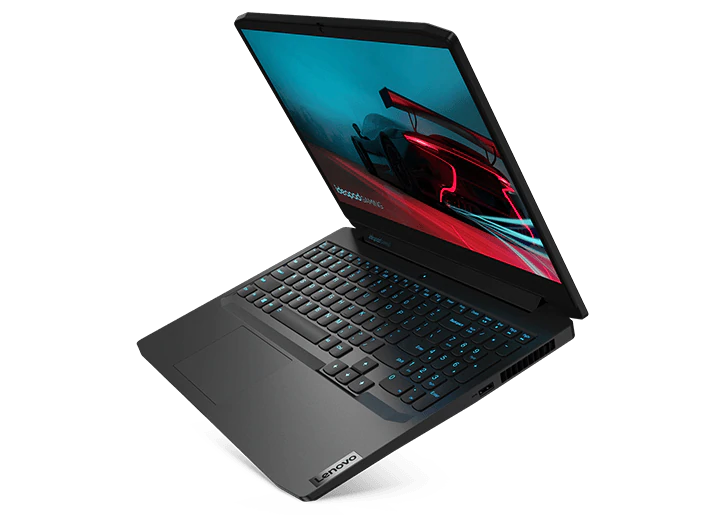
How do I perform Lenovo system migration
Normally, there are two possible scenarios for Lenovo system migration:
| 💻Replace old hard drive with new SSD | You may want to transfer not only the system but also non-system data partitions from HDD to SSD. |
| 💾Use SSD as OS drive and HDD for storage | To achieve this, you can clone the OS to the SSD using software like Qiling Disk Master. These tools allow you to create an exact replica of your current OS and data on the new SSD, while also giving you the option to use the old hard drive as a secondary storage drive. |
Moving Windows to an SSD is a more complex process than a simple copy and paste, as it involves system files that require special handling.
One common approach is to install the OS on the new SSD, which is time-consuming and requires an installation CD or other bootable media. Another is Windows system image backup, with which you can try to image Windows to SSD, but with a high probability of failure.
Yes, you can transfer Windows to an SSD in Lenovo directly. This process is called cloning. You'll need to purchase an SSD that's compatible with your Lenovo laptop, and then use a cloning software like Qiling Disk Master to clone your existing Windows installation from your hard drive to the SSD.
With the help of reliable software like Qiling Disk Master Professional, you can easily clone OS to SSD in Lenovo laptops like ThinkPad or other PC brands, making a direct copy of your Windows or all partitions to the destination disk, simplifying the process.
▪ It works on all editions of Windows 11/10/8.1/8/7/Vista/XP and supports all branded HDDs & SSDs.
▪ The software includes two main features: Disk Clone, which allows for the entire hard disk to be copied, and System Clone, which enables the migration of only the operating system.
▪ The software runs in intelligent-sector mode by default, which enables it to copy only used sectors, making it possible to clone a larger drive to a smaller one without any issues.
▪ If the target SSD is the same size or larger, you can either edit the partition sizes to utilize the extra space or perform a sector-by-sector clone, which copies every sector, used or unused.
▪ The drive has an SSD alignment feature that accelerates the target SSD and prolongs its life span.
The script is a Python script that uses the `tkinter` library to create a GUI application. It imports the necessary modules, defines some constants, and then creates a window with a label, a text entry field, and a button.
The Pro edition is compatible with Windows 11, 10, 8, 7, XP, and Vista. For server users, Qiling Disk Master Server is recommended instead.
Stepwise guide to clone OS to SSD in Lenovo (2 ways)
With Qiling Disk Master, you can choose to either clone the entire disk or just the operating system to a new SSD, depending on the SSD's capacity and the size of the data on the source hard drive. If the SSD can fit all the data, you can choose between cloning the entire disk or just the operating system. If not, you can only migrate the operating system.
Method 1. Clone Lenovo system disk to SSD easily
Qiling Disk Master allows you to easily clone an entire hard disk to another, copying the operating system and all partitions from the source disk to the destination SSD. The default intelligent clone mode only clones used sectors, making it possible to clone a larger HDD to a smaller SSD.
This approach is more suitable for people who want to clone their Lenovo hard drive SSD.
Step 1. Download, install and launch Qiling Disk Master, select Disk Clone under Tools tab.

Step 2. Select the Lenovo disk you want to clone as the source disk, and then click the Next button.

✍ The Professional Edition supports cloning data and system disks from MBR to MBR, GPT to GPT, MBR to GPT, or vice versa, but the partition style must be compatible with the boot mode, with MBR for Legacy BIOS and GPT for UEFI.
✍ MBR (Master Boot Record) and GPT (Guid Partition Table) are two different partition styles. If you're unsure which one your disk is using, you can check by opening Disk Management with the command "diskmgmt.msc", right-clicking the disk, selecting Properties, and scrolling down to the Volume section, where it will be marked as either MBR or GPT.
Step 3. Choose the new SSD as the destination disk, click Next to continue.

Step 4. Here in Operation Summary, tick SSD Alignment (recommended) and configure other settings if needed, then confirm your operation and click Proceed to begin the process.
Edit Partition To adjust the partition size and convert the disk partition style, you can use the built-in Disk Management utility in Windows. This utility allows you to resize partitions, move them, and even convert the disk from a traditional MBR (Master Boot Record) to a GPT (GUID Partition Table) partition style, which can provide more flexibility and larger partition sizes. By using Disk Management, you can easily modify the partition layout to suit your needs, making it a useful tool for managing and optimizing your hard drive space.
Optimize for SSD Enabling this option accelerates the reading and writing speed for solid state drives during HDD to SSD cloning.
Sector by Sector Clone Clone all sectors including blank or logically bad ones, which may take longer than usual. Only do this if the destination disk is larger.

Wait for the cloning process to finish, then click "Finish" to exit the wizard. Once done, restart Lenovo, enter BIOS settings, and set the cloned SSD as the first boot device to boot into Windows.
✍ If you want to migrate Lenovo OS to SSD for free, you can try System BackupThe software requires you to create a backup image of your existing data at first, and then recover that image to the destination SSD.
✍ If you want to perform batch operations, such as installing an OS on 25 computers, consider using image deployment software in the Technician or TechPlus edition. This allows you to install the same OS on multiple computers simultaneously, saving time and effort.deploy system image to multiple computers simultaneously.
✍ This software is used for various purposes, including copying data from one USB drive to another, replacing a hard drive in an ASUS laptop, cloning an NVMe drive to another NVMe drive, and more.clone hard drive in Windows 10, etc.
Method 2. Clone only OS to SSD in Lenovo easily
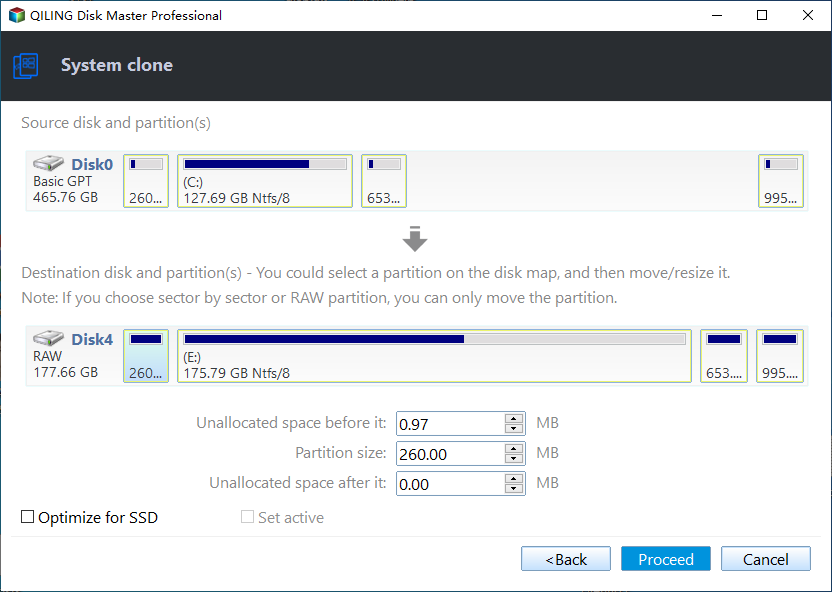
To clone only the OS to an SSD in Lenovo, you can use the System Clone feature. This feature allows you to clone the operating system, system files & settings, or data and programs on the system partition, without including all partitions on the disk.
Step 1. Launch the clone tool, then click "Clone" and select "System Clone".

Step 2. Your OS will be automatically selected as the source, so you only need to choose the SSD as destination, then click Next to continue.

Step 3. Confirm your operation, check SSD alignment, and optionally use sector by sector clone to clone all sectors of the system partition before proceeding with system cloning.
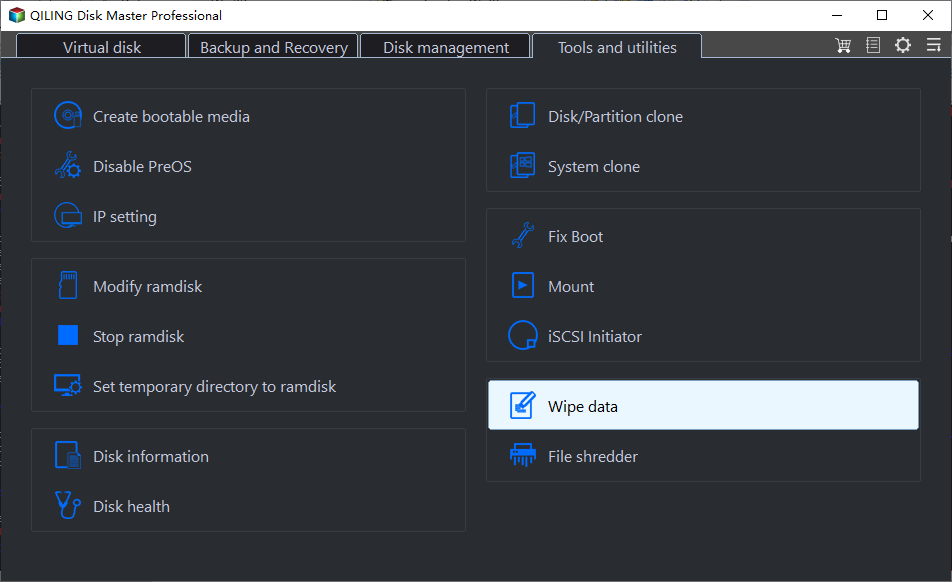
After cloning, restart your computer, launch Windows on the cloned SSD, and if it boots successfully, you may want to erase the original hard drive and use it as secondary storage. To do this, go to the Tools tab and use the Disk Wipe feature to wipe it.
Summary
Qiling Disk Master allows easy cloning of an operating system to a solid-state drive (SSD) in Lenovo laptops and other PCs. It can handle migrations of Windows 11/10/8/7 to larger or smaller drives with either MBR or GPT partition styles, and also supports cloning on Windows Server. The process is simple and quick.
You can also consider using the backup and restore method to migrate Lenovo OS to an SSD, which is suitable for continuous data protection. This method allows you to schedule daily, weekly, or monthly backups, and automatically cleans up old backups to prevent disk full issues. It's a free method if you're not transferring Windows to a new computer with different hardware.
Related Articles
- Two Simple Ways to Backup Lenovo Laptop in Windows 10
Backing up Lenovo laptop in Windows 10 is necessary to prevent data loss and system crash. Get 4 methods below and back up your computer with one of them. - How to Guide: Make Lenovo Boot from USB in Windows 10
Read this post to learn why it won't boot and how to create bootable USB drive with the best free Windows 10 media creation tool. Then let Lenovo boot from USB in Windows 10 to troubleshoot problems. Check it out right now! - Samsung Data Migration Not Detecting SSD [Fixed]
Samsung Data Migration fails to detect certain Samsung SSDs, but there are simple methods to fix the issue. 1. Check for BIOS updates. 2. Ensure the SSD is not in RAID mode. - Samsung Data Migration Stuck at 0% While Cloning SSD [100% Working]
Samsung Data Migration (SDM) is a software that helps users transfer data from an old hard drive to a new one. However, sometimes it may get stuck at 0, causing frustration and delays. - 2 Easy Ways to Migrate Windows 11 to a New Computer
This guide explains 2 Easy Ways to Migrate Windows 11 to a New Computer with clear steps, key checks, and practical tips. - How to Transfer Windows 11 to New SSD Step by Step [2 Ways]
Learn how to Transfer Windows 11 to New SSD Step by Step with clear steps, key checks, and practical tips.
Products
Articles & Tutorials
- Data Recovery
- Data Backup
- File Recovery
- File Backup
- File synchronize
- System Backup and Restore
- Disk and Partition Clone
- Technical articles
- Disk Master Help
- Windows Deleted File and Disk Recovery Tutorials
- Windows File and Data Recovery Tutorials
- More Windows Tutorials for Install, Security, Files, and PC Tips
- Windows Boot, Repair, and Recovery Environment Tutorials
- Windows Backup Tutorials
- Windows Restore Tutorials
- Windows Clone and Migration Tutorials
- Windows Server Backup, Recovery, and Management Tutorials
- Windows Disk, Partition, and Storage Management Tutorials