Deploy System Image to Different Computer in Two Situations
User case: deploying a Windows image to a different computer
If you need to deploy an image to identical industrial PCs, first create a clean master computer with the required system, drivers, and applications. Then capture the system image and test it before applying it to other machines. Hardware differences, driver conflicts, and license restrictions should be checked in advance.
You can restore a Windows 10 image to a different computer with backup and restore software such as Qiling Disk Master Professional. Universal Restore helps the migrated system boot on new hardware.
If you want to deploy Windows to multiple computers, you may need to remove the SID, prepare a clean image, and configure deployment settings. For detailed Microsoft deployment steps, refer to the system builder deployment guide. For simpler batch deployment, use Qiling Image Deploy in the Technician or TechPlus edition of Qiling Disk Master.
When will we deploy system image to different computer?
You may need to restore a system image to a different computer or multiple computers when replacing failed hardware, setting up PCs with the same configuration, building a computer lab, or preparing a disaster recovery plan.
- Recover a failed system.
- Update hardware like motherboard, CPU, chipset, etc. Windows 10 and Windows 11 have integrated various drivers for system startup, which reduces the likelihood of boot issues due to driver compatibility problems. In contrast, older systems like Windows 8 and Windows 7 do not have this integration, making it more likely for computers to fail to boot due to driver compatibility issues.
- Deploy multiple bare-metal computers to save time and effort.
- Unify computer configuration such as programs, drivers, and system settings to meet work requirements.
This process can be divided into two main situations: restoring the system to a single computer and restoring the system to multiple computers. Each situation has its own set of steps, which will be outlined in the following sections.
How to deploy system image to different computer(s)
To deploy a system image created on a well-configured computer to multiple client computers, administrators can use Qiling Image Deploy, which simplifies the process and minimizes tedious installation and follow-up work, allowing for efficient deployment and use of the deployed computers.
Situation 1: Restore system image to different computer
Here you will use Qiling Disk Master Professional to restore a system image from one computer to another. Its Universal Restore feature helps the restored system boot on different hardware by handling the drivers required for startup.
Please ensure you have a system image backup that includes everything you want. If you don't have one, download Qiling Disk Master Professional and use its System Backup feature to backup the system partition. For detailed steps, please refer to the guide on creating a system image backup.
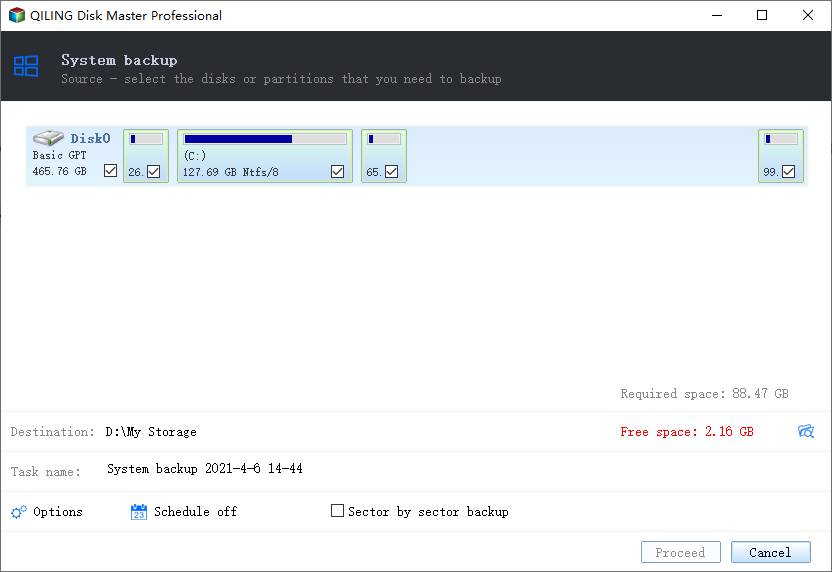
If the computer you want to restore the image to doesn't have an operating system or won't boot, you'll need to create a bootable disc to boot it from.
To deploy a system image to a different computer, prepare the backup image and bootable media first, then boot the target computer into Qiling Disk Master to perform the restore.
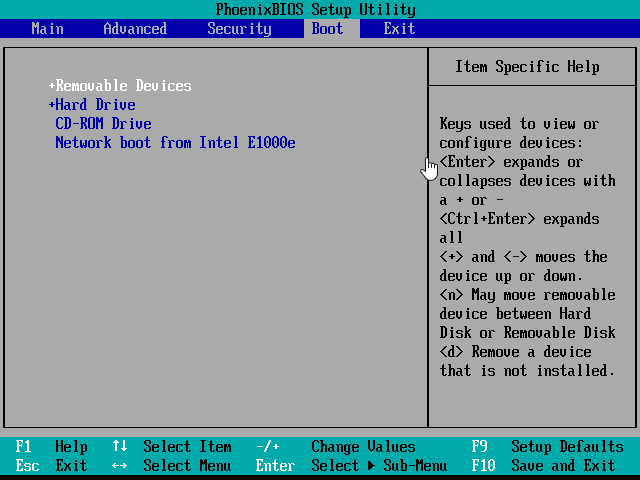
Step 1. Connect the backup drive and bootable media, and ensure they can be detected. Boot your computer from the bootable media.
- Click start menu and select "Restart".
- Press the specific key on the first screen (usually F2 or ESC) to access BIOS.
- In the Boot tab, set the bootable media as the first boot option by clicking the "+" symbol.
- Press "F10" to save the changes and start the computer from it.
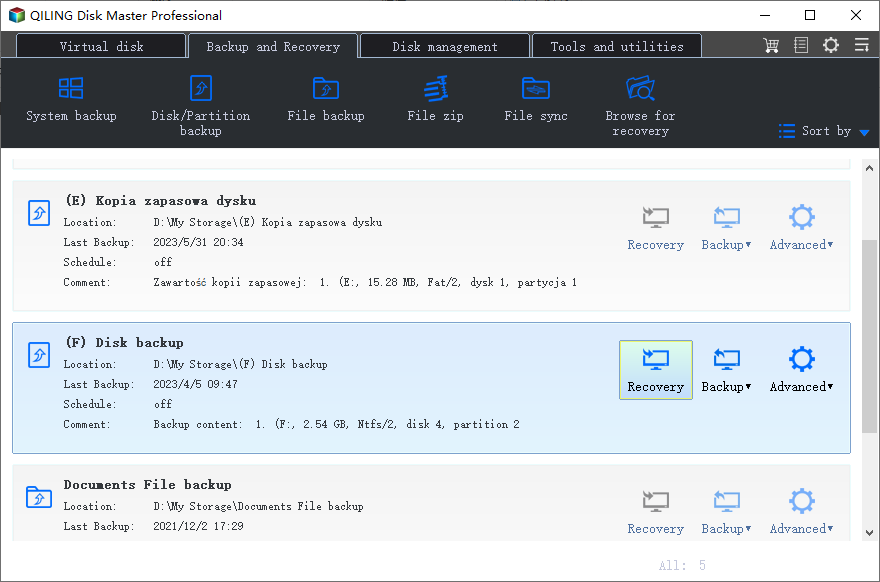
Step 2. After loading files, you will see the main page of Qiling Disk Master. Click "Select Task" under the "Restore" tab and then select system image in the next window.
- Note:✎...
- If you can't see any system image in the Restore window, go back and select "Select Image File" instead.
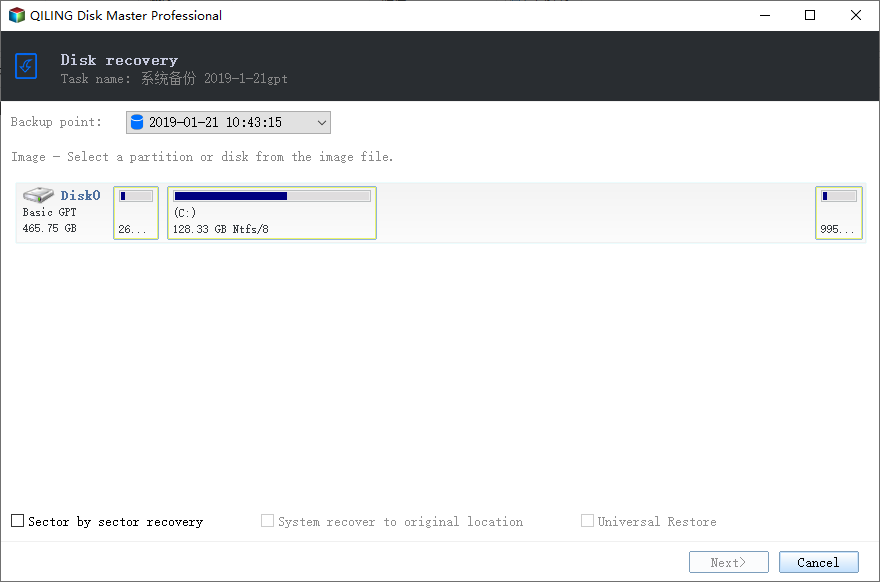
Step 3. To restore a system image backup, select the option to restore the image and enable the Universal Restore feature if the new computer's hardware is different from the original one. Then, proceed by clicking "Next".
- Note:✎...
- You can select the backup image at a certain point or created by different backup method - full backup, incremental backup, or differential backup.
Step 4. Select the disk on the target computer as the restore destination and click "Next".
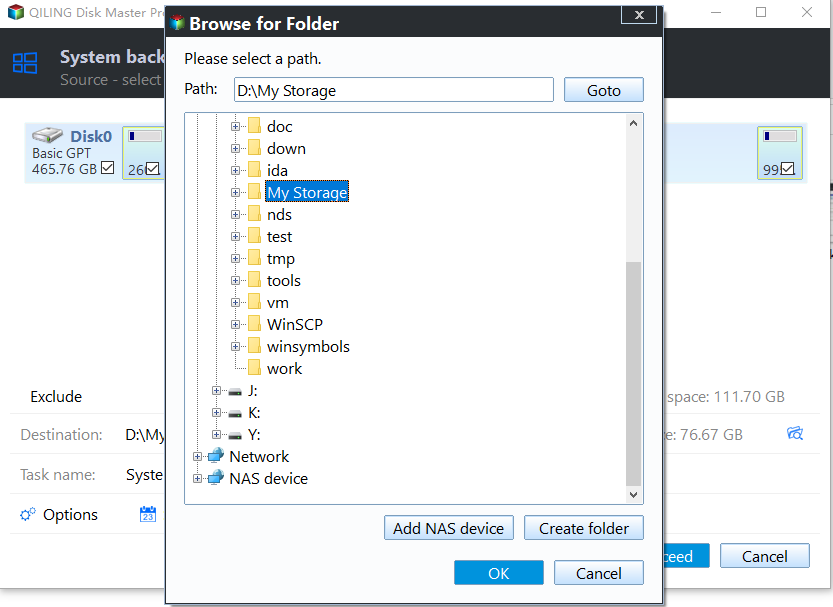
Step 5. Then, click "Proceed" to deploy system image to different computer.
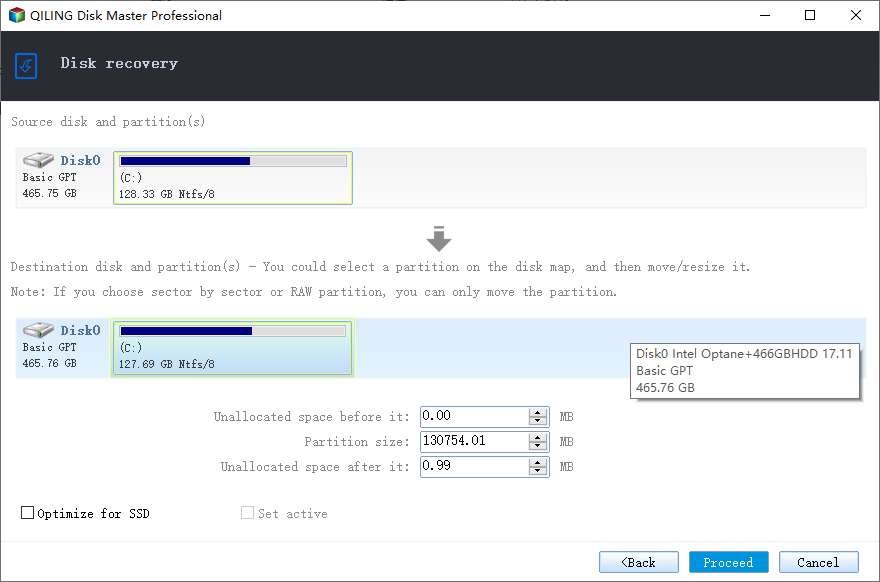
Situation 2: Deploy Windows 10 system image to multiple computers
Here, you will utilize Qiling Image Deploy in the Technician edition or TechPlus edition of Qiling Disk Master to deploy a Windows 10 system image to multiple computers. This process involves selecting a server computer and deciding on all the client computers that you want to deploy the image to.
The server computer can be any PC or server machine, and you need to install Qiling Disk Master Technician or TechPlus edition on it for image deployment.
The client computers receive the backup image, but they typically don't have an operating system installed on them.
To avoid conflicts, you need to create a system image backup without SID, which can be done by booting into Windows PE immediately after removing SID. This ensures that the deployed computers do not create a new SID, and you can proceed with the overall steps.
2. Remove SID on the computer you want to backup.
3. Boot the computer you want to backup from a bootable USB, then create a system image using Qiling Disk Master.
4. Create Windows PE automatically or manually with Qiling Image Deploy.
5. Boot all client computers and deploy the system image to multiple computers using the created system backup.
Preparation of server and client computers:
- Download and install Qiling Disk Master Technician or TechPlus edition on the server computer, preferably running Windows 7 or higher, to create a Windows PE.
- Check the cable connection between server and client computers, and ensure they are in the same network segment in a LAN.
- To verify that the network card of client computers supports network boot (PXE boot), you can check the computer's BIOS settings. Look for the boot order settings and ensure that the network adapter is listed as a boot option.
- Verify that the disk number for client computers is the same as the server computer, which is typically disk 0 if there is only one disk.
- To prevent data loss, remove all other disks from the client computer before selecting the correct disk to clone. This ensures that no other disks are mistakenly selected, and the cloning process only targets the intended disk.
Remove SID and Create A System Image on A Well-Configured Computer
To reduce follow-up configuration work, prepare one well-configured computer with the system, applications, and settings you want to deploy. It does not have to be the server computer.
Step 1. Create a bootable USB with Qiling Disk Master.
- To download Qiling Disk Master, go to the download page and get either the Technician or TechPlus edition. The Technician edition supports unlimited PCs, while the TechPlus edition supports unlimited PCs and servers.
- After launching the application, click on "Tools" and then select "Create Bootable Media", choose the bootable disc type as "Windows PE" and the boot device as "USB", "CD/DVD" or "ISO file".
- Once you've selected the bootable media type, click "Next" to begin the creation of the bootable media.
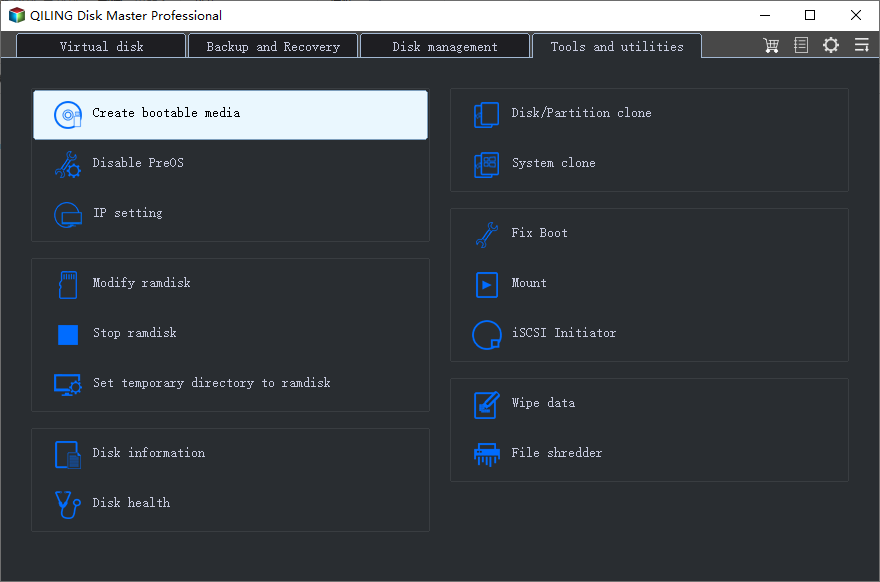
Step 2. Remove SID on the computer you want to backup.
To run Sysprep, press the "Win + R" keys to open the Run dialog, type "sysprep" in the text box, and press Enter. Then, run Sysprep, select "Enter System OOBE", check the "Generalize" option, and choose "Shutdown". This process is essential to prevent compatibility issues after deployment.
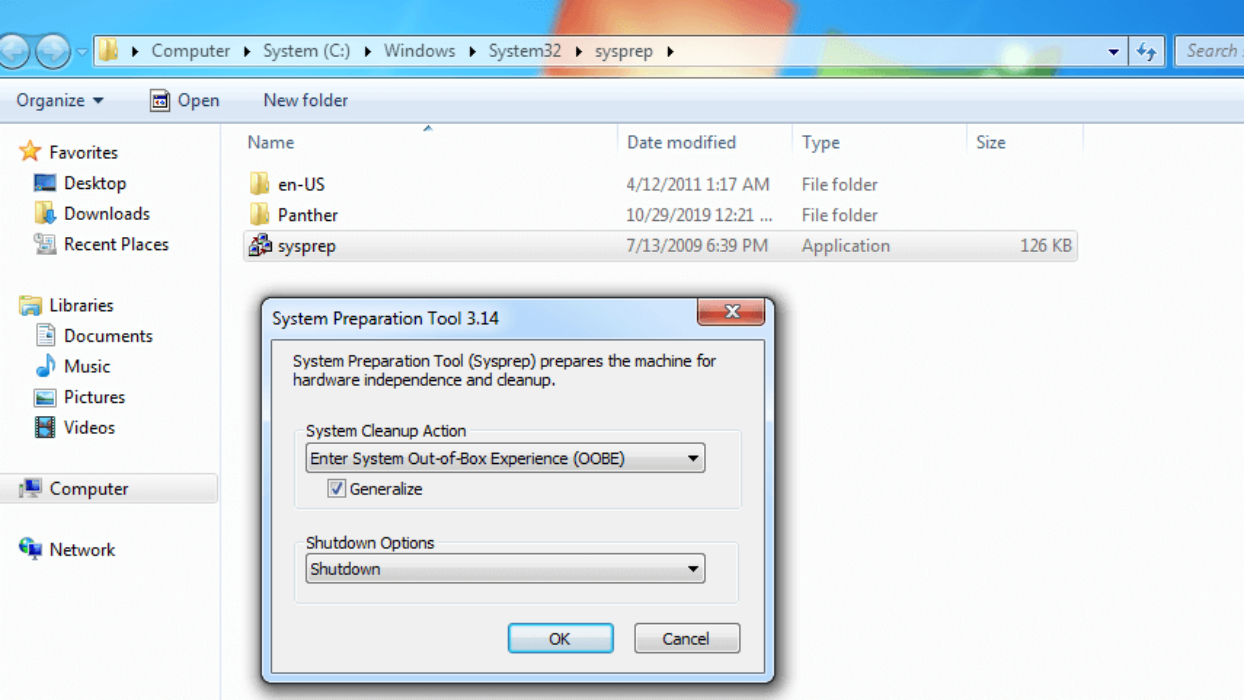
Step 3. Boot the well-configured computer from a bootable USB and then create a system image with this software.
- Insert the bootable USB created with Qiling Disk Master and boot the well-configured computer from it.
- On the main page of Qiling Disk Master, click "Backup" > "System Backup" or select "Disk Backup" to create a disk backup.
- To proceed with the backup, select a network share or NAS to store the backup image, and then click "Proceed" to execute the operation. Ensure the network path is on the same network segment as all client and server computers. For more detailed steps, refer to the guide on backing up Windows 10 to a network drive.
Conclusion
You can easily deploy a system to one or multiple computers using Qiling Disk Master, and even perform hardware restore on different hardware configurations. For deploying multiple computers, the Technician or TechPlus version is more convenient, as it allows batch presetting of IP addresses for all client computers, eliminating the need to set each one individually.
It's highly recommended to keep this software installed on your computer as it can help protect your system and data with different backup solutions. To avoid backup disk full issues, you can set a schedule backup and use the backup scheme feature to keep all changes. Regardless of your purpose, download and try this software yourself.
Related Articles
- Windows 10/8/7 System Image Restore to Different Computer
- How to use sysprep to remove SID and deploy image with Qiling Image Deploy
- Restore Windows Backup to New Computer (Different Hardware Supported)
- How to Deploy Windows 10 System Image to New Hardware
- Does Installing Windows 11 Delete Everything?
Learn the key steps, checks, and practical tips for this related guide. - Does Resetting Windows Wipe All Drives?
This guide explains Does Resetting Windows Wipe All Drives with clear steps, key checks, and practical tips.
Products
Articles & Tutorials
- Data Recovery
- Data Backup
- File Recovery
- File Backup
- File synchronize
- System Backup and Restore
- Disk and Partition Clone
- Technical articles
- Disk Master Help
- Windows Deleted File and Disk Recovery Tutorials
- Windows File and Data Recovery Tutorials
- More Windows Tutorials for Install, Security, Files, and PC Tips
- Windows Boot, Repair, and Recovery Environment Tutorials
- Windows Backup Tutorials
- Windows Restore Tutorials
- Windows Clone and Migration Tutorials
- Windows Server Backup, Recovery, and Management Tutorials
- Windows Disk, Partition, and Storage Management Tutorials