Best Software to Clone USB Drive to SSD in Windows 11, 10, 8, 7
Why clone USB drive to SSD?
USB drives are commonly used for storing important files and even booting, thanks to their portability. However, the data stored on them is not entirely secure, making it a good idea to have a backup in case of data loss or USB failure.
For files like photos, music, documents and videos, you can copy & paste them directly. But if it's a USB bootable drive, or you've stored some applications on the USB flash drive/hard drive, you may need to copy it via disk clone. Can you clone from USB to SSD?
Cloning a bootable USB drive to an SSD or HDD creates an exact copy of all contents, including boot files and apps, allowing for booting from the SSD after cloning if the USB drive has Windows installed.
To clone a USB drive to an SSD in Windows 11/10/8/7, you can use the built-in Disk Management tool or third-party software like Qiling Disk Master. Here's a brief overview:
Best USB clone software – Qiling Disk Master
When cloning a partition or hard drive, it's generally recommended to use a third-party tool. For instance, the freeware Qiling Disk Master Standard offers a powerful Disk Clone feature that allows you to clone a USB stick or hard drive to an SSD, HDD, or another USB drive.
- If the USB drive is smaller than the target SSD, Qiling Disk Master can still be used to clone the USB drive to the larger SSD, allowing for a sector-by-sector clone to copy all sectors bit by bit.
- If the target SSD is smaller, the intelligent cloning technology allows you to clone a larger drive to a smaller drive, as long as the smaller drive is large enough to hold all the used sectors.
- The target SSD has an alignment option that can improve its performance and extend its lifespan.
Download the clone software to have a try:
Note: The Standard edition allows cloning all data disks, but if you want to clone a bootable USB, you need to upgrade to the Professional edition.
How to clone USB drive to SSD or HDD via Qiling Disk Master
To clone your USB hard drive to an SSD, you can use the Qiling Disk Masterer software to make the process easy and efficient. This software allows you to clone your USB drive to an SSD with minimal effort required.
1. Insert the USB drive, ensure the SSD is properly connected, install and launch Qiling Disk Master, and back up important files as existing partitions on the destination disk will be overwritten.
2. To clone the entire USB drive, go to the Tools tab and choose Disk Clone.

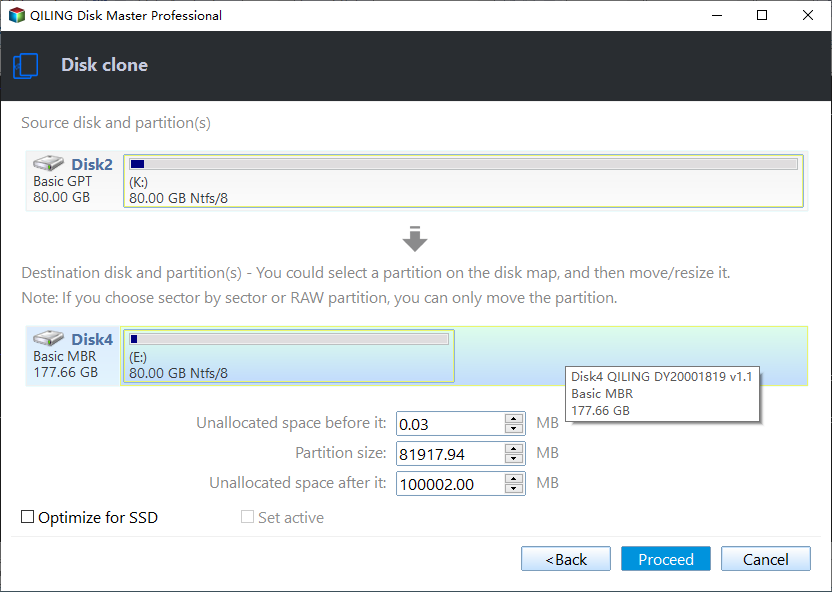
3. To clone the USB drive to the SSD, select the USB drive as the source and the SSD as the destination, then click Next to proceed.

4. Check SSD alignment to speed up the SSD's writing and reading speed, then click proceed and wait for the process to complete.
>> For a larger target disk, you can also use Edit Partitions To resize partitions and assign unallocated space, you can use the "Resize Partitions" feature, which will make the "Sector by Sector Clone" option unavailable.
Tips:
- The steps to clone a hard drive to a USB drive can also be used to clone a USB drive to another USB drive, making it a convenient option for backing up and transferring data between USB drives.
- It can still be used as SSD cloning software to help clone hard drive to all brands of SSDs, such as cloning HDD to Samsung SSD, PNY SSD, or cloning SSD to a new SSD.
Summary
Choosing the right cloning software is the vital part when cloning a USB drive to another drive, such as an SSD, hard drive, or another USB. With Qiling Disk Master, the cloning process can be completed in just four steps, making it a great option for those looking to clone their USB drive. Additionally, this software also serves as a backup solution, making it a versatile tool for managing and protecting data.
Related Articles
- Is There Any Way to Clone SSD to USB Drive
Sometimes, you need to clone SSD to USB drive. Learn how to clone hard drive to USB flash drive with the cloning software Qiling Disk Master. - Easiest Way to Clone HDD to SSD via USB
This guide explains Easiest Way to Clone HDD to SSD via USB with clear steps, key checks, and practical tips. - Best Bootable USB Clone Tool for Windows
This guide explains Best Bootable USB Clone Tool for Windows with clear steps, key checks, and practical tips. - Quick Guide | Clone Windows to USB Drive (Bootable)
This guide explains Quick Guide | Clone Windows to USB Drive (Bootable) with clear steps, key checks, and practical tips. - Super Easy | How to Clone Hard Drive Before Replacing
Cloning your hard drive before replacing it can help keep your new drive with the same data as your old one, and this post will guide you through the process using Qiling Disk Copy. - How to Clone Hard Drive with Different Size | 2024 New🥇🥇
This is a step-To clone a hard drive of different sizes using Qiling Disk Copy, follow these steps: First, download and install Qiling Disk Copy on your computer. Next, connect the target hard drive with a larger capacity to your computer.
Products
Articles & Tutorials
- Data Recovery
- Data Backup
- File Recovery
- File Backup
- File synchronize
- System Backup and Restore
- Disk and Partition Clone
- Technical articles
- Disk Master Help
- Windows Deleted File and Disk Recovery Tutorials
- Windows File and Data Recovery Tutorials
- More Windows Tutorials for Install, Security, Files, and PC Tips
- Windows Boot, Repair, and Recovery Environment Tutorials
- Windows Backup Tutorials
- Windows Restore Tutorials
- Windows Clone and Migration Tutorials
- Windows Server Backup, Recovery, and Management Tutorials
- Windows Disk, Partition, and Storage Management Tutorials