Do I Need to Format A New SSD Before Cloning? - Answered
Upgrading from a hard disk drive (HDD) to a solid-state drive (SSD) is a simple way to significantly speed up your computer, and cloning your existing HDD to the new SSD is the most straightforward method to preserve your data and operating system.
You don't need to format the new SSD or HDD before cloning. The cloning software will take care of the formatting and copying process, and you can choose to format the new drive after the cloning is complete if you want.
Do I need to format a disk before cloning?
No, don't format the SSD before cloning. The software will take care of the cloning process and copy the entire contents of the old drive to the new SSD, including the operating system, programs, and data. Formatting the SSD beforehand would erase all the data on the old drive and make the cloning process unnecessary. Just make sure the software is reputable and compatible with your operating system. Clone the old drive to the SSD, then shut down your laptop, swap the drives, and boot up with the new SSD.
The answer is NO. You don't have to format a new SSD before cloning.
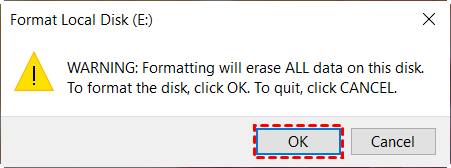
Formatting a Solid-State Drive (SSD) means to erase all existing data on the SSD and rebuild a file system, usually done after disk initialization or when starting fresh with the disk.
Formatting is not typically a necessary step before cloning, as most SSD cloning solutions will automatically copy the partition style and overwrite the target disk. However, if you're adding a brand new disk that's not recognized by Windows, you may need to initialize it before cloning.
Should I initialize SSD before cloning, how?
Initializing a disk is a process to set up the basic data structures of the disk, typically done when the disk is new or being used on a different system, and can only be done on a drive that's not yet formatted.
So we can answer the question in 2 specific scenarios:
▶ If your target SSD is brand new
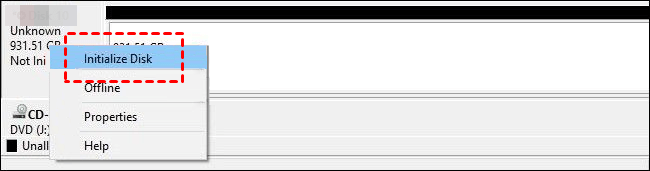
To initialize a disk drive, follow these steps:
- Press Win + R to open the Run window, type "diskmgmt.msc" and hit OK, or search for Disk Management in the Start menu. This will open the Disk Management window where you can manage your disks and volumes.
- Right-To resolve the issue, click on the disk that displays "Not Initialized" and then select "Initialize Disk".
- When partitioning the target disk, it's best to match the partition style to the source disk, or choose based on your specific needs. For example, if you're installing Windows 11, choosing GPT can provide better support. Just ensure the partition style is compatible with the boot mode (MBR for Legacy BIOS, GPT for UEFI).
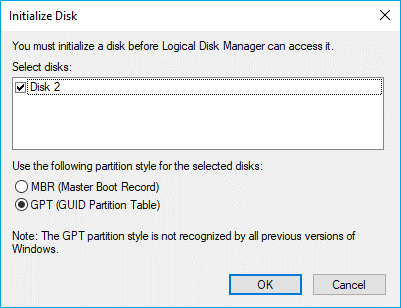
If you're unsure about the partition style of your disk, check in Disk Management by right-clicking the disk, selecting "Properties", then "Volumes", and verify the "Partition style".
▶ If the target SSD has been used before
You don't need to initialize or format the target SSD, as the cloning process will automatically overwrite its data and partitions.
If you've installed an operating system on the SSD, there's a small chance that residual registry information may affect booting from the cloned SSD. To eliminate any disadvantages, consider wiping the disk first.
Essential tool to clone SSD without formatting
If you're using Qiling Disk Master Professional to clone a drive, you don't need to format the new SSD beforehand. This powerful tool can handle the cloning process efficiently.
| 💱Automated formatting |
Cloning a hard drive to an SSD allows you to transfer all data and settings without formatting, but the SSD itself will be formatted during the cloning process. |
| 💾Cloning disks of different sizes | It works intelligently to copy only used sectors, and enables you to efficiently transfer data from one hard drive to another.clone large HDD to smaller SSD The SSD can be replaced with a larger one, as long as it has enough space to store all existing data. You can also clone SSD to larger SSDThe partition editing feature allows users to resize partitions and allocate unused space, making it easier to manage disk space. |
| 🚀SSD optimization | The software is capable of improving the reading and writing speed of the destination drive by aligning it with an SSD. |
| 🌟All Windows OS supported | It supports Windows 11/10/8.1/8/7/Vista/XP and is suitable for server users.Qiling Disk Master Server. |
You can simply download the SSD cloning software to copy old drive to new SSD without formatting.
Best Windows cloning software to clone SSD without formatting.
If you only want to clone data disks, you can pick the complete free Standard edition.
How to prepare SSD before cloning
Before cloning your primary drive to a new SSD, ensure your SSD is properly prepared. Start by formatting the SSD to erase any existing data, then create a bootable clone of your primary drive by using a cloning software like Qiling Disk Master.
Check SSD compatibility
Ensure the SSD you choose is compatible with your computer by checking the physical size (2.5-inch or M.2), interface (SATA or NVMe), and capacity to match your system's specifications.
Connect and initialize the SSD
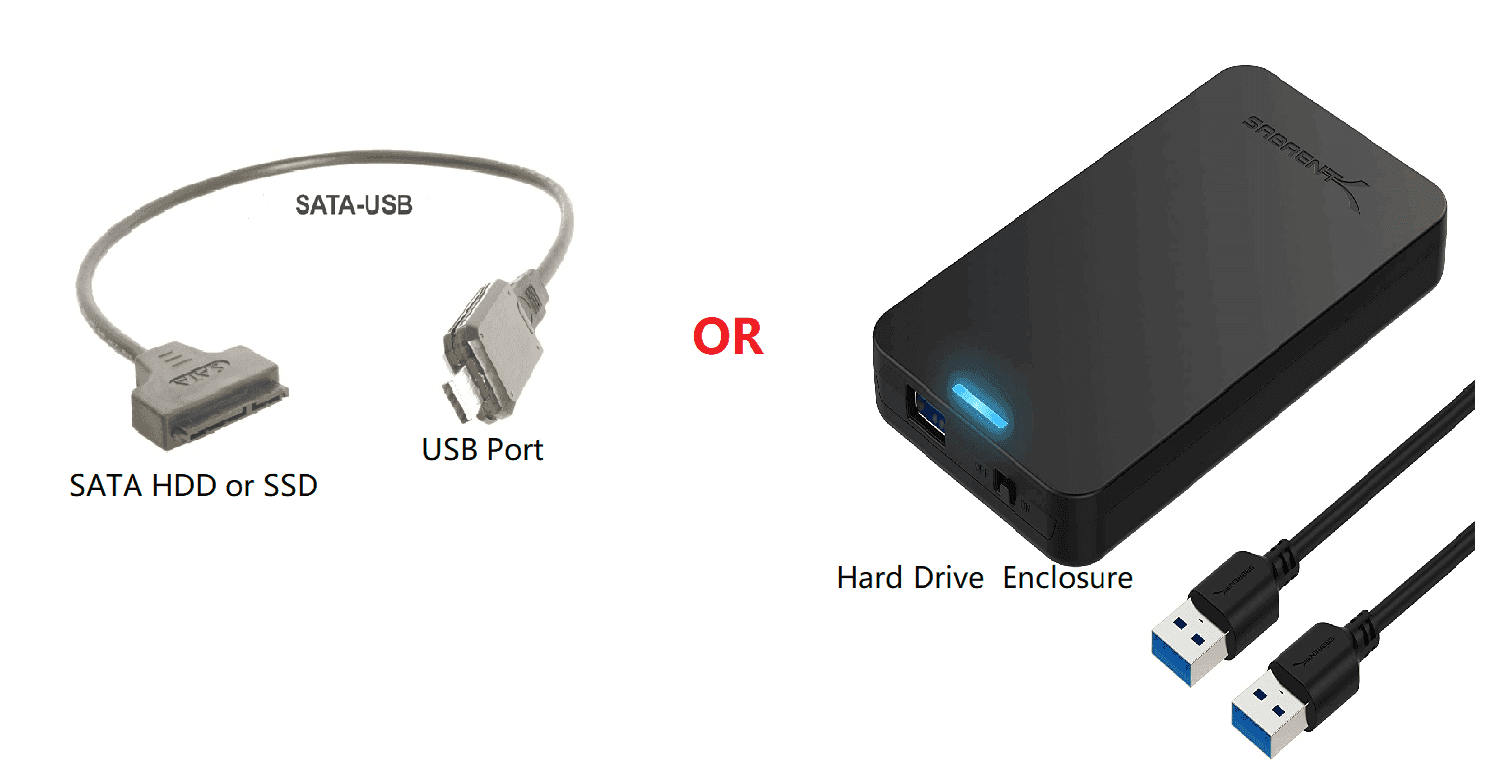
To physically install the new SSD, place it into your computer and initialize it if necessary. For laptops, you may need to replace the existing drive or use an external enclosure to temporarily connect the SSD, while desktops can connect the SSD to an available SATA port or M.2 slot on the motherboard.
Backup important data
Before cloning, back up any important data on the target SSD using Qiling Disk Master for a file or disk backup, as the cloning process will overwrite all data on the new SSD.
Free up space on your primary drive
If your current drive has more data than the SSD's capacity, consider freeing up space by deleting unnecessary files or uninstalling large apps, or use the built-in Disk Cleanup tool to remove temporary files.
Update SSD firmware (optional)
Before cloning your SSD, check the manufacturer's website for any firmware updates for your specific SSD model. Updating the firmware beforehand can potentially improve performance during the cloning process.
Disable disk defragmentation (optional)
Defragmentation is not needed for SSDs and can actually reduce their lifespan. Windows automatically disables it for SSDs, but it's a good idea to double-check by right-clicking on the drive, going to "Properties," then the "Tools" tab, and clicking "Optimize."
Run a CHKDSK scan (optional)
Run a CheckDisk scan to identify and fix any file system errors on your primary drive. Open Command Prompt as administrator and run the command "chkdsk C:" (replace "C:" with the drive letter of your primary drive) to initiate the scan. The scan will identify any errors and prompt you to fix them.chkdsk C: /f
(assuming C: is the primary drive).
How to perform a disk clone without formatting
Once you've completed the above steps, your SSD should be ready for the cloning process. Double-check that you've backed up all critical data and have the necessary cloning software ready. With that in place, you can then initiate the cloning process, following the instructions to ensure a smooth transfer of your data to the new drive.
Step 1. Install the tool to perform Disk Clone
Before cloning, you need to install and launch this utility.
To clone a disk, click on the "Disk Clone" option under the "Clone" tab, and select the system clone option if you only want to move Windows to another drive.

Step 2. Select the source hard drive and the target new SSD
Choose the source disk, which is Disk 0 in this case, and then select Next.

Select the destination disk, which is Disk 2, and then click Next.

Step 3. Overview the setup and Proceed
Confirm the Operation Summary and click on SSD Alignment to improve the target drive's performance during the hard drive to SSD cloning process, then select Proceed.

💬Related Tips:
✍You can click Edit Partitions to resize partitions.
- Add unused space to all partitions: To optimize disk usage, allocate the unused space to each partition of the target disk accordingly. This ensures that each partition is utilized efficiently, without leaving any unallocated space.
- Manually adjust partition size: Allocate unallocated space to any partition on the target disk as desired.
- Convert the destination disk from MBR to GPT: If you want the destination disk to have the same partition style as the source disk, converting the partition style of the destination disk can be helpful.
✍The sector by sector clone option will clone every sector of the source drive, including unused ones, ensuring that any hidden recovery partitions are preserved, making the cloned SSD fully functional.
✍The steps can be applied to various scenarios, including cloning disks of different sizes, cloning Windows 10 to an NVMe SSD for improved performance, and other similar use cases.
How to boot from the cloned SSD securely
After cloning is complete, shut down your computer, open the case, and replace the old drive with the newly cloned drive. Then, try booting your computer and see if you can enter Windows normally.
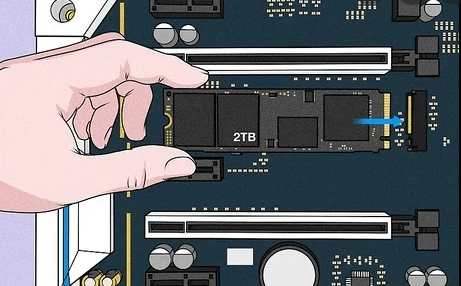
If your computer has an extra slot, you can keep the old disk as a second storage drive. To do this, press the specific key (usually F2, F12, or Del) at startup to enter BIOS or UEFI settings and ensure the cloned SSD is set as the first boot order. This way, you can still use the old disk for storage while running your operating system from the new SSD.
If the computer boots up successfully, you can then erase the old drive to free up more space.
Verdict
You don't need to format your SSD before cloning with Qiling Disk Master, which can also be used to clone SSD to HDD in Windows 10, clone hard drive Windows 11, replace laptop HDD with SSD, clone SSD to larger SSD, and migrate Windows 10 to M.2 SSD.
Related Articles
- The Best Data Migration Software for SSD (Free)
- The Best Free Samsung SSD 860 Clone Software
- Free Dell Hard Drive Cloning Software
- Best Hard Disk Cloning Software Free Download for Windows 7
- How to Replace HP Laptop Hard Drive[New & Efficient Guide]
Learn about 3 Best Data Migration Software for SSD in 2023 (All Brands). This guide explains cloning steps, SSD migration tips, and practical ways to move disks or Windows with Qiling Disk Master.
Products
Articles & Tutorials
- Data Recovery
- Data Backup
- File Recovery
- File Backup
- File synchronize
- System Backup and Restore
- Disk and Partition Clone
- Technical articles
- Disk Master Help
- Windows Deleted File and Disk Recovery Tutorials
- Windows File and Data Recovery Tutorials
- More Windows Tutorials for Install, Security, Files, and PC Tips
- Windows Boot, Repair, and Recovery Environment Tutorials
- Windows Backup Tutorials
- Windows Restore Tutorials
- Windows Clone and Migration Tutorials
- Windows Server Backup, Recovery, and Management Tutorials
- Windows Disk, Partition, and Storage Management Tutorials