Best Samsung SSD 860 Clone Software | Free Download
Quick Navigation:
- Need to clone HDD to Samsung SSD 860
- Does Samsung SSD have cloning software?
- Clone HDD to Samsung SSD 860 with Samsung Data Migration
- Limitations of Samsung Data Migration
- Clone HDD to Samsung SSD 860 with Qiling Disk Master Professional
- FAQs about Samsung cloning software
- Summary
Need to clone HDD to Samsung SSD 860
Many users are now choosing to clone their HDD to a Samsung SSD, such as the 860 EVO, due to its numerous benefits.
- Upgrade hard disk for better performance. The most obvious advantages of SSDs are faster transfer speed.
- Avoid disk failure. HDDs are prone to damage due to physical shock, whereas SSDs are more durable and resistant to drops and bumps, thanks to their non-mechanical design.
- Avoid reinstall Windows and programs. Cloning a hard drive involves creating an exact copy of the original drive, including the operating system, drivers, and all data, including files, programs, and settings. This is often done for backup purposes or to transfer the same setup to a new device.
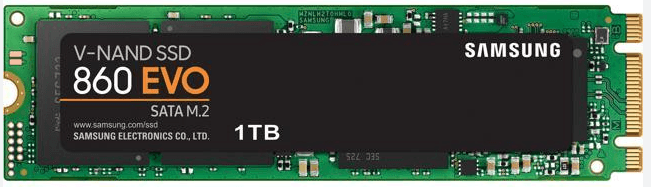
To complete the cloning process, you need a reliable Samsung SSD 860 clone software that can efficiently transfer data from the source drive to the target drive, ensuring a seamless transition with minimal downtime.
Does Samsung SSD have cloning software?
Samsung SSD has its own cloning software, Samsung Data Migration (SDM), which allows users to migrate all data, including the operating system, application software, and user data, from their current hard drive to a Samsung SSD. This software supports cloning from a hard drive to a Samsung SSD in Windows 7 SP1/8/8.1/10, covering models from the 470 series to the 970 Pro series.
In addition, you can try third-party SSD cloning software, Qiling Disk Master Professional, for example.
- Samsung's cloning software supports cloning entire disks or specific partitions to a wide range of SSD disks, including Samsung, WD, SanDisk, HP, Seagate, and more.
- It supports cloning a larger drive to a smaller drive, as it only copies used sectors from the source drive by default.
- To improve the working performance of your SSD, you can use the "SSD Alignment" option, which can provide more pleasing results.
- Windows 11/10/8.1/8/7/Vista/XP are supported.
Then, let's see how these Samsung SSD copy software works.
Clone HDD to Samsung SSD 860 with Samsung Data Migration
Step 1. Connect the Samsung SSD 860 using SATA-to-USB cable or adapter.
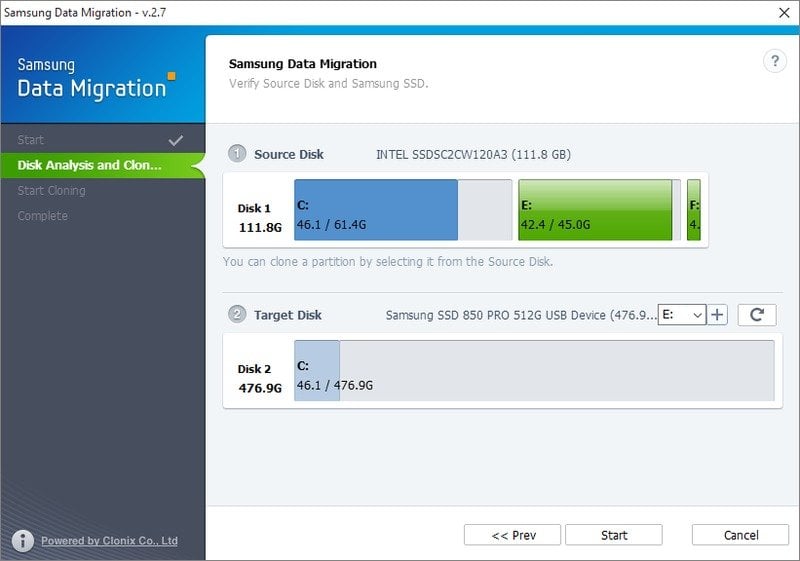
Step 2. To start the process, install and open the Samsung data migration software. It will then automatically scan the current system disk and select it as the source disk.
Step 3. Then, select the target disk Samsung SSD 860 and click Start to begin the cloning process
Limitations of Samsung Data Migration
- This software only supports cloning the current system disk on your computer to a Samsung SSD, and does not allow changing the source disk. For more information, refer to the Samsung Data Migration documentation.
- This software does not support cloning any open files.
- If a disk has more than 3 partitions, this software only clones the system partition (including the system reserved partition) and the other two partitions.
Clone HDD to Samsung SSD 860 with Qiling Disk Master Professional
You can still clone your HDD to Samsung SSD using Qiling Disk Master Professional, aside from Samsung Data Migration. This software offers more flexibility, allowing you to choose between cloning the entire disk with multiple partitions or specific partitions. It supports both "Disk Clone" and "Partition Clone", making it a convenient option for cloning data disks and system disks.
This software is capable of cloning all brands of SSDs, regardless of disk size and interface, allowing for the cloning of hard drives to SSDs, such as cloning a WD SSD, or cloning a 2TB HDD to a 1TB SSD, and even cloning NVMe SSDs, among other options.
Prepare for Samsung SSD 860 clone:
- To avoid losing important data on your Samsung SSD 860, create backups of the files in advance, as the drive will be completely overwritten after the cloning process.
- Be sure the target disk has enough space to hold all the data on the source disk, especially when cloning a smaller disk to a larger one, to avoid the cloning process from failing.
- To clone a Samsung SSD, download and launch Qiling Disk Master software on your computer.
Step 1. Select Clone from the left list. Then click Disk Clone.

Step 2. Select your old HDD (Disk 0) as the Source Disk. Then click Next.

Step 3. Select your Samsung SSD 860 (Disk 1) as the Destination Disk. Then click Next.

Step 4. The interface will display an operation summary, allowing you to confirm it. You will also need to select the SSD alignment option to enhance the writing and reading speed of the SSD, and then click proceed to start the cloning process from the HDD to the Samsung SSD.

You can try cloning a disk sector by sector, which clones all sectors of the selected disk, or editing partitions to resize them and convert disk types.
The latter one is recommended if your target disk is larger and it prevents unallocated space after cloning. It has four options.
- Copy without resizing partitions: It will not resize the partition size.
- Add unused space to all partitions: The unallocated space will be distributed evenly among the partitions on the target disk, taking into account the disk's size.
- Manually adjust partition size: It allows you to extend unallocated space to any partition on the destination disk as you want.
- Convert the destination disk from MBR to GPT: If the partition style of the destination disk differs from that of the source disk, it's helpful to convert the destination disk's partition style to match the source disk's.
Tips:
- To ensure the cloned SSD is bootable, you can modify the boot order in your computer's BIOS settings to prioritize the cloned drive, or replace the old hard drive with the cloned SSD so that it becomes the primary boot device.
- If your original disk works well, you can simply reformat the HDD for storage after cloning the HDD to the Samsung SSD.
- If you just want to migrate your OS to a Samsung SSD, System Clone is a helpful tool.
FAQs about Samsung cloning software
1. Where can I download Samsung Data Migration software?
You can download the Samsung Data Migration software from the official Samsung website.
2. Can I clone my HDD to a smaller capacity Samsung SSD 860 using Samsung Data Migration software?
To successfully clone data to the Samsung 860 SSD, ensure the data to be cloned is smaller than the capacity of the Samsung 860 SSD. If the data exceeds the capacity, use Samsung Data Migration to exclude unnecessary files before proceeding with the cloning process.
3. Can I use Samsung Data Migration software to clone non-Samsung SSDs?
Samsung Data Migration software is only for Samsung SSDs. For cloning a non-Samsung SSD, use third-party software that supports multiple brands.
Summary
Transferring data from an HDD to a Samsung SSD can be done easily with Samsung's free SSD 860 clone software, Samsung Data Migration. However, in some cases, users may need to rely on third-party software, such as Qiling Disk Master, which supports cloning all brands of SSDs, including Samsung, WD, Seagate, SanDisk, and more, even to a smaller disk.
This software offers various useful features, such as backing up Windows 10 to an external hard drive and restoring the computer to an earlier date, which can be used as needed. Additionally, users of Windows Server can utilize Qiling Disk Master Server.
Related Articles
- Migrate Data to Samsung 850 EVO SSD Freely and Safely
- Free Dell Hard Drive Cloning Software
- Clone HDD to M.2 SSD with Quick and Easy Way
- How to Clone GPT HDD to SSD in Windows 10/8/7?
- Fixed: C Drive Is Getting Full Automatically in Windows Server 2012 R2
This article provides you with 2 solutions to fix C drive is getting full automatically in Windows Server 2012 R2. - How to Clone C Drive in Windows Server 2019 Effortlessly?
Use this guide for How to Clone C Drive in Windows Server 2019 Effortlessly?, with cloning or migration steps, boot checks, and tips to keep data safe during the move.
Products
Articles & Tutorials
- Data Recovery
- Data Backup
- File Recovery
- File Backup
- File synchronize
- System Backup and Restore
- Disk and Partition Clone
- Technical articles
- Disk Master Help
- Windows Deleted File and Disk Recovery Tutorials
- Windows File and Data Recovery Tutorials
- More Windows Tutorials for Install, Security, Files, and PC Tips
- Windows Boot, Repair, and Recovery Environment Tutorials
- Windows Backup Tutorials
- Windows Restore Tutorials
- Windows Clone and Migration Tutorials
- Windows Server Backup, Recovery, and Management Tutorials
- Windows Disk, Partition, and Storage Management Tutorials